Can You Have Two Computers On One Docking Station Explained
Yes, you can have two computers on one docking station. Using a KVM switch or a compatible docking hub, you can share monitors, keyboards, mice, and peripherals between two PCs. This setup saves desk space, reduces cable clutter, and boosts productivity for multi-computer workstations.
Have you ever looked at your desk and thought, “There has to be a better way”? If you juggle between two computers but hate the mess of extra monitors, keyboards, and cables, you are not alone. The idea of two computers on one docking station sounds almost too good to be true. But here is the good news: it actually works.
Whether you are a developer, a graphic designer, or someone who simply needs two machines for different tasks, sharing a single docking station can change your workflow completely. You get fewer cables, less clutter, and one clean setup that handles both PCs. In this guide, we will walk you through everything you need to know. We will cover how it works, what gear you need, and the best way to set it all up.
By the end of this article, you will know if a docking station for two computers is right for you. You will also have a clear roadmap to get it done. Let us dive in.
Key Takeaways
- Two computers can share one docking station: A KVM switch or USB-C hub makes this possible.
- KVM switches are the most reliable method: They let you toggle between PCs seamlessly.
- USB-C and Thunderbolt docks support multi-system connections: Check compatibility before buying.
- Setup is straightforward: You need the right cables, a dock, and a KVM switch.
- Drawbacks exist: Bandwidth limits and switching delays can affect performance.
- Choose the right dock for your needs: Consider port count, resolution support, and compatibility.
📑 Table of Contents
- How a Docking Station Handles Multiple Computers
- KVM Switch vs Direct Docking Connection
- Best Docking Stations for Two Computers
- Step-by-Step Setup Guide
- Benefits and Drawbacks of Sharing a Docking Station
- Expert Tips for a Smooth Multi-Computer Docking Setup
- Common Mistakes to Avoid
- Frequently Asked Questions
- Conclusion
How a Docking Station Handles Multiple Computers
A docking station acts as a central hub. It connects your laptop or desktop to monitors, keyboards, mice, printers, and more. Most docks are built for one computer at a time. But when you want to connect two computers to a single dock, things get a little more interesting.
The key is understanding how data moves through the dock. A standard dock receives a signal from one computer and sends it out to your peripherals. When you add a second computer, you need a way to share that connection. This is where special hardware like a KVM switch comes into play. A KVM switch stands for Keyboard, Video, and Mouse. It lets you control two computers from one set of peripherals.
Some modern docks also support multi-system features natively. These docks have multiple input ports and can switch between computers automatically or manually. The type of dock you choose determines how smoothly the whole setup runs.
Types of Docking Stations That Support Two Computers
Not all docks are created equal. Here are the main types that can handle a dual computer setup:
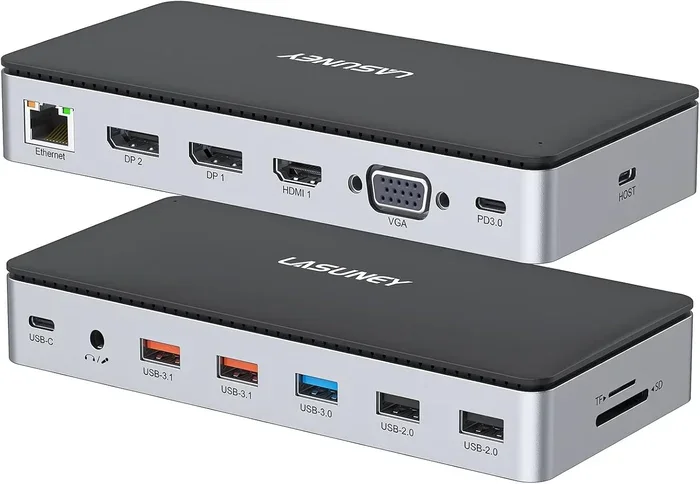
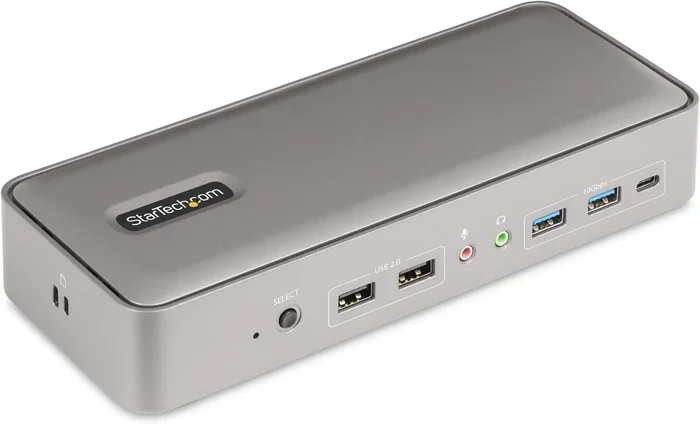
- KVM docking stations: These combine a dock and a switch in one device. You plug in two computers and use one set of peripherals.
- USB-C multi-system docks: These docks have multiple USB-C or Thunderbolt ports. They can accept connections from two different machines.
- Traditional docks with an external KVM: You use a regular docking station and connect it to a standalone KVM switch. This gives you flexibility.
- DisplayLink-based hubs: These use software to manage multiple video outputs. They can handle two computer inputs but may have some latency.
Each type has its pros and cons. The best choice depends on your workflow, budget, and the computers you are using.
KVM Switch vs Direct Docking Connection
This is the big question when setting up two computers on one docking station. Do you use a KVM switch, or can you connect both PCs directly to a single dock? Let us break it down.
What Is a KVM Switch?
A KVM switch is a hardware device that lets you control multiple computers with one keyboard, one mouse, and one monitor. You press a button or use a hotkey to switch between PCs. The switch sits between your computers and your peripherals.
KVM switches come in different sizes. Small ones handle two computers. Larger ones can manage four, eight, or even more. For most people who want to connect two PCs to one docking station, a dual-head KVM switch works perfectly.
Direct Docking Without a KVM
Some advanced docking stations allow you to plug in two computers directly. These docks usually have two USB-C or Thunderbolt ports. You can switch between them using a button on the dock or through software.
The advantage of this approach is simplicity. You do not need a separate KVM box. Everything lives in one device. The downside is that these docks tend to be more expensive. They also may not support all combinations of computers and monitors.
Which Method Should You Choose?
Here is a quick comparison to help you decide:
- KVM switch + dock: More affordable, highly flexible, works with almost any setup.
- All-in-one multi-system dock: Cleaner desk setup, fewer cables, but pricier.
- Direct connection (no switch): Rarely supported, limited compatibility, not recommended for most users.
For most people, the KVM switch and dock combo is the way to go. It is reliable, affordable, and easy to set up.
Best Docking Stations for Two Computers
Not every docking station can handle two computers. You need a dock that supports multi-system connections or works well with a KVM switch. Here are some options to consider.
Top Picks for Multi-Computer Docking
- Targus USB-C Docking Station with KVM: This dock includes built-in KVM functionality. It supports two computers and lets you switch between them with a button press. It is a great all-in-one solution.
- Plugable USB-C Dual Display Dock: Plugable makes reliable docking stations. This model supports dual input and works well with a KVM switch for connecting two PCs.
- CalDigit TS4 Thunderbolt Dock: While not a multi-system dock by default, the TS4 works beautifully with external KVM switches. It offers excellent bandwidth and supports high-resolution displays.
- Anker PowerExpand Elite: A popular choice for laptop users. Pair it with a KVM switch, and you have a solid two-computer setup.
- Lenovo ThinkPad Universal Thunderbolt Dock: Great for business users. It works well with KVM switches and supports multiple display configurations.
When shopping for a docking station for two computers, look for these features:
- At least two high-speed USB-C or Thunderbolt ports
- Support for dual monitor output
- Compatibility with KVM switches
- Sufficient bandwidth for your peripherals
- Good driver support for both Windows and Mac
Step-by-Step Setup Guide
Setting up two computers on one docking station is easier than you might think. Here is a simple walkthrough to get you started.
Step 1: Gather Your Equipment
Before you begin, make sure you have everything you need:
- A docking station (or a KVM dock)
- A KVM switch (if your dock does not have built-in switching)
- Two computers (laptops or desktops)
- One monitor (or two, depending on your setup)
- One keyboard and one mouse
- The right cables (USB-C, Thunderbolt, HDMI, DisplayPort, or USB-A)
Step 2: Connect the Docking Station to Your Monitor
Plug the dock into your monitor using the appropriate cable. Most modern docks use HDMI or DisplayPort. Make sure the connection is secure and the monitor is set to the correct input source.
Step 3: Connect Both Computers to the Dock or KVM
If you are using a KVM switch, connect both computers to the switch first. Then connect the switch to the docking station. If your dock supports multi-system input directly, plug both computers into the dock’s designated ports.
Step 4: Connect Peripherals
Plug your keyboard and mouse into the dock or KVM switch. Connect any other peripherals like printers, external hard drives, or webcams to the dock’s available ports.
Step 5: Power Everything Up
Plug in the dock and both computers. Turn them on. Your peripherals should be recognized by both machines.
Step 6: Switch Between Computers
Press the button on your KVM switch or dock to toggle between the two computers. Your monitor, keyboard, and mouse will now control the selected PC. That is it. You are done.
Quick Tip: Label your cables. When you have two computers connected to one setup, it can get confusing. A simple label on each cable saves time and frustration.
Benefits and Drawbacks of Sharing a Docking Station
Like any tech setup, sharing a docking station between two computers has its advantages and its challenges. Let us look at both sides.
The Benefits
- Less desk clutter: One dock means fewer cables and one neat hub instead of two separate setups.
- Cost savings: You only need one monitor, one keyboard, and one mouse for two computers.
- Easy switching: With a KVM switch, toggling between PCs takes seconds.
- Better cable management: Fewer wires running across your desk means a cleaner workspace.
- Increased productivity: You can move between work tasks on different machines without unplugging anything.
The Drawbacks
- Bandwidth sharing: When both computers share one dock, the bandwidth is split. This can affect display quality or peripheral speed.
- Switching delay: Some KVM switches have a brief delay when switching between computers. It is usually just a second or two.
- Compatibility issues: Not all docks work well with all computers. Check compatibility before purchasing.
- Single point of failure: If the dock or KVM switch breaks, both computers lose access to peripherals.
- Limited port availability: Sharing ports between two computers means fewer ports available per machine.
Overall, the benefits outweigh the drawbacks for most users. The key is choosing the right equipment and setting things up correctly.
Expert Tips for a Smooth Multi-Computer Docking Setup
Setting up two computers on one docking station is one thing. Making it work smoothly day after day is another. Here are some expert tips that make a real difference.
Use a Thunderbolt Dock When Possible
Thunderbolt docks offer the best bandwidth. They handle data, video, and peripheral connections with ease. If both of your computers support Thunderbolt, this is the way to go. A Thunderbolt docking station provides faster switching and better performance than standard USB-C docks.
Keep Your Firmware and Drivers Updated
Docking stations rely on software and firmware to work properly. Manufacturers release updates that fix bugs and improve compatibility. Check for updates regularly, especially after a major operating system update.
Use a Dock with Built-In Switching
If your budget allows, invest in a dock that has built-in switching. This eliminates the need for a separate KVM switch. It also reduces the number of cables and devices on your desk. A clean setup is a happy setup.
Consider Your Monitor Setup
If you use two monitors, make sure your dock supports dual displays. Some docks can only output to one monitor at a time. Others can drive two monitors, but only from one computer input at a time. Plan your setup carefully to avoid disappointment.
Test Before You Commit
Set up the whole system before you commit to it permanently. Spend a day using it. Check for lag, disconnections, or compatibility issues. A little testing goes a long way in preventing headaches later.
Use Quality Cables
Cheap cables can cause signal loss, flickering, or slow data transfer. Invest in high-quality USB-C or Thunderbolt cables. They make a noticeable difference in performance and reliability.
Common Mistakes to Avoid
When setting up two computers on one docking station, people often make a few common mistakes. Here is what to watch out for.
- Buying an incompatible dock: Not every dock supports multi-computer connections. Always check the specs before buying.
- Ignoring bandwidth limits: Sharing a dock means sharing bandwidth. Heavy tasks like video editing may suffer if the dock is overloaded.
- Skipping the KVM switch: Some people try to connect two computers directly to a standard dock. This usually does not work without a switch.
- Using low-quality cables: Bad cables lead to connection drops and frustration.
- Not checking monitor compatibility: Some monitors and docks do not play well together. Test the combination before buying.
Avoiding these mistakes saves time, money, and a lot of frustration. Take the extra few minutes to plan your setup properly.
Frequently Asked Questions
Can any docking station work with two computers?
No, not every docking station can handle two computers. You need a dock that supports multi-system input or a dock paired with a KVM switch. Standard docks are designed for one computer at a time. Check the product specifications before purchasing to confirm multi-computer support.
Does using a KVM switch reduce display quality?
Generally, no. A good KVM switch passes video signals without any loss in quality. However, very cheap or older KVM switches may not support high resolutions. Always choose a KVM switch that matches or exceeds your monitor’s resolution capabilities.
Can I use a docking station with a Windows PC and a Mac?
Yes, you can. Most modern docking stations work with both Windows and macOS. Just make sure the dock has drivers or compatibility for both operating systems. Thunderbolt docks tend to work well across platforms.
Is there any lag when switching between computers?
There may be a brief delay of one to two seconds when switching. This is normal for most KVM switches. Higher-end switches and Thunderbolt docks offer faster switching times. For most users, this small delay is not a problem.
Can I connect more than two computers to one dock?
Yes, but it gets more complex. You would need a KVM switch that supports multiple computers and a dock with enough ports. For three or more computers, consider a dedicated multi-system KVM switch designed for that purpose.
Do I need a special monitor for a two-computer docking setup?
No, you do not need a special monitor. Any standard monitor with HDMI, DisplayPort, or USB-C input will work. The dock or KVM switch handles the signal switching. Just make sure your monitor supports the resolution and refresh rate you need.
Conclusion
The answer to can you have two computers on one docking station is a clear yes. With the right equipment and a simple setup, you can share a single dock between two PCs. You get a cleaner desk, fewer cables, and a more efficient workflow.
The best approach is to use a KVM switch paired with a quality docking station. This combo gives you flexibility, reliability, and great performance. Whether you are a professional who needs two machines for different tasks or a home user who wants to simplify your setup, this solution works.
Take the time to choose the right dock and KVM switch for your needs. Follow the setup steps outlined in this guide. And remember to avoid the common mistakes that trip up most people. Once your dual computer docking setup is running, you will wonder how you ever managed without it.
Start small if you are new to this. Try a basic KVM switch and a compatible dock. Upgrade later if you need more features. The beauty of this setup is that it grows with your needs. Happy docking.