Can You Use A Laptop As A Monitor With Hdmi Input Guide
Yes, you can use a laptop as a monitor with HDMI input, but it requires a capture card since most laptops lack HDMI input ports. This guide walks you through every method, from capture card setups to alternative solutions, so you can turn your laptop into a second screen quickly and easily.
Can You Use A Laptop As A Monitor With HDMI Input? The short answer is yes, but it is not as simple as plugging in a cable. Most laptops have HDMI ports that only send video out, not receive it. To use your laptop as a monitor, you need a capture card or an alternative software solution. This guide covers every method, tip, and workaround you need to know.
Can You Use A Laptop As A Monitor With HDMI Input? Many people ask this question when they want a second screen without buying a new monitor. Whether you are setting up a dual monitor setup, using your laptop as a gaming monitor, or just need an external display for work, the answer is within reach. You will learn the exact steps, the best tools, and the common mistakes to avoid.
Using a laptop as an external display is a smart move. It saves money. It reduces clutter. And it gives you flexibility. But the process is not always obvious. Most people assume they can just run an HDMI cable from their console or PC into their laptop and start working. That is not how it works. Let us break down exactly why and what you can do about it.
Key Takeaways
- Laptops typically lack HDMI input: Most laptop HDMI ports are output-only, so you need a capture card to receive HDMI signals.
- A capture card is the best solution: It converts HDMI input into a signal your laptop can display, making it the most reliable method.
- Remote desktop software works too: Apps like SpaceDesk and Duet Display let you use your laptop as a second screen without extra hardware.
- Setup is simple with the right tools: You can have your laptop acting as a monitor in under 15 minutes with a capture card.
- There are trade-offs to consider: Input lag and display resolution limits are real factors when using a laptop as a monitor.
- Alternative methods exist: HDMI splitters, USB adapters, and streaming devices offer other ways to achieve the same goal.
📑 Table of Contents
- Can You Use A Laptop As A Monitor With HDMI Input?
- Why Most Laptops Lack HDMI Input Ports
- How to Use a Laptop as a Monitor with HDMI (The Capture Card Method)
- Alternative Methods to Use Your Laptop as a Monitor
- Step-by-Step Setup Guide
- Pros and Cons of Using Your Laptop as a Monitor
- Expert Tips for the Best Experience
- Common Mistakes to Avoid
- Final Thoughts
Can You Use A Laptop As A Monitor With HDMI Input?
The idea of using your laptop as a monitor with HDMI input sounds simple. You plug in a cable. The screen works. Right? Not quite. The reality is a bit more complicated. But do not worry. We are going to walk through it together.
Understanding HDMI Input on Laptops
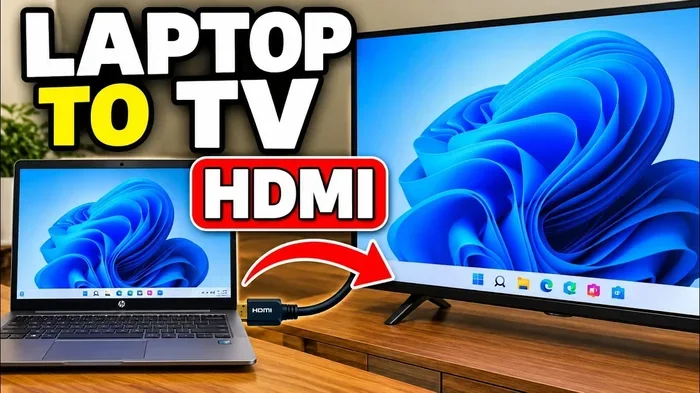
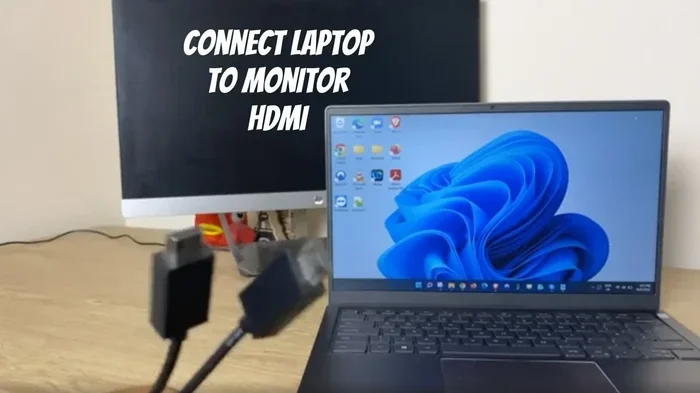
When you look at the back of your laptop, you might see an HDMI port. That port is almost always an output port. It sends video from your laptop to another screen. It does not receive video. This is a key difference from a desktop monitor, which often has both input and output ports.
An HDMI input means the device can receive a video signal from another source. Think of a TV. A TV has HDMI inputs so you can plug in a cable box, a gaming console, or a laptop. Most laptops do not have this capability. The HDMI port on a laptop is designed for display output only.
This design choice makes sense for most users. People want to connect their laptop to a bigger screen. They do not usually need to send video into their laptop. But for those who do need it, there are workarounds. And that is what this guide is all about.
The Reality of Laptop HDMI Ports
Here is the truth. Your laptop’s HDMI port is a one-way street. It sends video out. It does not bring video in. So if you try to connect your PlayStation, Xbox, or another PC directly into your laptop’s HDMI port, nothing will happen. Your laptop will not display that signal.
This is different from a desktop monitor. Many desktop monitors have multiple HDMI ports that act as inputs. They are built to receive signals from external devices. Laptops are built to send signals out. That is the fundamental difference you need to understand.
But this does not mean you are stuck. There are several ways to make it work. The most popular method is using a capture card. Let us dive into that next.
Why Most Laptops Lack HDMI Input Ports
You might wonder why laptop makers do not just add an HDMI input port. It would be so convenient. But there are good reasons for this design choice.
How HDMI Ports Work in Laptops
Inside your laptop, the graphics card handles all video processing. The HDMI port connects directly to the GPU’s output. The GPU renders images and sends them out through the port. There is no built-in pathway for receiving video signals back in.
Adding an HDMI input would require extra hardware on the motherboard. It would also need a dedicated video input chip to process incoming signals. This adds cost and complexity. Most laptop buyers do not need this feature. So manufacturers skip it to keep prices down and designs slim.
The Design Difference Between Laptops and Monitors
A desktop monitor is a dedicated display device. Its entire purpose is to receive video signals and show them on screen. It has specialized chips for this. A laptop is a full computer. Its screen is just one part of the system. The focus is on processing, not display reception.
This is why a TV can accept HDMI inputs easily. A TV is designed to be a display. A laptop is designed to be a computer with a built-in screen. The two serve different primary purposes. Understanding this helps you appreciate why the workaround exists and why it works the way it does.
How to Use a Laptop as a Monitor with HDMI (The Capture Card Method)
The most reliable way to use your laptop as a monitor with HDMI input is through a capture card. This small device bridges the gap between your HDMI source and your laptop.
What Is a Capture Card?
A capture card is a hardware device that receives an HDMI video signal and converts it into a format your laptop can understand. It acts as a middleman. The capture card takes the video signal from your console, PC, or camera and passes it to your laptop through a USB connection.
Capture cards are popular among streamers and content creators. But they work perfectly for anyone who wants an extra screen. They are small, affordable, and easy to set up. You can find them for as low as $20 for basic models.
Using a capture card is the closest you can get to a true HDMI input on your laptop. It does not change your laptop’s hardware. It adds the capability externally. And the results are impressive for most everyday uses.
Best Capture Cards for This Setup
Not all capture cards are the same. Here are some great options for using your laptop as a second screen:
- Elgato HD60 X: A top choice for quality. It supports 1080p at 60fps. It is plug-and-play and works with most laptops.
- AVerMedia Live Gamer Mini: Compact and affordable. Great for basic screen sharing and extended desktop use.
- Magewell USB Capture HDMI: A professional-grade option. Excellent for stable video input with minimal lag.
- Generic USB Capture Cards: Budget-friendly options under $20. They work but may have more lag and lower quality.
For most users, a mid-range capture card offers the best balance of quality and price. You do not need a top-end model unless you are streaming or gaming competitively.
Setting Up Your Capture Card Step by Step
Here is how to set up your capture card to use your laptop as a monitor. Follow these steps carefully for the best results.
- Plug the capture card into your laptop’s USB port. Wait for your laptop to recognize the device. Most modern cards are plug-and-play.
- Connect an HDMI cable from your source device to the capture card. This could be a gaming console, a desktop PC, a Blu-ray player, or a camera.
- Open your laptop’s display settings. On Windows, right-click the desktop and select Display Settings. On a Mac, go to System Settings and look for Displays.
- Set the external display mode. Choose “Extend” instead of “Duplicate.” This gives you a separate screen you can use independently.
- Open your capture card software. Most cards come with their own app. Launch it and select the capture card as your video source.
- Adjust the resolution and frame rate. Match these to your source device for the best quality. 1080p at 60fps is a great starting point.
- Test the setup. You should now see your source device’s screen on your laptop. Move windows around and enjoy your new external display.
This setup works for most situations. You can use it for work, gaming, or watching videos. The input lag is usually minimal with a good capture card. You will not notice it for everyday tasks.
Alternative Methods to Use Your Laptop as a Monitor
A capture card is not the only way. There are several other methods you can try. Some are free. Some require no extra hardware at all.
Using Remote Desktop Software
Remote desktop software lets you control another computer from your laptop over a network. You do not need any cables. You do not need a capture card. You just need both devices to be on the same Wi-Fi network.
Some great options include:
- SpaceDesk: A free Windows app that turns any device on your network into a second monitor. It is lightweight and easy to set up.
- Duet Display: A paid app that works with both Windows and Mac. It offers low latency and smooth performance.
- Parsec: Great for screen sharing and remote access. It uses your network connection to extend your display.
Remote desktop software is perfect for people who do not want to buy extra hardware. The downside is that it depends on your network quality. A weak Wi-Fi signal can cause lag and stuttering. For basic tasks like writing or browsing, it works great. For gaming or video editing, a wired connection or a capture card is better.
Using an HDMI Splitter
An HDMI splitter takes one HDMI signal and sends it to multiple outputs. You can use it to send a signal to both your laptop and another monitor. However, this does not make your laptop an HDMI input device in the traditional sense. It works more like a screen mirroring tool.
To use an HDMI splitter, connect your source device to the splitter. Then connect your laptop and your main monitor to the splitter’s outputs. Your laptop will mirror what the source device shows. It is not the same as using a capture card, but it can work in a pinch.
Using a USB HDMI Adapter
Some USB HDMI adapters can act as video inputs, but this is rare. Most USB HDMI adapters are output-only, just like your laptop’s built-in HDMI port. Be careful when shopping. Look for adapters specifically labeled as “HDMI input” or “USB video capture.”
A true USB HDMI capture adapter works similarly to a capture card. It receives an HDMI signal and sends it to your laptop via USB. This can be a compact alternative to a full-size capture card. Just make sure the adapter supports the resolution and frame rate you need.
Step-by-Step Setup Guide
Let us put it all together. Here is a complete walkthrough for setting up your laptop as a monitor using an HDMI input method.
Step 1: Gather your equipment. You will need a capture card (or alternative method), an HDMI cable, and your source device. Make sure your laptop has enough USB ports available.
Step 2: Install the capture card software. Download the latest drivers and software from the manufacturer’s website. Install them before you connect any devices.
Step 3: Connect the HDMI cable. Run the cable from your source device (console, PC, camera) to the capture card. Then connect the capture card to your laptop via USB.
Step 4: Configure your display settings. Open your laptop’s display settings. Choose to extend your desktop. This gives you a separate workspace on your laptop screen.
Step 5: Adjust the capture card settings. Open the capture card software. Select the correct input source. Adjust resolution, frame rate, and video format to match your source.
Step 6: Test and optimize. Play a video or open an application on your source device. Check for lag, image quality, and audio sync. Make adjustments as needed.
Following these steps, you can have your laptop acting as a second monitor in under 15 minutes. The process is straightforward once you have the right tools.
Pros and Cons of Using Your Laptop as a Monitor
Before you commit to this setup, it helps to know the advantages and disadvantages. Here is a balanced look at what to expect.
Pros
- Cost savings: You do not need to buy a separate monitor. You already have a screen.
- Portability: Your laptop screen is portable. You can set up a dual monitor setup anywhere.
- Convenience: It is great for temporary setups, travel, or small workspaces.
- Flexibility: You can use your laptop as a monitor for gaming, streaming, or work.
- No extra desk space: You repurpose existing equipment instead of adding more gear.
Cons
- Input lag: Capture cards add a small delay. This can affect fast-paced gaming or video editing.
- Display resolution limits: Your laptop screen may not match the resolution of your source device.
- Extra hardware cost: A good capture card costs money. Budget options may compromise quality.
- Battery drain: Running your laptop as a display uses extra power. You may need to keep it plugged in.
- Setup complexity: It is not as simple as plugging in a cable. There are a few extra steps involved.
Weigh these pros and cons based on your needs. For most people, the benefits outweigh the drawbacks. But if you need a perfect, lag-free display for competitive gaming, a dedicated monitor is still the better choice.
Expert Tips for the Best Experience
Here are some practical tips to get the most out of using your laptop as a monitor with HDMI input.
- Use a wired USB connection: Wireless options add more lag. A USB cable gives you the most stable connection.
- Close unnecessary apps: Running too many programs on your laptop can slow down the display performance. Close what you do not need.
- Match your resolution: Set your source device and laptop to the same resolution for the best image quality.
- Check your laptop’s graphics card: An older graphics card may struggle with external display processing. Make sure your GPU can handle the extra load.
- Keep your drivers updated: Updated capture card and graphics drivers reduce bugs and improve performance.
- Use a USB 3.0 port or higher: USB 2.0 ports may bottleneck the video signal. Always use USB 3.0 or USB-C for best results.
- Test with different HDMI cables: A cheap or damaged HDMI cable can cause signal issues. Use a high-quality cable for reliable performance.
These small tips make a big difference. They can mean the difference between a smooth experience and a frustrating one. Take a few minutes to optimize your setup.
Common Mistakes to Avoid
Many people run into the same problems when setting up a laptop as a monitor. Here are the most common mistakes and how to avoid them.
- Plugging HDMI directly into the laptop: This will not work. Your laptop’s HDMI port is output-only. You need a capture card or adapter.
- Using a low-quality capture card: Cheap cards often have high input lag and poor image quality. Invest in a reputable brand.
- Forgetting to extend the display: If you select “Duplicate” instead of “Extend,” you will not get a separate workspace. Always choose Extend in display settings.
- Ignoring audio settings: Sometimes the audio does not come through the capture card automatically. Check your sound settings and select the capture card as the audio input.
- Overlooking laptop performance: Your laptop needs processing power to handle the extra display. Older or low-end laptops may struggle with smooth performance.
- Not updating software: Outdated capture card drivers or software can cause compatibility issues. Always keep everything up to date.
Avoiding these mistakes saves you time and frustration. If something is not working, check this list first. Nine times out of ten, the fix is simple.
Final Thoughts
Can You Use A Laptop As A Monitor With HDMI Input? Absolutely. While it is not as straightforward as connecting a cable directly, the results are well worth the effort. A capture card gives you a reliable, high-quality way to turn your laptop into an external display. Remote desktop software offers a free alternative if you do not want to buy extra hardware.
Whether you need a second screen for work, a gaming setup on the go, or a way to reuse an old laptop, these methods get the job done. The key is choosing the right method for your needs and budget. A capture card works best for most people. It is reliable, versatile, and easy to set up.
Now that you have all the information, it is time to try it yourself. Grab a capture card, follow the steps in this guide, and enjoy your new dual-screen setup. Your laptop is more versatile than you think.
Frequently Asked Questions
Can any laptop be used as a monitor with HDMI input?
Most laptops can work with a capture card, regardless of brand or model. The key requirement is a USB port for the capture card and enough processing power to handle the external display. Older or very low-end laptops may experience lag or performance issues, but the setup will still work for basic tasks like browsing and document editing.
Is using a laptop as a monitor bad for the screen?
No, using your laptop as a monitor does not damage the screen. The display works the same way whether it is showing your laptop’s own desktop or an external source. However, leaving your laptop on for long periods while using it as a monitor can increase battery drain and heat, so keep it plugged in and well-ventilated.
How much input lag can you expect with a capture card?
Good capture cards have minimal input lag, usually around 10 to 30 milliseconds. This is barely noticeable for most tasks. For competitive gaming, the lag might be noticeable, but for work, streaming, and casual gaming, it is perfectly fine. Using a wired USB connection helps reduce lag further.
Can you use a laptop as a monitor wirelessly?
Yes, you can use remote desktop software like SpaceDesk or Duet Display to extend your display wirelessly. However, wireless methods tend to have more lag and lower image quality compared to a wired capture card setup. A strong and stable Wi-Fi connection is essential for the best wireless experience.
Do you need a special HDMI cable for this setup?
You do not need a special HDMI cable. Any standard HDMI cable will work for connecting your source device to the capture card. However, using a high-quality, certified HDMI cable ensures a stable signal and better image quality, especially if you are running at higher resolutions like 4K.
Can you use a laptop as a monitor for a PlayStation or Xbox?
Yes, you can use a capture card to connect a PlayStation or Xbox to your laptop and use it as a monitor. The setup is the same as described in this guide. Just keep in mind that some consoles may have resolution or frame rate limitations when displayed through a capture card. Always check your capture card’s supported specifications for the best results.