Can I Control My Honeywell Home Thermostat From My Phone
Can I Control My Honeywell Home Thermostat From My Phone? Yes, you can. This guide shows you how to set up remote access, adjust temperatures, and create smart schedules right from your smartphone. You will learn about geofencing, voice control, and energy-saving features that make managing your home comfort effortless.
Can I Control My Honeywell Home Thermostat From My Phone? The answer is a clear yes. You can adjust your home temperature from the couch, the office, or even across the world. This simple guide walks you through every step of the process. You will learn how the Honeywell Home app works, what features are available, and how to get the most out of your smart thermostat.
Modern Honeywell thermostats are designed to connect to your phone. They use Wi-Fi to talk to the Honeywell Home app. Once paired, you can change the temperature, set schedules, and receive alerts. This level of control makes your home more comfortable and can lower your energy bills. The process works with many Honeywell models, including the T9, T10 Pro, and Lyric series.
Whether you have a touch screen thermostat or a basic programmable model, phone control adds a new level of convenience. You no longer need to walk to the wall unit to make a change. The app puts all the controls in your pocket. Let us explore how this works and what you need to get started.
Key Takeaways
- Phone control is possible: You can adjust your Honeywell thermostat from anywhere using the Honeywell Home app.
- Setup is simple: Connecting your thermostat to Wi-Fi and the app takes only a few minutes.
- Smart features save energy: Geofencing, schedules, and remote adjustments help reduce heating and cooling costs.
- Voice control works: You can use Alexa, Google Assistant, or Apple HomeKit to change temperatures hands-free.
- Troubleshooting is easy: Most issues resolve with a quick restart, firmware update, or Wi-Fi check.
📑 Table of Contents
- The Short Answer: Can I Control My Honeywell Home Thermostat From My Phone?
- Getting Started: Setting Up the Honeywell Home App
- Remote Control Features You Can Access From Your Phone
- Smart Home Integration: Voice Control and Automation
- Energy Savings and Comfort Tips
- Troubleshooting and Expert Insights
- Conclusion
The Short Answer: Can I Control My Honeywell Home Thermostat From My Phone?
Yes, you can control your Honeywell thermostat from your phone. All you need is a compatible Honeywell thermostat, a Wi-Fi connection, and the free Honeywell Home app. The app is available for both iPhone and Android devices. Once you download it and follow the setup steps, your phone becomes a remote control for your heating and cooling system.
How Remote Control Works
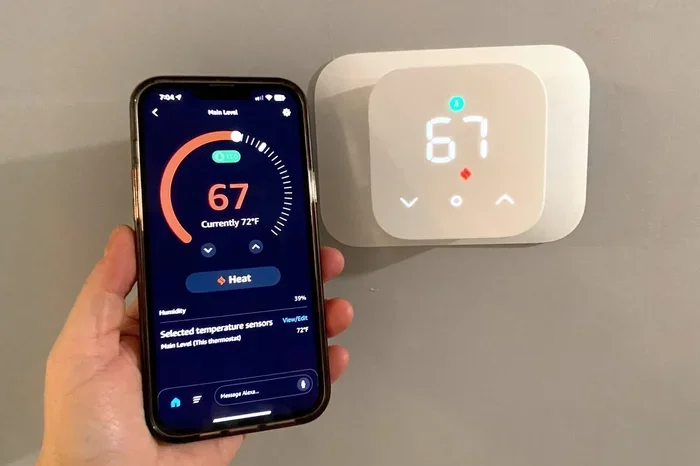
Your thermostat connects to your home Wi-Fi network. The Honeywell Home app connects to the internet through your phone. The two communicate over the cloud. This means you can send commands from anywhere with an internet connection. You can raise the temperature before you arrive home or lower it while you are on vacation.
The app also receives data from your thermostat. You can see the current indoor temperature, humidity levels, and system status. Some models even show filter replacement reminders. This real-time information helps you keep your home comfortable and your HVAC system running efficiently.
Quick Tip: Make sure your thermostat is connected to a stable 2.4 GHz Wi-Fi network. Most smart thermostats do not support 5 GHz bands. If your router uses both, check that your phone is on the same network as your thermostat during setup.
Getting Started: Setting Up the Honeywell Home App
Setting up phone control is straightforward. You do not need any special tools or technical skills. Follow these simple steps to connect your thermostat to your phone.
Download and Install the App
Open the Apple App Store or Google Play Store. Search for “Honeywell Home” and download the app. The app is free and safe to install. Once installed, open it and create an account. You can sign in with your email or use a Google or Apple account for faster setup.
Connect Your Thermostat to Wi-Fi
Before pairing, make sure your thermostat is online. Go to the thermostat menu and select Wi-Fi Settings. Choose your home network and enter the password. The thermostat will connect to your router. Wait for the Wi-Fi icon to appear on the display.
Pair the App with Your Thermostat
In the Honeywell Home app, tap the plus icon to add a device. The app will search for nearby thermostats. Select your Honeywell model when it appears. Follow the on-screen prompts to complete the pairing. You may need to enter your Wi-Fi password again. Once paired, the app will show your thermostat’s current status.
Quick Tip: Place your thermostat close to your Wi-Fi router during the first setup. This ensures a strong signal. If the signal is weak, you can add a Wi-Fi extender nearby. A stable connection prevents disconnects and keeps your phone control working smoothly.
Remote Control Features You Can Access From Your Phone
Once your thermostat is connected, your phone unlocks a wide range of features. These tools let you manage comfort and energy use from anywhere.
Adjust Temperature and Modes
You can change the temperature up or down with a simple swipe in the app. You can switch between heating, cooling, and off modes. The app mirrors the controls on your thermostat screen. You can also set the fan to auto or on mode. Some models allow you to adjust humidity levels if you have a compatible humidifier or dehumidifier.
Create and Edit Schedules
Programmable thermostats let you set different temperatures for different times of the day. The Honeywell Home app makes this easy. You can create a 7-day schedule with four periods per day. For example, you can set the temperature to 68°F in the morning, 62°F when you leave for work, and 70°F before you return home. The app sends your schedule to the thermostat over the air.
Quick Tip: Use the “Hold” feature when you are staying home all day. A temporary hold keeps the temperature steady until you cancel it. This avoids unnecessary heating or cooling while you are awake and active.
Use Geofencing and Smart Alerts
Geofencing is one of the best phone control features. The app uses your phone’s location to know when you are leaving or arriving home. When you leave, the thermostat can automatically switch to an away mode. When you are on your way back, it can start heating or cooling to reach your comfort temperature by the time you arrive.
Smart alerts keep you informed. You can receive notifications if the temperature drops below freezing, if the system needs maintenance, or if the filter needs replacing. These alerts help prevent costly problems and keep your home safe.
Compare Popular Honeywell Models with Phone Control
| Model | Wi-Fi | Touch Screen | Geofencing | Voice Control |
|---|---|---|---|---|
| Honeywell Home T9 | Yes | Yes | Yes | Yes |
| Honeywell Home T10 Pro | Yes | Yes | Yes | Yes |
| Lyric T5 | Yes | No | Yes | Yes |
| Home TH6320ZW2003 | Yes | Yes | Yes | Yes |
Key Takeaway: Most modern Honeywell thermostats support phone control. Check the Honeywell Home app compatibility list if you are unsure about your model.
Smart Home Integration: Voice Control and Automation
Phone control works hand in hand with voice assistants. You can use your voice to change the temperature without touching your phone or thermostat. This is especially useful when your hands are busy or you are across the room.
Works with Alexa, Google Assistant, and Apple HomeKit
The Honeywell Home app connects to major smart home platforms. You can link your thermostat to Amazon Alexa, Google Home, or Apple HomeKit. Once linked, you can say commands like “Alexa, set the temperature to 72 degrees” or “Hey Google, turn up the heat.” Apple HomeKit users can control the thermostat through Siri and the Home app on iPhone and iPad.
Building Routines and Automations
Voice assistants allow you to create routines. For example, you can set a “Goodnight” routine that lowers the temperature, turns off lights, and arms your security system. A “Good morning” routine can raise the temperature and start your coffee maker. These automations make your home feel smarter and more responsive to your daily life.
Expert Insight: “Pairing your Honeywell thermostat with a smart home hub creates a seamless experience. You can control temperature, lighting, and blinds with a single voice command or app scene,” says a smart home specialist at a leading tech review site.
Quick Tip: Name your thermostat something simple like “Thermostat” or “Living Room Temp” when linking it to Alexa or Google. This makes voice commands easier to remember and more natural to say.
Energy Savings and Comfort Tips
Controlling your thermostat from your phone is not just about convenience. It is a powerful tool for saving energy and money. Small adjustments can lead to big savings over time.
How Remote Control Helps You Save
With phone control, you can avoid heating or cooling an empty house. If you forget to adjust the thermostat before leaving, you can do it from your phone. You can also use the away mode feature to reduce energy use when no one is home. The app shows your energy usage history, so you can see how your changes affect your bills.
Geofencing adds another layer of savings. The thermostat knows when you leave and when you return. It automatically adjusts the temperature to an energy-saving setting during the away period. This prevents wasted energy without requiring you to remember to make changes.
Common Mistakes That Waste Energy
- Cranking the temperature extreme: Setting the thermostat to 90°F in winter does not heat your home faster. It just wastes energy and may damage the system.
- Ignoring filter alerts: A dirty filter forces the system to work harder. Replace filters regularly and respond to app notifications.
- Leaving the fan on all the time: Running the fan constantly uses extra electricity. Use auto mode to save energy.
- Skipping schedules: A blank schedule means the system runs at the same temperature 24/7. Use the app to set a proper comfort schedule.
Quick Tip: Set your thermostat to 68°F when you are awake and lower it by 7–10°F when you are asleep or away. This simple adjustment can save up to 10% on heating and cooling costs each year.
Troubleshooting and Expert Insights
Even with a reliable system, you may run into occasional issues. Most problems are easy to fix without a technician.
Connectivity Problems
If the app cannot reach your thermostat, check your Wi-Fi connection first. Make sure your phone is on the same network as the thermostat. Restart your router if needed. On the thermostat, go to Wi-Fi settings and reconnect to your network. A simple reboot often resolves the issue.
If the thermostat loses connection frequently, check the signal strength. Walls and distance from the router can weaken the Wi-Fi signal. Moving the router closer or adding a mesh network node can improve reliability.
Keeping Your App and Firmware Updated
Regular updates keep the Honeywell Home app and your thermostat running smoothly. The app updates automatically through your phone’s store. The thermostat firmware updates over the air when a new version is available. You will receive a notification in the app when an update is ready. Always install updates to get the latest features and security patches.
Common Mistake: Ignoring update notifications can lead to compatibility issues. Older firmware may not work with the newest app features. Make it a habit to check for updates once a month.
Expert Insight: “A stable Wi-Fi connection is the backbone of phone control. If you experience frequent disconnects, consider upgrading to a mesh Wi-Fi system. It eliminates dead zones and keeps your thermostat online at all times,” advises a home automation expert.
Key Takeaway: Most troubleshooting steps are quick and simple. A restart, a Wi-Fi check, or a firmware update solves the vast majority of issues.
Conclusion
Can I Control My Honeywell Home Thermostat From My Phone? Absolutely. The Honeywell Home app puts full control of your heating and cooling system in your hand. You can adjust temperatures, set schedules, use geofencing, and connect with voice assistants. These features make your home more comfortable, convenient, and energy efficient.
Setting up phone control is fast and free. Once connected, you will wonder how you ever managed without it. Whether you are at home, at work, or on the go, your thermostat responds to your needs. Take a few minutes today to download the app and connect your thermostat. You will enjoy the benefits of smart, phone-based temperature control for years to come.
Start exploring the features now. Your phone is the ultimate thermostat remote. Use it to create a home that is always comfortable and always ready for you.
Frequently Asked Questions
Do I need a special thermostat to control it from my phone?
You need a Honeywell thermostat that supports Wi-Fi and connects to the Honeywell Home app. Most modern Honeywell models include this capability. Check the product specifications or look for the Honeywell Home app icon on the thermostat packaging.
Is the Honeywell Home app free to use?
Yes, the Honeywell Home app is free to download and use. There are no subscription fees for basic phone control features. Some advanced features may require a compatible thermostat model, but the app itself does not charge a monthly fee.
Can I control my thermostat when I am not connected to Wi-Fi?
You need an internet connection to send commands from your phone. However, your thermostat will continue to run its last schedule if the Wi-Fi goes down. Once the connection is restored, the app will sync again and you can resume remote control.
Does geofencing work if I turn off my phone’s location services?
No, geofencing relies on your phone’s location services. If you turn them off, the app cannot detect when you are leaving or arriving home. Keep location services enabled for the Honeywell Home app to use geofencing and smart alerts.
Can I control multiple Honeywell thermostats from one app?
Yes, the Honeywell Home app supports multiple thermostats. You can add each thermostat to your account and manage them from a single dashboard. This is perfect for homes with multiple zones or vacation properties.
What should I do if the app shows an offline thermostat?
First, check your Wi-Fi connection and restart your router. Then, go to the thermostat and verify that it is connected to Wi-Fi. If the problem persists, remove the thermostat from the app and add it again. A firmware update may also resolve offline issues.