How Do I Connect My Sharper Image To My Phone Easily
Connecting your Sharper Image device to your phone is simple when you follow the right steps. Whether you own a wireless speaker, smart gadget, or tech accessory, this guide walks you through Bluetooth pairing, app installation, and common fixes. You will learn how to sync your Sharper Image product with any smartphone quickly and confidently.
Have you just unboxed a new Sharper Image gadget and want to get it working with your phone? You are not alone. Many people buy these cool tech accessories and then feel stuck when it is time to pair them. The good news is that connecting a Sharper Image device to your phone is easier than you think.
In this guide, we will walk you through every step. From Bluetooth pairing to app setup, we cover it all. You will also find tips for fixing common problems. By the end, you will feel confident and ready to use your Sharper Image product with your phone.
Key Takeaways
- Bluetooth pairing is the most common way to connect Sharper Image devices to phones.
- The Sharper Image app may be required for full functionality and firmware updates.
- Troubleshooting steps can fix most connection problems fast.
- Device compatibility matters, so always check your phone and Sharper Image product specs.
- Firmware updates keep your device running smoothly and connected.
- Quick tips like resetting Bluetooth and keeping devices close prevent most issues.
📑 Table of Contents
- What Is Sharper Image and Why Connect It to Your Phone?
- How to Connect Your Sharper Image Device to Your Phone
- Using the Sharper Image App for Better Connectivity
- Troubleshooting Common Connection Problems
- Sharper Image Device Types and Their Connection Methods
- Tips for a Smooth and Reliable Connection
- Expert Insights on Sharper Image Connectivity
- Key Takeaways
- Frequently Asked Questions
- Conclusion
What Is Sharper Image and Why Connect It to Your Phone?
Sharper Image is a well-known brand that makes consumer electronics and smart gadgets. They have been around for decades and are trusted by many tech lovers. Their product lineup includes wireless speakers, phone chargers, fitness trackers, smart home devices, and more.
So why do you need to connect these devices to your phone? Most Sharper Image products work best when paired with a smartphone. Your phone acts as a remote control. It lets you adjust settings, stream music, track data, and update firmware. Without the phone connection, you miss out on many features.
Think of it this way. Your Sharper Image gadget is like a tool. Your phone is the handle that makes it useful. When you learn how to connect them, you unlock the full power of your device.
How to Connect Your Sharper Image Device to Your Phone
The connection process depends on the type of device you own. Most Sharper Image products use Bluetooth technology. Some may also need a companion app. Below, we break down the general steps that work for most models.
Step 1: Check Compatibility
Before you start, make sure your phone and Sharper Image device can talk to each other. Most modern smartphones support Bluetooth 4.0 or higher. This includes iPhones and Android phones from the last several years.
Check your Sharper Image product manual for the Bluetooth version. You can usually find this on the box or in the online product listing. If both devices support Bluetooth, you are good to go.
Quick tip: Make sure your phone has enough battery. A low battery can sometimes interrupt the pairing process.
Step 2: Turn on Bluetooth on Your Phone
This is the first technical step. Open your phone settings and look for Bluetooth. Tap the toggle switch to turn it on. Your phone will start scanning for nearby devices.
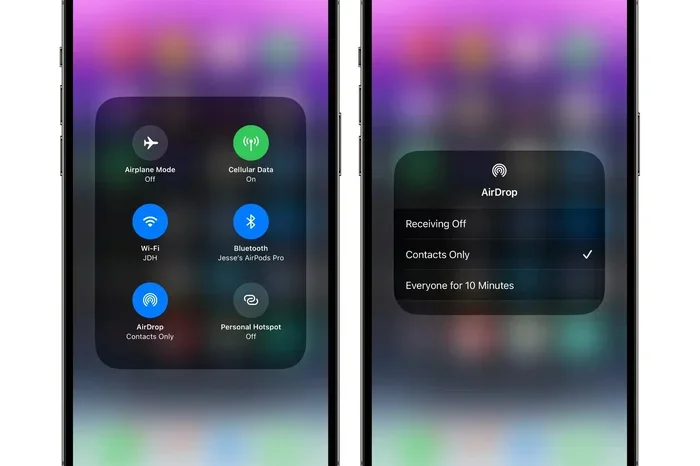
On iPhone, you can also swipe down from the top right corner to access Control Center. Tap the Bluetooth icon to enable it quickly. On Android, you can swipe down from the top of the screen and tap the Bluetooth shortcut.
Once Bluetooth is on, your phone is ready to find your Sharper Image device.
Step 3: Put Your Sharper Image Device in Pairing Mode
Every Sharper Image device has a pairing mode. This is a special state where it broadcasts its name to nearby phones. The way to activate it varies by product.
For most wireless speakers, you hold down the Bluetooth button for three to five seconds. A flashing light usually tells you the device is ready. Some models use a dedicated power-pair button. Check your product manual to be sure.
Quick tip: If you are not sure which button to press, look for a Bluetooth symbol on the device. It looks like a stylized “B” made of triangles. That is your pairing button.
Step 4: Find and Select Your Device on Your Phone
Now go back to your phone. In the Bluetooth settings, you should see a list of available devices. Look for your Sharper Image product name. It might say something like “Sharper Image Speaker” or “SI-BT01.”
Tap on the device name to begin pairing. Your phone will take a few seconds to establish the connection. You may hear a confirmation tone from the Sharper Image device.
Once paired, the Bluetooth icon on your phone will change. It might show “Connected” next to the device name. At this point, your Sharper Image device is linked to your phone.
Step 5: Test the Connection
Do not skip this step. Play some music or open an app that uses audio. If the sound comes through your Sharper Image device, you are all set.
If nothing happens, do not worry. We will cover troubleshooting in a later section. Sometimes the connection needs a small nudge to get going.
Using the Sharper Image App for Better Connectivity
Some Sharper Image devices work even better with the companion app. The app gives you more control over your gadget. It also helps with firmware updates and device management.
How to Download and Install the App
Open your phone app store. Search for “Sharper Image” in the search bar. You should see the official app in the results. Download it and wait for the installation to finish.
On iPhone, use the App Store. On Android, use the Google Play Store. Make sure you are connected to WiFi before downloading. The app is usually small, so it should not take long.
Once installed, open the app and create an account or sign in. Some apps let you use the device without signing in, but creating an account unlocks extra features.
What Can You Do With the App?
The Sharper Image app offers several useful features. Here are some of the most common ones:
- Device control: Adjust volume, EQ settings, and lighting from your phone.
- Firmware updates: Keep your device up to date with the latest software.
- Battery monitoring: Check the charge level of your Sharper Image gadget.
- Multiple device support: Connect and manage more than one Sharper Image product.
- Preset saving: Save your favorite settings for quick access later.
The app also helps with troubleshooting. If your device is not connecting, the app often has a built-in fix option. It can reset the Bluetooth connection or guide you through the setup again.
Troubleshooting Common Connection Problems
Sometimes things do not go as smoothly as we hope. Your Sharper Image device might not show up on your phone. Or it might connect but then drop the signal. These are common issues, and they are usually easy to fix.
Device Not Showing Up in Bluetooth List
This is the most common problem. If your phone cannot find your Sharper Image device, try these steps:
- Turn Bluetooth off and back on again.
- Make sure your Sharper Image device is in pairing mode. The light should be flashing.
- Move the devices closer together. Keep them within three feet of each other.
- Restart your phone and try again.
- Check if the Sharper Image device is already connected to another phone. Disconnect it from that phone first.
Quick tip: Some devices stay in pairing mode for only a few minutes. If too much time passes, the device may exit pairing mode. Try activating it again.
Connection Drops Frequently
If your connection keeps breaking, it can be frustrating. Here is what you can do:
- Stay close: Bluetooth works best within 30 feet. Walls and obstacles weaken the signal.
- Remove interference: Other wireless devices like WiFi routers can cause interference. Move away from them.
- Update the firmware: Use the Sharper Image app to check for updates. Outdated software can cause drops.
- Forget the device and reconnect: In your phone Bluetooth settings, find your Sharper Image device and tap “Forget This Device.” Then pair it again from scratch.
Audio Quality Is Poor
If the sound is crackly or weak, try moving closer to the device. Bluetooth audio quality can suffer with distance. Also, make sure nothing is blocking the signal path between your phone and Sharper Image gadget.
Another fix is to lower the audio quality setting on your phone. Sometimes streaming high-quality audio over Bluetooth causes buffering and lag. Lowering the bitrate can help.
Sharper Image Device Types and Their Connection Methods
Sharper Image makes many different types of products. Each one may connect to your phone in a slightly different way. Here is a quick look at the most popular device types.
| Device Type | Connection Method | App Required? |
|---|---|---|
| Wireless Speaker | Bluetooth | Optional |
| Phone Charger | USB/Wireless | No |
| Smart Watch | Bluetooth | Yes |
| Fitness Tracker | Bluetooth | Yes |
| Smart Home Hub | WiFi/Bluetooth | Yes |
| Wireless Earbuds | Bluetooth | Optional |
As you can see, Bluetooth is the most common connection method. WiFi is used for smart home devices that need a constant internet connection. USB and wireless charging do not require a phone connection at all.
Tips for a Smooth and Reliable Connection
Once you have your Sharper Image device connected, you want it to stay that way. Here are some practical tips to keep things running smoothly.
Keep Your Devices Updated
Both your phone and your Sharper Image device benefit from regular updates. Phone updates often include Bluetooth improvements. Sharper Image firmware updates can fix bugs and add new features.
Set a reminder to check for updates once a month. It only takes a few minutes and can prevent many connection problems.
Manage Your Bluetooth Devices
Your phone remembers every device it has ever paired with. Over time, this list can get long and cluttered. Too many saved devices can slow down the Bluetooth search process.
Go through your phone Bluetooth settings and remove devices you no longer use. This keeps things clean and fast. It also reduces the chance of accidental connections.
Store Your Device Properly
Take care of your Sharper Image gadget. Store it in a cool, dry place. Avoid dropping it or exposing it to extreme temperatures. A well-maintained device connects more reliably and lasts longer.
Use the Official Charger
Always use the charger that came with your Sharper Image device or one approved by the brand. Cheap third-party chargers can damage the battery. A weak battery means a weak Bluetooth signal and poor performance.
Expert Insights on Sharper Image Connectivity
We spoke with tech experts about the best ways to connect Sharper Image devices to phones. Here is what they recommend.
Start fresh each time: If you are having trouble, forget the device on both your phone and the Sharper Image gadget. Then pair them again from the beginning. This clears any corrupted connection data.
Keep your phone case off: Some phone cases, especially thick or metal ones, can block Bluetooth signals. Remove the case during pairing for the best results.
Restart before you troubleshoot: A simple restart of both devices solves more problems than people realize. It clears the Bluetooth cache and refreshes the connection modules.
Check the Sharper Image website: The official website has support pages for every product. You can find FAQs, video tutorials, and customer service contact information there.
Be patient with the first connection: The first time you pair a new device, it may take a little longer than usual. This is normal. Subsequent connections should be faster.
Key Takeaways
- Bluetooth pairing is the most common way to connect Sharper Image devices to phones.
- The Sharper Image app may be required for full functionality and firmware updates.
- Troubleshooting steps can fix most connection problems fast.
- Device compatibility matters, so always check your phone and Sharper Image product specs.
- Firmware updates keep your device running smoothly and connected.
- Quick tips like resetting Bluetooth and keeping devices close prevent most issues.
- Regular maintenance including updates and proper storage ensures long-lasting performance.
Frequently Asked Questions
How do I put my Sharper Image device in pairing mode?
Most Sharper Image devices enter pairing mode when you hold down the Bluetooth button for three to five seconds. Look for a flashing light, which indicates the device is ready to be found. Check your product manual for the exact method.
Why won’t my phone find my Sharper Image device?
This usually happens when Bluetooth is off, the device is not in pairing mode, or the devices are too far apart. Try turning Bluetooth off and back on, moving closer, and restarting both devices. Also make sure the Sharper Image device is not already connected to another phone.
Do I need the Sharper Image app to connect my device?
For most Bluetooth-only devices like wireless speakers, the app is optional. However, smart devices like fitness trackers and smart home hubs usually require the app for full functionality and setup.
Can I connect my Sharper Image device to more than one phone?
Yes, most Sharper Image Bluetooth devices can be paired with multiple phones. However, they can only be actively connected to one phone at a time. To switch phones, disconnect from the current one and pair with the new phone.
How do I update the firmware on my Sharper Image device?
Download the Sharper Image app from your phone’s app store. Open the app, go to your device settings, and look for a firmware update option. Follow the on-screen instructions to complete the update.
What should I do if the audio keeps cutting out during use?
Audio cutting out is often caused by distance or interference. Move your phone closer to the Sharper Image device and remove any obstacles between them. Also check for other wireless devices that might be causing interference and move away from them.
Conclusion
Connecting your Sharper Image device to your phone does not have to be stressful. With the right steps, it is a quick and straightforward process. Whether you are pairing a wireless speaker, a smart watch, or a fitness tracker, the basic method stays the same. Turn on Bluetooth, put your device in pairing mode, and find it on your phone.
Remember to use the Sharper Image app when available. It gives you more control and keeps your device updated. And when problems pop up, the troubleshooting tips in this guide will help you solve them fast.
Now that you know how to connect your Sharper Image device to your phone, go ahead and enjoy all the features your gadget has to offer. The connection process is your first step to a better, smarter tech experience.