How Do I Find The Username And Password For My Router
Finding your router username and password is easier than you think. You can check the sticker on your router, the user manual, or the manufacturer website. If you changed the password and forgot it, a factory reset will restore the default login credentials in minutes.
Ever stared at your router wondering how to get inside and change something? Maybe your Wi-Fi keeps dropping, or you want to set up parental controls. Whatever the reason, you need the router login details. But where do you even find them? This guide walks you through every method to find the username and password for your router. You will learn where to look, what to do if you changed the password and forgot it, and how to keep your network safe. Let us get started.
Your wireless router is the brain of your home network. It controls who connects to your internet and how fast your connection runs. Without the correct admin panel access, you cannot tweak network settings, update firmware, or change your Wi-Fi password. Whether you have a broadband router from your internet provider or a separate modem router combo, the process is the same. This guide gives you all the answers you need.
Key Takeaways
- Check the router label: Most routers have the default username and password printed on a sticker on the back or bottom of the device.
- Use the admin panel: Typing your default gateway address into a browser lets you access the router admin login page.
- Factory reset works: Holding the reset button for 10 seconds restores the default network admin credentials.
- Brand-specific defaults: Different router brands use different default login details, so knowing your brand matters.
- Change defaults immediately: Always update your default credentials to improve network security.
- Contact your ISP: Your internet provider can help if you cannot find the login information anywhere.
📑 Table of Contents
- Why You Need To Know Your Router Login Details
- Where To Find Your Router’s Default Username and Password
- How To Access Your Router Admin Panel
- What To Do If You Changed and Forgot Your Password
- Default Login Details for Popular Router Brands
- How To Keep Your Router Secure After Logging In
- Conclusion
Why You Need To Know Your Router Login Details
Many people never touch their router settings. They set everything up once and forget about it. But knowing your router admin credentials gives you real power over your home network. You can do things that most people never even think about.
Improve Your Network Security
The first thing you should do after logging in is change the default username and password. Most routers ship with simple, well-known credentials. Hackers can easily guess these. By updating them, you protect your entire network security. You also prevent strangers from using your internet without permission.
Optimize Your Wi-Fi Performance
Inside the router configuration panel, you can change the wireless channel, update the firmware, and adjust the broadcast power. These small changes can make a huge difference in speed and stability. If your internet feels slow, logging into the router setup page is a great first step.
Set Up Parental Controls and Guest Networks
Want to block certain websites or limit screen time? Most modern routers let you set up parental controls through the admin panel. You can also create a guest network settings page so visitors can use the internet without accessing your main network. None of this is possible without the correct credentials.
Where To Find Your Router’s Default Username and Password
If you have never changed the login details, the default username password is still active. Finding these is usually very straightforward. Here are the most common places to look.
Check the Sticker on Your Router
Almost every router has a sticker on the bottom or back. This label contains important information. Look for words like admin username or default password. You will often see something like “admin” for the username and “password” or “admin” for the password. Write these down and keep them somewhere safe.
Look in the User Manual
If you still have the box or the printed manual, check the first few pages. Manufacturers always list the default gateway address and the admin login details there. If you threw the manual away, you can usually find a PDF version on the manufacturer’s website. Just search for your router model number.
Visit the Manufacturer Website
Most router companies maintain a database of default login details for every model they have ever made. You can visit sites like the official support pages for Netgear, ASUS, TP-Link, or Linksys. Enter your model number, and the site will show you the default credentials. This is a great backup option if the sticker has worn off.
Call Your Internet Service Provider
If your router was provided by your internet provider, they can look up the login details for you. Call their support line and ask for the router admin username and password. They deal with this question all the time and can help you quickly. Some providers even print the details on the installation card that came with the router.
How To Access Your Router Admin Panel
Once you have the default credentials, you need to use them to log in. This happens through your web browser. Here is exactly how to do it step by step.
Step 1: Find Your Default Gateway Address
Every router has a unique IP address that you type into your browser. This is also called the default gateway. On Windows, open the Command Prompt and type ipconfig. Look for the line that says Default Gateway. On a Mac, go to System Preferences, then Network, and look for the router address listed next to “Router.”
Most common IP addresses are:
- 192.168.1.1
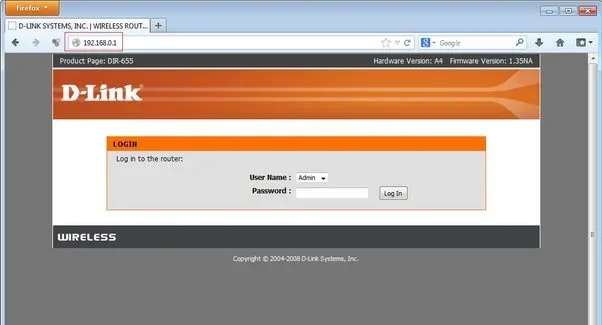
- 192.168.0.1
- 10.0.0.1
Step 2: Type the Address into Your Browser
Open any web browser on a device connected to your router. Type the IP address into the address bar at the top and press Enter. You should see a login page appear. This is your router login page. It might look different depending on your brand, but it will always ask for a username and password.
Step 3: Enter the Credentials
Type in the admin username and admin password you found earlier. If the default username password does not work, do not worry. There are other things you can try. Make sure you are typing the details exactly as they appear, with the correct capitalization and no extra spaces.
Quick Tips for Accessing the Admin Panel
- Use a wired connection if possible. It is more stable than Wi-Fi when making changes.
- Clear your browser cache if the login page does not load properly.
- Try a different browser if one does not work. Chrome, Firefox, and Edge all work well.
- Make sure you are connected to the router’s network. You cannot access the login page from a different network.
What To Do If You Changed and Forgot Your Password
This is a very common situation. You changed the router password months ago and now you cannot remember it. The good news is you are not stuck. There are reliable ways to get back in.
Perform a Factory Reset
A factory reset wipes all your custom settings and restores everything to the original state. This means the default username password comes back. Look for a small reset button on the back of your router. It is usually recessed, so you need a paperclip or a pin to press it.
Hold the button down for about 10 seconds. The router lights will flash, and it will restart. Once it is back on, use the default credentials to log in. Keep in mind that a factory reset also erases your Wi-Fi password, so you will need to set that up again.
Try Common Default Combinations
If you did not change the password but it is not working, try some common combinations. Here are the most frequent ones:
- Username: admin, Password: admin
- Username: admin, Password: password
- Username: admin, Password: blank (just leave it empty)
- Username: root, Password: admin
Check the Router Mobile App
Many modern routers come with a companion mobile app. If you installed one before, it may still have your login saved. Open the app, and it will often show you the network admin details or let you change them directly from your phone.
Common Mistakes People Make When Trying To Log In
- Typing the IP address into the search bar instead of the address bar.
- Using the Wi-Fi password instead of the router admin password. These are two different things.
- Connecting to a neighbor’s network instead of your own.
- Not pressing the reset button long enough. Hold it for a full 10 to 15 seconds.
- Trying to log in over cellular data instead of the router’s own network.
Default Login Details for Popular Router Brands
Different brands use different default credentials. Knowing what to expect can save you a lot of time. Here is a quick reference for the most popular router brands.
Quick Reference Table: Default Router Credentials
| Router Brand | Default Username | Default Password | Common IP Address |
|---|---|---|---|
| Netgear | admin | password | 192.168.1.1 |
| TP-Link | admin | admin | 192.168.0.1 |
| ASUS | admin | admin | 192.168.1.1 |
| Linksys | admin | admin | 192.168.1.1 |
| D-Link | admin | admin or blank | 192.168.0.1 |
| Belkin | admin | blank | 192.168.2.1 |
| Google Nest | admin | password | 192.168.86.1 |
These are the most common default credentials, but they can vary by model. Always double-check with the manufacturer if these do not work for your specific device.
Expert Insight: Why Default Credentials Are a Risk
Security experts warn that using default login details is one of the biggest risks for home networks. Botnets constantly scan the internet for routers with unchanged default credentials. Once they find one, they can access your network settings, redirect your traffic, or use your bandwidth for illegal activities. Changing the default username and password is the single most important step you can take to protect your home network.
How To Keep Your Router Secure After Logging In
Now that you have successfully logged into the admin panel, you should take a few minutes to secure your setup. This is especially important if you are still using the default username and password.
Change the Admin Password Immediately
Go to the router configuration section and set a strong, unique password. Use a mix of uppercase and lowercase letters, numbers, and symbols. Avoid using personal information like your name or birthday. A good admin password should be at least 12 characters long.
Update the Router Firmware
Firmware updates fix security bugs and improve performance. Look for a section called “Firmware Update” or “Router Update” in the admin panel. If an update is available, install it right away. Many modern routers also offer automatic updates, so check that this feature is turned on.
Change Your Wi-Fi Network Name and Password
While you are in the network settings, consider changing the Wi-Fi password and the network name (SSID). This makes it harder for outsiders to identify your router model and attempt attacks. Set a strong Wi-Fi password that is different from your admin login credentials.
Disable Remote Management
Remote management lets people access your router settings from outside your home. Unless you specifically need this feature, turn it off. It adds an unnecessary entry point that could be exploited by attackers.
Enable WPA3 or WPA2 Encryption
Make sure your wireless network uses WPA3 or at least WPA2 encryption. Older encryption standards like WEP are no longer secure and can be cracked in minutes. This setting is usually found under the wireless or security section of your router setup page.
Conclusion
Finding the username and password for your router does not have to be stressful. Whether you check the sticker on the device, look up the default credentials online, or perform a factory reset, there is always a way to get back into your admin panel. The key is to act calmly and follow the steps in order. Once you are logged in, take the time to update your network security, change the default password, and keep your firmware current. Your broadband router is the gateway to your entire internet experience. Treating it with care and attention pays off in speed, stability, and peace of mind. Now that you know exactly how to find the username and password for your router, you can take full control of your home network today.
Frequently Asked Questions
What is the most common default username and password for routers?
The most common combination is “admin” for both the username and password. However, some brands use “admin” as the username and “password” as the password. You can find the exact details on the sticker attached to your router or in the user manual.
Can I find my router password without doing a factory reset?
Yes, if you never changed the password, you can find the default credentials on the router label or the manufacturer website. If you did change it and forgot, a factory reset is the most reliable way to restore access. Check the reset button on the back of your router.
Is the router admin password the same as the Wi-Fi password?
No, they are completely different. The Wi-Fi password lets devices connect to your wireless network. The admin password lets you log into the router settings to change the configuration. You can find both in the router admin panel after logging in.
What should I do if the router login page will not load?
First, make sure you are connected to the router’s network. Then double-check the IP address you are typing. Common addresses are 192.168.1.1 and 192.168.0.1. Try using a wired connection instead of Wi-Fi, and clear your browser cache if the page still does not appear.
How often should I change my router admin password?
Security experts recommend changing your router admin password at least once a year. You should also change it immediately if you suspect someone else has accessed your network. Using a unique, strong password each time is the best practice for network security.
Will a factory reset delete my internet settings?
Yes, a factory reset erases all custom settings, including your Wi-Fi name, Wi-Fi password, and any port forwarding rules. After the reset, you will need to set up your internet connection again. Your ISP can help you restore the connection if needed.