How Do I Mirror My Android Phone To My Tv With These Tips
Mirroring your Android phone to your TV is easier than you think, and it opens up a world of big-screen entertainment. Whether you use wireless casting with Chromecast or a simple HDMI cable adapter, you can stream photos, videos, games, and apps right from your phone to your TV. In this guide, we walk you through every method, share practical tips, and help you avoid common mistakes so you can get started in minutes.
Have you ever wanted to show off photos or watch a video from your phone on a bigger screen? Mirroring your Android phone to your TV lets you do exactly that. It is a simple process that turns your small screen into a shared experience everyone can enjoy. Whether you are at home relaxing or presenting something at work, knowing how to cast your phone to a TV is a handy skill. In this guide, we break down every method so you can pick the one that works best for you.
The good news is that you do not need expensive equipment to get started. Most modern Android phones and Smart TVs already have built-in features for wireless display and screen sharing. Even older TVs can work with a simple adapter. We will cover all of these options in detail, so stick around and find out how easy it really is.
Key Takeaways
- Multiple Methods Available: You can mirror your Android phone to your TV using wireless options like Chromecast, Miracast, or Wi-Fi Direct, or wired options like HDMI adapters.
- Chromecast Is the Most Popular: Google’s Chromecast offers the smoothest and most reliable screen mirroring experience for most Android users.
- Apps Make It Easy: Several free and paid apps simplify Android casting and give you extra features like recording and annotation.
- Cable Adapters Work Without Wi-Fi: If your TV is not smart or your Wi-Fi is weak, an HDMI adapter is a dependable backup.
- Troubleshooting Is Simple: Most mirroring issues can be fixed by restarting devices, checking Wi-Fi, or updating software.
- Check Compatibility First: Not all TVs and phones support every mirroring method, so always verify before you start.
📑 Table of Contents
- Why Mirror Your Android Phone To Your TV?
- Methods To Mirror Android Phone To TV
- Using Chromecast For Screen Mirroring
- Mirroring With A Cable Or Adapter
- Best Apps For Android Screen Cast To TV
- Troubleshooting Common Mirroring Issues
- Expert Tips For A Better Mirroring Experience
- Comparison Table: Wireless vs Wired Mirroring
- Final Thoughts
Why Mirror Your Android Phone To Your TV?
Before we dive into the how-to, let us talk about why you would want to mirror your phone in the first place. There are many reasons, and they go way beyond just watching movies.
- Bigger screen for photos and videos: Share your vacation pics with family on a large display instead of huddling around a tiny phone screen.
- Gaming on a big display: Many Android games feel much better when played on a TV. You can use your phone as a controller and enjoy the action on a bigger canvas.
- Streaming apps: Watch content from Netflix, YouTube, or Hulu on your TV directly from your phone. This is great when you do not have a smart TV or a dedicated streaming stick.
- Presentations and meetings: Show slides, documents, or presentations during work meetings without needing extra equipment.
- Social media sharing: Display Instagram reels, TikTok videos, or Facebook posts on a TV for group viewing.
No matter your reason, casting from your Android device to a TV gives you flexibility and convenience. It is one of those features that once you start using, you will wonder how you ever lived without it.
Methods To Mirror Android Phone To TV
There are several ways to mirror your Android phone to your TV. Each method has its own strengths, and the best one for you depends on your TV, your phone, and your needs. Let us look at the main options available.
Wireless Mirroring (No Cables Needed)
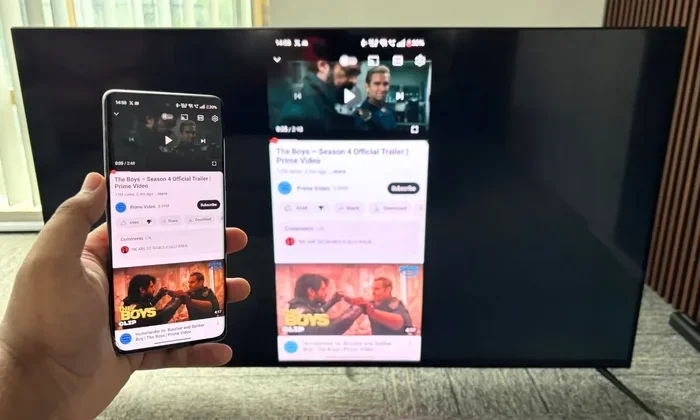
Wireless mirroring is the most popular method because it is convenient and easy. You do not need any cables or extra hardware if your TV supports it. The two main wireless technologies are Miracast and Wi-Fi Direct. Most Android phones come with built-in support for both. On your phone, you can usually find the screen cast option by swiping down from the top of your screen and tapping the “Cast” or “Smart View” icon. Your phone will search for nearby devices, and you can select your TV from the list.
This method works best when both your phone and TV are on the same Wi-Fi network. The connection is fast, and you can mirror your entire screen or just specific apps. One thing to keep in mind is that wireless mirroring can sometimes have a slight delay, which might not be ideal for fast-paced gaming or video calls.
Using Chromecast or Google Cast
Chromecast is Google’s dedicated streaming device, and it works beautifully with Android phones. You plug a Chromecast dongle into your TV’s HDMI port, connect it to your Wi-Fi, and you are ready to go. From your phone, you tap the cast icon in supported apps like YouTube, Netflix, or Spotify, and the content streams directly to your TV.
What makes Chromecast special is that it does more than just mirror your screen. You can cast individual apps, meaning your phone can still be used for other things while content plays on the TV. This is different from full screen mirroring, where everything on your phone shows up on the TV. Chromecast also supports Google Cast SDK, which means many popular apps have built-in casting support.
HDMI Cable or Adapter (Wired Connection)
If you prefer a wired connection or your TV does not support wireless mirroring, an HDMI adapter is your best bet. You connect a cable from your Android phone to your TV using an adapter. The most common types are USB-C to HDMI and Micro-USB to HDMI adapters. These adapters are affordable and widely available online.
A wired connection gives you the best quality and zero lag. This makes it ideal for gaming, presentations, or watching high-resolution videos. The downside is that you are tethered to your TV, and your phone cannot move far from the display. But for many people, this is the most reliable method, especially if your Wi-Fi signal is weak in certain rooms.
Smart TV Built-In Features
Many modern Smart TVs come with built-in screen mirroring features. Brands like Samsung, LG, Sony, and TCL all support Android screen cast or similar technologies. On Samsung TVs, for example, you can use the Smart View feature. On LG TVs, the Screen Share option works with most Android devices.
To use these features, make sure your phone and TV are on the same Wi-Fi network. Then go to your phone’s quick settings panel and look for the cast or screen share button. Select your TV from the list, and your screen will appear on the big display. These built-in features are convenient because you do not need to buy any extra devices.
Third-Party Apps for Screen Mirroring
If your built-in options are not working or you want more features, third-party apps are a great alternative. Several apps on the Google Play Store make it easy to cast your phone to a TV. Some popular options include AirScreen, LetsView, and Screen Mirror. These apps often work with a wider range of TVs and devices, including older models that do not have native mirroring support.
Most of these apps are free, though some offer premium features like recording or higher resolution. Before downloading any app, check the reviews and permissions to make sure you are getting a safe and reliable tool. We will look at the best apps in more detail in the next section.
Using Chromecast For Screen Mirroring
Since Chromecast is one of the most popular and reliable ways to mirror your Android phone, let us take a closer look at how to set it up and use it effectively.
First, you need a Chromecast device. You can buy the standard Chromecast for basic mirroring or the Chromecast with Google TV for a more full-featured experience. Both devices plug directly into your TV’s HDMI port and connect to your Wi-Fi network.
Once your Chromecast is set up, open the Google Home app on your Android phone. Make sure your phone and the Chromecast are on the same Wi-Fi network. From the Home app, you can cast your entire screen or just individual apps. To mirror your full screen, tap the cast icon and select “Cast my screen.” Your phone’s display will now appear on your TV in real time.
One important tip: wireless display mirroring through Chromecast works best on a 5 GHz Wi-Fi band. If your router supports it, switch to the 5 GHz network for a smoother and more responsive experience. Also, keep your phone close to the router to maintain a strong signal during casting.
Mirroring With A Cable Or Adapter
Sometimes the best connection is a simple cable. Using an HDMI adapter to connect your Android phone directly to your TV gives you a stable, high-quality connection with no lag or interference.
To get started, you need the right adapter for your phone. Most newer Android phones use USB-C, so you will need a USB-C to HDMI adapter. Older phones with Micro-USB ports require a Micro-USB to HDMI adapter. These adapters cost between $10 and $30 and are available from brands like Amazon Basics, Anker, and Belkin.
Here is how to set it up:
- Plug the HDMI end of the adapter into your TV.
- Connect the USB end to your Android phone.
- Switch your TV to the correct HDMI input channel.
- Your phone screen should now display on your TV automatically.
One thing to watch out for is that some adapters require external power. If your screen does not appear or keeps disconnecting, try plugging the adapter into a USB power source. This ensures your phone has enough power to send a video signal to the TV.
A wired connection is also great for situations where you need reliability. If you are giving a presentation or hosting a movie night, you do not want your connection dropping out in the middle. A cable adapter eliminates that risk entirely.
Best Apps For Android Screen Cast To TV
Apps can add extra functionality to your mirroring setup. Here are some of the best options available right now.
LetsView
LetsView is a free app that supports both wireless and wired mirroring. It works with most Smart TVs, including models from Samsung, LG, and Sony. The app lets you mirror your entire screen, cast specific media files, and even record your screen while casting. It is lightweight and does not slow down your phone.
AirScreen
AirScreen turns your TV into a receiver for screen mirroring. It supports AirPlay, DLNA, and Google Cast protocols. This means it works with a wide range of devices, not just Android phones. If you have guests with iPhones or iPads, AirScreen makes it easy for them to cast to your TV as well.
Screen Mirror
Screen Mirror is a simple and straightforward app for basic casting needs. It does not have a lot of fancy features, but it gets the job done. You can mirror your phone screen to most Smart TVs without needing any extra hardware. It is a good option if you just want something quick and easy.
ApowerMirror
ApowerMirror is a more advanced option that offers features like screen recording, annotation tools, and high-resolution casting. It works well for both personal use and professional presentations. The free version has some limitations, but the paid version unlocks the full feature set.
Troubleshooting Common Mirroring Issues
Even with the best setup, you might run into problems now and then. Here are the most common issues and how to fix them.
No Signal on TV
If your TV shows no signal when you try to mirror, check a few things first. Make sure the HDMI cable or adapter is securely connected. Switch your TV to the correct input source. Also, verify that your phone is actually trying to cast by looking for the cast icon in your notification bar.
Lag or Delay During Mirroring
Lag is a common issue with wireless mirroring. The most common cause is a weak Wi-Fi connection. Try moving closer to your router or switching to a 5 GHz network. You can also close background apps on your phone to free up resources. If the lag persists, a wired HDMI connection will eliminate it completely.
Audio Not Syncing With Video
Sometimes the audio and video get out of sync when casting. This usually happens when the Wi-Fi signal is unstable. Restarting both your phone and your TV can help. You can also try lowering the casting resolution, which reduces the amount of data being transmitted and can improve sync.
Phone Does Not Detect TV
If your phone cannot find your TV for mirroring, make sure both devices are on the same Wi-Fi network. Restart your router, phone, and TV. On your TV, check that the screen mirroring or cast feature is turned on in the settings. If you are using a third-party app, make sure it is running on both devices.
Expert Tips For A Better Mirroring Experience
Want to get the most out of your setup? Here are some expert tips that make a big difference.
- Use a 5 GHz Wi-Fi network: This band is faster and less congested than 2.4 GHz, which means smoother mirroring with less lag.
- Keep your devices updated: Software updates often include improvements for wireless display performance and bug fixes.
- Close unnecessary apps: Running too many apps in the background can slow down your phone and affect casting quality.
- Use a high-quality HDMI cable: If you are going the wired route, a good cable makes a noticeable difference in picture and sound quality.
- Restart devices regularly: A simple restart of your phone, TV, and router can fix most minor issues before they become bigger problems.
- Test before important events: If you are planning to mirror during a presentation or movie night, test the setup beforehand to avoid surprises.
These tips might seem small, but they add up to a much smoother and more reliable screen mirroring experience. Taking a few minutes to optimize your setup can save you a lot of frustration later.
Comparison Table: Wireless vs Wired Mirroring
| Feature | Wireless Mirroring | Wired (HDMI Adapter) |
|---|---|---|
| Setup Ease | Very Easy | Easy |
| Connection Quality | Good (depends on Wi-Fi) | Excellent |
| Lag or Delay | Slight delay possible | No lag |
| Mobility | High (no cables) | Low (tethered to TV) |
| Cost | Free (built-in) or low | $10-$30 for adapter |
| Best For | Casual viewing, photos, videos | Gaming, presentations, high quality |
| Compatibility | Smart TVs with Miracast or Chromecast | Any TV with HDMI port |
As you can see, both methods have their place. Wireless mirroring is perfect for everyday use and casual sharing, while a wired connection shines when you need top quality and zero lag. Many people find that having both options available gives them the best of both worlds.
Final Thoughts
Now you know all the ways to mirror your Android phone to your TV. From wireless casting with Chromecast to simple HDMI adapters, there is a method that fits every situation and budget. The key is to understand your TV and phone capabilities, choose the right method, and follow the setup steps carefully.
Do not let technical jargon scare you away. Most methods are straightforward and take only a few minutes to set up. Once you start casting your phone to your TV, you will wonder how you ever managed without it. Share photos with family, watch your favorite shows, or present at work, all from the comfort of your couch.
Start with the method that seems easiest for your setup. If wireless mirroring works, great. If not, try a cable adapter or a third-party app. The beauty of having so many options is that there is always a solution that works for you. So go ahead, give it a try, and enjoy your content on the big screen.
Frequently Asked Questions
Can I mirror my Android phone to any TV?
Most modern TVs support some form of screen mirroring, but the method may vary. Smart TVs from brands like Samsung, LG, and Sony usually have built-in casting features. For older TVs without smart capabilities, you can use a Chromecast device or an HDMI adapter to connect your phone to the TV.
Do I need Wi-Fi to mirror my Android phone to my TV?
For wireless mirroring, yes, both your phone and TV need to be on the same Wi-Fi network. However, if you use an HDMI adapter, you do not need Wi-Fi at all. The cable connection works independently of your wireless network.
Is screen mirroring the same as casting?
They are similar but not exactly the same. Screen mirroring shows everything on your phone screen on your TV in real time. Casting, especially with Chromecast, sends specific content from an app to your TV while you can still use your phone for other things.
Why is my mirrored screen lagging or delayed?
Lag usually happens because of a weak or congested Wi-Fi connection. Try switching to a 5 GHz network, moving closer to your router, or closing background apps. If the lag continues, switching to a wired HDMI connection will eliminate it completely.
Can I mirror my phone to a TV without Chromecast?
Yes, you can. Many Smart TVs have built-in Miracast or screen share features that work without Chromecast. You can also use third-party apps like LetsView or AirScreen, or connect with an HDMI adapter for a wired solution.
Will mirroring my phone drain the battery quickly?
Yes, screen mirroring uses more battery than normal phone use because it is constantly sending video data. To conserve battery, keep your phone plugged in while mirroring, lower the screen brightness, and close apps you are not using.
=== CONCLUSION ===
Learning how to mirror your Android phone to your TV is a simple but incredibly useful skill. Whether you prefer the convenience of wireless casting or the reliability of a wired connection, there is a method that will work for you. Chromecast offers the smoothest wireless experience, while HDMI adapters give you the best quality and zero lag. Third-party apps fill in the gaps when built-in features fall short.
Remember to check compatibility, use a strong Wi-Fi connection, and keep your devices updated for the best results. With the tips and methods covered in this guide, you are fully equipped to enjoy your phone’s content on a big screen anytime you want. Start today, experiment with the different methods, and find the setup that works best for your lifestyle. Your TV and your phone were made to work together, and now you know exactly how to make that happen.