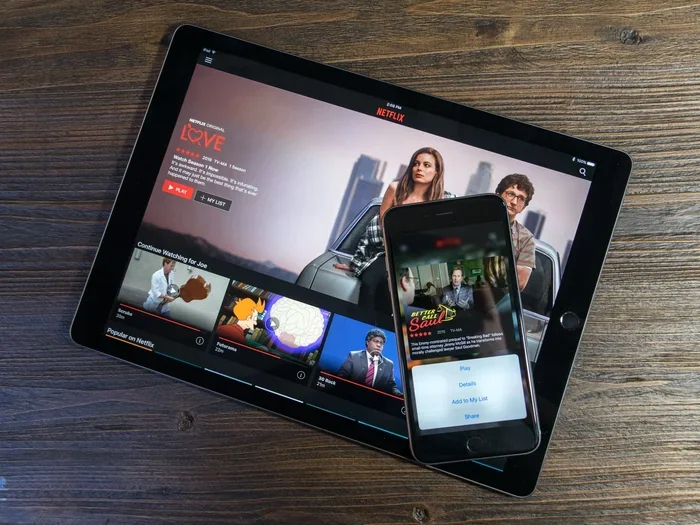
How Do I Watch Netflix On My Ipad With These Simple Steps
Watching Netflix on your iPad is easy and fun. You just need a Netflix account, the app, and a good Wi-Fi connection. This guide shows you every step, from downloading the app to fixing common problems. You will learn tips for better streaming quality and offline viewing too.
Ever wanted to curl up on the couch and binge your favorite show on a bigger screen? Your iPad makes that dream come true. How do I watch Netflix on my iPad is one of the most common questions people ask. The good news is that it is super simple. You do not need to be a tech expert to get started.
This guide walks you through everything step by step. From downloading the app to fixing annoying errors, we have you covered. You will learn quick tips that make your streaming experience way better. By the end, you will be watching Netflix on your iPad like a pro.
Key Takeaways
- Easy Setup: Downloading the Netflix app on your iPad takes just a few minutes.
- Multiple Ways to Watch: You can stream live, download for offline viewing, or mirror your screen.
- Smart Tips Included: Learn how to improve video quality and fix common streaming errors.
- Works for Everyone: Whether you have a basic iPad or the latest model, Netflix works great.
- Parental Controls Available: Keep kids safe with Netflix profile settings on your iPad.
- No Extra Cost: You only need a Netflix subscription and a stable internet connection.
📑 Table of Contents
- Why Watch Netflix on Your iPad?
- How Do I Watch Netflix on My iPad: Getting Started
- Setting Up the Best Streaming Experience
- Downloading Netflix Content for Offline Viewing
- Troubleshooting Common Netflix Issues on iPad
- Using Netflix on iPad with Other Devices
- Netflix Parental Controls on iPad
- Quick Tips for the Best Netflix iPad Experience
- Conclusion
Why Watch Netflix on Your iPad?
There are so many reasons to watch Netflix on your iPad. It is portable, easy to use, and gives you access to thousands of shows and movies. You can watch anywhere, whether you are on a road trip or sitting in your backyard.
The iPad screen is larger than a phone, which makes everything look sharper. Many people prefer the iPad over a laptop for streaming. It is lighter, quieter, and the battery lasts a long time. Plus, the Netflix app is built specifically for iPad, so the experience feels smooth and natural.
Portability and Convenience
You can carry your iPad anywhere. The couch, the bed, the kitchen, or even the bathroom. There is no need for a TV remote or extra cables. Just open the app and start watching. This kind of convenience is why so many people choose the iPad for their Netflix streaming needs.
Better Screen Quality Than Phones
Phones are small, and that can be a problem when you want to enjoy a movie. The iPad gives you a much bigger picture. The colors pop, and the details look crisp. If you have a newer iPad, the screen quality is even more impressive. Watching your favorite series on a bigger display just hits different.
How Do I Watch Netflix on My iPad: Getting Started
The first step to watching Netflix on your iPad is getting the app on your device. This part is quick and straightforward. Let us walk through it together.
Step 1: Check Your iPad Compatibility
Most iPads can run the Netflix app without any issues. Apple updates its devices regularly, so older models still work well. You just need to make sure your iPad is running a recent version of iOS. Go to Settings, then General, and tap Software Update. If an update is available, install it first.
Here is a quick checklist before you start:
- Your iPad has enough storage space.
- You are connected to Wi-Fi.
- Your iOS is up to date.
- You have an Apple ID signed in.
Step 2: Download the Netflix App
Open the App Store on your iPad. Tap the search bar and type “Netflix.” You will see the official Netflix app right away. It has the red N logo, so it is easy to spot. Tap the download button and wait for the app to install.
This usually takes less than a minute. Once it is done, tap “Open.” You will see the Netflix welcome screen. Now you are ready to log in and start watching.
Step 3: Sign In to Your Netflix Account
If you already have a Netflix account, enter your email and password. If you do not have one yet, you can sign up right from the app. Netflix offers several plans to choose from. You can pick the one that fits your budget and viewing habits.
After signing in, Netflix will ask you to create a profile. This lets you keep your watch history separate from other users. You can create up to five profiles on one account. Each profile gets its own recommendations and watch list.
Setting Up the Best Streaming Experience
Now that Netflix is on your iPad, let us make sure you get the best quality. A few small adjustments can make a big difference.
Connect to a Strong Wi-Fi Network
A strong Wi-Fi connection is the key to smooth streaming. If your signal is weak, the video will keep buffering. Try to stay close to your router when you are watching. If you can, use a 5GHz network for faster speeds.
Here are some quick tips for a better connection:
- Move closer to your Wi-Fi router.
- Turn off other devices that use the same network.
- Restart your router if the speed is slow.
- Avoid streaming during peak hours if possible.
Adjust Streaming Quality in Settings
Netflix lets you control the video quality. Open the app, tap your profile picture, and go to App Settings. You will see options for Wi-Fi and cellular streaming. Choose “High” or “Auto” for the best picture quality.
Keep in mind that higher quality uses more data. If you are not on Wi-Fi, you might want to lower the quality to save your data plan. This is a smart way to enjoy Netflix on iPad without worrying about running out of data.
Enable Subtitles and Audio Descriptions
Netflix offers subtitles and audio descriptions for many titles. This is great if you are watching in a noisy room or prefer reading along. To turn on subtitles, tap the screen while a video is playing. Tap the speech bubble icon and pick your preferred language.
Audio descriptions are also available for many popular shows. They narrate what is happening on screen, which is helpful for visually impaired viewers. You can find these options in the same menu.
Downloading Netflix Content for Offline Viewing
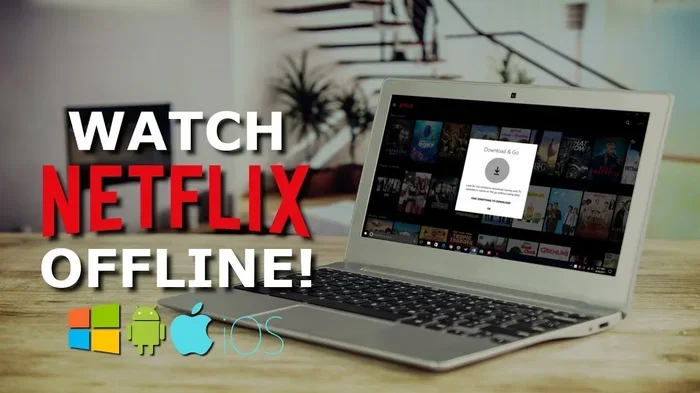
One of the best features of the Netflix app on iPad is offline viewing. You can download movies and shows and watch them without an internet connection. This is perfect for flights, road trips, or any time you are away from Wi-Fi.
How to Download Shows and Movies
Open the Netflix app and find the title you want. Look for the download icon, which looks like a downward arrow. Tap it, and the download will start. The time it takes depends on your Wi-Fi speed and the size of the file.
Here are some things to keep in mind:
- Not all titles are available for download.
- Downloaded content expires after a set period.
- You can only download a certain number of titles per device.
- Check your storage space before downloading large files.
Managing Your Downloads
To find your downloaded content, tap the menu icon and select “My Downloads.” You can delete titles you no longer need to free up space. You can also change download settings to save storage. Go to App Settings and look for the download quality option.
Offline viewing is a game changer. It means you can enjoy Netflix on your iPad even when you are in the air or in a remote area. Just remember to reconnect to Wi-Fi occasionally to keep your downloads updated.
Troubleshooting Common Netflix Issues on iPad
Sometimes things do not go as smoothly as we want. Streaming errors happen to everyone. The good news is that most problems are easy to fix.
Fixing Buffering and Playback Errors
If your video keeps pausing to load, your internet connection is probably the culprit. Try moving closer to your router or switching to a different Wi-Fi network. You can also lower the streaming quality in the app settings to reduce buffering.
Restarting the app often helps too. Close the Netflix app completely and reopen it. If that does not work, restart your iPad. A simple reboot clears out temporary glitches and refreshes your connection.
Solving App Crashes and Freezes
If the Netflix app crashes, make sure it is up to date. Open the App Store, tap your profile, and check for updates. Installing the latest version usually fixes crashes and freezes.
If updating does not help, try deleting and reinstalling the app. This clears out any corrupted files. Your downloads and profiles will still be there when you log back in. It is a quick fix that solves most app-related problems.
Fixing Audio or Video Sync Issues
Sometimes the audio and video get out of sync. This can be annoying, but it is usually easy to fix. First, check if your iPad software is up to date. Then, restart the app and the video you are watching.
If the problem continues, try adjusting the audio settings. Go to iPad Settings, then Accessibility, and look at the audio balance. Make sure both left and right channels are set evenly. This simple check often solves sync issues right away.
Using Netflix on iPad with Other Devices
The iPad is a great standalone device for Netflix, but it also works well with other gadgets. You can expand your viewing experience in fun ways.
Screen Mirroring with AirPlay
AirPlay lets you mirror your iPad screen to an Apple TV or a compatible smart TV. Open the Control Center on your iPad and tap the Screen Mirroring icon. Select your TV from the list, and your iPad screen will appear on the big screen.
This is a great way to share Netflix with friends or family. You get the convenience of the iPad with the viewing experience of a television. Just make sure both devices are on the same Wi-Fi network for smooth performance.
Connecting to Bluetooth Speakers or Headphones
You can pair Bluetooth headphones or speakers with your iPad for a more personal viewing experience. Go to Settings, then Bluetooth, and turn it on. Your device will search for available speakers or headphones. Tap the one you want to connect.
This is perfect for late-night watching without disturbing anyone. It also gives you more flexibility in where you can sit while enjoying your Netflix streaming on the iPad.
Netflix Parental Controls on iPad
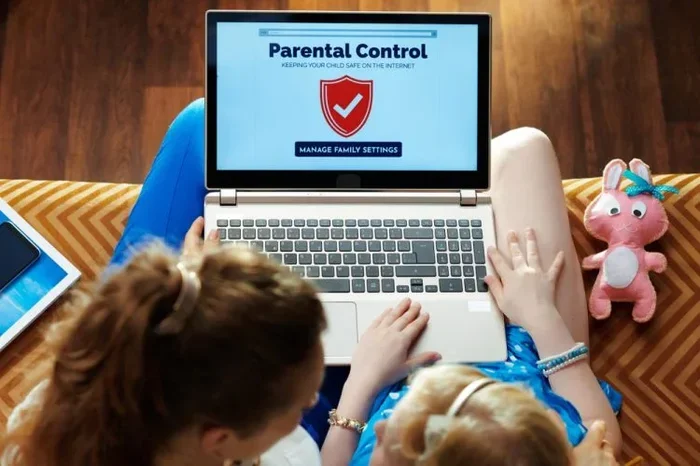
If you have kids, Netflix offers strong parental controls. You can set up profiles for children with age-appropriate content. This keeps your little ones safe while they enjoy their favorite shows.
To set up parental controls, go to your Netflix account on a web browser. Click on your profile and select “Parental Controls.” You can set a PIN to block mature content. You can also restrict profiles to specific maturity levels.
These settings sync across all devices, including your iPad. So your kids will only see content that is appropriate for them. It gives parents peace of mind and makes watching Netflix on iPad a safe experience for the whole family.
Quick Tips for the Best Netflix iPad Experience
Here are some extra tips to make your Netflix time even better on the iPad:
- Use Dark Mode: Go to Settings, then Display and Brightness, and select Dark. This reduces eye strain during late-night binge sessions.
- Keep the App Updated: Regular updates bring new features and fix bugs. Check the App Store often.
- Use a Stylus for Navigation: If you have an Apple Pencil, navigating the app feels smoother and more precise.
- Adjust Brightness Manually: Auto-brightness can sometimes dim the screen too much. Adjust it manually for the best picture quality.
- Explore Netflix Categories: Netflix has hidden categories you can access through the web browser. Use them to find new shows and movies faster.
- Enable Skip Intro: The Netflix app automatically shows a “Skip Intro” button for most shows. Tap it to jump past opening credits.
These small tweaks add up to a much better experience. They help you get the most out of your Netflix iPad setup every single time.
Conclusion
How do I watch Netflix on my iPad is a question with a very simple answer. You download the app, sign in, and start watching. Along the way, you can download content for offline viewing, adjust streaming quality, and use parental controls. The iPad makes Netflix streaming easy, portable, and enjoyable for everyone.
With a strong Wi-Fi connection and a few smart settings, your viewing experience will be top-notch. You can watch in high definition, mirror to a TV, or enjoy private listening with Bluetooth headphones. The flexibility of the iPad combined with the vast Netflix library is a winning combination.
Now that you know all the steps, it is time to grab your iPad and start streaming. Pick a show, grab some snacks, and enjoy the show. Happy watching!
Frequently Asked Questions
Can I watch Netflix on any iPad model?
Yes, most iPad models can run the Netflix app. You just need a recent version of iOS and enough storage space. Even older iPads support Netflix streaming without major issues.
Do I need a Wi-Fi connection to watch Netflix on my iPad?
Wi-Fi is the best way to stream Netflix smoothly. However, you can also use cellular data if you have an iPad with a data plan. Just be aware that streaming uses a lot of data, so keep an eye on your usage.
How many devices can I use with one Netflix account?
This depends on your Netflix plan. The standard plan allows streaming on two devices at the same time. The premium plan supports up to four devices. You can also download content on up to six devices for offline viewing.
Why does Netflix keep buffering on my iPad?
Buffering usually happens when your internet connection is weak. Try moving closer to your router or switching to a different network. Lowering the streaming quality in the app settings can also help reduce buffering.
Can I download Netflix shows to watch offline on my iPad?
Yes, the Netflix app lets you download select movies and shows. Look for the download icon next to the title. Just remember that downloaded content expires after a certain period, so reconnect to Wi-Fi occasionally to refresh your downloads.
Is Netflix free to use on iPad?
No, you need a Netflix subscription to watch content. Netflix offers different plans at different price points. You can sign up directly through the app or on the Netflix website.