Can You Convert Type C To USB With These Simple Tips
Yes, you can convert Type C to USB with the right adapter, hub, or cable. Whether you need to connect older USB-A devices or new accessories to a modern USB-C port, the process is simple and affordable. This guide covers every method, product type, and tip you need to make it work seamlessly.
Have you ever picked up a new laptop or phone and realized it only has a USB-C port? Maybe you have a USB flash drive or a printer that uses the older USB-A connector. The good news is that converting Type C to USB is totally doable. You just need the right accessory and a little know-how.
This guide walks you through every way to make that connection work. Whether you are at home, in the office, or on the go, you will find simple solutions that fit your needs. No tech degree required. Just straightforward advice you can use right away.
Key Takeaways
- Easy Conversion: A simple USB-C to USB-A adapter lets you use older USB drives and devices with modern laptops.
- Multiple Options: You can choose from dongles, hubs, cables, and docking stations depending on your needs.
- No Special Skills Needed: The process is plug-and-play and takes seconds to set up.
- Check Compatibility First: Not all USB-C ports support the same protocols, so verify your device specs before buying.
- Speed Matters: Look for USB 3.0 or higher adapters to get fast data transfer speeds.
- Power Delivery Works Too: Many adapters support USB-C power delivery so you can charge while using accessories.
- Avoid Cheap Knockoffs: Low-quality adapters can cause slow speeds, overheating, or connection drops.
📑 Table of Contents
- What Is USB-C and Why Do We Need Adapters?
- Different Ways to Convert Type C to USB
- How to Choose the Right Adapter for Your Needs
- Common Uses for Type C to USB Converters
- Quick Tips for Getting the Best Results
- Common Mistakes People Make When Converting Type C to USB
- Expert Insights on USB-C Conversion
- Frequently Asked Questions
- Conclusion
What Is USB-C and Why Do We Need Adapters?
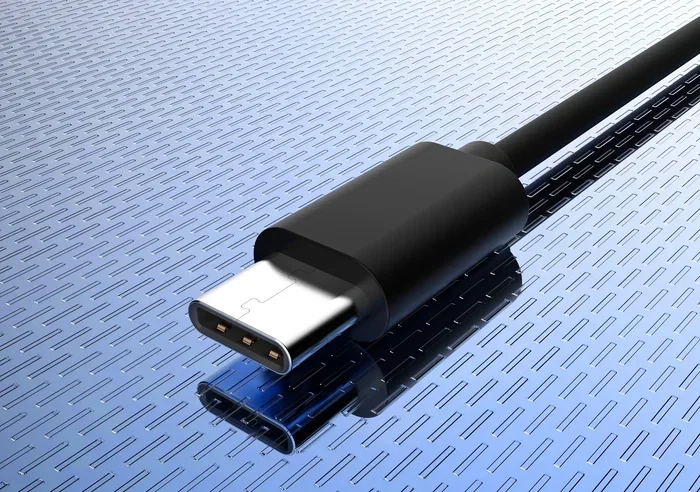
USB-C is a small, reversible connector that has become the standard on most modern devices. Unlike the older USB-A port, which only fits in one direction, the USB-C connector flips around. You never have to flip it three times trying to get it right.
The USB-C port does more than just transfer files. It can carry video, audio, and power all through one tiny cable. This versatility is great, but it also creates a problem. Many of our older accessories still use the traditional USB-A connector. That is where adapters come in handy.
The Role of the USB-C to USB-A Adapter
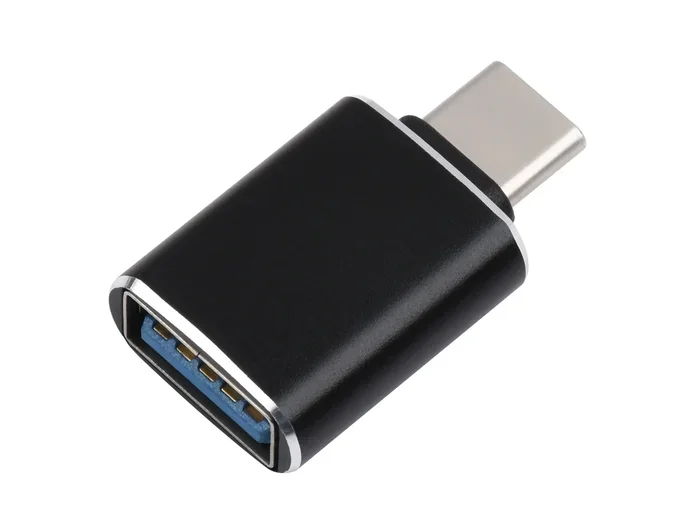
A USB-C to USB-A adapter is the most common solution. It plugs into your USB-C port and gives you a standard USB-A port to use your old devices. These adapters are small, cheap, and do exactly what they promise. They are perfect for connecting USB flash drives, mice, keyboards, and external hard drives.
Most adapters support USB 3.0 speeds, which means you get transfer rates up to 5 Gbps. That is fast enough for most everyday tasks. You can move photos, documents, and videos in seconds.
Different Ways to Convert Type C to USB
Not all conversion methods are the same. Depending on what you want to do, one approach may work better than another. Here are the most popular options available today.
USB-C Dongles
A USB-C dongle is a tiny adapter that adds one or two ports to your device. It is the simplest and most affordable option. You plug it into your USB-C port and instantly get a USB-A port or two. Dongles are great for travel because they are so small and light.
Most dongles cost between $5 and $15. They are a no-fuss solution for people who just need one extra port occasionally. However, they do not offer extra features like video output or card reading.
USB-C Hubs
A USB-C hub is a step up from a dongle. It adds multiple ports in one compact device. Most hubs include USB-A ports, an HDMI port, an SD card reader, and sometimes even an Ethernet port. Hubs are ideal if you need several connections at once.
Hubs range from $15 to $60 depending on the number of ports and build quality. They are perfect for office setups or for people who travel frequently and need to connect multiple peripherals.
USB-C Docking Stations
If you need a full workstation setup, a USB-C docking station is the way to go. These larger devices connect to your laptop through a single USB-C cable and expand into a full desktop experience. You get multiple USB-A ports, video outputs, audio jacks, and charging ports all in one unit.
Docking stations are more expensive, usually ranging from $50 to $200. They are best for professionals who work at a desk and need reliable, stable connections every day.
How to Choose the Right Adapter for Your Needs
With so many options on the market, picking the right one can feel overwhelming. Here is a simple breakdown to help you decide.
Check Your Device Compatibility
Before buying anything, check what kind of USB-C port your device has. Some USB-C ports support Thunderbolt 3 or Thunderbolt 4, which offer faster speeds and more features. Standard USB-C ports work fine for most adapters, but Thunderbolt ports give you extra flexibility.
Look at your device manual or check the manufacturer website for specs. Knowing whether your port supports alternate mode or USB Power Delivery helps you choose the right accessory.
Consider Speed Requirements
If you are just charging your phone or transferring small files, any basic adapter works. But if you are moving large video files or backing up huge folders, you want a faster connection. Look for adapters that support USB 3.0 or USB 3.1 for the best data transfer speeds.
Here is a quick comparison of common adapter types:
| Adapter Type | Ports Added | Speed | Best For |
|---|---|---|---|
| USB-C Dongle | 1-2 USB-A | USB 3.0 (5 Gbps) | Quick, simple connections |
| USB-C Hub | 3-7 ports | USB 3.0 (5 Gbps) | Multi-device setups |
| USB-C Docking Station | 8+ ports | USB 3.1 / Thunderbolt | Full workstation use |
| USB-C to USB-A Cable | 1 USB-A | USB 2.0 or 3.0 | Direct device-to-device |
Think About Build Quality
Cheap adapters might save you a few dollars, but they often cause frustration. A poorly made USB-C adapter can disconnect randomly, overheat, or limit your data transfer speed. Look for adapters from reputable brands or at least ones with solid reviews.
Metal-bodied adapters tend to last longer and dissipate heat better than plastic ones. If you use your adapter daily, spending a little extra on quality pays off in the long run.
Common Uses for Type C to USB Converters
People use USB-C to USB converters for a wide range of tasks. Here are some of the most common scenarios where these adapters make life much easier.
Transferring Photos from a Camera
Many cameras still use SD cards and USB-A connections. With a USB-C hub that has an SD card reader, you can plug your camera directly in and transfer photos in seconds. No computer needed for quick transfers.
Connecting Older Printers
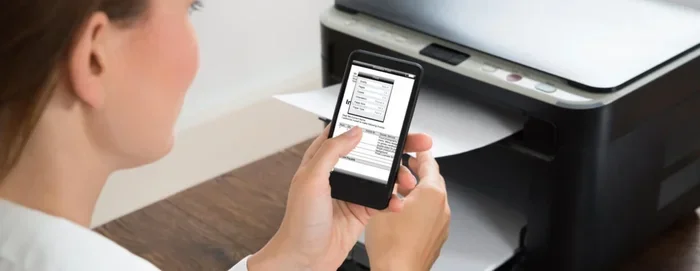
If your printer has a USB-B or USB-A cable, you can use an adapter to connect it to a modern laptop. Some USB-C hubs even include a USB-B port specifically for printers. This saves you from buying a new printer just because your laptop changed ports.
Using USB Flash Drives
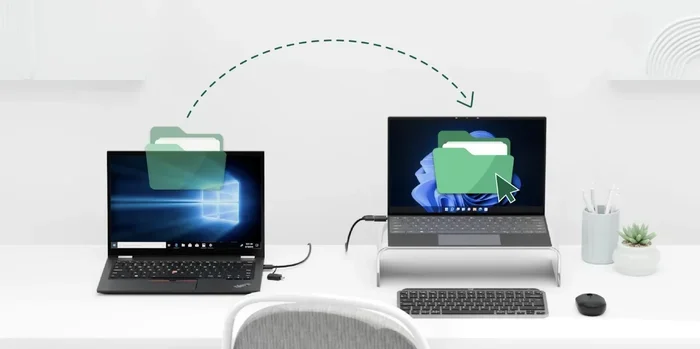
USB flash drives are still one of the easiest ways to move files between devices. Most flash drives use the USB-A connector. A simple USB-C to USB-A adapter lets you plug in your flash drive and transfer files without any hassle.
Gaming with Wired Controllers
Many game controllers still come with USB-A cables. Whether you are playing on a laptop or a tablet, a USB-C adapter lets you connect your controller for a better gaming experience. This works great for PC gaming on the go.
Charging Older Devices
Some devices, like e-readers or older portable speakers, still use micro-USB cables. A USB-C hub with a USB-A port lets you charge these devices while also connecting other accessories. It is a simple way to reduce the number of chargers you need to carry.
Quick Tips for Getting the Best Results
Using a Type C to USB adapter is easy, but a few tips can help you avoid common problems and get the best performance.
- Always plug the adapter firmly. A loose connection can cause dropped devices or slow data transfer speeds.
- Use short, high-quality cables. Longer cables can reduce speed and power delivery. Keep your setup as compact as possible.
- Check for firmware updates. Some devices benefit from updated drivers that improve USB-C compatibility.
- Avoid daisy-chaining too many devices. Plugging too many accessories into one hub can overload the connection and slow things down.
- Unplug gently. Pulling an adapter out by the cable can damage the port over time. Grip the adapter body when removing it.
Common Mistakes People Make When Converting Type C to USB
Even with the right adapter, some mistakes can cause frustration. Here is what to watch out for.
Buying the Wrong Adapter Type
Not all adapters are the same. A USB-C to USB-A adapter does not do the same thing as a USB-C to HDMI adapter. Before you buy, be clear about what ports your device needs. Check the description carefully and match it to your setup.
Ignoring Power Delivery Limits
Some USB-C adapters limit the amount of power that reaches your device. If you are trying to charge your laptop while using a hub, make sure the adapter supports USB-C power delivery at the wattage your laptop needs. A 60W adapter works for most laptops, but some need 100W.
Choosing the Wrong Speed Rating
An adapter that only supports USB 2.0 will be much slower than one with USB 3.0 or higher. If you are transferring large files, a slow adapter will waste your time. Always check the speed rating before you buy.
Assuming All USB-C Ports Are Equal
Not every USB-C port on your device supports the same features. Some only handle charging, while others support data transfer and video output. Using an adapter in a charging-only port will not give you data transfer capabilities.
Expert Insights on USB-C Conversion
Tech experts agree that USB-C is the future of connectivity. The reversible design, fast speeds, and multi-function capability make it superior to older connector types. However, the transition period means we still need adapters and converters for a while.
Here is what industry professionals recommend:
- Invest in a good hub over multiple dongles. A single USB-C hub with the right ports replaces several individual adapters and keeps your setup clean.
- Look for USB-IF certification. This ensures the adapter meets industry standards for safety and performance.
- Keep one adapter in your bag. A compact USB-C dongle in your laptop bag saves you from unexpected connection problems on the road.
- Test before you commit. If possible, try the adapter with your specific device before buying it in bulk or for a permanent setup.
The USB-C ecosystem is still evolving. New standards like USB4 and Thunderbolt 5 are pushing speeds even higher. As more devices adopt these standards, the need for adapters will slowly decrease. But for now, a reliable Type C to USB converter remains an essential accessory for anyone using modern devices.
Frequently Asked Questions
Can I use a USB-C to USB-A adapter for fast data transfer?
Yes, as long as both your device and the adapter support USB 3.0 or higher. Check the adapter specifications to confirm the speed rating. A USB 3.0 adapter can transfer files at up to 5 Gbps, which is plenty fast for most users.
Will a USB-C adapter work with all laptops?
Most modern laptops with USB-C ports will work with standard adapters. However, some devices have USB-C ports that only support charging and do not handle data transfer. Check your laptop manual to confirm what your USB-C port supports before buying an adapter.
Do I need a special cable or just an adapter?
It depends on what you are connecting. For a USB-A device like a flash drive, a simple USB-C to USB-A adapter is enough. If you are connecting a device that already has a USB-A cable, the adapter alone works. For some setups, you might also need a short USB-C cable to connect the adapter to your laptop.
Can I charge my laptop while using a USB-C hub?
Yes, many USB-C hubs support USB Power Delivery, which allows you to charge your laptop while using other ports. Look for a hub that explicitly mentions pass-through charging or power delivery support. Make sure the wattage matches your laptop’s charging requirements.
Are USB-C adapters compatible with Thunderbolt devices?
Most USB-C adapters work with Thunderbolt devices, but for full performance, look for adapters that are Thunderbolt certified. These adapters support the higher speeds and additional features that Thunderbolt 3 and Thunderbolt 4 offer. A standard adapter will still work, but it may not unlock all the capabilities of your Thunderbolt port.
What is the difference between USB-C and Thunderbolt 3?
USB-C refers to the shape of the connector, while Thunderbolt 3 is a technology that uses the USB-C connector but offers much faster speeds and more features. All Thunderbolt 3 cables use the USB-C form factor, but not all USB-C cables support Thunderbolt. Check for the lightning bolt symbol next to the port to identify Thunderbolt support.
Conclusion
Converting Type C to USB is simple, affordable, and something anyone can do in seconds. Whether you grab a basic dongle, a multi-port hub, or a full docking station, the right adapter bridges the gap between your modern USB-C device and all your older accessories.
The key is to understand your needs, check your device compatibility, and choose a quality adapter that supports the right speed and power levels. With the tips and insights in this guide, you are now equipped to make the best choice for your setup.
So go ahead and convert Type C to USB with confidence. Keep a spare adapter in your bag, invest in a good hub for your desk, and never worry about compatibility again. The USB-C to USB connection is here to make your tech life easier, and with the right tools, it works like a charm.