5 Components That Are Found On The Motherboard Explained
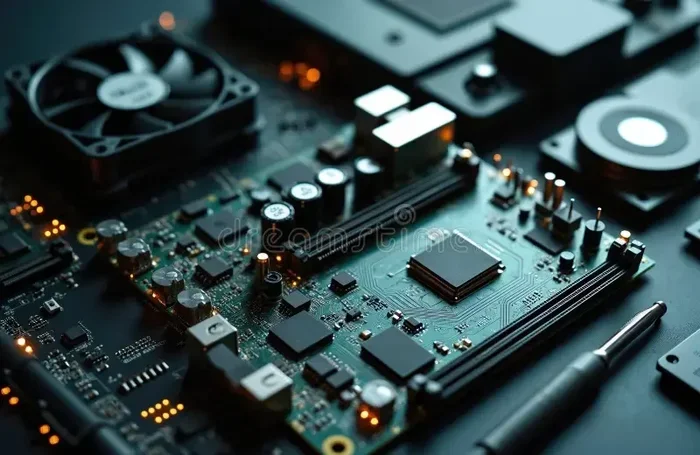
The motherboard is the backbone of every computer, and understanding its key parts helps you build, upgrade, or troubleshoot your system with confidence. The 5 components that are found on the motherboard include the CPU socket, RAM slots, expansion slots, chipset, and power connectors. Each of these parts plays a vital role in how your computer runs, connects, and performs every single day.
A computer might look like a simple box on your desk, but inside it is a complex web of parts working together. At the center of it all sits the motherboard. This large circuit board connects everything. Without it, your processor, memory, storage, and graphics card would have no way to talk to each other. Today, we are going to break down the 5 components that are found on the motherboard in a way that is easy to understand.
Whether you are a beginner building your first PC or someone who just wants to know more about how computers work, this guide is for you. We will walk through each part step by step. You will learn what they do, why they matter, and how to spot them on your own board. By the end, you will have a solid understanding of motherboard layout and function. Let us get started.
Key Takeaways
- The CPU Socket: This is where your processor plugs in. Different sockets support different CPUs, so matching them correctly is essential.
- RAM Slots: These hold your system memory. The type, speed, and number of slots affect how fast your computer handles tasks.
- Expansion Slots: PCIe slots let you add graphics cards, sound cards, and other hardware to boost your PC’s capabilities.
- The Chipset and BIOS: These manage communication between all parts and store the firmware that starts your computer.
- Power Connectors: Without proper power delivery, no component can function. These connectors supply electricity to every part of the board.
- Front Panel Headers: These small connectors link your case buttons, LEDs, and audio jacks to the motherboard.
- Knowing These Parts Helps You Build Better: Understanding each component makes shopping for parts and troubleshooting much easier.
📑 Table of Contents
- What Is a Motherboard and Why Does It Matter?
- The CPU Socket — The Processor’s Home on the Board
- RAM Slots — Where Your Memory Lives
- Expansion Slots — Adding Power and Features
- The Chipset and BIOS — The Brains Behind the Board
- Power Connectors and Front Panel Headers
- Comparison Table: Key Motherboard Components at a Glance
- Common Mistakes People Make With Motherboard Components
- Expert Insight: How Motherboard Layout Has Evolved
- How to Identify Motherboard Components on Your Own PC
- Final Thoughts
What Is a Motherboard and Why Does It Matter?
The motherboard is the main circuit board inside your computer. Think of it as a city map. Every road connects to every other road, and nothing works unless the map is there. The motherboard holds all your computer parts in place and lets them communicate through tiny electrical pathways called traces.
There are different sizes of motherboards, known as form factors. The most common ones are ATX, Micro-ATX, and Mini-ITX. Each size offers a different number of slots and ports. A larger board usually gives you more room for upgrades. But even the smallest board still contains all the essential components we will cover today.
The 5 components that are found on the motherboard are present in every board, no matter the size or brand. They may look a little different from one board to the next, but their jobs stay the same. Let us take a closer look at each one.
Why the Motherboard Is the Heart of Your PC
Your processor might get all the attention, but it cannot do anything without the motherboard. The board provides the physical platform where every piece hardware connects. It also handles the electrical signals that move data between parts. If one connection fails, the whole system can stop working.
When you shop for parts, the motherboard determines what type of CPU you can use. It also decides how much RAM you can install and what kind of expansion cards will fit. This is why choosing the right board is one of the most important decisions in building a PC.
The CPU Socket — The Processor’s Home on the Board
The CPU socket is one of the most important parts of any motherboard. This is the physical slot where your processor sits. It is usually located near the center of the board and covered by a heatsink or cooler in most systems. The socket has hundreds of tiny pins or contact points that connect the processor to the rest of the board.
Different processor brands use different socket types. Intel and AMD, the two main CPU makers, each have their own socket designs. For example, Intel uses LGA sockets where the pins are on the motherboard itself. AMD uses PGA sockets where the pins are on the processor. This distinction matters when you are upgrading or replacing a CPU.
How to Know Which Socket You Have
You can find your socket type by checking your motherboard manual or looking up the model number online. The socket name usually includes a code like LGA 1700 or AM5. These codes tell you exactly which generation of processors are compatible.
Here are some quick tips for dealing with CPU sockets:
- Always check compatibility before buying a new processor.
- Never touch the pins inside the socket. Even a small bend can cause problems.
- Use the correct cooler that matches your socket type.
- Apply thermal paste correctly if you are installing a cooler for the first time.
The CPU socket is a small part, but it has a huge impact on system performance. A mismatched socket means your processor simply will not work. That is why this is always the first component to check when planning a build or upgrade.
RAM Slots — Where Your Memory Lives
RAM slots, also called DIMM slots, are long horizontal openings on the motherboard. These are where your computer’s memory modules plug in. RAM, or Random Access Memory, is the short-term memory your PC uses to handle active tasks. The more RAM you have, the smoother your system runs when you have many programs open at once.
Most modern motherboards have four RAM slots, though some smaller boards may have only two. These slots support specific types of memory, such as DDR4 or DDR5. The number next to the RAM type tells you the generation. DDR5 is newer and faster, but DDR4 is still widely used and perfectly capable for most users.
Understanding RAM Speed and Channels
RAM speed is measured in megahertz (MHz). Higher numbers mean faster data transfer. But speed is not the only factor. Dual-channel and quad-channel configurations also matter. When you install RAM in matched pairs, your system can access memory more efficiently, which boosts overall performance.
Here are some practical tips for working with RAM slots:
- Always install RAM in matching pairs for dual-channel mode.
- Check your motherboard manual for the correct slot order.
- Do not mix RAM sizes or speeds unless you have to. Matching modules work best.
- Make sure your RAM type matches your slot. DDR4 will not fit in a DDR5 slot and vice versa.
The RAM slots are easy to spot on any motherboard layout. They are usually the long, thin slots located close to the CPU socket. Because memory affects everything from gaming to multitasking, getting the right RAM configuration is a smart move for any PC builder.
Expansion Slots — Adding Power and Features
Expansion slots are where you plug in extra hardware to expand your computer’s abilities. The most common type is the PCIe slot, which stands for Peripheral Component Interconnect Express. These slots come in different sizes, from PCIe x1 to PCIe x16. The number refers to how many lanes the slot has, which affects data transfer speed.
The 5 components that are found on the motherboard include expansion slots because they are so important for customization. Whether you want a better graphics card, a dedicated sound card, or a network adapter, expansion slots give you the flexibility to add what you need.
Types of Expansion Slots You Will See
Most desktop motherboards come with several PCIe slots of varying sizes. A PCIe x16 slot is the longest and is typically used for a graphics card. PCIe x1 slots are much shorter and are used for smaller add-in cards like USB expansion boards or sound cards.
Some motherboards also include M.2 slots, which are not exactly expansion slots but serve a similar purpose. M.2 slots are used for NVMe SSDs, which are extremely fast storage drives. These slots are usually located near the CPU or chipset and are very easy to install.
Here are some tips for using expansion slots effectively:
- Check the slot size before buying an expansion card.
- Install the graphics card in the top x16 slot for the best performance.
- Do not force any card into a slot. It should slide in smoothly with gentle pressure.
- Keep your BIOS updated to ensure full compatibility with newer expansion hardware.
Expansion slots are what make a motherboard truly versatile. They let you tailor your PC to your specific needs, whether you are a gamer, a content creator, or a casual user.
The Chipset and BIOS — The Brains Behind the Board
The chipset is a group of chips on the motherboard that manages communication between all the components. It acts like a traffic controller, directing data to the right places. The chipset determines how many USB ports you can use, how many SATA drives you can connect, and even how fast your RAM can run.
Intel and AMD each design their own chipsets. Within each brand, there are different tiers. For example, Intel offers chipsets like Z790, B760, and H770. Higher-tier chipsets usually offer more features and better overclocking support. AMD has similar tiers with its X670, B650, and A620 chipsets.
What Does the BIOS Do?
The BIOS, or Basic Input/Output System, is firmware stored on a chip on the motherboard. It is the first software that runs when you turn on your computer. The BIOS initializes your hardware, runs a quick power-on self-test, and then hands control over to your operating system.
Modern motherboards use a newer version called UEFI, which stands for Unified Extensible Firmware Interface. UEFI offers a more user-friendly interface and supports larger hard drives. You can access your BIOS or UEFI by pressing a specific key during startup, usually Del, F2, or F12.
Here are some quick tips for working with your chipset and BIOS:
- Keep your BIOS updated for the best stability and compatibility.
- Do not mess with BIOS settings unless you know what you are doing.
- The CMOS battery on the motherboard keeps your BIOS settings saved when the PC is off.
- Check your chipset when choosing a motherboard, as it affects features and performance.
The chipset and BIOS may not be the flashiest components, but they are absolutely essential. They are the behind-the-scenes managers that keep everything running smoothly.
Power Connectors and Front Panel Headers
Every component on the motherboard needs electricity to work. Power connectors are the parts that deliver this electricity from your power supply unit to the board. The main power connector is usually a 24-pin ATX plug that connects to a matching port on the motherboard. There is also an 8-pin CPU power connector near the top of the board that supplies power directly to the processor.
Without these connectors, your computer simply will not turn on. They are designed to be foolproof, with unique shapes that only fit in the correct slot. This prevents you from accidentally plugging the wrong connector into the wrong place.
Front Panel Headers — The Buttons and Lights
Front panel headers are small sets of pins on the motherboard edge. They connect to the buttons and lights on the front of your computer case. This includes the power button, reset button, power LED, and hard drive activity light. There is also usually a header for front audio and USB ports.
These headers can be tricky to connect, especially for beginners. The pins are often labeled on the motherboard, but the case cables may not always match perfectly. Your motherboard manual will have a diagram showing exactly where each cable goes.
Here are some helpful tips for power and front panel connections:
- Always refer to your motherboard manual for pin layouts.
- Take a photo before disconnecting any cables so you remember how they were connected.
- Use the correct power cables from your PSU. Using the wrong one can damage components.
- Front panel headers are small and easy to bend, so handle them with care.
Power connectors and front panel headers may seem minor, but they are what bring your motherboard to life. They are the final pieces of the puzzle that turn a collection of parts into a working computer.
Comparison Table: Key Motherboard Components at a Glance
| Component | Location on Board | Main Function |
|---|---|---|
| CPU Socket | Center of board | Holds and connects the processor |
| RAM Slots | Near CPU socket | Holds system memory modules |
| Expansion Slots (PCIe) | Lower half of board | Connects add-in cards like GPUs |
| Chipset and BIOS Chip | Near center, under heatsink | Manages data flow and stores firmware |
| Power Connectors | Top and edge of board | Delivers electricity from PSU |
This table gives you a quick visual reference for where each of the 5 components that are found on the motherboard is located and what it does. When you are looking at your own motherboard, you can use this as a guide to identify each part.
Common Mistakes People Make With Motherboard Components
Even experienced builders sometimes make mistakes when dealing with motherboard parts. One common error is buying a CPU that does not fit the socket. This happens when people forget to check socket compatibility before making a purchase. Always double-check that your processor matches your motherboard socket type.
Another mistake is installing RAM in the wrong slots. If you put memory in the wrong configuration, your PC may not recognize all the RAM or may run in single-channel mode, which slows performance. Always follow the slot order shown in your motherboard manual.
Some people also forget to connect the front panel headers correctly. This can result in a PC that powers on but has no display or no power button response. It is a frustrating problem that is easy to avoid by taking your time and reading the manual.
Here are a few more common mistakes to watch out for:
- Forgetting the CPU power connector — your PC will not turn on without it.
- Mixing RAM types — DDR4 and DDR5 are not interchangeable.
- Skipping BIOS updates — updates often fix bugs and improve compatibility.
- Overlooking the CMOS battery — a dead battery can reset your BIOS settings.
- Forcing components into slots — if it does not fit easily, stop and check the alignment.
Avoiding these mistakes saves time, money, and frustration. A little knowledge goes a long way when you are working with motherboard hardware.
Expert Insight: How Motherboard Layout Has Evolved
Motherboards have changed a lot over the years. Early boards had very few components and limited expansion options. Today’s boards are packed with features. Modern motherboards include built-in audio, multiple M.2 slots, USB-C headers, and advanced power delivery systems.
The 5 components that are found on the motherboard have stayed consistent in their core roles, but the technology behind them has improved dramatically. CPU sockets now support faster processors. RAM slots handle much higher speeds and larger capacities. Expansion slots offer greater bandwidth for data transfer.
According to hardware experts, the trend is moving toward more integrated features. Many modern boards now include built-in Wi-Fi and Bluetooth, which used to require separate expansion cards. This makes building a PC simpler and more accessible for beginners.
The chipset continues to evolve as well. Newer chipsets support faster storage, better power management, and improved connectivity. When shopping for a motherboard, always check the chipset to understand what features you will get.
Understanding these trends helps you make smarter buying decisions. It also gives you a better appreciation for the complexity and engineering that goes into every motherboard design.
How to Identify Motherboard Components on Your Own PC
If you want to see these parts on your own computer, it is easier than you might think. First, shut down your PC and unplug it from the wall. Open the side panel of your case and look inside. The motherboard is the large green (or sometimes black) board that holds everything in place.
Start by finding the CPU socket. It is usually in the center, covered by a metal heatsink. Next, look for the RAM slots, which are the long thin slots right next to the CPU socket. The PCIe expansion slots are lower on the board, where your graphics card would be installed.
The chipset is often covered by a small heatsink near the center of the board. The power connectors are at the top edge and near the CPU. Front panel headers are along the bottom edge of the board, closest to where the case cables enter.
Take your time exploring your board. Even just identifying these parts on your own system builds your confidence and knowledge. The more you look, the more familiar everything becomes.
Final Thoughts
The motherboard might seem intimidating at first glance, but it becomes much less scary once you understand what each part does. The 5 components that are found on the motherboard — the CPU socket, RAM slots, expansion slots, chipset with BIOS, and power connectors — form the foundation of every computer system.
Each of these parts has a specific job, and they all work together to make your PC function. The CPU socket houses your processor. The RAM slots hold your memory. Expansion slots let you add new hardware. The chipset and BIOS manage everything behind the scenes. Power connectors and front panel headers bring it all to life.
Whether you are building a new PC, upgrading an existing one, or just curious about how computers work, knowing these components gives you a real advantage. You will make better buying decisions, troubleshoot problems faster, and understand your system at a deeper level.
Take what you have learned here and apply it. Open up your own PC and try to identify each part. Look up your motherboard model and explore its features. The more you engage with your hardware, the more confident you will become. Your motherboard is the foundation of your entire system, and understanding it is one of the best investments you can make as a PC user.
Frequently Asked Questions
What are the 5 main components found on a motherboard?
The five main components are the CPU socket, RAM slots, expansion slots, chipset with BIOS, and power connectors. Each of these parts plays a specific role in making your computer work properly.
Can I upgrade my CPU without changing the motherboard?
It depends on the socket type. If your new CPU uses the same socket as your current motherboard, you can upgrade. Otherwise, you will need to replace the motherboard as well. Always check compatibility before buying a new processor.
How many RAM slots do most motherboards have?
Most desktop motherboards have four RAM slots, though compact boards may have only two. Check your motherboard specifications to know exactly how many slots your board supports and what type of RAM they accept.
What is the difference between PCIe x1 and PCIe x16 slots?
The number refers to how many lanes the slot has. PCIe x16 slots are longer and offer the most bandwidth, making them ideal for graphics cards. PCIe x1 slots are shorter and used for smaller expansion cards like USB add-ons or sound cards.
Why is the BIOS important for motherboard function?
The BIOS initializes your hardware when you turn on the computer and hands control to your operating system. It also stores settings like boot order and overclocking profiles. Without the BIOS, your computer would not know how to start up.
What happens if the power connectors are not connected properly?
If the main 24-pin or CPU 8-pin power connectors are not connected, your computer will not turn on. These connectors supply essential electricity to the motherboard and processor, so they are absolutely necessary for operation.