Can I Update Windows 7 to Windows 10 for Free Today
Yes, you can still update Windows 7 to Windows 10 for free in many cases. Microsoft’s free upgrade path remains active for most Windows 7 users through a digital license tied to your hardware. This guide walks you through every step, from checking eligibility to completing the Windows 10 upgrade smoothly. You will learn about system requirements, the upgrade assistant tool, and common pitfalls to avoid.
If you are still running Windows 7 on your computer, you are not alone. Millions of people around the world still use this older operating system. But here is the big question: can I update Windows 7 to Windows 10 for free? The short answer is yes. And the longer answer is even more encouraging.
Microsoft made a big deal back in 2015 when it offered a free upgrade to Windows 10. Many people jumped on that offer right away. But what about those who waited? What about users who are still on Windows 7 today? The good news is that the free upgrade path has not completely disappeared. It works differently now, but it is still very much alive.
In this article, we will walk you through everything you need to know. We will cover eligibility, system requirements, step-by-step instructions, and common mistakes to avoid. By the end, you will have a clear picture of how to upgrade Windows 7 to Windows 10 without spending a single dollar.
Key Takeaways
- Free upgrade is still available: Microsoft allows Windows 7 users to upgrade to Windows 10 at no cost using a digital license.
- Check compatibility first: Your PC must meet the minimum Windows 10 system requirements before you begin.
- Use the official Upgrade Assistant: This is the safest and easiest tool to download and run the free upgrade.
- Your Windows 7 key still works: You can reuse your Windows 7 product key during the upgrade process in many cases.
- Back up your data first: Always create a backup before starting any major upgrade to avoid data loss.
- Windows 7 is no longer secure: Microsoft stopped providing security updates for Windows 7 in January 2020, making an upgrade critical.
- Clean install is an option: You can perform a fresh Windows 10 install if you prefer starting from scratch.
📑 Table of Contents
- Why You Should Upgrade from Windows 7 to Windows 10
- Is the Free Windows 10 Upgrade Still Available?
- Windows 10 System Requirements You Need to Know
- How to Update Windows 7 to Windows 10 for Free
- Common Mistakes to Avoid When Upgrading
- Clean Install vs. Upgrade: Which Is Better?
- What Happens After You Upgrade to Windows 10?
- What If You Cannot Upgrade for Free?
- Final Thoughts
Why You Should Upgrade from Windows 7 to Windows 10
Before we dive into the how-to, let us talk about why this matters. Windows 7 has been around for a long time. Microsoft officially ended support for it on January 14, 2020. This means no more security patches, no more bug fixes, and no more technical assistance.
Running an unsupported operating system is a real risk. Hackers love targeting older systems because they know the weaknesses. Without regular security updates, your PC becomes more vulnerable every day. Here are some key reasons to make the move:
- Security: Windows 10 receives regular security updates that protect your PC from new threats.
- Performance: Windows 10 is faster and more efficient than Windows 7 on modern hardware.
- Compatibility: Many new apps and software no longer work well on Windows 7.
- Features: Windows 10 comes with a modern interface, Cortana, Microsoft Edge, and much more.
- Support: You get access to Microsoft’s full customer support ecosystem.
The bottom line is simple. Upgrading is not just about getting new features. It is about keeping your computer safe and functional in today’s digital world.
Is the Free Windows 10 Upgrade Still Available?
How the Free Upgrade Works Today
Many people believe the free Windows 10 upgrade ended in 2016. That is not entirely true. Microsoft technically closed the official free upgrade window years ago. However, there is a loophole that still works for most Windows 7 users.
Here is what happens. When you upgrade a Windows 7 PC to Windows 10 through the official channels, Microsoft ties a digital license to your hardware. This license is linked to your motherboard and other hardware identifiers. Even after the official free upgrade period ended, this digital license remains valid.
So when you go to activate Windows 10 after the upgrade, it often activates automatically. Microsoft recognizes your hardware as having previously qualified for the free upgrade. This means you can still get Windows 10 for free in most cases.
Who Is Eligible for the Free Upgrade?
Most Windows 7 users are eligible. Here are the general rules:
- You are running a genuine copy of Windows 7 (any edition including Home, Pro, or Ultimate).
- Your PC hardware is still intact and has not been replaced with completely different components.
- You have not already upgraded to Windows 10 and then downgraded back.
- Your Windows 7 installation is not pirated or improperly licensed.
If you meet these criteria, you should be able to upgrade without paying. Keep in mind that Microsoft does not always advertise this anymore. But the digital license system still works behind the scenes.
Windows 10 System Requirements You Need to Know
Before you start the upgrade process, you need to check if your PC can handle Windows 10. Not every computer that runs Windows 7 will work well with Windows 10. Let us look at the minimum requirements.
| Component | Minimum Requirement |
| Processor | 1 GHz or faster |
| RAM | 1 GB (32-bit) or 2 GB (64-bit) |
| Hard Disk Space | 16 GB (32-bit) or 20 GB (64-bit) |
| Graphics Card | DirectX 9 or later with WDDM 1.0 driver |
| Display | 800 x 600 resolution |
These are the bare minimums. In practice, you will want more RAM and storage space for a smooth experience. If your PC barely meets these specs, Windows 10 might run slowly.
How to Check Your PC Compatibility
Microsoft offers a free tool called the Windows 10 Upgrade Assistant. This tool scans your PC and tells you if it is compatible. It checks your processor, RAM, storage, and other hardware details. You can download it directly from the Microsoft website.
Another option is the PC Health Check app. This is a simpler tool that gives you a quick yes or no answer. It tells you if your PC can run Windows 10. Both tools are free and easy to use.
Here are some quick tips before you run the compatibility check:
- Make sure your PC is plugged into power. Do not run the check on battery alone.
- Close all open programs before starting the scan.
- Connect to a stable internet connection since the tool needs to download data.
- Back up important files before proceeding, just to be safe.
How to Update Windows 7 to Windows 10 for Free
Step 1: Back Up Your Data
This is the most important step, and many people skip it. Before you do anything, back up all your important files. Use an external hard drive, a USB flash drive, or a cloud storage service like OneDrive or Google Drive.
A backup protects you if something goes wrong during the upgrade. Even though the process is generally smooth, things can sometimes go sideways. Having a backup gives you peace of mind.
Step 2: Download the Windows 10 Upgrade Assistant
Go to the official Microsoft website and download the Windows 10 Upgrade Assistant. This is the official tool from Microsoft. Do not download it from third-party sites, as those could contain malware or unwanted software.
The Upgrade Assistant is a small file, usually around 15 to 20 MB. It downloads quickly on most internet connections. Once downloaded, run the file to start the installation check.
Step 3: Run the Compatibility Check
When you open the Upgrade Assistant, it will immediately start checking your PC. It looks at your hardware, your current Windows version, and your available storage space. This process takes just a few minutes.
If the tool says your PC is compatible, you can proceed. If it says your PC is not compatible, you may need to look into alternative options. Some older PCs with very limited resources might struggle with Windows 10.
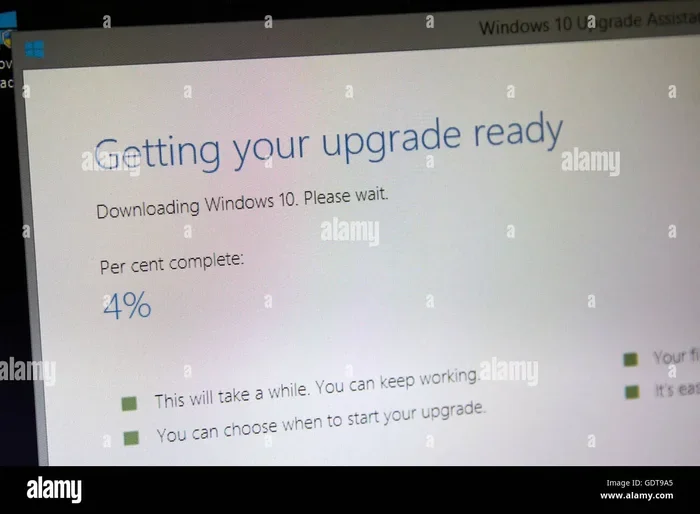
Step 4: Download and Install Windows 10
Once the compatibility check passes, click the upgrade button. The tool will download the Windows 10 installation files. This can take a while depending on your internet speed. The download size is usually around 4 to 6 GB.
After the download finishes, the Upgrade Assistant will start the installation. Your PC will restart several times during this process. Do not turn off your computer while it is installing. Let the process complete on its own.
Here is what to expect during installation:
- Your PC will restart a couple of times.
- You will see a progress bar with percentage updates.
- The entire process usually takes 30 to 60 minutes.
- You will be asked to choose your privacy settings during setup.
Step 5: Activate Windows 10
After installation is complete, you need to activate Windows 10. In most cases, it activates automatically. Microsoft recognizes your hardware and applies the digital license tied to your previous Windows 7 upgrade.
If it does not activate automatically, you can try entering your Windows 7 product key. In many cases, this works and activates your Windows 10 copy. If that does not work, you can use the activation troubleshooter built into Windows 10.
Go to Settings, then Update and Security, then Activation. Click on the troubleshoot option. This tool helps resolve most activation issues quickly.
Common Mistakes to Avoid When Upgrading
Upgrading from Windows 7 to Windows 10 is generally straightforward. But people do make mistakes that cause problems. Here are some common pitfalls to watch out for.
Skipping the Backup
This is the number one mistake. So many people dive right into the upgrade without backing up their files. If something goes wrong, you could lose important documents, photos, and data. Always back up first. It takes a little time, but it saves you from potential disaster.
Downloading from Unofficial Sources
There are many websites offering free Windows 10 downloads. Some of these are legitimate, but many are not. Downloading from unofficial sources can expose your PC to viruses, malware, or corrupted files. Always use the official Microsoft website.
Not Checking for Driver Updates
Windows 10 might not have drivers for very old hardware. Before upgrading, check if your manufacturer has released Windows 10 drivers for your specific model. This is especially important for older printers, scanners, and graphics cards.
Interrupting the Installation
Once the installation starts, do not interrupt it. Do not turn off your PC. Do not unplug it. Do not close the lid if it is a laptop. Interrupting the installation can corrupt your system and make your PC unbootable.
Ignoring Storage Space
Windows 10 needs at least 20 GB of free space on a 64-bit system. If your hard drive is almost full, the upgrade will fail. Before starting, delete unnecessary files or move them to an external drive to free up space.
Clean Install vs. Upgrade: Which Is Better?
When upgrading from Windows 7 to Windows 10, you have two main options. You can do an in-place upgrade, which keeps your files and apps. Or you can do a clean install, which starts fresh.
An in-place upgrade is easier and faster. It keeps all your personal files, settings, and most of your installed programs. This is the recommended option for most users. The Upgrade Assistant tool does this automatically.
A clean install is more thorough. It wipes your hard drive and installs Windows 10 from scratch. This gives you the best performance and fewest leftover issues. But it also means you lose all your files and apps unless you back them up first.
Here is a quick comparison:
- In-place upgrade: Keeps your files and apps. Faster. Easier. Good for most users.
- Clean install: Starts fresh. Best performance. Requires more effort. Best for advanced users or PCs with problems.
If your PC is running fine on Windows 7, the in-place upgrade is the way to go. If you are having issues or want a fresh start, consider a clean install.
What Happens After You Upgrade to Windows 10?
Once the upgrade is complete, there are a few things you should do right away. These steps help you get the most out of your new Windows 10 installation.
- Run Windows Update: Go to Settings, then Update and Security, then Windows Update. Click Check for Updates and install everything available. This ensures you have the latest security patches and bug fixes.
- Check Your Activation Status: Go to Settings, then Update and Security, then Activation. Make sure Windows 10 is activated properly.
- Install Your Drivers: Check Device Manager for any devices with missing drivers. Update them from your manufacturer’s website.
- Set Up Windows Security: Windows 10 comes with built-in security tools. Make sure Windows Defender is turned on and running properly.
- Customize Your Settings: Take some time to personalize your desktop, taskbar, and Start menu. Make the system feel like yours.
Taking these extra steps after the upgrade ensures a smooth and secure experience. It also helps you avoid issues down the road.
What If You Cannot Upgrade for Free?
In some cases, the free upgrade path may not work. Maybe your hardware is too old. Maybe your Windows 7 copy is not genuine. Or maybe Microsoft has changed the digital license policy for your region.
If the free upgrade does not work, you still have options. You can purchase a Windows 10 license from Microsoft or an authorized retailer. Prices vary, but a Windows 10 Home license typically costs around $139. A Pro license costs more.
Another option is to try a different operating system entirely. Linux distributions like Linux Mint or Ubuntu are free and offer a modern computing experience. They are not as widely used as Windows, but they are powerful and secure.
However, for most users, the free upgrade path will work. It is worth trying the official Upgrade Assistant before considering paid options.
Final Thoughts
The answer to the question can I update Windows 7 to Windows 10 for free is a resounding yes for most users. Microsoft’s digital license system still allows Windows 7 users to upgrade to Windows 10 at no cost. The process is straightforward, and the benefits are significant.
You get better security, improved performance, and access to modern features. You also protect your PC from the growing number of threats that target unsupported systems. The free upgrade is one of the best things you can do for your computer.
Just remember to back up your data first. Check your system requirements. Use the official Upgrade Assistant. And follow each step carefully. If you do all of this, you should have a smooth and successful upgrade to Windows 10.
Do not wait any longer. Windows 7 is outdated and vulnerable. Take action today and enjoy a faster, safer, and more modern computing experience with Windows 10.
Frequently Asked Questions
Is the free Windows 10 upgrade still available in 2024?
Yes, in most cases. Microsoft’s digital license system still allows Windows 7 users to upgrade to Windows 10 for free. The process uses the official Upgrade Assistant tool, and your existing Windows 7 license is often recognized as eligible for the free upgrade.
Can I use my Windows 7 product key to activate Windows 10?
In many cases, yes. When you upgrade from Windows 7 to Windows 10, your Windows 7 product key can be used to activate Windows 10. Alternatively, the digital license tied to your hardware may activate automatically without needing a key at all.
What are the minimum system requirements for Windows 10?
You need a 1 GHz processor, 1 GB of RAM for 32-bit or 2 GB for 64-bit, and 16 GB of storage for 32-bit or 20 GB for 64-bit. Your graphics card must support DirectX 9, and your display should be at least 800 by 600 resolution.
Will my programs and files be saved during the upgrade?
In most cases, yes. An in-place upgrade keeps your personal files and most of your installed programs. However, it is always wise to back up everything before starting. Some older or incompatible programs may need to be reinstalled after the upgrade.
What if my PC is not compatible with Windows 10?
If your PC does not meet the minimum requirements, you have a few options. You can try lightweight Linux distributions that run on older hardware. You can also upgrade your RAM or storage if your PC supports it. Finally, you can consider purchasing a new computer.
How long does the Windows 7 to Windows 10 upgrade take?
The entire process usually takes between 30 minutes and 2 hours. The download size is around 4 to 6 GB, so the time depends on your internet speed. The installation and setup process itself takes another 20 to 40 minutes after the download completes.
=== CONCLUSION ===
Upgrading from Windows 7 to Windows 10 for free is still possible today. Microsoft’s digital license system makes it accessible for most genuine Windows 7 users. You do not need to spend money, and the process is simpler than many people think.
Start by checking your PC’s compatibility. Back up your important files. Download the official Upgrade Assistant from Microsoft. Follow each step carefully, and you will be running Windows 10 in no time. The benefits are well worth the effort. You get a more secure, faster, and more capable operating system.
Do not let your Windows 7 PC become a security risk. Take action today and enjoy everything Windows 10 has to offer. Your computer will thank you for it.