Can You Code Python On A Macbook Heres Everything You Need
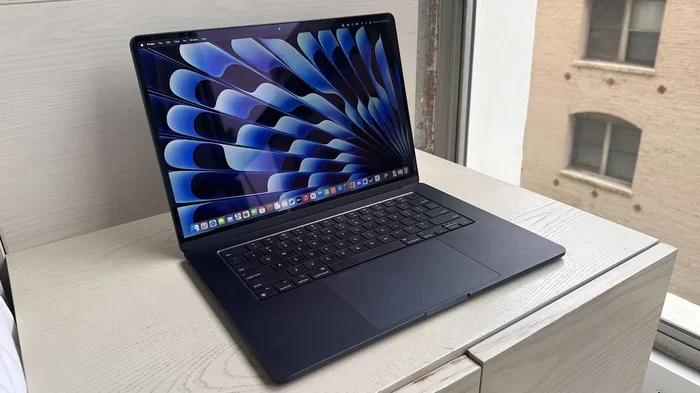
Yes, you can absolutely code Python on a MacBook, and it is one of the best setups for developers. macOS comes with built-in Python support, powerful terminal tools, and seamless compatibility with every major code editor. Whether you use a Macbook Air or Macbook Pro, this guide covers everything you need to start coding Python on your Mac today.
Key Takeaways
- Python works natively on macOS: Your MacBook already supports Python, making setup quick and straightforward.
- Multiple IDEs fit your workflow: From VS Code to PyCharm, you have excellent options for writing Python code on a Mac.
- Terminal is your best friend: Learning basic command line skills will supercharge your Python development experience.
- Common setup issues are easy to fix: PATH errors and version conflicts have simple solutions that anyone can follow.
- Macbook Air and Pro both work great: Either model handles Python development, from beginner scripts to advanced projects.
- Homebrew simplifies management: This package manager makes installing and updating Python effortless on macOS.
- Virtual environments keep projects clean: Using venv or pipenv prevents dependency conflicts across your Python projects.
📑 Table of Contents
- Can You Code Python On A Macbook Heres Everything You Need To Know
- Why Python Runs Perfectly on a MacBook
- Setting Up Python on Your MacBook
- Best Code Editors and IDEs for Python on Mac
- Using the Terminal and Command Line on Mac
- Common Issues and How to Fix Them
- Tips for Getting the Most Out of Python on Your MacBook
- Conclusion
Can You Code Python On A Macbook Heres Everything You Need To Know
If you have ever wondered whether your MacBook can handle Python development, the answer is a resounding yes. MacBooks are among the most popular machines for coding, and Python runs beautifully on macOS. Whether you are a complete beginner or a seasoned developer, your Mac gives you everything you need to write, test, and deploy Python code.
But knowing it works is only part of the story. You need the right setup, the best tools, and a clear plan. That is exactly what this guide delivers. We will walk through every step of setting up Python on your MacBook, recommend the top code editors, troubleshoot common problems, and share expert tips to make your experience smooth.
By the end, you will have full confidence that your MacBook is ready for Python. Let us get started.
Why Python Runs Perfectly on a MacBook
macOS is built on a Unix foundation, and Python was designed for Unix-like systems. This means the two were made for each other. Unlike Windows, where you sometimes fight with path configurations and permissions, macOS gives Python a natural home.
The Unix Advantage
macOS shares its DNA with Linux, which is the preferred operating system for most professional developers. This gives MacBook users a native terminal that works seamlessly with Python scripts. You can run commands, manage files, and handle processes just like you would on a Linux machine.
Python also comes pre-installed on macOS. While the version bundled with Apple may be older, it still lets you run basic scripts right away. You do not need to install anything just to get started. Simply open your terminal and type a simple command to see your Python version.
Macbook Air vs Macbook Pro for Python
Both models handle Python development well. The Macbook Air is more than enough for learning Python, running small scripts, and building beginner projects. The Macbook Pro shines when you need more power for data science, machine learning, or running multiple virtual environments simultaneously.
Here is a quick comparison:
- Macbook Air: Great for beginners, lightweight, handles standard Python tasks with ease.
- Macbook Pro: Better for intensive workloads, faster processor options, ideal for heavy development and testing.
The bottom line is that any MacBook can code Python. Your specific model mostly determines how many projects you can run at once and how fast heavy tasks complete.
Setting Up Python on Your MacBook
Getting Python ready on your Mac takes just a few minutes. Apple includes a system Python, but for serious development, you want a clean, updated installation. Here is the step-by-step process.
Step 1: Check Your Current Python Version
Open your Terminal app, which lives in Applications > Utilities. Type the following command and press Enter:
python3 –version
This shows which version of Python 3 is currently on your system. If you see a version number, you are already ready to write some code. If not, do not worry. The next steps will fix that.
Step 2: Install Homebrew
Homebrew is a package manager for macOS. Think of it as an app store for developer tools. It makes installing Python and managing versions incredibly simple.
To install Homebrew, paste this command into your terminal:
/bin/bash -c “$(curl -fsSL https://raw.githubusercontent.com/Homebrew/install/HEAD/install.sh)”
Follow the on-screen prompts. Once installed, you can use Homebrew to manage Python alongside other development tools you might need.
Step 3: Install the Latest Python
With Homebrew ready, install the latest Python version using this command:
brew install python
This gives you the most current version of Python without touching your system Python. It is a clean install that avoids conflicts and keeps everything organized.
Quick Tips for Setup
- Always use python3 instead of python, since macOS still references the older Python 2 system version.
- Add Homebrew paths to your shell profile so your terminal recognizes Python commands properly.
- Restart your terminal after installation to refresh environment variables.
- Consider using pyenv to manage multiple Python versions on the same machine.
Best Code Editors and IDEs for Python on Mac
A good code editor makes all the difference when coding Python. Your MacBook supports every major option, so choosing comes down to personal preference and project needs.
Visual Studio Code (VS Code)
VS Code is free, lightweight, and packed with features. Install the Python extension from Microsoft, and you get syntax highlighting, IntelliSense, debugging, and Git integration. It works flawlessly on macOS and remains one of the most popular choices among Python developers.
PyCharm
PyCharm from JetBrains is a dedicated Python IDE. The Community edition is free and offers smart code completion, error checking, and project management. The Professional version adds web development support and database tools. It runs smoothly on Macbooks of all sizes.
Jupyter Notebook
If you do data science or prefer running code in chunks, Jupyter Notebook is perfect. Install it through pip and launch it from your browser. It is especially popular with beginners learning Python for the first time on their Mac.
Sublime Text and Atom
Both are lightweight text editors that work well for quick Python scripting. They load fast, use minimal resources, and pair nicely with Python plugins for enhanced functionality.
Choosing the Right One
Here is a simple breakdown:
- Beginners: Start with VS Code or Jupyter Notebook for an easy learning curve.
- Web developers: PyCharm Professional or VS Code with extensions work best.
- Data scientists: Jupyter Notebook and VS Code with Jupyter support lead the pack.
- Minimalists: Sublime Text keeps things fast and distraction-free.
Using the Terminal and Command Line on Mac
The terminal is where many Python developers spend most of their time. On macOS, the built-in terminal gives you direct access to your Python environment, file system, and package manager. Getting comfortable here will level up your skills fast.
Navigating Files
Use simple commands to move around your Mac. cd changes directories, ls lists files, and pwd shows your current location. Once you find your project folder, you can run your Python script directly from the terminal.
For example, navigate to your project and run it like this:
cd ~/Documents/PythonProject
python3 main.py
That is all it takes to execute a Python script on your MacBook.
Managing Packages with pip
pip is Python’s package installer. It lets you add libraries and tools to your projects. Some common commands you will use frequently:
- pip3 install requests — installs the requests library for handling HTTP calls.
- pip3 install numpy — installs NumPy for numerical computing.
- pip3 list — shows all installed packages in your current environment.
- pip3 install -r requirements.txt — installs all packages listed in a project file.
Using pip correctly keeps your projects organized and makes sharing code with others effortless.
Virtual Environments
A virtual environment creates an isolated Python space for each project. This prevents conflicts between different package versions. Use venv, which comes built into Python 3.
Create one with: python3 -m venv myenv
Activate it with: source myenv/bin/activate
Deactivate when done: deactivate
This small habit saves you from countless headaches down the road.
Common Issues and How to Fix Them
Even on macOS, you might run into a few snags when setting up Python. The good news is that most problems have quick, simple fixes.
Python Not Found in Terminal
This usually means your PATH does not include the Python location. If you installed Python through Homebrew, run echo ‘export PATH=”/usr/local/opt/python/libexec/bin:$PATH”‘ >> ~/.zshrc and restart your terminal. This adds Python to your system path so commands work correctly.
Permission Errors When Installing Packages
Never use sudo with pip. Instead, use a virtual environment or add the –user flag. Virtual environments are the better long-term solution because they keep your global Python installation clean.
Version Conflicts
macOS sometimes includes an older Python version alongside a newer one you installed. Use pyenv to switch between versions easily. Install it with Homebrew, then set the global version you want to use by default.
IDE Not Recognizing Python
If your code editor cannot find your Python interpreter, check your editor settings. Most IDEs let you manually select the Python path. Usually it lives at /usr/local/bin/python3 when installed through Homebrew.
Expert Insight
Most setup problems come from having multiple Python installations that conflict with each other. Start with one clean installation through Homebrew, use virtual environments for every project, and you will avoid 90 percent of common issues. Keep your tools updated, and your Mac will serve you well as a development machine for years.
Tips for Getting the Most Out of Python on Your MacBook
Now that you are set up, here are some practical tips to make your Python journey on macOS even better.
Use a Code Manager Like Homebrew and pyenv
Managing tools through Homebrew keeps your system organized. Pair it with pyenv for seamless Python version switching. Together, they give you professional-grade control over your development environment.
Learn Keyboard Shortcuts for Your Editor
MacBooks have excellent keyboard shortcuts built into macOS. Learn the shortcuts for your chosen editor to speed up your workflow. Common ones include command + shift + P for the command palette in VS Code and command + / for toggling comments.
Leverage macOS Features for Coding
Use Spotlight to quickly open Terminal or your editor. Take advantage of Split View to have your code editor on one side and the terminal on the other. These small habits make coding on a MacBook feel natural and efficient.
Keep Your Projects in Version Control
Git comes pre-installed on macOS or is easy to install through Homebrew. Use it from day one. Create a repository for every project, commit often, and use GitHub or GitLab to back up your work. This is a fundamental software development practice that every Python developer should adopt early.
Explore Python Libraries Built for Mac
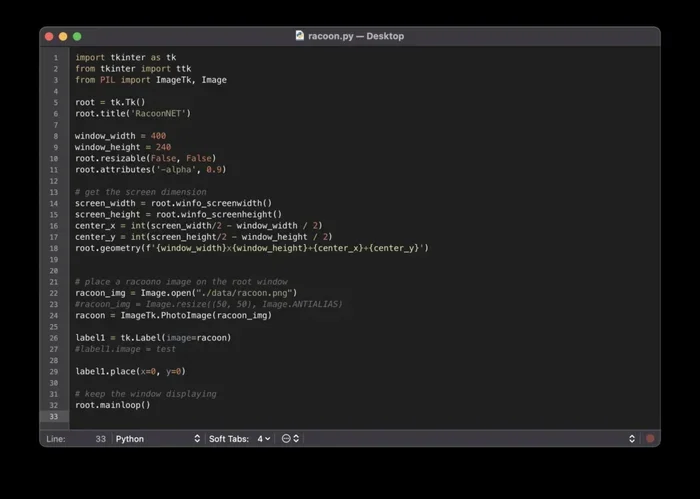
Some Python libraries work especially well on macOS. Tkinter for building GUIs is included with Python. py2app lets you package Python scripts into standalone Mac applications. These tools take advantage of your operating system in ways that Windows and Linux cannot match.
Quick Tips Summary
- Pin your Python version with pyenv for project stability.
- Always activate a virtual environment before installing packages.
- Use brew services to manage background tools like databases.
- Back up your code using Git and a remote repository.
- Update Homebrew packages regularly with brew update && brew upgrade.
Conclusion
Can you code Python on a MacBook? Absolutely, and with ease. macOS provides a natural, developer-friendly environment for Python programming. Your MacBook comes with built-in support, works with every popular code editor, and handles everything from simple scripts to complex applications.
You now know how to set up Python, choose the right IDE, use the terminal effectively, troubleshoot common issues, and apply expert tips to boost your workflow. Whether you have a Macbook Air for portable coding or a Macbook Pro for heavy-duty development, your setup is ready.
The only thing left is to start writing code. Open your terminal, launch your editor, and begin building something great. Your MacBook and Python are a perfect pair.
Frequently Asked Questions
Is Python pre-installed on Macbook?
Yes, macOS includes a system version of Python, though it may be an older release. For modern development, installing the latest Python through Homebrew gives you the best experience and access to the newest features.
Can I use Macbook Air for Python development?
Absolutely. Macbook Air handles Python coding, scripting, and most projects very well. It is ideal for beginners and intermediate developers. Only very resource-intensive tasks like large-scale machine learning training might benefit from a Macbook Pro.
What is the best IDE for Python on Mac?
VS Code is the most popular choice due to its free price, lightweight design, and powerful Python extension. PyCharm Community is also excellent, especially for developers who want a dedicated Python-focused environment.
How do I run a Python script on Mac?
Open Terminal, navigate to your script folder using the cd command, then type python3 followed by your script filename, like python3 main.py. Press Enter and your script runs immediately.
Do I need to install pip separately on Mac?
No. pip comes bundled with Python 3. Once you have Python 3 installed, pip3 is ready to use. You can verify this by typing pip3 –version in your terminal.
Is Mac better than Windows for coding Python?
Both are capable, but macOS has a Unix-based structure that aligns closely with how Python and most server environments operate. This makes macOS a natural fit for development, though Windows with WSL is also a strong option.