Can I Leave My Dell Laptop Plugged In 24 7 All Day
Yes, you can leave your Dell laptop plugged in 24 7, but there are important settings and habits you need to know. Modern Dell laptops have built-in battery management tools that help prevent overcharging and reduce battery wear. However, leaving it plugged in all the time without the right settings can still cause battery degradation over time.
So you want to know can I leave my Dell laptop plugged in 24 7. It is a really common question. Lots of Dell laptop owners keep their machines docked at a desk all day long. And honestly, it makes sense. You plug in, work, and forget about the charging light. But does that mean your battery is happy? Not always.
The short answer is yes. You can leave your Dell laptop plugged in around the clock. Modern Dell laptops come with smart battery controllers. These controllers stop the flow of power once the battery hits 100 percent. So the battery does not keep charging forever. But that does not mean you should ignore battery health completely. There are a few things you should know to keep your Dell laptop running strong for years.
In this guide, we will walk through everything you need to know. We will cover how Dell laptops handle constant charging, what settings to use, common mistakes to avoid, and simple tips to boost battery longevity. Whether you use your Dell laptop at a desk every day or you just want peace of mind, this article has you covered.
Key Takeaways
- You can leave your Dell laptop plugged in 24 7: Modern Dell laptops are designed to handle constant power without immediate damage.
- Use Dell Power Manager: This free tool lets you set a battery charge threshold to protect long-term health.
- Battery calibration matters: Calibrating your battery every few months keeps the percentage readings accurate.
- Overheating is the real enemy: A hot laptop degrades the battery faster than anything else.
- Unplug occasionally: Using battery power now and then helps maintain battery function and longevity.
- Check your charge cycles: Lithium-ion batteries have a limited number of cycles, so smart charging habits extend their life.
- Warranty and replacement costs: Ignoring battery health can lead to expensive early replacements.
📑 Table of Contents
- What Happens When You Keep Your Dell Laptop Plugged In 24 7
- How Dell Laptops Handle Constant Charging
- The Best Settings to Protect Your Battery
- Common Mistakes People Make With Laptop Charging
- When You Should Unplug Your Dell Laptop
- Tips for Long-Term Battery Health
- How to Check Your Dell Laptop Battery Health
- Expert Insights on Dell Laptop Battery Care
- Key Takeaways
- Conclusion
What Happens When You Keep Your Dell Laptop Plugged In 24 7
How Lithium-Ion Batteries Work
Every modern Dell laptop uses a lithium-ion battery. These batteries are different from the old nickel-cadmium batteries from years ago. Lithium-ion batteries do not have a “memory effect.” That means you do not need to drain them fully before recharging. But they do have a limited number of charge cycles. A charge cycle happens every time you discharge the battery from 100 percent down to zero and back up again. Of course, you do not need to go all the way down for a cycle. Even partial discharges count.
When your Dell laptop stays plugged in all the time, the battery stays at or near 100 percent. Keeping a lithium-ion battery at full charge for long periods can speed up battery degradation. This is the gradual loss of battery capacity. Over months and years, your battery might not hold as much charge as it used to. You may notice your Dell laptop battery life getting shorter and shorter.
Does Constant Charging Damage the Battery?
Here is the good news. Dell has built-in protections. When the battery reaches 100 percent, the laptop switches to running directly on AC power. The battery stops charging at that point. So the battery does not overcharge. It is not like an old phone that could explode from overcharging.
However, staying at 100 percent charge for weeks on end puts stress on the battery cells. Heat also plays a big role here. If your laptop gets warm while plugged in, the combination of high charge level and warmth can wear out the battery faster. So constant charging alone is not the only factor. Heat plus full charge is the real concern.
Battery Drain When Plugged In
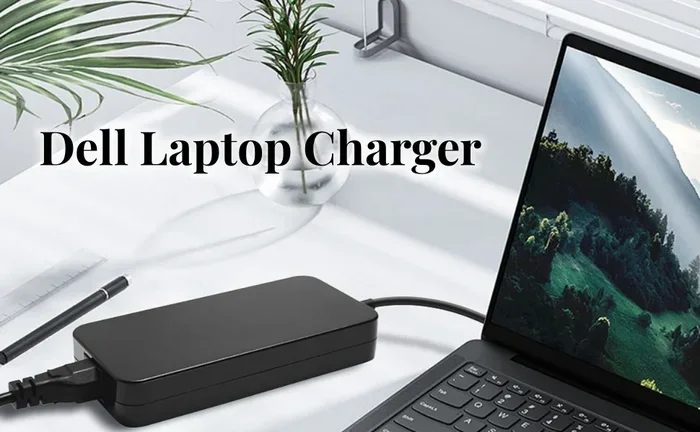
You might notice your battery drain even while plugged in sometimes. This can happen if the power adapter is weak or if the laptop is working very hard. Running heavy tasks like gaming or video editing while plugged in generates more heat. That heat affects the battery. A power adapter that is not the right wattage for your Dell model can also cause issues. Always use the charger that came with your laptop or one that Dell recommends.
How Dell Laptops Handle Constant Charging
Built-In Battery Management
Dell knows that many people keep their laptops plugged in all day. That is why newer Dell laptops come with smart battery management features. These features help reduce battery wear even when the laptop stays connected to AC power all the time. Dell has worked hard to make sure their laptops are safe for extended use.
The battery controller in your Dell laptop monitors the charge level closely. It adjusts the charge rate to keep the battery healthy. Some Dell models even have a feature that lets you limit the maximum charge. For example, you can set the battery to stop charging at 80 percent instead of 100 percent. This small change can make a big difference in battery longevity over time.
Dell Power Manager: Your Best Friend
Dell Power Manager is a free app that comes with most Dell laptops. It gives you control over how your battery charges and discharges. You can download it from the Dell website if it is not already on your laptop. This tool is one of the best ways to protect your battery when you keep your laptop plugged in 24 7.
With Dell Power Manager, you can do several things:
- Set a custom charge threshold: Tell the laptop to stop charging at 80 percent instead of 100.
- Choose a charging mode: Select from Standard, ExpressCharge, or Custom modes.
- Monitor battery health: See the current condition and wear level of your battery.
- Check charge cycles: Track how many cycles your battery has gone through.
- Set battery saver mode: Automate power-saving settings when on battery.
Using Dell Power Manager is one of the easiest ways to answer the question can I leave my Dell laptop plugged in 24 7 safely. It takes the guesswork out of battery care.
ExpressCharge vs Standard Charging
Dell laptops offer two main charging modes. ExpressCharge charges the battery very fast. It can get your battery from empty to 80 percent in about an hour. This is great when you are in a hurry. But ExpressCharge can generate more heat during the fast charge rate, which can affect long-term battery health.
Standard charging is slower but gentler on the battery. It puts less stress on the cells and produces less heat. If you keep your Dell laptop plugged in most of the time, Standard charging is the better choice. You can switch between modes in Dell Power Manager with just a few clicks.
The Best Settings to Protect Your Battery
Setting a Battery Charge Threshold
The single best thing you can do is set a battery threshold. This limits how high the battery charges. Most experts recommend setting it to 80 percent. Here is why. Lithium-ion batteries last longest when they stay between 20 percent and 80 percent. Keeping the battery at 100 percent all the time puts the most stress on the cells.
To set a threshold in Dell Power Manager:
- Open Dell Power Manager from your Start menu.
- Click on “Battery Information” or “Battery Settings.”
- Choose “Custom” charging mode.
- Set the start and stop charge levels. For example, start at 20 percent and stop at 80 percent.
- Save your settings.
Once you set this, your Dell laptop will only charge the battery up to 80 percent. It will then stop. This keeps the battery in a healthy range even when plugged in 24 7. It is a simple step that adds months or even years to your battery life.
Enabling Battery Saver Mode
Battery saver mode is another great tool. When turned on, it reduces background activity and lowers power use. This helps in two ways. First, it slows down battery drain when you are on battery power. Second, it reduces heat when the laptop is plugged in and working hard. Less heat means less stress on the battery.
You can set battery saver to turn on automatically at a certain battery percentage. For example, you can set it to activate at 20 percent. This keeps your Dell laptop running efficiently without you having to think about it.
Updating Your BIOS and Drivers
Dell regularly releases BIOS updates and driver updates that improve battery management. These updates can fix bugs and add new features for battery health. Make it a habit to check for updates every few weeks. You can use the Dell SupportAssist tool to do this automatically. Keeping your system updated is one of the easiest charging habits that pay off in the long run.
Common Mistakes People Make With Laptop Charging
Leaving the Laptop in a Hot Spot
This is one of the biggest mistakes. People put their Dell laptop on a bed, a couch, or a pillow while it charges. These soft surfaces block the vents. The laptop gets hot. Heat is the number one killer of lithium-ion batteries. Even with all the right settings, a hot laptop will see faster battery degradation.
Always place your Dell laptop on a hard, flat surface while charging. A desk or a table is ideal. If you use your laptop on a bed or couch, use a cooling pad or a hard book underneath to keep the vents open.
Never Unplugging the Laptop
Some people think that because Dell laptops handle constant charging fine, they should never unplug. That is not true. Using your battery regularly helps keep the battery cells active. If you never use battery power, the battery can lose its ability to hold a charge over time. It is like a muscle that gets weak from not being used.
A good routine is to unplug your Dell laptop once or twice a week. Let the battery drop to around 20 percent, then plug it back in. This helps maintain battery health and keeps the charge calibration accurate.
Ignoring Battery Calibration
Over time, your Dell laptop may show incorrect battery percentage readings. It might say you have 30 percent left, and then it suddenly shuts down. This happens when the battery needs calibration. Calibration resets the battery meter so the readings match reality.
To calibrate your Dell battery:
- Charge the battery to 100 percent while plugged in.
- Unplug the laptop and use it until it shuts down on its own.
- Leave it off for at least 5 hours.
- Plug it back in and charge it to 100 percent again without interruption.
Do this every 2 to 3 months. It takes a little time, but it keeps your battery readings accurate and helps you make better decisions about when to plug in or unplug.
Using a Cheap or Wrong Power Adapter
Your power adapter matters more than you think. A cheap or wrong wattage adapter can deliver inconsistent power to your Dell laptop. This can cause battery wear and even damage the charging circuit. Always use the original Dell adapter or one that matches the exact specifications for your model.
When You Should Unplug Your Dell Laptop
During Heavy Workloads
If you are doing something demanding like video editing, 3D rendering, or gaming, your laptop generates a lot of heat. In these situations, it can help to unplug for a while if the battery level is reasonable. Running on battery during heavy tasks reduces the heat from the power adapter and the adapter itself. This gives the battery a break from both heat and full charge at the same time.
When Storing the Laptop
If you plan to store your Dell laptop for a few weeks or longer, do not leave it plugged in. Store it with the battery at around 50 percent. A fully charged battery stored for a long time will degrade faster. Also, store the laptop in a cool, dry place. Heat and moisture are the two worst enemies of any lithium-ion battery.
When the Battery Is Already Degraded
If your Dell laptop battery is already showing signs of wear, such as significantly shorter runtime or swelling, you should address the issue right away. A degraded battery left plugged in 24 7 can overheat and in rare cases pose a safety risk. Check your battery health in Dell Power Manager. If the wear level is high, consider a battery replacement. Dell offers affordable replacement batteries, and the process is usually straightforward.
Tips for Long-Term Battery Health
Keep Your Laptop Cool
Cool is good for batteries. Heat is bad. Here are some simple ways to keep your Dell laptop cool:
- Use it on a hard, flat surface at all times.
- Clean the vents and fans regularly with compressed air.
- Use a cooling pad if you work on soft surfaces.
- Avoid using your laptop in direct sunlight or near heat sources.
- Keep the room temperature comfortable, ideally between 50 and 95 degrees Fahrenheit.
Follow the 20 to 80 Rule
The 20 to 80 rule is a well-known best practice for lithium-ion batteries. Try to keep your battery between 20 percent and 80 percent as much as possible. This range puts the least stress on the battery cells. When you stay in this range, you slow down battery degradation significantly. Dell Power Manager makes this easy with its custom charge threshold feature.
Unplug and Use Battery Power Regularly
Even if you have a desk setup, make it a habit to use battery power at least a few times a week. This keeps the battery cells active and healthy. Think of it as exercise for your battery. A little use goes a long way toward maintaining battery longevity.
Monitor Battery Health Regularly
Check your battery health in Dell Power Manager every month or so. Look at the wear level and the design capacity versus the full charge capacity. If you see a big drop in capacity, it might be time to take action. You can recalibrate the battery, adjust your settings, or plan for a replacement.
Avoid Fast Charging When Possible
ExpressCharge is convenient, but it generates more heat. If you have time, use Standard charging overnight or when you are at your desk. The slower charge rate is gentler on the battery and produces less heat. Over months and years, this small difference adds up to better battery health.
How to Check Your Dell Laptop Battery Health
Checking your battery health is simple and takes just a minute. Here is how:
- Open Dell Power Manager.
- Look for the “Battery Information” section.
- Check the “Battery Health” or “Battery Wear Level.”
- Compare the “Designed Capacity” with the “Full Charge Capacity.”
If your full charge capacity is below 80 percent of the designed capacity, your battery is showing significant wear. At this point, you might want to consider a replacement. Dell batteries are usually affordable, and replacing one is much cheaper than buying a whole new laptop.
Expert Insights on Dell Laptop Battery Care
Battery experts agree on a few key points when it comes to charging habits and battery longevity. First, heat is the biggest enemy. Second, keeping the battery between 20 and 80 percent is the sweet spot. Third, using the battery regularly prevents capacity loss. These three principles apply to all Dell laptops, whether you have an Inspiron, XPS, Latitude, or Precision model.
Dell engineers design their laptops with AC power mode in mind. They know that business users and home users alike keep their machines plugged in for hours every day. The built-in protections and Dell Power Manager tools are there to support this use pattern. But they work best when you actually use them. Taking five minutes to set up Dell Power Manager can save you from an early battery replacement cost down the road.
Key Takeaways
- You can leave your Dell laptop plugged in 24 7: Modern Dell laptops are designed to handle constant power without immediate damage.
- Use Dell Power Manager: This free tool lets you set a battery charge threshold to protect long-term health.
- Battery calibration matters: Calibrating your battery every few months keeps the percentage readings accurate.
- Overheating is the real enemy: A hot laptop degrades the battery faster than anything else.
- Unplug occasionally: Using battery power now and then helps maintain battery function and longevity.
- Check your charge cycles: Lithium-ion batteries have a limited number of cycles, so smart charging habits extend their life.
- Warranty and replacement costs: Ignoring battery health can lead to expensive early replacements.
Conclusion
So, can I leave my Dell laptop plugged in 24 7? The answer is yes, with a few smart precautions. You do not need to stress about keeping your Dell laptop connected to power all day. Dell has built excellent battery management into their laptops. But you still need to take a few simple steps to protect your battery longevity and avoid unnecessary battery wear.
Set up Dell Power Manager with a charge threshold. Keep your laptop cool. Use battery power regularly. Calibrate the battery every couple of months. These small habits make a huge difference over time. Your Dell laptop battery will last longer, hold more charge, and save you money on replacements.
The bottom line is simple. Treat your battery well, and it will treat you well back. Plug in your Dell laptop, set the right settings, and enjoy the freedom of working without worrying about running out of power. With the right approach, you can keep your Dell laptop running at its best for many years to come.
Can I Leave My Dell Laptop Plugged In 24 7 Without Damaging the Battery?
Yes, you can leave your Dell laptop plugged in all the time. Modern Dell laptops have built-in protections that stop the battery from overcharging. However, to keep the battery healthy long-term, you should use Dell Power Manager to set a charge threshold, ideally around 80 percent. This reduces stress on the battery cells and slows down degradation over time.
How Long Does a Dell Laptop Battery Last If Plugged In 24 7?
With proper settings, a Dell laptop battery can last 3 to 5 years even if kept plugged in most of the time. The key factors are heat management, charge thresholds, and regular battery use. If you ignore these habits, the battery may degrade faster and need replacement within 1 to 2 years.
Does Leaving a Dell Laptop Plugged In Affect Performance?
No, leaving your Dell laptop plugged in does not affect performance. In fact, running on AC power can sometimes improve performance slightly because the laptop does not need to manage battery power. However, if the laptop gets too hot while plugged in and working hard, it may slow down due to thermal throttling. Keep your laptop cool for the best performance.
Should I Use Dell Power Manager If I Always Keep My Laptop Plugged In?
Absolutely. Dell Power Manager is the best tool for managing battery health when you keep your laptop plugged in 24 7. It lets you set custom charge limits, choose the right charging mode, and monitor battery wear. Taking a few minutes to set it up can add years to your battery life.
How Do I Know If My Dell Laptop Battery Needs Replacement?
Check the battery health in Dell Power Manager. If the full charge capacity is below 80 percent of the designed capacity, the battery is significantly worn. Other signs include very short runtime, the laptop shutting down suddenly, or a swollen battery. In these cases, a battery replacement is the safest and most effective solution.
Is It Safe to Charge My Dell Laptop Overnight?
Yes, it is safe to charge your Dell laptop overnight. The battery controller stops charging once it reaches 100 percent. To be extra safe, set a charge threshold in Dell Power Manager so the battery stops at 80 percent. This keeps the battery in a healthy range and reduces long-term wear while you sleep.
Frequently Asked Questions
What is Can I Leave My Dell Laptop Plugged In 24 7?
Can I Leave My Dell Laptop Plugged In 24 7 is an important topic with many practical applications.