Can I Clone A Windows 11 Hard Drive To Another Drive
Yes, you can clone a Windows 11 hard drive to another drive with the right tools and a simple process. Disk cloning lets you copy your entire system, including the OS, apps, and files, to a new drive in just a few steps. This guide covers everything you need to know about Windows 11 migration, from choosing the best drive cloning software to avoiding common pitfalls.
Key Takeaways
- Cloning is possible: You can easily clone a Windows 11 hard drive to another drive using dedicated software.
- SSD cloning boosts speed: Moving your system to an SSD dramatically improves Windows 11 performance.
- Pick the right tool: Both free and paid drive cloning software options work well for disk cloning.
- Preparation matters: Back up your data and check drive sizes before starting the cloning process.
- Verify after cloning: Always check that your bootable clone works before removing the old drive.
- Avoid common mistakes: Don’t skip driver checks, partition alignment, or boot order setup.
📑 Table of Contents
- Introduction
- What Is Disk Cloning and Why Do People Clone Drives?
- Can You Clone a Windows 11 Hard Drive? The Short Answer
- Best Cloning Software for Windows 11
- Step-by-Step Guide to Clone Your Windows 11 Hard Drive
- Cloning to SSD vs HDD: Which Is Better for Windows 11?
- Common Cloning Mistakes and How to Avoid Them
- Conclusion
Introduction
If you have ever wondered whether can I clone a Windows 11 hard drive to another drive, the answer is a clear yes. Cloning your hard drive is one of the smartest things you can do. It saves time, protects your data, and makes upgrading your storage a breeze.
Whether you are replacing an old HDD with a faster SSD or creating a full backup of your system, hard drive clone methods have never been easier. Windows 11 users have several powerful options at their fingertips. In this guide, we will walk you through everything step by step. You will learn what cloning is, which tools work best, and how to avoid common mistakes.
By the end of this article, you will feel confident enough to clone your own drive. No tech degree required. Just follow along and you will have a working system clone in no time.
What Is Disk Cloning and Why Do People Clone Drives?
Disk cloning is the process of creating an exact copy of your hard drive. This includes the operating system, all installed programs, system settings, and every file on your drive. Think of it like making a perfect mirror image of your entire drive.
How Disk Cloning Works
When you clone a drive, the software reads every sector from the source drive and writes it to the target drive. This is called a sector-by-sector clone. The result is a fully functional copy that boots exactly like the original.
Some tools also offer partition cloning, which copies only the used partitions. This is great when your target drive is smaller than the source but still has enough space for your data.
Why Clone a Windows 11 Drive?
There are many reasons people choose Windows 11 migration through cloning:
- Upgrade to an SSD: SSDs are much faster than traditional HDDs. Cloning lets you move your entire system without reinstalling Windows.
- Create a full backup: A bootable clone means you can recover your entire system in minutes if something goes wrong.
- Replace a failing drive: If your current drive is showing signs of failure, cloning saves you from data loss.
- Duplicate your setup: Want the same Windows setup on multiple computers? Drive duplication makes this possible.
- Transfer your OS to a larger drive: Running out of space? Clone to a bigger drive and keep everything intact.
Expert Insight: Cloning is far faster than a fresh Windows 11 installation. A full system setup with all your apps can take hours. Cloning cuts that time down to under an hour in most cases.
Can You Clone a Windows 11 Hard Drive? The Short Answer
Can I clone a Windows 11 hard drive to another drive? Absolutely. Windows 11 fully supports drive cloning. You do not need any special tricks or workarounds. As long as you have the right drive cloning software and a target drive with enough space, you are good to go.
What You Need Before Cloning
Before you start the cloning process, make sure you have these items ready:
- A target drive: This can be an internal HDD, an SSD, or even an external USB drive. It must be at least as large as the used space on your source drive.
- Cloning software: You will need a dedicated tool. We will cover the best options below.
- A stable power source: Never clone on a laptop running low battery. A power interruption can corrupt your system image.
- A USB-to-SATA adapter (if needed): If your target drive is an external drive or a second internal drive, you may need an adapter to connect it.
Compatibility Requirements
Most cloning tools work with all major drive types. Here is a quick compatibility check:
- HDD to HDD: Fully supported. This is the most basic cloning scenario.
- HDD to SSD: Fully supported. Many people do this to speed up their Windows 11 PC.
- SSD to SSD: Fully supported. Great for upgrading to a faster or larger SSD.
- GPT and MBR: Most modern tools handle both partition styles. Windows 11 uses GPT by default.
Quick Tip: Before cloning, run chkdsk /f in Command Prompt to check for drive errors. Fixing issues beforehand prevents problems during the data migration.
Best Cloning Software for Windows 11
Choosing the right drive cloning software is the most important decision you will make. There are many options available, ranging from free tools to premium suites. Here are the best choices for Windows 11 cloning.
Top Free Cloning Tools
You do not need to spend money to get a great clone. These free tools are reliable and widely used:
- Clonezilla: A powerful open-source tool that supports sector-by-sector clone and disk imaging. It is free but has a less friendly interface. Best for advanced users.
- Macrium Reflect (Free Edition): A popular choice for system image creation and hard drive clone tasks. The free version offers solid cloning features for personal use.
- AOMEI Backupper Standard: A user-friendly free tool with a simple wizard-style interface. Great for beginners who want an easy cloning process.
Paid Cloning Software Worth Considering
Premium tools offer extra features like incremental backups, scheduling, and better support:
- EaseUS Todo Backup: One of the most popular drive cloning software options. It offers a clean interface and reliable OS transfer capabilities. The paid version includes tech support and advanced scheduling.
- Acronis Cyber Protect: A premium suite that combines cloning with full backup and security features. Ideal for users who want an all-in-one solution.
- Samsung Data Migration: If you are cloning to a Samsung SSD, this free tool from Samsung is excellent and purpose-built for SSD cloning.
Cloning Software Comparison
| Software | Price | Ease of Use | SSD Optimization |
|---|---|---|---|
| Clonezilla | Free | Moderate | Yes |
| Macrium Reflect Free | Free | Easy | Yes |
| AOMEI Backupper | Free / Paid | Very Easy | Yes |
| EaseUS Todo Backup | Paid | Very Easy | Yes |
| Acronis Cyber Protect | Paid | Easy | Yes |
| Samsung Data Migration | Free | Very Easy | Yes (Samsung SSDs) |
Expert Insight: For most Windows 11 users, AOMEI Backupper or EaseUS Todo Backup offer the best balance of ease and reliability. If you are cloning to a Samsung SSD, start with Samsung Data Migration for the smoothest experience.
Step-by-Step Guide to Clone Your Windows 11 Hard Drive
Now that you have your software picked out, let us walk through the actual cloning process. Follow these steps carefully for a smooth experience.
Preparing for the Clone
Preparation is the most important phase. Skipping this step is the number one reason cloning fails. Here is what to do:
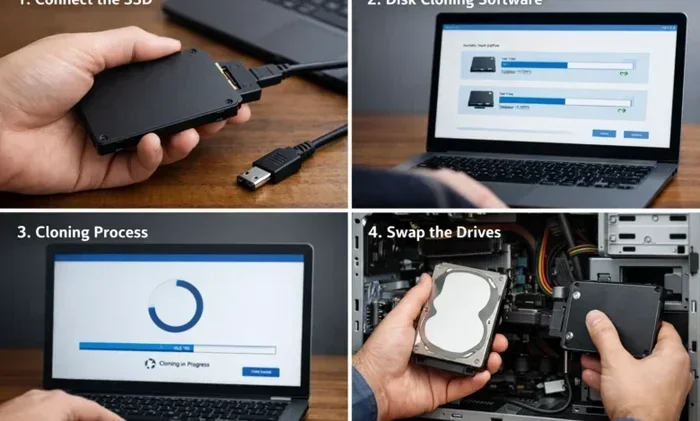
- Connect your target drive. If it is an internal second drive, it should already be connected. If it is external, plug it in via USB and make sure Windows recognizes it.
- Back up important files. Even though cloning is safe, always back up critical data first. Use a simple backup and restore method just in case.
- Close all open programs. This ensures no files are locked during the disk cloning process.
- Plug in your laptop (if applicable). Do not let your PC lose power mid-clone.
The Cloning Process
Once you are prepared, follow these steps inside your chosen cloning software:
- Open your cloning tool. Launch the software and look for the “Clone” or “Disk Clone” option.
- Select the source drive. This is your current Windows 11 drive. It is usually the C: drive or Disk 0.
- Select the target drive. This is the new drive where the clone will be written. Double-check you pick the right one. All data on the target drive will be erased.
- Adjust clone settings. Most tools let you choose between a sector-by-sector clone or a smart clone that copies only used space. For most users, the smart clone is the better choice.
- Start the clone. Click the start button and wait. Depending on your drive size and speed, this can take anywhere from 20 minutes to several hours.
Quick Tip: Do not use your computer for other tasks while cloning is running. Let the software work undisturbed for the best results.
Verifying the Clone
After the clone finishes, do not celebrate just yet. Take a moment to verify everything:
- Check the target drive size: Make sure all your files and partitions appear on the new drive.
- Change your boot order: Restart your PC and enter the BIOS/UEFI. Set the target drive as the first boot device.
- Boot from the cloned drive: If Windows 11 loads normally, your bootable clone is working perfectly.
- Test your apps: Open a few programs to confirm they work from the cloned drive.
Common Mistake: Forgetting to change the boot order in BIOS. If you restart and your old drive boots instead, do not panic. Just enter BIOS again and select the cloned drive.
Cloning to SSD vs HDD: Which Is Better for Windows 11?
The type of drive you clone to makes a big difference in how your Windows 11 PC performs. Here is what you need to know about SSD cloning versus HDD cloning.
Benefits of Cloning to an SSD
If you are still running Windows 11 on a mechanical hard drive, cloning to an SSD is a game-changer:
- Faster boot times: Your PC can go from a 2-minute boot to under 20 seconds.
- Quicker app launches: Programs open significantly faster on an SSD.
- Better overall responsiveness: File searches, system updates, and multitasking all improve.
- No moving parts: SSDs are more durable and run cooler than HDDs.
Most users who clone their Windows 11 drive do so specifically to move from an HDD to an SSD. The performance difference is dramatic and immediately noticeable.
When HDD Cloning Makes Sense
Cloning to another HDD is still a valid choice in certain situations:
- Budget constraints: HDDs are much cheaper per gigabyte than SSDs.
- Mass storage needs: If you need a lot of storage for media files, an HDD clone makes sense.
- Creating a backup drive: Cloning to an HDD gives you a full system backup at a lower cost.
Just keep in mind that an HDD clone will not speed up your system the way an SSD clone will. You get the benefit of a full backup and easy migration, but not the performance boost.
Quick Tip: If you clone to an SSD, make sure to enable TRIM in Windows 11. This keeps your SSD performing at its best over time. You can check this by running fsutil behavior query DisableDeleteNotify in Command Prompt.
Common Cloning Mistakes and How to Avoid Them
Cloning is generally straightforward, but a few mistakes can cause big problems. Here is what to watch out for during your Windows 11 migration.
Mistakes to Watch Out For
- Choosing the wrong target drive: Always double-check which drive is your source and which is your target. Writing to the wrong drive erases all its data.
- Not resizing partitions: If your target drive is larger, use the software’s partition resize feature to use all the extra space.
- Skipping driver updates after cloning: After moving to new hardware (especially an SSD), update your storage drivers through Device Manager.
- Ignoring the 4K alignment: Modern SSDs use 4K sectors. Good cloning software handles this automatically, but always check your tool’s settings.
- Forgetting to remove the old drive: If both drives remain connected, Windows may get confused about which one to boot from. Remove or disconnect the old drive once you confirm the clone works.
Expert Insight: After cloning to a new SSD, run the Windows 11 Optimize Drives tool. This ensures TRIM is active and your SSD continues to perform well. You can find it by searching “Optimize” in the Start menu.
Conclusion
Can I clone a Windows 11 hard drive to another drive? Yes, and it is simpler than most people think. With the right drive cloning software and a bit of preparation, you can have a complete system clone running in under an hour.
Whether you are upgrading to an SSD, creating a full backup, or migrating your entire setup, cloning is the fastest and most reliable method. Follow the steps in this guide, choose a trusted tool from our comparison table, and you will be up and running on your new drive in no time.
Remember to verify your clone before removing the old drive, keep your drivers updated, and always maintain a separate backup and restore plan. Happy cloning!
Frequently Asked Questions
Is it safe to clone a Windows 11 hard drive?
Yes, cloning is completely safe when you use reputable software and follow the correct steps. Always back up your important files before starting, and double-check that you select the correct target drive. The cloning process creates an exact copy without altering your original data.
Can I clone a Windows 11 hard drive to a smaller SSD?
Yes, as long as the target SSD has enough space for your used data. Most cloning tools offer a smart clone option that copies only the used partitions. This lets you clone a 500GB drive to a 256GB SSD if your actual data is under 256GB.
How long does it take to clone a Windows 11 hard drive?
The time depends on your drive size, connection speed, and the cloning tool you use. A typical clone of a 500GB drive takes anywhere from 30 minutes to 2 hours. SSDs clone faster than HDDs because of their superior read and write speeds.
Do I need to reinstall Windows 11 after cloning?
No, that is the beauty of cloning. Your cloned drive includes the full Windows 11 installation, all your apps, settings, and files. Once you boot from the cloned drive, everything works exactly as it did on the original.
What is the difference between cloning and imaging?
Cloning creates a directly bootable copy of your drive on another physical drive. Imaging creates a single file (an image backup) that you can store anywhere and restore later. Cloning is faster for direct upgrades, while imaging is better for long-term backup storage.
Can I clone my Windows 11 drive to a USB external hard drive?
Yes, you can clone to an external USB drive. Just make sure the drive is connected properly and has enough space. Keep in mind that USB speeds may slow down the cloning process. For the best results, use a USB 3.0 or USB-C connection.
=== SEO TITLE ===
Can I Clone A Windows 11 Hard Drive To Another Drive?
=== META TITLE ===
Clone Windows 11 Hard Drive To Another Drive (2024)
=== URL SLUG ===
/clone-windows-11-hard-drive-to-another-drive