Can Hdmi Port Transmit Audio Everything You Need To Know
Yes, an HDMI port can transmit audio along with video signals through a single cable. This makes HDMI one of the most popular ways to connect devices like TVs, soundbars, and receivers. Understanding how HDMI handles audio helps you get the best sound from your setup.
Key Takeaways
- HDMI carries both audio and video: A single HDMI cable can send high-quality sound and picture to your display devices.
- Multiple audio formats are supported: HDMI handles formats like Dolby Digital, DTS, and Dolby Atmos for immersive sound.
- ARC and eARC are game changers: These features let audio travel back from your TV to a soundbar or receiver without extra cables.
- Not all HDMI ports are equal: Older HDMI versions may not support the latest audio formats or features.
- Troubleshooting is simple: Most audio issues can be fixed by checking settings, cable quality, or port compatibility.
- Device compatibility matters: Always check that your source device and display both support the same audio standards.
📑 Table of Contents
- Can HDMI Port Transmit Audio? The Short Answer Is Yes
- How HDMI Audio Transmission Works
- Audio Formats Supported by HDMI
- HDMI ARC and eARC Explained
- Common HDMI Audio Problems and How to Fix Them
- Quick Tips for the Best HDMI Audio Experience
- Common Mistakes People Make with HDMI Audio
- Expert Insights on HDMI Audio
- Key Takeaways
- Conclusion
Can HDMI Port Transmit Audio? The Short Answer Is Yes
If you have ever plugged in an HDMI cable and wondered whether sound would come through, the answer is yes. Can HDMI port transmit audio? Absolutely. HDMI was designed from the start to carry both audio and video signals through one single cable. This was a big deal when it first came out because older cables needed separate connections for sound and picture.
Today, HDMI is the go-to standard for connecting almost everything. Your TV, gaming console, laptop, Blu-ray player, and soundbar all use HDMI. It simplifies your setup and cuts down on cable clutter. But knowing how HDMI handles audio can help you get the best experience every time.
In this guide, we will walk you through everything you need to know. We will cover how HDMI audio works, which formats it supports, and how to fix common problems. Whether you are setting up a home theater or just want better sound from your TV, this article has you covered.
Why HDMI Audio Matters
HDMI audio matters because it delivers high-quality sound without extra wires. You get crisp dialogue, deep bass, and surround sound all from one port. This is especially important for movies, gaming, and music. A good HDMI audio setup can make your viewing experience feel like a real cinema.
Think about it. You want clean, clear sound that matches the quality of your picture. HDMI makes this possible. It supports uncompressed audio formats that other cables simply cannot match. That is why so many people rely on HDMI for their home entertainment systems.
How HDMI Audio Transmission Works
HDMI transmits audio digitally through the same cable that carries video. This digital audio transmission means there is no signal loss. Unlike analog cables, digital signals stay clean from source to display. Your device sends a signal, and the receiving device decodes it perfectly.
The HDMI cable contains multiple twisted pairs of wires inside. Some of these wires handle video data, while others handle audio data. There are also pins dedicated to clock signals that keep everything in sync. This is why HDMI is so reliable for both sound and picture.
The Role of HDMI Versions in Audio Quality
Not all HDMI versions support the same audio features. The version of your HDMI port determines what audio formats you can use. Here is a quick look at how versions differ:
- HDMI 1.0 to 1.3: Support basic stereo and surround sound formats like Dolby Digital and DTS.
- HDMI 1.4: Introduced ARC (Audio Return Channel), which allows audio to travel back to your sound system.
- HDMI 2.0: Added support for higher audio bandwidth and multi-channel audio.
- HDMI 2.1: Supports the latest formats including Dolby Atmos and uncompressed 7.1 surround sound.
When you are buying cables or devices, always check the HDMI version. A newer version gives you access to better audio formats and features. This is one of the most important things to consider for your setup.
Audio Formats Supported by HDMI
HDMI supports a wide range of audio formats. This is one of the biggest advantages of using HDMI for your audio needs. Let us break down the most common formats you will encounter.
Uncompressed Audio Formats
Uncompressed audio gives you the purest sound possible. No data is lost during transmission. HDMI supports several uncompressed formats:
- PCM (Pulse Code Modulation): This is the standard uncompressed format. It works on almost every HDMI device. PCM supports stereo and multi-channel audio up to 7.1 channels.
- Dolby TrueHD: This is a lossless format used for Blu-ray and streaming. It delivers studio-quality sound at up to 7.1 channels.
- DTS-HD Master Audio: Another lossless format that rivals Dolby TrueHD in quality. It is great for home theater setups.
Compressed Audio Formats
Compressed audio formats save space while still delivering great sound. These are commonly used in streaming and broadcast content:
- Dolby Digital: Also known as AC-3, this is the most common surround sound format. It supports up to 5.1 channels.
- DTS: A popular alternative to Dolby Digital. It also supports 5.1 channel audio.
- Dolby Digital Plus: An enhanced version that supports up to 7.1 channels. It is used in many streaming services.
Object-Based Audio: Dolby Atmos
Dolby Atmos is a game changer in home audio. It creates a three-dimensional sound field by placing sounds as objects in space. You hear sounds above you, around you, and all around. HDMI 2.1 fully supports Dolby Atmos, making it ideal for premium home theaters.
If you want the best possible sound experience, look for devices and cables that support Dolby Atmos over HDMI. Many modern soundbars and receivers now include this feature.
HDMI ARC and eARC Explained
Two of the most important HDMI audio features are ARC and eARC. These features make your setup simpler and improve sound quality. Let us look at what each one does.
What Is HDMI ARC?
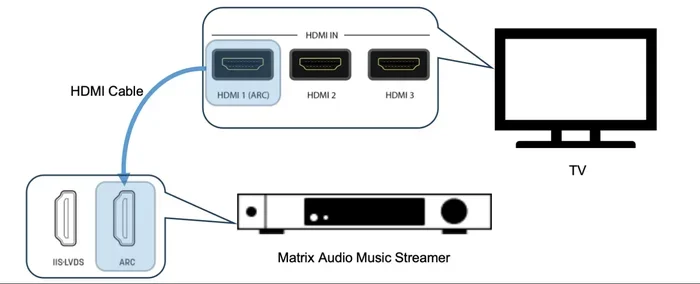
ARC stands for Audio Return Channel. It allows your TV to send audio back to your soundbar or AV receiver through the same HDMI cable. Without ARC, you would need a separate cable just to send sound from your TV to your audio system.
Here is how it works in practice. You watch a show on your smart TV using its built-in apps. The audio from those apps can travel back through the HDMI cable to your soundbar. This saves you from plugging in extra cables and keeps your setup clean.
ARC also lets you control your audio device with your TV remote. You can adjust the volume without picking up two different remotes. This is a small feature that makes a big difference in daily use.
What Is HDMI eARC?
eARC stands for Enhanced Audio Return Channel. It is the newer and better version of ARC. eARC was introduced with HDMI 2.1 and offers several major improvements.
First, eARC supports much higher audio bandwidth. This means it can handle uncompressed audio formats like Dolby TrueHD and Dolby Atmos. Regular ARC cannot do this. It is limited to compressed formats like standard Dolby Digital.
Second, eARC has better error correction. This means fewer audio dropouts or syncing issues. Third, eARC is plug-and-play. You do not need to enable any special settings most of the time.
If you are building a modern home theater, eARC is a must-have feature. Check that both your TV and audio device support it before you buy.
Common HDMI Audio Problems and How to Fix Them
Even though HDMI audio is reliable, you can run into issues from time to time. Here are the most common problems and simple fixes for each one.
No Sound Through HDMI
This is the most common issue people face. If you have no sound, start by checking the basics:
- Make sure the HDMI cable is firmly plugged in at both ends.
- Check your TV audio settings. Make sure HDMI is selected as the audio output.
- Try a different HDMI port on your TV or display.
- Test with a different HDMI cable to rule out a bad cable.
Often, the problem is as simple as the wrong audio output being selected. Go into your device settings and make sure the correct audio output is chosen.
Audio and Video Are Out of Sync
Sometimes you will see the picture but the sound does not match. This is called audio sync delay. Here is what you can do:
- Check if your TV has an audio delay setting and adjust it.
- Make sure your HDMI cable is not too long. Long cables can cause signal delays.
- Update the firmware on your TV and audio device.
- Try enabling or disabling ARC if it is active.
Sync issues are annoying but usually easy to fix. A little patience goes a long way here.
Audio Cuts Out Intermittently
If your sound keeps cutting in and out, the problem could be a few things:
- A loose or damaged HDMI cable is the most common cause.
- Your HDMI port might be dirty. Try cleaning it gently with compressed air.
- Your device might be overheating. Make sure there is good ventilation.
- Check if your cable supports the audio format you are trying to use.
Using a high-quality HDMI cable can prevent most of these issues. Cheap cables often cause intermittent problems that drive you crazy.
Only Stereo Sound Instead of Surround Sound
If you expected surround sound but only get stereo, your audio settings might be set wrong:
- Go into your source device audio settings and look for surround or multi-channel output.
- Make sure your TV or receiver is set to the correct audio format.
- Check that your HDMI cable supports the required bandwidth for surround sound.
This is a quick fix once you know where to look. Most devices hide these settings in the audio or sound menu.
Quick Tips for the Best HDMI Audio Experience
Want to get the most out of your HDMI audio setup? Follow these simple tips:
- Use the right HDMI version. If you want Dolby Atmos or uncompressed audio, make sure your devices support HDMI 2.1 or at least HDMI 2.0.
- Buy high-quality cables. A good HDMI cable ensures reliable signal transfer. Look for cables rated for the bandwidth you need.
- Check your audio settings regularly. After firmware updates, settings can sometimes reset.
- Use eARC when possible. It gives you better audio quality and fewer setup headaches.
- Keep your devices updated. Firmware updates often improve audio compatibility and fix bugs.
- Label your cables. This saves time when troubleshooting. You will always know which cable goes where.
Common Mistakes People Make with HDMI Audio
Avoid these common mistakes to save time and frustration:
- Using an old HDMI cable for new devices. Older cables may not support the bandwidth needed for modern audio formats.
- Ignoring audio settings on your source device. Your Blu-ray player or streaming box has its own audio output settings. These must match your display.
- Assuming all HDMI ports are the same. Some ports on your TV may support eARC while others do not. Check your TV manual.
- Not checking device compatibility. Always verify that both your source and display support the same audio standards.
- Forgetting to select the right audio output. Many devices default to the wrong audio output. Always double-check this setting.
These mistakes are easy to avoid with a little attention. Taking a few extra minutes to check your setup can prevent hours of frustration.
Expert Insights on HDMI Audio
We spoke with audio professionals about the best practices for HDMI audio setups. Here is what they had to say:
Always match your audio format to your equipment. If your soundbar only supports Dolby Digital, sending it Dolby Atmos will not help. Set your source device to output the format your audio gear can handle.
Invest in a good receiver. A quality AV receiver does more than just amplify sound. It decodes audio formats and processes them for the best possible output. A receiver is the heart of any serious home theater setup.
Do not overlook cable quality. A certified HDMI cable ensures that your digital audio signal stays clean and strong. Cheap, uncertified cables can introduce interference and signal loss.
Test your setup with different content. Use a variety of sources to make sure everything works. A movie with Dolby Atmos, a music track with high-res audio, and a gaming session can all reveal different issues.
Key Takeaways
- HDMI carries both audio and video: A single cable handles sound and picture, making it the most convenient connection option.
- Multiple audio formats are supported: From basic stereo to Dolby Atmos, HDMI covers a wide range of formats.
- ARC and eARC simplify your setup: These features let audio travel between devices without extra cables.
- HDMI version matters: Newer versions support better audio quality and more advanced features.
- Troubleshooting is straightforward: Most audio issues can be resolved by checking settings, cables, or port compatibility.
- Quality cables make a difference: A reliable HDMI cable ensures consistent and clear audio transmission.
Conclusion
Can HDMI port transmit audio? Yes, it absolutely can. HDMI is one of the most versatile and reliable ways to carry both audio and video through a single connection. Whether you are watching a movie, playing a game, or listening to music, HDMI delivers the sound quality you need.
By understanding how HDMI audio works, which formats it supports, and how to use features like ARC and eARC, you can get the most out of your setup. Keep your cables quality, check your settings, and stay up to date with device firmware. These simple steps go a long way.
Now that you know everything about HDMI audio, you are ready to set up or improve your home entertainment system. Enjoy the crisp, clear sound that HDMI delivers every single time.
Frequently Asked Questions
Can I get surround sound through a single HDMI cable?
Yes, you can get surround sound through a single HDMI cable. HDMI supports multi-channel audio formats like Dolby Digital and DTS through one connection. As long as your source device and display both support these formats, you will get full surround sound without any extra cables.
What is the difference between HDMI ARC and regular HDMI audio?
Regular HDMI carries audio from your source device to your TV. ARC works in both directions, allowing audio to travel from your TV back to your soundbar or receiver. This means you can use your TV’s built-in apps and have the sound come through your external audio system.
Does the length of an HDMI cable affect audio quality?
Cable length can affect audio quality if the cable is too long or of poor quality. Short cables under 10 feet rarely cause issues. For longer runs, use a high-quality certified cable or an active HDMI cable with a built-in signal booster to maintain clear audio.
Can I use an HDMI splitter for audio?
Yes, you can use an HDMI splitter to send audio to multiple devices. However, make sure the splitter supports the audio format you need. Some cheap splitters only pass video and strip away the audio signal, so always check the product specifications before buying.
Why is there no sound when I connect my laptop to my TV via HDMI?
This usually happens because your laptop is not set to output audio through HDMI. Go to your laptop sound settings and select HDMI as the audio output device. On Windows, right-click the speaker icon and choose the HDMI output. On Mac, go to Sound Preferences and select the HDMI display.
Do all HDMI cables support Dolby Atmos?
Not all HDMI cables support Dolby Atmos. You need at least an HDMI 2.1 cable or an Ultra High Speed HDMI cable for Dolby Atmos over HDMI. Older cables like HDMI 1.4 may not have enough bandwidth to carry this advanced audio format. Always check the cable specifications before purchasing.