Can Hdmi Be Split For Two Monitors Without Extra Gear
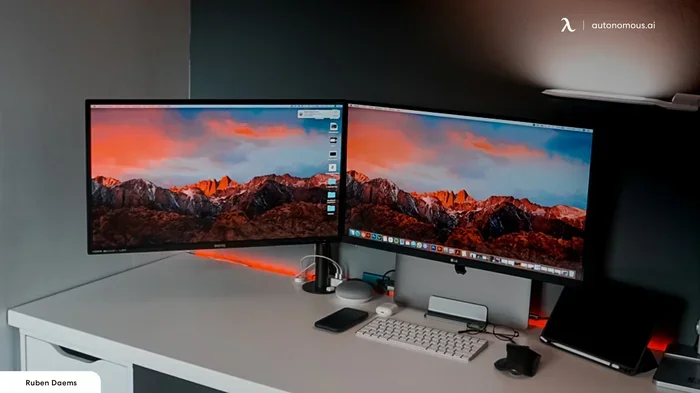
Yes, you can HDMI be split for two monitors, but doing it without extra gear has strict limits. Standard HDMI cables cannot simply be cut or shared between two screens. You will need either a basic HDMI splitter or a computer with multiple video outputs to run two displays successfully.
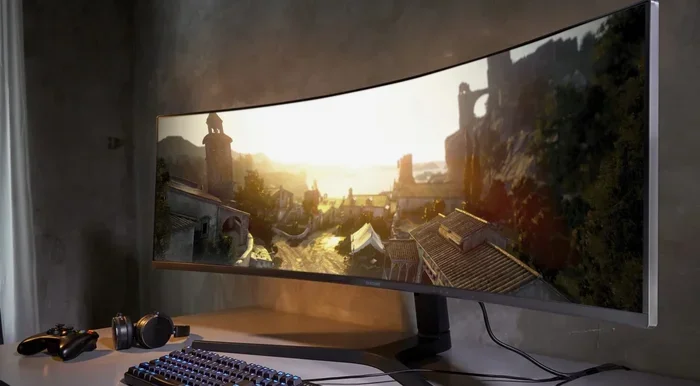
Have you ever looked at your desk and wished you had more screen space? Maybe you are working on a big spreadsheet and need to see your notes at the same time. Or perhaps you want to play a game on one screen and chat on the other. The idea of using two monitors sounds great. But the question is simple. Can HDMI be split for two monitors without buying extra gear?
Many people think they can just plug one HDMI cable into their laptop and run it to two screens. It sounds easy enough. But the truth is a bit more complicated. A single HDMI cable carries one video signal. You cannot just cut it in half and expect two screens to work. This guide will walk you through exactly how HDMI splitting works. We will look at when you need extra gear and when you do not. We will also share practical tips to get your dual monitor setup running smoothly today.
Setting up dual monitors can change how you work. It boosts your productivity and makes multitasking a breeze. However, if you try to split an HDMI signal the wrong way, you will get a blank screen. Let us explore the simple truth about HDMI splitting and how you can expand your workspace without spending a fortune.
Key Takeaways
- Standard HDMI cables do not split: You cannot just cut a cable and plug it into two monitors.
- A splitter requires power: Most HDMI splitters need an external power source to work properly.
- Check your graphics card: Many modern GPUs have multiple HDMI ports built right in.
- Resolution drops are common: Splitting a signal often halves the resolution on each screen.
- DisplayPort is easier: If you can, DisplayPort daisy-chaining is often simpler than HDMI splitting.
- Adapters solve problems: HDMI to DisplayPort adapters can help if your monitors only have DP inputs.
📑 Table of Contents
How HDMI Splitting Actually Works
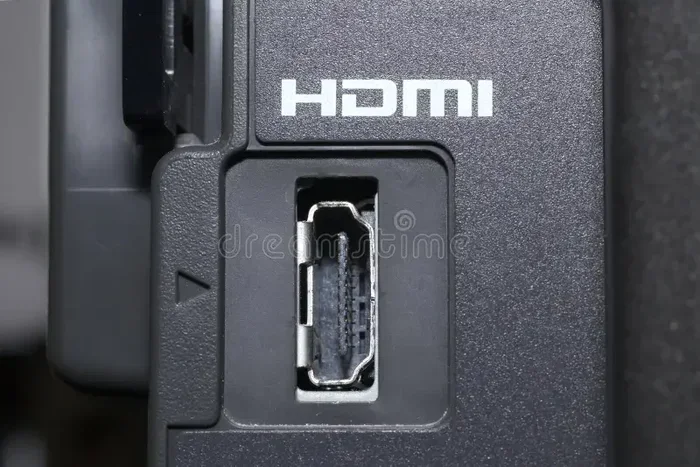
To understand if you can split a signal, you must first understand what the signal is. HDMI stands for High-Definition Multimedia Interface. It is a digital cable that sends both video and audio. When you plug in an HDMI cable, you are sending a stream of data from one source to one display. That source could be a laptop, a desktop PC, or a streaming box. The display could be a TV or a computer monitor.
Understanding the Video Signal
Think of the HDMI cable like a highway. The data is the cars on that highway. A single lane can only carry so much traffic at once. When you connect one source to one screen, the traffic flows perfectly. But what happens when you want to split that traffic? You cannot just fork one lane into two without a traffic light or a splitter device. The same goes for your video output. A single HDMI port sends one signal to one display. To send it to two, you need a way to copy that data.
Why You Cannot Just Cut a Cable
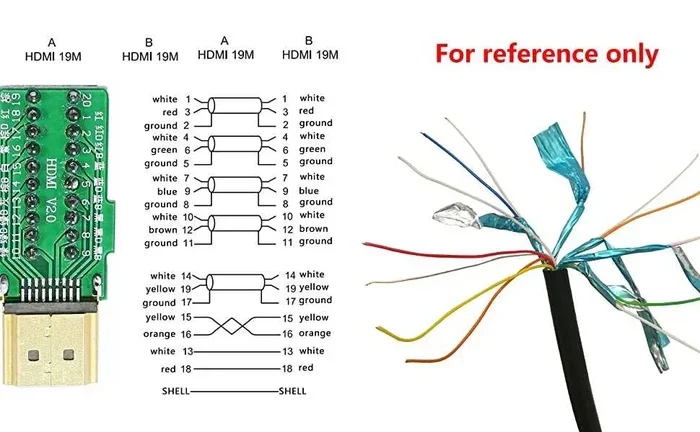
Some folks wonder if they can just cut an HDMI cable and wire it to two screens. Please do not do this. It will not work. An HDMI cable has tiny pins inside that carry specific data paths. If you cut the cable, you break those paths. You will end up with two useless pieces of wire. The digital signal cannot be divided by hand. It needs a proper electronic device to copy it. This is why the idea of splitting without gear is tricky.
When you send a signal through an HDMI cable, it is a digital stream. This is different from older cables like VGA. VGA carried an analog signal. It was like sending a wave through a wire. HDMI is different. It sends ones and zeros. It sends data packets. These packets tell your monitor what color each pixel should be. When you split this stream, you must copy every single packet. You must send the exact same ones and zeros to both screens. If you miss even a few packets, the picture gets glitchy. You might see sparkles on the screen. You might see a black flash. This is why a simple wire cannot split HDMI. It needs a smart chip to read and copy the data perfectly.
Can You Split HDMI Without Extra Gear
Here is the good news. You do not always need to buy a fancy box to run two screens. There are a few ways to get a second screen working without buying a dedicated HDMI splitter. Let us look at the most common methods.
Using Built-in Ports on Your Graphics Card
The easiest way to run two monitors is to check your computer first. Many desktop PCs have a graphics card with two or more input ports. If your PC has an HDMI port and a DisplayPort, you can plug one monitor into each. This is not really splitting. It is just using two separate outputs. Your computer treats each port as its own video output. This gives you full resolution on both screens. You do not lose any quality this way.
If you have a laptop, check the sides. Many modern laptops have an HDMI port and a USB-C port. You can buy a simple USB-C to HDMI adapter. This acts like a second graphics port. It is not a splitter. It is an adapter. This gives you two separate video signals from one computer. It is the best way to avoid buying a splitter box.
The Daisy Chain Alternative
Another gear-free method involves daisy chaining. This works best with DisplayPort monitors. You can connect the first monitor to your PC. Then, you connect the second monitor to the first monitor. The signal passes through like a chain. However, this does not work with standard HDMI. HDMI does not support daisy chaining natively. So if you only have HDMI cables, you will likely need some form of extra gear. But if you can use DisplayPort, daisy chaining saves you money.
Checking Your Desktop PC
Open your computer case or look at the back of your desk. Find your graphics card. Most modern cards have at least two video outputs. You might see an HDMI port and a DisplayPort. You might see two HDMI ports. If you see two ports, you are in luck. You do not need a splitter at all. Just buy two HDMI cables. Plug one into each port. Your computer will recognize both screens. You can drag your windows between them. This is the best and cheapest way to get two monitors. It gives you full quality. It gives you the highest refresh rate. It costs you nothing extra if you already have the cables.
Using Laptop Ports and Docking Stations
Laptops are a bit different. Many laptops only have one video output. Some have an HDMI port. Some only have a USB-C port. You cannot plug two cables into one HDMI port. But you might have other options. Look at your USB-C port. If it supports DisplayPort Alt Mode, you can use a USB-C to HDMI adapter. This creates a second video output. You do not need a splitter. You just need a cheap adapter. Some laptops also have Thunderbolt ports. Thunderbolt can carry video signals too. You can daisy chain monitors through Thunderbolt. This is not exactly splitting HDMI. But it achieves the same goal of two screens. Just remember, you cannot plug two HDMI cables into one HDMI port on a laptop. It is physically impossible.
If you have a Chromebook, you likely only have USB-C ports. A Chromebook does not have an HDMI port on most models. You will need a USB-C adapter to connect a monitor. You can use two adapters if your Chromebook supports dual display output. Check your Chromebook manual before buying gear. Not all Chromebooks can run two external screens.
When You Must Use an HDMI Splitter
Sometimes, you only have one HDMI port on your computer, and you need two screens. In this case, you must use a splitter. A splitter copies the single signal and sends it to two displays. But not all splitters are the same. You need to know what to look for.
What Does an HDMI Splitter Do?
An HDMI splitter takes one video signal and copies it. It sends the exact same picture to two, four, or even eight screens. You can think of it like a photocopier for video. You put one original document in. The machine spits out copies. Your graphics card is the original document. The monitors are the copies. The splitter makes sure every screen gets the same data. This is very useful for presentations. You can show your laptop screen on a big projector and a small monitor at the same time. It is also useful for digital signage. Stores use splitters to show the same ad on multiple TVs. For home users, it helps you share your screen with a friend sitting next to you.
Active vs Passive Splitters
Splitters come in two main types: active and passive. A passive splitter just splits the wire. It does not boost the signal. These are cheap, but they rarely work well for computers. Your graphics card sends a strong signal to one screen. A passive splitter tries to share that weak signal. Usually, both screens go dark, or you get a low-resolution picture. An active splitter has a built-in chip and often needs its own power plug. It boosts the signal so both screens get a clear picture. Always buy an active HDMI splitter for a PC setup.
Understanding Bandwidth Limitations
Every HDMI cable has a limit. It is called bandwidth. Bandwidth is how much data the cable can carry per second. A standard HDMI 1.4 cable has a certain limit. HDMI 2.0 has a higher limit. HDMI 2.1 has the highest limit. When you split the signal, the bandwidth gets shared. If you have a 4K signal at 60Hz, it takes a lot of bandwidth. A splitter must send that same huge file to two screens. This can overwhelm a cheap splitter. The result is a lower resolution. Your 4K screen might drop to 1080p. Or your 60Hz screen might drop to 30Hz. The motion will look choppy. This is why buying a high-quality splitter is so important. Do not just grab the cheapest one on Amazon. Look for an HDMI 2.0 or 2.1 splitter. These handle more bandwidth. They keep your picture sharp and smooth.
Quick Tips for Buying the Right Splitter
When you shop for a splitter, keep a few things in mind. First, check the resolution. Make sure the box supports 1080p or 4K. Second, check if it needs external power. A powered splitter is much more reliable. Third, think about audio. Some splitters pass the audio signal to both screens, but some do not. Read the product details before you buy. A good splitter will make your screen extension easy and painless.
- Check the HDMI version: Get an HDMI 2.0 splitter for 4K support.
- Look for a power adapter: Powered splitters work better than unpowered ones.
- Read the reviews: See what other users say about signal drops.
- Count the outputs: Make sure it has enough ports for your needs.
Setting Up Two Monitors with Split HDMI
Once you have your gear, the next step is setup. Plugging in the cables is only half the battle. You must tell your computer to use both screens. This process is different for Windows and Mac. Let us walk through it.
Windows Display Settings
If you use a Windows PC, the setup is very straightforward. Right-click on your desktop and choose Display Settings. You will see two boxes on the screen. One represents your main monitor. The other represents your second screen. If you do not see the second box, click the Detect button. Once you see both boxes, you can choose how they work. You can extend your desktop across both screens. This means your mouse can move from one screen to the other. You can also duplicate them, which shows the same picture on both. For most work, extending the display is the best choice.
You can also rearrange the boxes. Drag the second box to the right if your second monitor sits to the right of your desk. This makes your mouse move naturally. If your second monitor is above your main monitor, drag the box up. Windows lets you arrange them in any shape. You can also change the primary display. The primary display is where your taskbar and start menu live. Click the box you want to be main, and check the box that says Make this my main display. This keeps your desktop organized and easy to use.
Mac Display Settings
Mac users have a similar process. Go to System Settings and look for Displays. Your Mac should automatically detect the second screen. If you have a Mac display setup, you can drag the blue boxes to match the physical layout of your screens. This helps your mouse move naturally from one screen to the next. You can also choose to mirror the displays or extend them. Macs handle display settings very smoothly. Just make sure your cables are fully plugged in. A loose connection is the most common reason a Mac does not spot the second screen.
On a Mac, you can also adjust the resolution for each screen separately. Click on the display you want to change. Choose a scaled resolution. This lets you fit more items on the screen or make text bigger. If you use a Mac display with a PC, you might need an adapter. Apple uses different standards sometimes. But with the right adapter, a Mac works just fine with two screens. Always restart your Mac after plugging in new displays. This helps the system recognize the hardware properly.
Common Mistakes and Problems
Even with the right gear, things can go wrong. Splitting an HDMI signal is not always perfect. Here are the most common issues people face and how to fix them.
Resolution and Refresh Rate Drops
The biggest complaint with splitters is a drop in quality. When you split a signal, the graphics card has to send the same picture twice. This takes up bandwidth. As a result, your resolution might drop from 4K to 1080p. Or your refresh rate might drop from 144Hz to 60Hz. If you are a gamer, this is a big deal. You cannot get the full refresh rate through a basic splitter. If you need high refresh rates, you are better off using two separate ports on your graphics card. Do not use a splitter for competitive gaming. The lag and quality loss will ruin your experience. Stick to native ports for the best gaming performance.
If you have a gaming monitor, you really need the full refresh rate. A 144Hz gaming monitor will look terrible at 60Hz. The motion blur will ruin your fast-paced games. Competitive players need every millisecond. A splitter adds input lag. It delays the signal from your PC to the screen. This makes aiming and reacting much harder. Avoid splitters for your gaming monitor if you can. Use two separate ports on your PC instead.
Audio Issues
HDMI carries both video and audio. But when you split the signal, audio can get tricky. Some splitters send audio to both screens. Others send it only to the main screen. If you have external speakers connected to your second monitor, you might lose sound. Check your sound settings in Windows or Mac. Make sure the correct output device is selected. Sometimes you need a separate audio cable just for sound. This avoids the headaches of split audio signals. You can also check your graphics card control panel. Nvidia and AMD both have audio settings. You can choose which screen gets the sound. Play around with these settings if you have no audio.
HDCP and Black Screen Problems
If your screen goes black after a few minutes, HDCP might be the culprit. This happens when you watch Netflix or Blu-rays. The content is protected. A cheap splitter might not pass the HDCP handshake. The source device will shut down the signal to protect the movie. You will see a black screen. To fix this, buy an HDCP compliant splitter. These are a bit more expensive. But they let you watch protected content on both screens. Always read the product description to confirm HDCP support. It saves a lot of frustration later on.
Alternatives to HDMI Splitting for Dual Monitors
If you find that HDMI splitting is too limiting, you have other options. Technology has given us many ways to connect two screens. Let us explore some alternatives that might work better for you.
DisplayPort Daisy Chaining
DisplayPort is a different type of video cable. It has a special feature called daisy chaining. This means you can connect two monitors in a line. You plug the first monitor into your PC. Then you plug the second monitor into the first monitor. The signal passes through. This is not HDMI splitting. But it achieves the same goal. You get two screens from one port. DisplayPort daisy chaining is very reliable. It supports high resolutions and fast refresh rates. If your monitors have DisplayPort, this is the best method. You do not need a splitter or a switch. Just one cable chain.
USB-C and Thunderbolt Connections
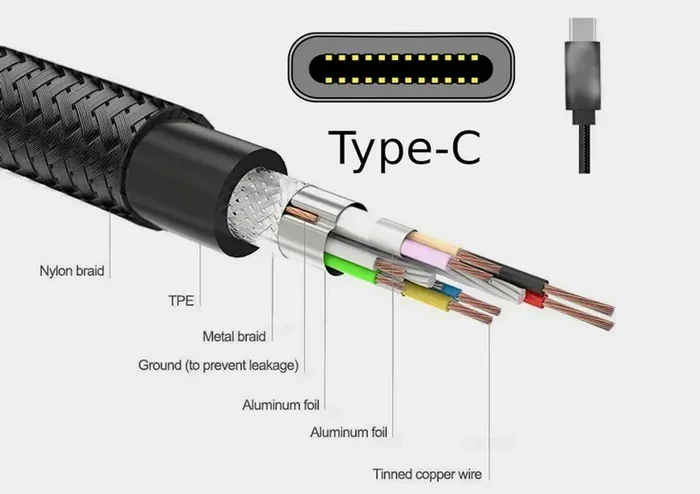
Modern laptops often use USB-C or Thunderbolt ports. These tiny ports can carry video signals. You can plug a USB-C dock into your laptop. The dock has multiple ports. You can plug two HDMI monitors into the dock. This is not splitting either. The dock acts like a hub. It creates multiple video outputs from one laptop port. This is a very clean setup. You only have one cable going from your laptop to the desk. The rest connects to the dock. It keeps your desk neat. It also provides power to your laptop. Many professionals love this setup. It is simple and works perfectly.
Wireless Display Options
Do you even need cables? You can use wireless technology to extend your screen. Windows has a feature called Miracast. Mac has AirPlay. You can send your screen to a compatible TV or monitor without any wires. This is not splitting. But it gives you a second screen. The quality might not be as sharp as a wired connection. There can be a slight delay. But for browsing the web or showing slides, it works well. Wireless options are great for people who hate cable clutter. They keep your desk free and tidy.
Conclusion
So, can you HDMI split for two monitors without extra gear? The short answer is no, not really. You cannot just cut a cable or share one port without a tool. However, you can use built-in ports on your graphics card or adapters to get two screens for free. If you must use a splitter, buy an active model with its own power supply. Always check the resolution and refresh rates before you buy. A good setup makes your workspace feel huge. You can work faster and play better with two screens. Take your time, pick the right method, and enjoy your new dual monitor setup today. You will wonder how you ever worked with just one screen.
Frequently Asked Questions
Can I just buy a cheap HDMI splitter?
A cheap splitter might seem like a good deal, but it often causes problems. Passive splitters usually drop your resolution or show a black screen. Always invest in an active splitter with its own power supply for the best results.
Will splitting HDMI reduce the quality of my picture?
Yes, splitting a signal can reduce the quality, especially on cheap boxes. The graphics card has to send the same data twice, which takes up bandwidth. This often causes a drop in resolution or refresh rate on both screens.
Can I use a USB-C hub instead of an HDMI splitter?
Yes, a USB-C hub is often a better choice than an HDMI splitter. A hub creates separate video outputs rather than copying the same signal. This means you get full resolution on both monitors without any quality loss.
Why does my second monitor go black when I start a movie?
This is likely an HDCP issue. HDCP is copy protection that stops piracy. A cheap splitter might not pass the HDCP handshake, causing the screen to go black when playing protected content like Netflix or Blu-rays.
Is it better to use DisplayPort instead of HDMI for two monitors?
DisplayPort is often better for dual monitors because it supports daisy chaining. Daisy chaining lets you connect two monitors in a line from one port. It also handles higher resolutions and refresh rates more easily than HDMI splitters.
Do I need a docking station to run two monitors?
You do not always need a docking station. If your laptop has multiple video ports, you can just plug two cables in directly. However, a docking station is very helpful if your laptop only has one USB-C or Thunderbolt port.