Are There Different Types Of Usb C Charging Cables
Yes, there are different types of USB C charging cables, and choosing the right one matters more than most people think. Not all USB-C cables support the same charging speeds, data transfer rates, or power delivery levels. This guide breaks down every USB-C cable type, helps you understand USB Power Delivery standards, and shows you how to avoid buying the wrong cable for your needs.
Have you ever grabbed a USB-C cable from a junk drawer and hoped for the best? You plug it in, and nothing happens. Or worse, your device charges painfully slow. It is frustrating. The truth is, there are different types of USB C charging cables, and they are not all created equal. A cheap cable might look the same as an expensive one, but what happens inside is worlds apart.
Whether you are charging a phone, a laptop, or a gaming console, the right USB-C cable can make a huge difference. In this article, we will walk through every type you can buy, explain what makes them different, and help you choose the best one for your setup. No fluff. No jargon. Just clear, honest advice.
USB-C has become the go-to connector for most modern devices. But the connector shape is only half the story. The cable inside determines how fast you charge, how fast data moves, and whether your device works at all. Let us break it all down.
Key Takeaways
- Not all USB-C cables are the same: Different cables support different speeds, wattages, and data rates.
- USB Power Delivery (PD) is key: It determines how fast your device charges through a USB-C cable.
- Thunderbolt 3 and 4 cables offer the best performance: They handle both data and power at top speeds.
- Check your device requirements first: Matching the right cable to your device saves money and prevents damage.
- Cable length and build quality matter: Longer or poorly made cables can reduce charging and data speeds.
- Look for e-marker chips: These tiny chips inside premium cables tell your device what the cable can handle.
📑 Table of Contents
- What Makes USB-C Cables Different From Each Other
- Types of USB-C Charging Cables Explained
- USB-C Cable Speed and Power Comparison
- How to Choose the Right USB-C Charging Cable
- USB-C in Everyday Devices and Professional Use
- Common Mistakes People Make With USB-C Cables
- Quick Tips for Getting the Most From Your USB-C Cables
- The Future of USB-C Charging Cables
- Conclusion
What Makes USB-C Cables Different From Each Other
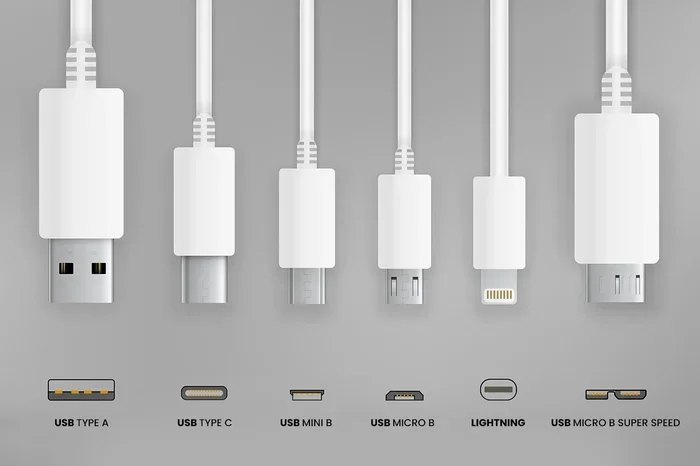
At first glance, every USB-C cable looks the same. The small, reversible connector plugs in either way. But under the plastic shell, the wiring and chips inside vary a lot. This is why not all USB-C cables work the same way.
Here are the main things that set USB-C cables apart:
- Power Delivery (PD): This determines how much electricity the cable can carry. Basic cables handle around 60 watts. Premium ones push up to 240 watts.
- Data Transfer Speed: Some cables move data at 10 gigabits per second. Others hit 40 gigabits per second. The difference matters for external hard drives and monitors.
- Protocol Support: Cables may support USB 3.2, Thunderbolt 3, or Thunderbolt 4. Each protocol opens different capabilities.
- Build Quality: Braided cables last longer. Thin rubber cables fray fast. The material affects how long the cable survives.
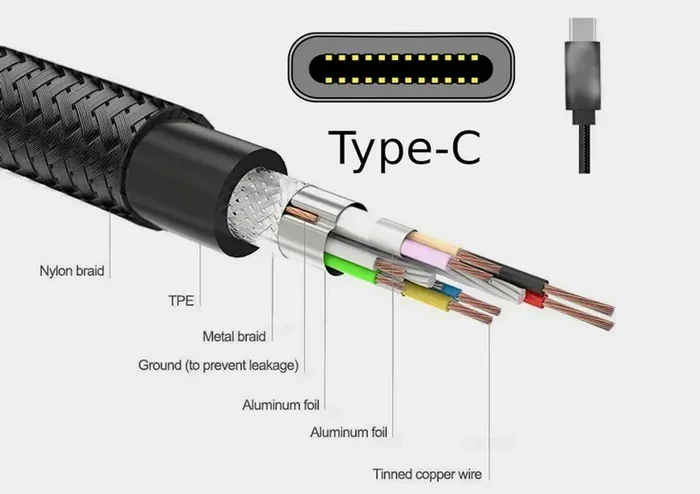
- E-Marker Chip: Premium cables have a tiny chip that tells your device what the cable can handle. This is called an e-marker.
When you understand these differences, you stop guessing. You start choosing cables on purpose.
Why the Connector Shape Is Not Enough
The USB-C connector is just the plug. It does not tell you what the cable can do. Two cables can have the same connector but completely different internal wiring. This is the biggest mistake people make. They assume shape equals performance. It does not.
Think of it like a water pipe. The fitting might be the same size, but the pipe inside could be a narrow garden hose or a wide fire hose. Same connection. Very different flow. The same idea applies to USB-C charging cables.
Types of USB-C Charging Cables Explained
Now let us get into the actual types. There are several categories of USB-C cables, and each one serves a different purpose. Here is a clear breakdown of what you will find on the market.
Basic USB-C Cables
Basic USB-C cables are the most common type. They usually support USB 2.0 data speeds and up to 60 watts of power delivery. These cables work fine for simple tasks like charging your phone or syncing photos.
You will find these cables bundled with most Android phones, earbuds, and tablets. They get the job done for everyday charging. But if you want to transfer large files or connect an external display, a basic cable will hold you back.
Best for: Casual charging, phone syncing, and low-power devices.
USB-C Cables with USB 3.2 Support
These cables step up the data game. They support USB 3.2 Gen 1 or Gen 2 speeds. That means data transfers up to 5 or 10 gigabits per second. You will notice this when moving videos or backing up a full hard drive.
Most USB 3.2 cables also support 60 watts of power delivery. They are a solid middle ground between basic cables and high-performance options. Many USB-C accessories like external SSDs and card readers work best with these cables.
Best for: Data-heavy tasks, external storage, and faster file transfers.
Thunderbolt 3 and Thunderbolt 4 Cables
These are the top-tier USB-C cables on the market. Thunderbolt 3 cables support up to 40 gigabits per second of data transfer and can deliver up to 100 watts of power. Thunderbolt 4 cables raise the bar even higher with stricter performance guarantees.
Thunderbolt cables are perfect for professionals who connect multiple monitors, fast storage, and docking stations. If you use a laptop as a desktop setup, a Thunderbolt cable is almost essential. The internal wiring is much thicker, and the e-marker chip ensures your device gets the full performance.
Best for: Professional workstations, multi-monitor setups, and high-speed data transfer.
USB-C Cables with USB Power Delivery
USB Power Delivery, often called USB PD, is a charging protocol that lets devices negotiate the right amount of power. Not all USB-C cables support USB PD. But most modern fast-charging cables do.
USB PD cables can deliver anywhere from 60 watts to 240 watts, depending on the cable rating. This is why your phone can pull 20 watts while your laptop pulls 100 watts from the same cable type. The power delivery protocol adjusts automatically.
When shopping for a fast charging cable, look for USB PD support on the label. It makes a real difference in how quickly your devices charge.
Best for: Fast charging laptops, tablets, and high-powered devices.
USB-C to USB-A Cables
Sometimes you need to connect a newer USB-C device to an older USB-A port. That is where a USB-C to USB-A cable comes in handy. These cables bridge the gap between old and new hardware.
Keep in mind that these cables usually limit you to USB 2.0 speeds or basic charging. They are not meant for high-performance tasks. They are a convenience tool, not a performance upgrade.
Best for: Connecting USB-C devices to older computers, chargers, or hubs.
USB-C Cable Speed and Power Comparison
It helps to see the differences side by side. Here is a quick comparison of the most common USB-C cable types.
| Cable Type | Data Speed | Max Power | Best Use |
|---|---|---|---|
| Basic USB-C | USB 2.0 (480 Mbps) | 60W | Simple charging |
| USB 3.2 Cable | 5-10 Gbps | 60W | Data transfer and charging |
| Thunderbolt 3 | 40 Gbps | 100W | Professional setups |
| Thunderbolt 4 | 40 Gbps | 100W | High-end workstations |
| USB-C with USB PD | Varies | 60-240W | Fast charging |
As you can see, the cable you pick changes everything. A basic cable works for overnight phone charging. But if you plug a Thunderbolt 4 cable into a compatible laptop and monitor, you get blazing-fast data and video in one cable.
How to Choose the Right USB-C Charging Cable
With so many options, picking the right cable can feel overwhelming. Here is a simple way to think about it.
Step 1: Know Your Device
Check what your device supports. Look at the manufacturer’s website or the product manual. Does your phone support fast charging? Does your laptop need a Thunderbolt connection? Write it down before you shop.
Step 2: Match the Cable to the Task
If you just need to charge your phone overnight, a basic cable works fine. But if you are editing video on an external drive, you need a cable with high data speeds and solid power delivery. Matching the cable to the task saves you from buying something too powerful or too weak.
Step 3: Check for Certifications
Look for cables that carry USB-IF certification. This means the cable has been tested and meets official standards. Cheap uncertified cables may overheat, charge slowly, or even damage your device. Always buy from reputable brands.
Step 4: Consider Cable Length
Longer cables can reduce charging speed slightly. A 6-foot cable might charge a little slower than a 1-foot cable of the same type. For best results, keep your USB-C cable length under 6 feet for high-performance tasks.
Step 5: Look at the Build
Braided cables resist tangling and last longer than rubber ones. Reinforced connectors prevent fraying at the plug points. These small details add up and save you from buying replacement cables every few months.
USB-C in Everyday Devices and Professional Use
USB-C has spread to almost every type of device today. From smartphones to medical equipment, the universal connector makes life simpler. In fact, computers are used in medicine more than ever, and USB-C helps connect monitors, diagnostic tools, and data transfer systems in hospitals. The versatility of USB-C is a big reason for this trend.
Inside your computer, the motherboard handles all the connections, and USB-C ports on the back of your desktop are wired directly into the motherboard’s controller. Understanding the components found on the motherboard helps you appreciate why cable quality matters. A bad cable can send unstable power through that controller and cause issues over time.
Here are some common places you will see USB-C cables in action:
- Laptops: Charging and connecting to docking stations
- Smartphones: Fast charging and data sync
- Tablets: Charging and external display support
- Gaming Consoles: Data transfer and charging controllers
- External Hard Drives: Fast file backups and transfers
- Monitors: Video and data through a single cable
- Medical Devices: Reliable data transfer and charging in clinical settings
The more devices you own with USB-C ports, the more you benefit from owning a few good cables. Instead of grabbing whatever is nearby, you can reach for the right cable every time.
Common Mistakes People Make With USB-C Cables
Even savvy tech users make mistakes with their cables. Here are the most common ones and how to avoid them.
Assuming All USB-C Cables Are Fast
This is the number one mistake. People buy a cable because it has a USB-C connector and expect fast charging and fast data. But basic USB-C cables are often limited to USB 2.0 speeds. Always check the spec sheet, not just the connector shape.
Buying the Cheapest Option
A $3 cable from an unknown brand might seem like a deal. But these cables often lack proper power regulation. They can overheat, charge slowly, or even harm your device. Spending a little more on a certified cable is worth it.
Ignoring Wattage Ratings
Your cable can only deliver the power it is rated for. If your charger supports 100 watts but your cable is only rated for 60 watts, you will only get 60 watts. Always match the cable wattage to your charger and device.
Using the Wrong Cable for the Wrong Task
A basic cable works for charging. But it will not power an external 4K monitor or transfer a 100-gigabyte video file quickly. Using the wrong cable for the wrong task leads to frustration. Know what you need before you buy.
Quick Tips for Getting the Most From Your USB-C Cables
Here are some fast tips to help you get the best performance from every USB-C cable you own.
- Store cables properly. Avoid tight bends and rolling cables tightly. This damages the internal wires over time.
- Check for dust in ports. A little lint in your USB-C port can reduce connection quality. Use a toothpick gently to clean it out.
- Buy certified cables. Look for USB-IF or Thunderbolt certification on the packaging.
- Keep high-performance cables short. Under 6 feet is ideal for maximum speed and power delivery.
- Replace frayed cables immediately. Exposed wires are a safety risk and a sign the cable is failing.
- Label your cables. Use small tags or colored wraps to tell cables apart. This saves you from grabbing the wrong one.
These small habits add up. Your cables last longer, charge faster, and work more reliably when you take care of them.
The Future of USB-C Charging Cables
USB-C is here to stay. The USB Implementers Forum continues to update the standards. New cables will support even higher power levels and faster data speeds in the coming years. USB4 is already rolling out, and it builds on the Thunderbolt 3 foundation to bring better performance to more devices.
As more devices adopt USB-C as their sole connector, the importance of choosing the right cable only grows. The days of carrying multiple cable types are fading. But within the USB-C world, the differences between cable types remain significant. Understanding those differences puts you ahead of the curve.
Whether you are a casual user or a power professional, taking a few minutes to learn about USB-C cable types pays off every single day. You charge faster, transfer files quicker, and avoid the headaches of incompatible cables.
Conclusion
So, are there different types of USB-C charging cables? Absolutely. And now you know exactly what sets them apart. From basic cables for simple charging to Thunderbolt cables for professional workstations, the right choice depends on your devices and your needs.
USB Power Delivery, data speeds, build quality, and certifications all play a role in how well a cable performs. The next time you need a new cable, you will know exactly what to look for. Skip the guesswork. Pick the right USB-C cable for the job, and you will notice the difference immediately.
Take a few minutes today to audit your cable collection. Toss the worn-out ones, keep the certified ones, and fill any gaps with the right type. Your devices will thank you with faster charging, smoother transfers, and fewer headaches.
Frequently Asked Questions
Can any USB-C cable fast charge my phone?
Not necessarily. To get fast charging, you need a cable that supports USB Power Delivery or your phone’s specific fast-charging protocol. Basic USB-C cables often charge at standard speeds. Check your phone’s manual to see which cable and charger it recommends for fast charging.
Is Thunderbolt 4 the same as USB-C?
Thunderbolt 4 uses the USB-C connector shape, but it is much more capable. Thunderbolt 4 cables support 40 Gbps data speeds and up to 100 watts of power. Not every USB-C cable is a Thunderbolt cable, but every Thunderbolt 4 cable is a USB-C cable.
Does cable length affect USB-C charging speed?
Yes, to a small degree. Longer cables can lose a bit of power as electricity travels through the wire. For best charging speeds, use shorter cables under 6 feet. If you need a longer cable, make sure it is rated for higher wattage to compensate for any slight power loss.
How do I know if my USB-C cable is certified?
Look for the USB-IF certification logo on the packaging or the cable itself. Thunderbolt cables will have the Thunderbolt logo. Certified cables have been tested for safety, speed, and power delivery. Avoid cables with no brand name or certification marks, as they may not meet official standards.
Can a bad USB-C cable damage my device?
Yes, in rare cases. Poorly made cables can deliver unstable power, overheat, or short out. This can potentially harm your device’s charging port or battery over time. Always buy cables from reputable brands and avoid suspiciously cheap options with no certifications.
What is the difference between USB 3.2 and USB-C?
USB-C refers to the connector shape. USB 3.2 refers to the data transfer standard. A cable can have a USB-C connector and support USB 3.2 speeds for fast data transfer. They are not the same thing, but they work together. When shopping, check for both the connector type and the data standard on the packaging.