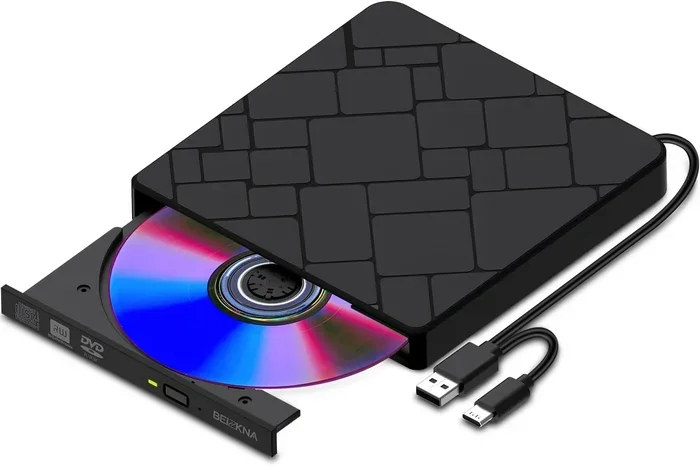
Can A Dvd Drive Read Cds Here Is Everything You Should Know
Yes, a DVD drive can read CDs. A DVD drive is backward compatible with CDs, meaning it can handle both disc formats without any extra hardware. Whether you have a CD-ROM or a DVD-ROM, the optical drive uses a laser lens to read the data stored on the spinning disc. In this guide, we cover everything you need to know about disc compatibility, how these drives work, and practical tips for getting the best results.
If you have ever popped a CD into a DVD drive and wondered whether it would work, you are not alone. The short answer is yes. A DVD drive can absolutely read a CD. But there is a lot more going on behind the scenes that makes this possible. Let us break it all down.
Many people still have collections of compact discs sitting around their homes. These could be music albums, old software, video games, or family photos saved on a data disc. The good news is that your DVD optical drive can handle all of these. Understanding how this works helps you get the most out of your disc storage setup.
Key Takeaways
- DVD drives read CDs: A DVD optical drive is designed to be backward compatible with CDs, so you can play both formats on the same machine.
- Laser technology makes it work: The laser lens inside a DVD drive adjusts its focus to read the smaller pits on a CD and the tighter grooves on a DVD.
- Not all DVD drives are equal: Some drives only read discs, while others can burn CDs and write DVDs. Check your drive type before buying blank media.
- Disc quality matters: Scratches, dust, or warping on a compact disc can cause read errors, even in a fully functional DVD drive.
- Speed and format vary: Different disc formats like CD-R, CD-RW, DVD-R, and DVD+R offer different read speeds and storage capacities.
- External drives work too: USB external optical drives can also read CDs and DVDs, making them great for laptops without built-in drives.
📑 Table of Contents
- How Does a DVD Drive Read CDs?
- Different Types of DVD Drives and Their CD Reading Abilities
- CD vs DVD: Key Differences You Should Know
- Can You Burn CDs with a DVD Drive?
- Common Problems When Reading CDs in a DVD Drive
- Expert Tips for Getting the Best Performance from Your DVD Drive
- What If Your Laptop Does Not Have a DVD Drive?
- Final Thoughts
How Does a DVD Drive Read CDs?
The magic behind this lies in the optical drive technology. Both CDs and DVDs use a laser lens to read data. But the way the data is stored differs between the two formats. A CD uses larger pits and wider tracks on the spinning disc. A DVD packs data much more tightly, with smaller pits and narrower tracks.
Here is where it gets interesting. When you insert a CD into a DVD drive, the laser lens adjusts its focus. It reads the wider tracks on the CD just fine. The drive recognizes the format automatically and processes the data accordingly. This is what we mean by backward compatibility. Your DVD-ROM drive was designed from the start to handle older CD-ROM discs as well.
The Role of the Laser Lens
The laser lens is the most important part of any disc reader. It shines a laser beam onto the surface of the optical disc. The beam bounces back, and the drive interprets the pattern of reflected light as data. For CDs, the laser uses a longer wavelength. For DVDs, it uses a shorter wavelength. A DVD drive can switch between these wavelengths depending on the disc you insert.
Why Backward Compatibility Matters
Backward compatibility is a huge selling point for DVD drives. It means you do not need a separate CD player if you already own a DVD drive. This saves space, reduces clutter, and keeps things simple. Whether you are using a desktop computer, a laptop, or a standalone media player, the principle remains the same. A DVD optical drive reads both CDs and DVDs.
Different Types of DVD Drives and Their CD Reading Abilities
Not all DVD drives are the same. There are several types, and each one handles CDs a little differently. Let us look at the most common ones.
DVD-ROM Drive
A DVD-ROM drive is a read-only drive. It can read DVDs and CDs but cannot write or burn anything. If you have this type of drive, you can still play your audio CD collection and access data stored on CD-ROM discs. You just cannot create new discs or rewrite existing ones.
DVD Burner (DVD±RW Drive)
A DVD burner is much more versatile. It can read CDs and DVDs, and it can also burn CDs and write DVDs. Most modern DVD±RW drives support multiple formats. They can handle CD-R, CD-RW, DVD-R, DVD+R, and more. This makes them a great choice if you want one drive to do it all.
External DVD Drives
If your computer does not have a built-in optical drive, you can use an external DVD drive. These connect through USB and work just like internal drives. They can read CDs and DVDs with no problem. They are especially useful for laptops and ultrabooks that have dropped the optical drive entirely.
CD vs DVD: Key Differences You Should Know
Understanding the differences between CDs and DVDs helps you appreciate why a DVD drive can read both. Let us compare them side by side.
| Feature | CD | DVD |
|---|---|---|
| Storage Capacity | 700 MB | 4.7 GB (single layer) |
| Laser Wavelength | 780 nm (infrared) | 650 nm (red) |
| Track Pitch | 1.6 micrometers | 0.74 micrometers |
| Read Speed | Up to 52x | Up to 16x |
| Disc Diameter | 120 mm | 120 mm |
| Common Formats | CD-ROM, CD-R, CD-RW | DVD-ROM, DVD-R, DVD+R, DVD-RW, DVD+RW |
| Typical Uses | Music, software, backups | Movies, large files, games |
As you can see, both discs are the same physical size. The DVD simply holds much more data. The laser lens in a DVD drive is smart enough to adjust for these differences. That is why reading a CD on a DVD drive works so smoothly.
Can You Burn CDs with a DVD Drive?
This is one of the most common questions people ask. The answer depends on the type of DVD drive you have.
If you have a DVD-ROM drive, you can only read discs. You cannot burn or write anything. But if you have a DVD±RW drive or a DVD burner, you can absolutely burn CDs. Most modern DVD writers support CD-R and CD-RW formats.
Here is a quick breakdown:
- CD-R: You can write data once. The disc becomes permanent.
- CD-RW: You can erase and rewrite data multiple times.
- DVD-R: Write-once format for DVDs.
- DVD-RW: Rewritable format for DVDs.
Before you buy blank CDs or DVDs, check your drive specifications. Look for the logo or model number on the drive or in your computer settings. This tells you exactly which disc formats your drive supports.
Common Problems When Reading CDs in a DVD Drive
Even though a DVD drive should read CDs without issues, problems can still happen. Here are the most common ones and how to fix them.
Scratched or Damaged Discs
A disc scratch is the number one cause of read errors. If your compact disc has deep scratches, the laser lens cannot read the data properly. Light scratches are usually fine. Deep gouges will cause skipping, freezing, or complete failure to read.
Quick Tip: You can try cleaning the disc with a soft cloth. Wipe from the center outward, not in circles. This removes dust and fingerprints that might block the laser lens.
Dirty Laser Lens
Over time, dust can build up on the laser lens inside your optical drive. This affects its ability to read any disc, whether CD or DVD. A dirty lens can cause slow loading, stuttering, or error messages.
Quick Tip: Use a CD lens cleaner disc. These have tiny brushes that clean the lens as the disc spins inside the drive. It is an easy and inexpensive fix.
Outdated or Missing Drivers
Sometimes the problem is software, not hardware. If your optical drive drivers are outdated, Windows or your operating system may not recognize the disc reader properly. This can cause CDs to not show up in File Explorer or your media player.
Quick Tip: Go to your device manager and check for driver updates. You can also try uninstalling the DVD drive and restarting your computer. Windows will reinstall the driver automatically.
Region Code Conflicts
Some DVD drives have region codes that limit which discs they can play. This is more common with commercial movie DVDs. However, audio CDs and data CDs are usually not affected by region codes. If a CD gives you a region error, it might be a software issue rather than a hardware one.
Expert Tips for Getting the Best Performance from Your DVD Drive
Want your DVD drive to last longer and perform better? Follow these expert tips.
- Keep your discs clean. Store CDs and DVDs in their cases when not in use. Avoid leaving them out in direct sunlight or near heat sources.
- Handle discs by the edges. Fingerprints and oils from your skin can interfere with the laser lens. Hold discs by the center hole and the outer edge.
- Update your drivers regularly. Go to the manufacturer website and download the latest optical drive drivers for your system.
- Use quality blank media. Cheap CD-R or DVD-R discs from unknown brands can cause write failures and read errors. Stick with reputable brands like Verbatim, Sony, or Taiyo Yuden.
- Eject discs properly. Never force a disc tray open or closed. Wait for the drive to finish its operation before opening the tray.
- Give your drive a break. If you are burning multiple discs in a row, let the DVD drive cool down between sessions. Overheating can reduce performance and lifespan.
What If Your Laptop Does Not Have a DVD Drive?
Many modern laptops have dropped the optical drive entirely to save space and weight. If your laptop does not have a built-in DVD drive, you still have options.
You can buy an external USB DVD drive. These are compact, affordable, and plug right into a USB port. They read CDs and DVDs just as well as an internal drive. Some popular brands include LG, ASUS, and Acer. Prices typically range from $20 to $40.
Another option is to use a digital media player that supports disc storage. Some streaming devices and gaming consoles can play DVDs, though they usually cannot read CDs for data purposes. If you just want to listen to audio CDs, consider ripping them to your computer using an external drive and then streaming them to your devices.
The bottom line is that even without a built-in drive, you can still access your entire CD and DVD collection. An external optical drive is a simple and effective solution.
Final Thoughts
The answer to the question “Can a DVD drive read CDs?” is a resounding yes. Your DVD optical drive is backward compatible with CDs. It uses a smart laser lens that adjusts to read both disc formats effortlessly. Whether you want to listen to an audio CD, install old software from a CD-ROM, or access family photos on a data disc, your DVD drive has you covered.
Just remember to keep your discs clean, maintain your optical drive, and use quality media. With a little care, your DVD drive will serve you well for years to come. So go ahead and dig out those compact discs from the closet. Your DVD drive is ready to read them.
Frequently Asked Questions
Can a DVD drive read both CDs and DVDs?
Yes, a DVD drive is designed to be backward compatible with CDs. It can read both CD-ROM and DVD-ROM discs using the same laser lens mechanism. The drive automatically detects the disc format and adjusts accordingly.
Can I burn CDs using a DVD drive?
It depends on the type of DVD drive you have. A DVD-ROM drive can only read discs. But a DVD±RW drive or DVD burner can write and burn CDs in formats like CD-R and CD-RW. Check your drive specifications to confirm.
Why is my DVD drive not reading my CD?
Several factors can cause this. A scratched disc, a dirty laser lens, outdated drivers, or a malfunctioning disc tray are the most common culprits. Try cleaning the disc first, then the lens, and finally update your drive drivers.
Do external DVD drives read CDs?
Yes, most external DVD drives can read CDs and DVDs just like internal drives. They connect via USB and are a great option for laptops that lack a built-in optical drive. Make sure the external drive supports the specific disc formats you need.
Is there a difference in audio quality when playing a CD in a DVD drive?
There should be no noticeable difference. A DVD drive reads the digital data on a compact disc the same way a dedicated CD player does. The audio quality depends on your media player software and sound system, not the type of optical drive you use.
Can a DVD drive read rewritable CDs (CD-RW)?
Yes, a DVD drive can read CD-RW discs. However, if you want to burn or rewrite CD-RW discs, you need a DVD±RW drive that specifically supports the CD-RW format. Not all DVD writers support rewriting CDs, so always check the specifications.