Can I Connect My Ipad To My Samsung Tv Without Any Cable
Yes, you can connect your iPad to your Samsung TV without any cable using wireless methods like AirPlay, Smart View, or third-party apps. This guide covers every easy method, troubleshooting tips, and expert advice to get your iPad screen streaming on your Samsung TV in minutes. Whether you own a Samsung Smart TV or a basic model, there is a solution that works for you.
Have you ever wanted to watch something on a bigger screen but did not want to deal with messy cables? You are not alone. Millions of people ask can I connect my iPad to my Samsung TV every single day. The good news is that you absolutely can, and you do not need a single cable to do it.
Whether you want to share photos with family, binge-watch your favorite show, or present a slideshow, wirelessly connecting your iPad to Samsung TV is easier than you think. Modern Samsung Smart TVs come with built-in features that make this process seamless. And even if your TV is older, there are still simple ways to get the job done.
In this guide, we will walk you through every method step by step. You will learn about AirPlay screen mirroring, Samsung’s Smart View feature, adapter options, and even third-party apps. By the end, you will know exactly which method works best for your setup. Let us dive right in.
Key Takeaways
- AirPlay is the easiest way to connect your iPad to a Samsung TV wirelessly if your TV supports it.
- Smart View is Samsung’s built-in feature that lets you mirror your iPad screen without extra apps.
- A USB-C to HDMI adapter works as a wired backup when wireless connections fail.
- Third-party apps like LetsView offer screen mirroring for older Samsung TVs.
- Both devices must be on the same Wi-Fi network for wireless mirroring to work properly.
- Firmware and software updates often fix common connection problems between iPad and Samsung TV.
- Troubleshooting steps like restarting devices and resetting network settings solve most issues quickly.
📑 Table of Contents
- Why Connect Your iPad to Your Samsung TV Wirelessly
- Method 1: Using AirPlay to Connect iPad to Samsung TV
- Method 2: Using Samsung Smart View for Screen Mirroring
- Method 3: Using Third-Party Apps for iPad to Samsung TV
- Method 4: Using a USB-C or Lightning to HDMI Adapter
- Troubleshooting Common Connection Issues
- Expert Tips for the Best Mirroring Experience
- Key Takeaways
- Frequently Asked Questions
- Conclusion
Why Connect Your iPad to Your Samsung TV Wirelessly
Before we get into the how, let us talk about the why. There are so many great reasons to mirror your iPad screen to your Samsung TV without using a cable. Here are some of the top benefits:
- Convenience: No fumbling with cables or adapters. Just tap a button and your screen appears on the TV.
- Cleaner setup: Without cables, your living room stays tidy and organized.
- Flexibility: You can move around your room while your content plays on the big screen.
- Multi-device sharing: Easily switch between sharing from your iPad, phone, or laptop.
- Better viewing experience: Watching videos, movies, or photos on a larger screen is always more enjoyable.
When you cast iPad screen to Samsung TV wirelessly, you also avoid the wear and tear that cables can cause on your devices’ ports. It is simply a more elegant solution for everyday use.
What You Need Before You Start
To get started with wireless iPad to Samsung TV connection, you need a few things in place. Do not worry, none of these are complicated.
- A Samsung TV that supports screen mirroring or AirPlay 2.
- An iPad running iPadOS 12 or later (most iPads support this).
- Both devices connected to the same Wi-Fi network.
- A stable internet connection for smooth streaming.
If your Samsung TV is from 2017 or newer, there is a very good chance it supports AirPlay 2. You can check by going to your TV settings and looking for the AirPlay or screen mirroring option. If your TV does not support AirPlay natively, do not worry. We will cover alternative methods too.
Method 1: Using AirPlay to Connect iPad to Samsung TV
AirPlay is Apple’s built-in wireless streaming technology. It lets you mirror your iPad screen directly to compatible Samsung TVs. This is the most popular and easiest method for most users.
Step-by-Step Guide to Using AirPlay
Follow these simple steps to start AirPlay mirroring from iPad to Samsung TV:
- Make sure both devices are on the same Wi-Fi network. Check your iPad settings and your Samsung TV network settings. They must match.
- Open the Control Center on your iPad. Swipe down from the top-right corner of your screen.
- Tap the Screen Mirroring icon. It looks like two overlapping rectangles.
- Select your Samsung TV from the list. Your TV name should appear if it is discoverable.
- Enter the code if prompted. Some TVs display a verification code on screen. Type it into your iPad to confirm the connection.
That is it. Your iPad screen is now showing on your Samsung TV. Everything you tap or swipe on your iPad will appear on the TV in real time.
Tips for a Smooth AirPlay Experience
- Keep your iPad close to the router for the best wireless performance.
- Reduce background apps on your iPad to free up processing power.
- Use a 5GHz Wi-Fi network if your router supports it. It offers faster speeds than 2.4GHz.
- Restart both devices if you experience lag or delays during mirroring.
Many users report that AirPlay iPad Samsung TV works beautifully for streaming videos, showing presentations, and sharing photos. It is hands down the most convenient wireless option.
Method 2: Using Samsung Smart View for Screen Mirroring
If AirPlay does not work for your setup, Samsung Smart View is an excellent alternative. Smart View is Samsung’s own screen mirroring technology built into their TVs. It works with iOS devices including the iPad.
How to Use Smart View to Mirror Your iPad
Here is how you can use Smart View to connect iPad to Samsung TV:
- Open the Control Center on your iPad. Swipe down from the top-right corner.
- Tap the Screen Mirroring button. The icon looks the same as in AirPlay.
- Your Samsung TV should appear in the list. Tap on it to start the connection.
- Accept the connection on your TV if needed. Some Samsung TVs require you to confirm on the TV screen.
Smart View uses a similar process to AirPlay. The main difference is that Smart View is Samsung’s proprietary protocol. It works well with most Samsung Smart TVs and is a reliable backup when AirPlay is not available.
Smart View vs. AirPlay: Which Is Better
Both methods achieve the same goal. Here is a quick comparison:
- AirPlay is Apple’s native technology. It tends to be slightly more stable on Apple devices.
- Smart View is Samsung’s native technology. It works well on Samsung TVs and may offer better integration with Samsung-specific features.
- Latency: Both methods have minimal lag for most use cases like video streaming and photo sharing.
- Compatibility: AirPlay works on any AirPlay 2 compatible TV. Smart View works on Samsung TVs specifically.
For most users, either method will work perfectly. Try AirPlay first since it is the most straightforward. If it does not detect your TV, switch to Smart View.
Method 3: Using Third-Party Apps for iPad to Samsung TV
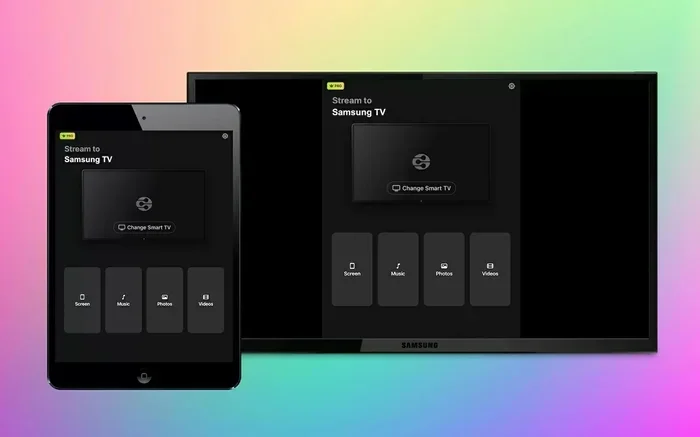
What if your Samsung TV is older and does not support AirPlay or Smart View? Do not worry. There are several third-party apps that let you cast your iPad screen to Samsung TV without a cable.
Best Apps for Wireless iPad to Samsung TV Connection
Here are some of the most reliable apps you can use:
- LetsView: A free app that supports screen mirroring between iPad and Samsung TV. It works over Wi-Fi and is very easy to set up.
- ApowerMirror: A popular screen mirroring app that supports both iPad and Samsung TV. It offers a free version with basic features.
- Samsung SmartThings: Samsung’s own app that lets you control your TV and cast content from your iPad.
- AllCast: Another great option for streaming media from your iPad to your Samsung TV wirelessly.
How to Use LetsView as an Example
LetsView is free and works well for most users. Here is how to get started:
- Download LetsView on your iPad from the App Store.
- Download LetsView on your Samsung TV. Many Samsung Smart TVs have the LetsView app in their app store.
- Make sure both devices are on the same Wi-Fi network.
- Open LetsView on your iPad and select your Samsung TV from the device list.
- Start mirroring. Your iPad screen will now appear on your TV.
Third-party apps are a great solution for older Samsung TVs that lack native AirPlay or Smart View support. They add a layer of flexibility to your setup.
Method 4: Using a USB-C or Lightning to HDMI Adapter
While this guide focuses on wireless connections, it is worth mentioning the wired option. If you need a reliable, lag-free connection between your iPad and Samsung TV, an adapter is the way to go.
How the Adapter Method Works
You simply plug a USB-C to HDMI adapter (or Lightning to HDMI for older iPads) into your iPad. Then connect an HDMI cable from the adapter to your Samsung TV. Your iPad screen will display on the TV instantly.
- No Wi-Fi needed: This method does not rely on your wireless network at all.
- Zero latency: There is no delay or lag since the connection is direct.
- Great for presentations: If you need a flawless display for work or school, this method is ideal.
The downside is that you do need a cable and an adapter. But it is a solid backup option when wireless methods are not working. You can find these adapters at most electronics stores or online for under $20.
Troubleshooting Common Connection Issues
Even though wireless connections are straightforward, you may run into issues from time to time. Here are the most common problems and how to fix them.
iPad Not Finding Samsung TV
If your iPad does not detect your Samsung TV during screen mirroring, try these steps:
- Check that both devices are on the same Wi-Fi network. This is the number one cause of connection issues.
- Restart your Samsung TV. Turn it off, wait 30 seconds, and turn it back on.
- Restart your iPad. A simple reboot often fixes detection problems.
- Check your TV’s screen mirroring settings. Go to your TV settings and make sure screen mirroring or AirPlay is turned on.
- Update your Samsung TV firmware. Go to Settings, then Support, then Software Update on your TV.
Lag or Delay During Mirroring
If your mirrored screen has a noticeable delay, try these fixes:
- Move closer to your Wi-Fi router. Distance weakens the signal and causes lag.
- Reduce the number of connected devices on your network. Too many devices slow down bandwidth.
- Lower the screen resolution on your iPad if possible to reduce the data being transmitted.
- Switch to a 5GHz Wi-Fi band if your router supports dual-band connections.
Audio and Video Not Syncing
If the video plays but the audio is out of sync, try these solutions:
- Restart both devices. This clears temporary glitches that cause sync issues.
- Check for software updates on both your iPad and Samsung TV.
- Close background apps on your iPad to free up system resources.
Most connection issues can be resolved with a simple restart or a network check. Do not get frustrated if it does not work perfectly the first time. It usually takes a few tries to get the settings just right.
Expert Tips for the Best Mirroring Experience
Here are some pro tips from experienced users and tech experts to help you get the most out of your iPad to Samsung TV mirroring:
- Keep your devices updated. Software updates often include bug fixes for screen mirroring issues.
- Use a dedicated Wi-Fi network for streaming if possible. This prevents interference from other household devices.
- Turn off Bluetooth on your iPad if you experience connection issues. Sometimes Bluetooth interferes with Wi-Fi-based mirroring.
- Use your iPad in landscape mode for the best viewing experience on your TV.
- Adjust your TV’s picture settings for optimal brightness and contrast when mirroring content.
These small adjustments can make a big difference in the quality and stability of your wireless connection. Take a few minutes to optimize your setup, and you will enjoy a much smoother experience.
Key Takeaways
- AirPlay is the easiest way to connect your iPad to a Samsung TV wirelessly if your TV supports it.
- Samsung Smart View is Samsung’s built-in feature that lets you mirror your iPad screen without extra apps.
- A USB-C to HDMI adapter works as a wired backup when wireless connections fail.
- Third-party apps like LetsView offer screen mirroring for older Samsung TVs.
- Both devices must be on the same Wi-Fi network for wireless mirroring to work properly.
- Firmware and software updates often fix common connection problems between iPad and Samsung TV.
- Troubleshooting steps like restarting devices and resetting network settings solve most issues quickly.
Frequently Asked Questions
Can I connect my iPad to Samsung TV without Wi-Fi?
Without Wi-Fi, wireless mirroring will not work because both devices need to be on the same network to communicate. However, you can use a USB-C to HDMI adapter or a Lightning to HDMI adapter to connect your iPad to your Samsung TV using a cable. This method does not require Wi-Fi at all and gives you a direct, lag-free connection.
Why is my Samsung TV not showing up in AirPlay on my iPad?
The most common reason is that your devices are not on the same Wi-Fi network. Make sure both your iPad and Samsung TV are connected to the same network. Also, check that AirPlay is enabled on your Samsung TV by going to Settings, then General, then AirPlay Settings. If the problem persists, restart both devices and try again.
Do all Samsung TVs support AirPlay?
Not all Samsung TVs support AirPlay. Samsung Smart TVs from 2017 and newer generally support AirPlay 2. If your TV is older, it may not have this feature built in. In that case, you can use Samsung Smart View, a third-party app, or an HDMI adapter to connect your iPad to the TV.
Is screen mirroring from iPad to Samsung TV free?
Yes, wireless screen mirroring is completely free using built-in features like AirPlay and Smart View. Third-party apps like LetsView also offer free versions with basic mirroring capabilities. The only cost you might encounter is if you buy a USB-C to HDMI adapter for a wired connection, which typically costs between $10 and $25.
Can I use my iPad while mirroring to my Samsung TV?
Yes, you can continue using your iPad while mirroring. However, keep in mind that whatever you do on your iPad will also show on the TV screen. If you open a different app or switch screens, the TV will display that too. For the best experience, use your iPad for controlling the content while the TV displays it.
How do I stop screen mirroring from my iPad to my Samsung TV?
To stop mirroring, open the Control Center on your iPad by swiping down from the top-right corner. Tap the Screen Mirroring icon and select “Stop Mirroring.” Alternatively, you can go to your Samsung TV and disconnect the input source. The connection will end immediately and your iPad screen will return to normal.
Conclusion
So, can I connect my iPad to my Samsung TV without any cable? Absolutely yes. You have multiple wireless options available, from AirPlay and Smart View to third-party apps and adapters. Each method has its strengths, and the best one depends on your specific TV model and what you want to achieve.
The beauty of modern technology is that you do not need cables or complicated setups anymore. A few taps on your iPad, and your content is playing on a big screen in seconds. Whether you are sharing memories with loved ones, watching the latest series, or giving a presentation, connecting your iPad to your Samsung TV wirelessly is quick, easy, and completely free.
Start with AirPlay if your TV supports it. If not, try Smart View or a third-party app. And remember, if all else fails, a simple adapter cable will always get the job done. You now have all the knowledge you need to set up a seamless wireless connection between your iPad and Samsung TV. Enjoy your bigger screen experience today.