Are All Hdmi Ports On Tv The Same Explained Right Here
Not all HDMI ports on your TV are the same. Different HDMI versions support different resolutions, refresh rates, and features like HDR and eARC. Understanding these differences helps you get the best picture and sound from your home theater setup.
Key Takeaways
- HDMI ports vary by version: Your TV may have HDMI 1.4, 2.0, or 2.1 ports, each with different capabilities.
- Not all ports support 4K or 8K: Some HDMI ports are limited to 1080p or lower resolutions.
- Labeling matters: Check the back of your TV for version numbers or symbols on each port.
- HDMI cables must match the port: Using the wrong cable limits your experience even with a great port.
- ARC and eARC ports are special: These handle audio return to soundbars and receivers differently.
- Bandwidth makes a big difference: Higher HDMI versions carry more data for smoother, higher-quality video.
- Future-proof your setup: Prioritize HDMI 2.1 ports for gaming and next-gen content.
📑 Table of Contents
- Are All HDMI Ports on TV the Same? The Short Answer Is No
- What Is an HDMI Port and Why Does It Matter?
- The Different HDMI Versions You Will Find on TVs
- Are All HDMI Ports on a Single TV Identical?
- How to Find Out Which HDMI Port Does What
- HDMI Cables Matter Too
- Common HDMI Mistakes and How to Avoid Them
- How HDMI Technology Has Evolved
- What Happens When You Use the Wrong HDMI Port
- Final Thoughts
Are All HDMI Ports on TV the Same? The Short Answer Is No
If you have ever plugged something into the back of your TV and wondered whether every HDMI port works the same way, you are not alone. The answer is no. Not all HDMI ports on your TV are the same. Each port can support different versions, speeds, and features. This affects the picture quality, refresh rate, and even the audio you get.
Understanding this difference matters more than most people think. Whether you are hooking up a gaming console, a streaming stick, or a Blu-ray player, the HDMI port you use can make or break your experience. A wrong port choice might leave you stuck with lower resolution or no HDR support. Let us break down exactly what is going on behind that panel of ports on the back of your TV.
By the end of this guide, you will know how to identify each port, which one to use for every device, and how to get the most out of your setup. No more guessing. No more settling for less than your TV can deliver.
What Is an HDMI Port and Why Does It Matter?
HDMI stands for High Definition Multimedia Interface. It is the standard cable connection used to carry both video and audio from a source device to a display. One cable does the job of two older cables. That is why it became so popular so fast.
But here is the thing. HDMI technology has evolved a lot over the years. The original HDMI 1.0 came out in 2003. Today, we are at HDMI 2.1. Each version brought bigger bandwidth, better resolutions, and new features. Your TV has a mix of ports that may support different versions. This is why not every port works identically.
When you connect a device, the port version determines what it can do. Think of it like a highway. A wider highway lets more cars pass at once. A higher version HDMI port lets more data pass through. That means better video and audio quality. Using the wrong port is like taking a narrow road when a freeway is available.
Why HDMI Port Version Affects Your Experience
The version of the HDMI port controls several key things:
- Maximum resolution: Whether you can watch 4K or 8K content.
- Refresh rate: How smooth motion looks, especially in fast scenes and games.
- HDR support: Whether your TV can display High Dynamic Range content.
- Audio formats: What kind of surround sound you can get back through the port.
- Bandwidth: How much data the port can handle at one time.
All of these factors shape the quality of what you see and hear. So yes, the HDMI port you choose really does matter.
The Different HDMI Versions You Will Find on TVs
Most modern TVs come with a mix of HDMI port versions. You might find two or three different versions on a single set. Let us look at what each version brings to the table.
HDMI 1.4
This is the older standard you still find on many TVs. HDMI 1.4 supports 4K resolution, but only at 30Hz. That works fine for movies. But for gaming or fast sports, 30Hz feels a bit choppy. It also introduced the ARC (Audio Return Channel) feature. ARC lets your TV send audio back to a soundbar or receiver using the same cable.
HDMI 2.0
HDMI 2.0 is a big step up. It supports 4K at 60Hz. That makes motion much smoother. It also handles HDR content, which gives you brighter highlights and deeper colors. Most mid-range TVs from the last several years use HDMI 2.0 ports. This version is solid for most home entertainment needs.
HDMI 2.1
This is the newest and most powerful version. HDMI 2.1 supports 4K at 120Hz and even 8K at 60Hz. The bandwidth jumps dramatically. It also brings features like Variable Refresh Rate (VRR), Auto Low Latency Mode (ALLM), and eARC. Gamers and tech enthusiasts love HDMI 2.1 because it delivers the smoothest, most responsive experience.
Quick Comparison of HDMI Versions
| Feature | HDMI 1.4 | HDMI 2.0 | HDMI 2.1 |
|---|---|---|---|
| Max Resolution | 4K at 30Hz | 4K at 60Hz | 4K at 120Hz / 8K at 60Hz |
| HDR Support | No | Yes | Yes |
| Refresh Rate | 30Hz (4K) | 60Hz (4K) | 120Hz (4K) |
| Bandwidth | 10.2 Gbps | 18 Gbps | 48 Gbps |
| VRR Support | No | No | Yes |
| eARC Support | No | No | Yes |
As you can see, the differences are significant. This is why knowing which port is which on your TV makes a real difference.
Are All HDMI Ports on a Single TV Identical?
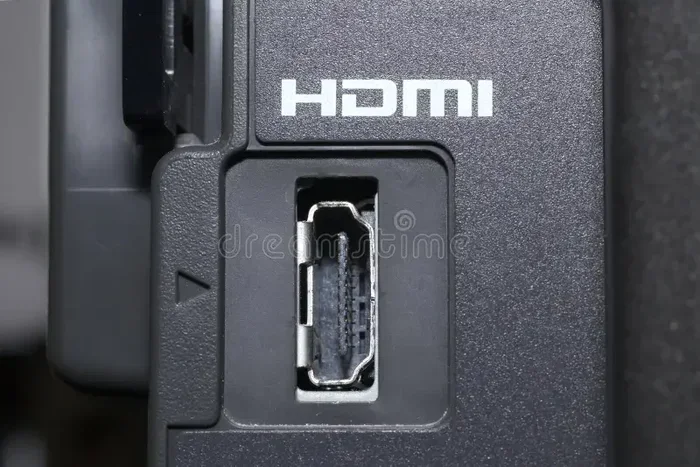
Here is where it gets interesting. On many TVs, the HDMI ports look exactly the same from the outside. They are the same shape and size. But inside, they support different versions. One port might be HDMI 2.0 while another is HDMI 2.1. The TV manufacturer decides which version goes where.
Some TVs label the ports clearly. You might see “HDMI 2” or “HDMI 3” with a small version number printed nearby. Other TVs hide this information entirely. They just number the ports 1 through 4 with no version label. This makes it tricky to know which one to use.
On many brands, the ports with the highest number tend to be the newest version. But this is not a universal rule. Always check the user manual or the manufacturer website for your specific model. If you cannot find the manual, search online for your TV model followed by “HDMI port specifications.”
Why Manufacturers Mix Different Versions
You might wonder why TV makers do not just put the same version on every port. The answer is cost. HDMI 2.1 ports are more expensive to manufacture. By mixing versions, manufacturers can keep the TV price lower while still offering one or two high-performance ports. This is a smart business move, but it can confuse consumers.
For example, a 55-inch TV might have two HDMI 2.1 ports and two HDMI 2.0 ports. The HDMI 2.1 ports are usually the ones best suited for your gaming console or premium streaming device. The HDMI 2.0 ports work fine for a soundbar or a basic streaming stick.
Also, the components inside your TV play a role in how HDMI ports function. The motherboard and chipset determine how many high-bandwidth ports the TV can support.
How to Find Out Which HDMI Port Does What
Now that you know the ports differ, let us talk about how to figure out which is which on your specific TV.
Check the TV Manual
The user manual is your best friend here. Look for a section called “Connections” or “Ports.” It should list each HDMI port and its version number. If you threw the paper manual away, most manufacturers put PDFs online. Just search for your TV model number and “manual PDF.”
Look at the Back Panel
Walk up close to your TV and look at the HDMI ports. Some brands print the version right next to the port. You might see something like “HDMI 2 (2.1)” or “HDMI 3 (2.0).” Others use symbols. A small “2.1” or “UHD” label near the port is a good sign it supports newer features.
Check the Manufacturer Website
If the manual and the ports do not help, go to the manufacturer website. Find your TV model page and look for the specifications section. It will list the HDMI versions for each port. This is the most reliable way to get the full picture.
Quick Tips for Identifying Your Ports
- Use a flashlight: The text printed near ports can be very small and hard to read.
- Take a photo: Snap a picture of the back of your TV and zoom in to read tiny labels.
- Search online: Type your TV model and “HDMI port details” into a search engine.
- Call support: The manufacturer support line can tell you exactly which port is which.
Taking a few minutes to identify your ports pays off big time. You will avoid frustration and get the best possible quality from every device you connect.
HDMI Cables Matter Too
Having the right HDMI port is only half the battle. You also need the right cable. An HDMI 2.1 port will not give you 4K 120Hz if you plug it in with an older HDMI 1.4 cable. The cable becomes the bottleneck.
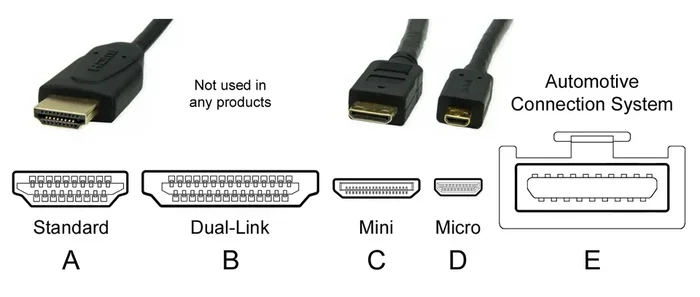
Types of HDMI Cables
Here are the main cable types you will encounter:
- Standard HDMI: Supports 1080p. Fine for older devices but not ideal for modern TVs.
- High Speed HDMI: Supports 4K at 30Hz. Good for most streaming and movie watching.
- Premium High Speed HDMI: Supports 4K at 60Hz and HDR. Great for most setups.
- Ultra High Speed HDMI: Supports 4K at 120Hz, 8K, and VRR. Required for HDMI 2.1 features.
Make sure your cable matches the port version. If you have an HDMI 2.1 port, use an Ultra High Speed HDMI cable. This ensures you get every feature the port offers. Using a mismatched cable is one of the most common mistakes people make.
Also, cable length matters. Longer cables can lose signal quality. Keep cables as short as possible while still reaching your devices comfortably. If you need a long run, look for cables with built-in signal boosters.
Common HDMI Mistakes and How to Avoid Them
Even tech-savvy people make HDMI mistakes. Here are the most common ones and how to fix them.
Using the Wrong Port for Gaming
Plugging a gaming console into an HDMI 1.4 port means you miss out on 4K 120Hz and VRR. Always use an HDMI 2.1 port for your PlayStation 5 or Xbox Series X. Check the TV manual to find which port supports these features.
Assuming All Ports Support ARC
Not every HDMI port supports ARC or eARC. ARC lets audio travel from your TV back to a soundbar. Only certain ports handle this. Look for the ARC label on the port or check the manual. Using a non-ARC port means you will need a separate audio cable.
Ignoring Firmware Updates
Sometimes a TV needs a firmware update to enable full HDMI 2.1 features. After buying a new TV, check for updates right away. This simple step can unlock better performance from your existing ports.
Buying the Wrong Cable
As mentioned above, the cable must match the port. Do not assume any HDMI cable works for everything. Buy cables that match the version of the port you are using. Look for the “Ultra High Speed” label for HDMI 2.1 setups.
Not Labeling Your Cables
Once you figure out which port and cable combo works best for each device, label them. Use small tape tags or cable markers. This saves you time when troubleshooting later. It also helps guests or family members know which cable goes where.
How HDMI Technology Has Evolved
The HDMI standard has come a long way since its introduction. Each version brought meaningful improvements. Understanding this history helps you appreciate why the ports on your TV are different.
HDMI 1.0 introduced the concept of a single cable for video and audio. It was revolutionary at the time. HDMI 1.3 added support for deeper color depths and higher audio quality. HDMI 1.4 brought 4K support and the ARC feature. Each step forward made the technology more capable.
HDMI 2.0 was a game-changer for 4K content. It doubled the bandwidth and brought smooth 4K at 60Hz. HDR support arrived here too. Now HDMI 2.1 takes things even further with massive bandwidth increases and features designed specifically for gaming and next-generation content.
Interestingly, HDMI technology is also used in fields beyond home entertainment. For example, medical displays and hospital equipment rely on high-quality video connections similar to HDMI. You can learn more about how computers are used in medicine and the role of high-quality connections in healthcare settings through our article on 10 ways computers are used in medicine.
The future of HDMI looks bright. HDMI 2.2 is already being discussed, and it will likely bring even more bandwidth and support for higher resolutions. The key takeaway is that HDMI technology keeps evolving, and your TV ports reflect that evolution.
What Happens When You Use the Wrong HDMI Port
Using the wrong HDMI port can cause a range of problems. Some are obvious, and some are subtle. Here is what can go wrong:
- Lower resolution: Your 4K TV might display content in 1080p or even 720p.
- No HDR: The picture looks flat and lifeless without High Dynamic Range.
- Choppy motion: A 30Hz port makes fast scenes look less smooth.
- No surround sound: You might get basic stereo audio instead of Dolby Atmos.
- Input lag: Gaming feels less responsive without VRR and ALLM support.
None of these problems mean your TV or device is broken. They simply mean you are using the wrong port or cable. Switching to the correct HDMI port often fixes everything instantly.
This is exactly why knowing your ports matters. A small bit of knowledge saves you from a lot of frustration. You do not need to be a tech expert. Just understanding the basics gives you a huge advantage.
Final Thoughts
So, are all HDMI ports on a TV the same? The answer is clearly no. Each port can support a different HDMI version with different capabilities. Some handle 4K at 120Hz. Others are limited to 1080p. Some support ARC and eARC for audio. Others do not.
The good news is that once you know what to look for, it is easy to get it right. Check your TV manual, look for version labels on the ports, and match your cables to the port versions. A few minutes of effort makes a huge difference in your viewing and gaming experience.
Your TV is a significant investment. You paid good money for that 4K or 8K display. Make sure you are getting everything it offers by using the right HDMI ports and cables. Do not leave quality on the table simply because you did not know the ports were different.
Take a few minutes today to check your TV ports. Look up your model online. Test different devices on different ports. You might be surprised at how much better your setup can look and sound with just a small adjustment. Enjoy your TV the way it was meant to be enjoyed.
Frequently Asked Questions
Can I use any HDMI cable with any HDMI port on my TV?
You can physically plug any HDMI cable into any port, but you will only get the best quality if the cable matches the port version. An older cable will limit the performance of a newer port. Always try to match your cable to the HDMI version of the port you are using.
How do I know if my TV has HDMI 2.1 ports?
Check your TV manual or the manufacturer website for your specific model. Look for the specifications section. Some TVs label the HDMI 2.1 ports directly on the back panel. You can also search online for your TV model and “HDMI 2.1” to find confirmation.
Does the HDMI port number on the TV indicate the version?
Not always. Some brands label their ports with version numbers, but many do not. The port number (like HDMI 1 or HDMI 2) is just an identifier. You need to check the manual or website to find out which version each port supports.
Can I use an HDMI splitter to get the same features on every port?
An HDMI splitter duplicates the signal, but it cannot upgrade a port’s capabilities. If you split a signal from an HDMI 2.1 port, the output will still be limited by the version of the source and the splitter itself. Splits are not a replacement for having proper HDMI 2.1 ports.
Why do some HDMI ports on my TV not support 4K?
Some ports on older or budget TVs only support 1080p or lower resolutions. These are typically older HDMI 1.4 or even HDMI 1.3 ports. Always check which ports support the resolution you need before connecting a device.
Is HDMI ARC the same as eARC?
No, they are not the same. eARC (Enhanced Audio Return Channel) is the newer and better version. It supports higher-quality audio formats like Dolby Atmos. eARC is only available on HDMI 2.1 ports. Standard ARC works on HDMI 1.4 and later but with more limited audio capabilities.
=== CONCLUSION ===
Are all HDMI ports on TV the same? Now you know the answer. They are not. Each port can be a different version with different capabilities. Understanding this simple fact transforms how you set up your home entertainment. You get better picture quality, smoother motion, and richer audio. Take the time to identify your ports, match your cables, and enjoy your TV at its full potential. Your eyes and ears will thank you.