Are All Printer Cables The Same And Why It Matters
Not all printer cables are the same. Different printers use different cable types like USB, parallel, and Ethernet, and picking the wrong one can slow you down or cause connection issues. This guide breaks down every printer cable type so you can choose the right one with confidence.
You plug in your printer, hit print, and nothing happens. Frustrating, right? Before you blame the printer or call for help, take a look at the cable. The truth is, not all printer cables are the same, and using the wrong one can cause a world of problems. From slow transfer speeds to complete connection failures, the cable you choose matters more than most people realize.
Whether you are setting up a new printer at home or managing a fleet of machines in an office, understanding your options saves time, money, and headaches. In this guide, we walk through every major printer cable type, compare them side by side, and help you pick the best one for your needs. By the end, you will know exactly what to look for and why it matters.
Key Takeaways
- Different printers use different cables: USB, parallel, and Ethernet cables all serve unique purposes and are not interchangeable.
- Cable type affects speed and reliability: Choosing the right cable can improve data transfer rates and reduce print errors.
- Match your cable to your printer model: Always check your printer’s manual or specs before buying a replacement cable.
- Cable quality matters: Shielded and high-quality cables reduce signal interference and last longer.
- Future-proofing pays off: Investing in a versatile cable like USB-C or Ethernet saves money and hassle over time.
- Common problems have simple fixes: Loose connections, outdated drivers, and damaged cables cause most printer issues.
- The right cable improves your whole setup: From home offices to medical environments, the correct cable makes a real difference.
📑 Table of Contents
What Are the Different Types of Printer Cables?
Printers have been around for decades, and the cables that connect them to computers have evolved just as much as the technology itself. Let us break down the three main types you will encounter.
USB Printer Cables
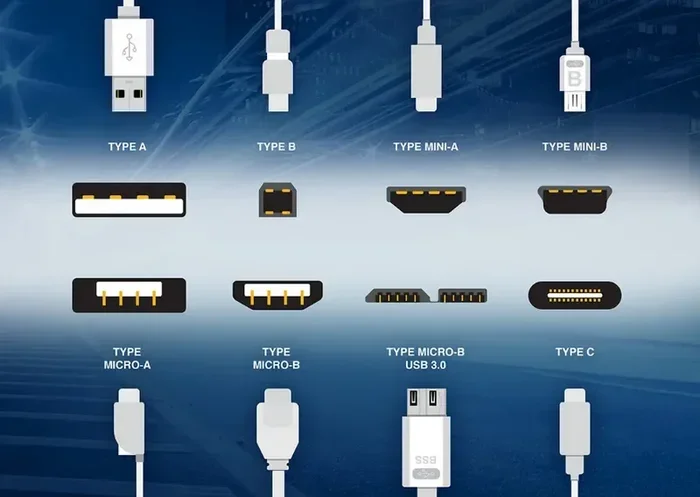
USB cables are the most common type today. They connect printers to desktops, laptops, and even some tablets. Most modern printers ship with a USB-B to USB-A cable, which is the standard square-ish plug on the printer end and the flat rectangular plug on the computer end. USB cables support fast data transfer and are easy to find at any electronics store.
USB cables come in different versions too. USB 2.0 is still widely used and works fine for most printing tasks. USB 3.0 offers faster speeds, which helps with large print jobs or high-resolution image printing. And the newest addition, USB-C, is starting to appear on more printers, offering a reversible connector and even faster data rates.
Parallel Printer Cables
If you have an older printer sitting in a closet, it probably uses a parallel cable. These cables have a wide, flat connector with 25 pins and plug directly into the parallel port on a computer. They were the standard for decades before USB took over. Parallel cables transfer data one byte at a time, which is slower than USB but perfectly fine for basic text printing.
Many people still use older laser printers or dot-matrix printers that only support parallel connections. If you are one of them, you may need an adapter to connect to a modern computer that lacks a parallel port. This is where understanding your options becomes really important.
Ethernet and Network Printer Cables
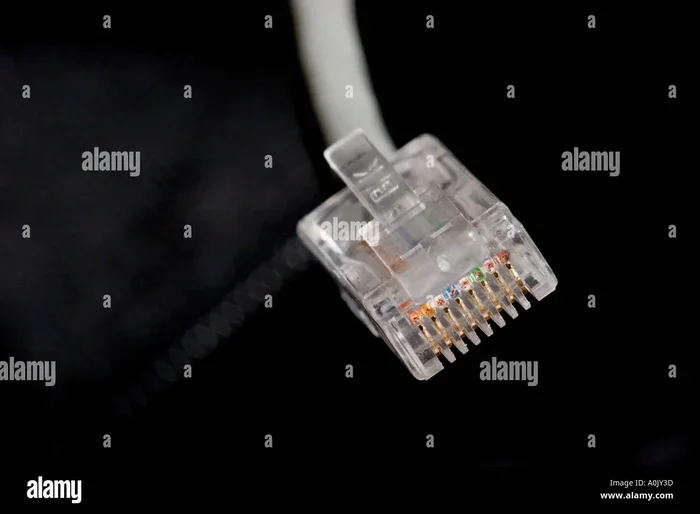
Network printers connect to your router or network switch using an Ethernet cable, typically a standard Cat5e or Cat6 cable. This setup lets multiple computers, phones, and tablets print to the same printer without plugging anything directly into each device. Ethernet connections are stable, fast, and ideal for offices and shared workspaces.
Some people confuse network cables with regular printer cables, but they serve a different purpose. A network cable connects the printer to your local network, while a USB cable connects it to a single computer. Many modern printers support both connection types, giving you flexibility. When setting up a printer in a busy office, the network cable option is often the better choice for convenience and shared access.
USB vs Parallel vs Ethernet: How Do They Compare?
Each cable type has its strengths and weaknesses. Here is a quick look at how they stack up against each other.
| Feature | USB Cable | Parallel Cable | Ethernet Cable |
|---|---|---|---|
| Speed | Fast (USB 2.0 up to 480 Mbps; USB 3.0 up to 5 Gbps) | Slow (1.5 Mbps) | Fast (100 Mbps to 1 Gbps) |
| Distance | Up to 16 feet (5 meters) without a repeater | Up to 15 feet (4.5 meters) | Up to 328 feet (100 meters) |
| Compatibility | Most modern printers and computers | Older printers and legacy computers | Network-ready printers and routers |
| Ease of Use | Plug and play | Requires driver setup | Requires network configuration |
| Cost | Low to moderate | Low | Low (uses standard Ethernet cables) |
| Best For | Home and office single-user setups | Older printers and legacy systems | Shared office and multi-device environments |
As you can see, each cable type has a clear role. USB is the go-to for most home users. Parallel cables are for older equipment. Ethernet shines in shared environments. Choosing the right one depends on your printer model, your computer setup, and how you plan to use the printer.
Does Cable Type Affect Print Quality?
Here is a question many people ask: does the cable you use change how your prints look? The short answer is no, not directly. The print quality depends on your printer’s hardware, ink or toner, and paper type. But the cable can affect how smoothly data flows from your computer to the printer, which indirectly impacts your experience.
Data Transfer Speed and Its Impact
When you send a print job, your computer transmits data through the cable to the printer. A slow cable can create a bottleneck. For simple text documents, this does not matter much. But for high-resolution photos or large graphics, a faster cable means less waiting. USB 3.0 cables handle large files much better than older parallel cables, for example.
If you have ever noticed your printer pausing mid-job or taking forever to start, the cable might be the culprit. A poor-quality or damaged cable can slow down data transfer and cause frustrating delays.
Signal Interference and Cable Quality
Not all cables are built the same. Cheap, unshielded cables are more prone to signal interference, which can cause dropped connections or corrupted print jobs. Shielded cables wrap the internal wires in a protective layer that blocks electromagnetic interference from other devices nearby.
If your printer sits next to a router, power strip, or heavy machinery, a shielded cable can make a real difference. This is especially true in busy offices or environments with lots of electronic equipment. For reliable performance, always choose a shielded printer cable from a reputable brand.
Also, keep in mind that the internal components of your computer play a role in how signals are processed. The components found on the motherboard help manage data flow between your computer and connected devices, including printers. A quality cable paired with a well-functioning system gives you the best results.
How to Choose the Right Printer Cable for Your Setup
Choosing the right cable does not have to be complicated. Follow these steps and you will find the perfect match every time.
Match the Cable to Your Printer Model
Start by checking your printer’s manual or the manufacturer’s website. Look for the supported connection types. Most modern printers list USB and Ethernet as standard options. Older models may only support parallel connections. Once you know what your printer supports, buying the right cable is simple.
Here is a quick checklist:
- Check the back of your printer for port types.
- Look up your printer model online for specs.
- Match the cable connector to the port on your printer.
- Match the other end to your computer or router.
Consider Cable Length and Placement
Cable length matters more than people think. Too short, and you cannot place your printer where you want it. Too long, and you risk signal degradation. For USB cables, staying under 16 feet (about 5 meters) is a safe bet. For Ethernet cables, you can go up to 328 feet without losing signal quality.
If you need a longer run, consider using a high-quality cable or adding a signal booster. A cable management solution like a cable tray or sleeve also keeps your workspace tidy and prevents accidental disconnections.
Think About Future-Proofing
Technology changes fast. A USB-C cable works with most modern laptops and is becoming the new standard. If you buy a printer today, choosing a USB-C or Ethernet connection gives you more flexibility for years to come. You will not need to replace the cable every time you upgrade your computer.
When in doubt, go with a versatile option. USB and Ethernet cables are widely supported and easy to replace. They also work across different brands and devices, which is a huge plus.
Common Printer Cable Problems and How to Fix Them
Even with the right cable, problems can happen. Here are the most common issues and how to solve them.
Loose or Faulty Connections
The most common problem is a loose connection. Over time, cables wear out, and the plugs can become loose. If your printer keeps disconnecting or fails to print, try unplugging and replugging the cable firmly. If the connector feels wobbly or damaged, it is time for a replacement.
Quick tip: always pull the plug by the body, not the cable. Yanking the cable damages the connector over time and shortens its lifespan.
Driver and Software Issues
Sometimes the cable is fine, but the problem lies in the software. Outdated or missing printer drivers can prevent your computer from recognizing the printer. Make sure you install the latest drivers from the manufacturer’s website. If you recently switched to a new computer or operating system, a driver update is often all you need.
In professional settings like hospitals and clinics, printers play a critical role in printing patient records, labels, and reports. Reliable connections matter in these environments, and computers are used in medicine in ways that depend on stable printer connections for accurate record-keeping and documentation.
When to Replace Your Printer Cable
No cable lasts forever. Here are signs it is time for a new one:
- The cable shows visible damage like fraying or bent pins.
- Your printer frequently disconnects during print jobs.
- Print jobs stall or fail repeatedly.
- The cable has been in use for several years without a replacement.
- You notice a significant drop in transfer speed.
Replacing a cable is cheap and easy. Most quality USB or Ethernet cables cost under $15, and the fix takes about two minutes. Do not let a worn-out cable cause bigger problems.
The Bottom Line: Why Your Cable Choice Matters
So, are all printer cables the same? Absolutely not. Each cable type serves a different purpose, and the right choice depends on your printer, your computer, and how you use your setup. USB cables offer speed and simplicity for most users. Parallel cables keep older printers alive. Ethernet cables enable shared printing in offices and networks.
Choosing a quality cable and matching it to your needs improves reliability, speed, and print consistency. It is a small decision that makes a big difference. Take a few minutes to check your connections, understand your options, and invest in the right cable. Your printer and your sanity will thank you.
Whether you are printing homework at home, documents in a busy office, or medical records in a healthcare setting, the right cable keeps everything running smoothly. Do not overlook this small but essential piece of your setup. A good printer cable is one of the easiest ways to get better performance from your printer and avoid unnecessary frustration.
Start by identifying what your printer needs. Check the ports. Consider your setup. And when in doubt, go with a reputable brand and a cable that matches your current and future needs. The right connection today saves time and money tomorrow.
Frequently Asked Questions
Can I Use Any USB Cable for My Printer?
Not exactly. While most USB cables look the same, printers need specific USB cables with the right connectors. A standard USB printer cable has a USB-A plug on one end and a USB-B plug on the other. Using a random USB cable might not work or could cause slow transfer speeds. Always check your printer’s manual for the recommended cable type.
How Long Can a Printer Cable Be?
For USB cables, keeping the length under 16 feet (5 meters) ensures reliable signal strength. Ethernet cables can run up to 328 feet (100 meters) without signal loss. If you need a longer USB run, use a high-quality active cable with a built-in signal booster to maintain performance.
Do Expensive Printer Cables Make a Difference?
For most home users, a moderately priced shielded cable works perfectly fine. However, in environments with lots of electronic interference, a higher-quality shielded cable can reduce signal problems and improve reliability. You do not need to spend a fortune, but avoid the cheapest no-name options for critical printing tasks.
What Happens If I Use the Wrong Printer Cable?
Using the wrong cable can cause several issues, including the printer not being recognized, slow print speeds, or interrupted print jobs. In some cases, the wrong cable simply will not work at all. Always match the cable type and connector to your printer’s specifications to avoid these problems.
Are USB-C Printer Cables Better Than USB-A?
USB-C cables offer faster data transfer speeds and a reversible connector, making them more convenient. They are becoming the new standard for modern printers and laptops. If your devices support USB-C, it is a great choice for future-proofing your setup. However, USB-A cables still work perfectly well for most current printers.
Do I Need a Special Cable for a Network Printer?
Network printers use standard Ethernet cables (Cat5e or Cat6). You do not need a special or branded cable. Any quality Ethernet cable will work. Just make sure the cable length suits your setup and that your router or network switch has an available port for the printer connection.