Can Component Video Be Converted To Hdmi Without Hassle
Yes, you can convert component video to HDMI using a dedicated converter box. This simple process lets you connect older devices like retro gaming consoles and DVD players to modern TVs. You will learn about the best converters, setup steps, and common pitfalls to avoid.
Have you ever dug out an old gaming console or a vintage DVD player only to realize your modern TV does not have the right input? It is a frustrating situation. Many of us have shelves full of legacy devices that still work perfectly. But they use older connection types like component video. Meanwhile, today’s TVs mostly rely on HDMI ports.
The good news is that you can bridge this gap. The answer to the question “can component video be converted to HDMI” is a clear yes. You just need the right equipment and a little guidance. This guide walks you through everything you need to know. We will cover how the conversion works, which products to buy, and how to avoid common mistakes.
Whether you want to set up a retro gaming station or connect an older home theater system, this article has you covered. Let us dive in and make your old devices work with your new TV.
Key Takeaways
- Easy Conversion: A component video to HDMI converter box makes it simple to connect legacy devices to modern displays.
- Better Picture Quality: Converting to HDMI can improve resolution and clarity compared to standard component connections.
- Active Converters Work Best: You need an active converter box because passive adapters alone will not do the job.
- Watch for Signal Loss: Poor quality cables or cheap converters can degrade your video signal during conversion.
- Setup Takes Minutes: The physical setup process is quick and does not require advanced technical skills.
- Check Compatibility First: Not all converter boxes support every resolution or device type, so verify before buying.
📑 Table of Contents
- What Is Component Video and Why Does It Matter?
- Can Component Video Be Converted To HDMI? The Short Answer
- How to Choose the Right Component Video to HDMI Converter
- Step-by-Step Setup Guide for Converting Component Video to HDMI
- Common Mistakes People Make When Converting Component Video to HDMI
- Does Converting Component Video to HDMI Improve Picture Quality?
- Expert Tips for the Best Conversion Experience
- Final Thoughts on Converting Component Video to HDMI
What Is Component Video and Why Does It Matter?
Before we talk about conversion, it helps to understand what component video actually is. Component video is an analog video signal. It sends picture information through three separate cables. These cables are usually color coded red, green, and blue. Sometimes they are also called RCA cables.
How Component Video Differs From HDMI
HDMI stands for High Definition Multimedia Interface. It is a digital signal that carries both video and audio through a single cable. Component video only carries video. You need separate audio cables for sound. This is one of the biggest differences between the two.
Component video was the standard for high-quality analog connections for many years. You found it on DVD players, early gaming consoles, and cable TV boxes. It supported resolutions up to 1080p in some cases. But it is still an analog format. Over long cable runs, the signal can degrade. This is where HDMI shines. It is digital, so the signal stays clean from start to finish.
Devices That Still Use Component Video
You might be surprised how many devices still use component video. Here is a quick list of common ones:
- Older gaming consoles like the Nintendo Wii and PlayStation 2
- Vintage DVD players and VCR combo units
- Legacy cable TV set-top boxes
- Some older projectors and home theater receivers
- Retro arcade cabinets and emulation setups
If you own any of these devices, you know the struggle. Modern TVs are dropping analog inputs every year. So finding a solution becomes essential. That is exactly where the component video to HDMI conversion process comes in.
Can Component Video Be Converted To HDMI? The Short Answer
The short answer is yes. You can convert component video to HDMI. But the process is not as simple as plugging one cable into another. You need a special device called a converter box. This box takes the analog component signal and translates it into a digital HDMI signal.
Think of it like a translator between two languages. Your old device speaks analog. Your modern TV speaks digital. The converter box bridges that gap. It makes them understand each other.
Why Passive Adapters Will Not Work
You might find cheap adapters that claim to convert component to HDMI. Avoid these. They are passive adapters. They do not actually convert the signal. They just reroute the wires. Without active conversion circuitry, your TV will not recognize the input properly.
An active converter box contains a built-in processor. This chip takes the analog signal, digitizes it, and outputs it as HDMI. This is the only reliable way to make the connection work. Always look for an active converter when shopping.
What You Can Expect From the Converted Signal
The quality of the converted signal depends on a few factors. The converter box quality matters a lot. A good converter can upscale the signal to 720p or 1080p. A cheap one might only output 480p. The cable quality also plays a role. And the original component video source matters too.
Generally, you can expect a noticeable improvement over running component directly to an older CRT television. But it will not magically match a native 4K Blu-ray player. Think of it as making your old content look as good as possible on a modern screen.
How to Choose the Right Component Video to HDMI Converter
Not all converter boxes are created equal. Picking the right one can make or break your setup experience. Here is what you need to look for.
Key Features to Check
Before you buy any converter, check these important features:
- Resolution Support: Make sure the box supports at least 720p or 1080p output. Some boxes support up to 1080p, which is ideal for most modern TVs.
- Audio Support: Look for a converter that passes through stereo audio or even supports optical audio output. This ensures you get sound along with the picture.
- Input Options: Some converters also accept composite or S-Video inputs. This gives you more flexibility if you have different types of old devices.
- Power Source: Most active converters need external power. Check if it uses a USB cable or a wall adapter. USB-powered options are more convenient.
- Brand Reputation: Stick with well-known brands. Brands like Upconvert, Retrotink, and Gefen have solid track records.
Popular Converter Boxes Worth Considering
Here are a few converter boxes that consistently get good reviews from users:
- Upconvert Component to HDMI Converter: This is a popular budget-friendly option. It supports 1080p output and works with most component video sources.
- Retrotink HD Series: These are higher-end options designed specifically for retro gaming. They offer excellent image quality and low latency.
- Gefen Component to HDMI Converter: A reliable mid-range option. It supports upscaling and has good build quality.
Prices range from about $20 for basic models to $150 or more for premium options. For most users, a $30 to $50 converter strikes the best balance between cost and quality.
Step-by-Step Setup Guide for Converting Component Video to HDMI
Setting up your converter is straightforward. You do not need any technical expertise. Follow these steps and you will be up and running in minutes.
What You Will Need
Before you start, gather these items:
- Your component video source device (console, DVD player, etc.)
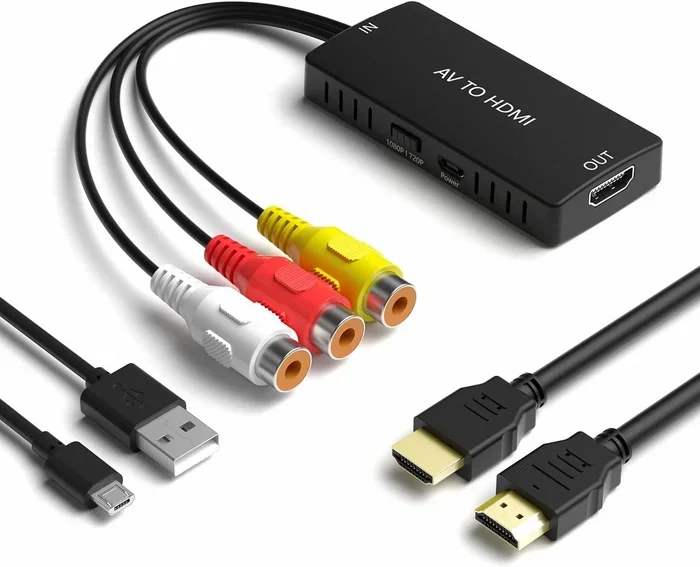
- A component video to HDMI converter box
- Component video cables (red, green, blue)
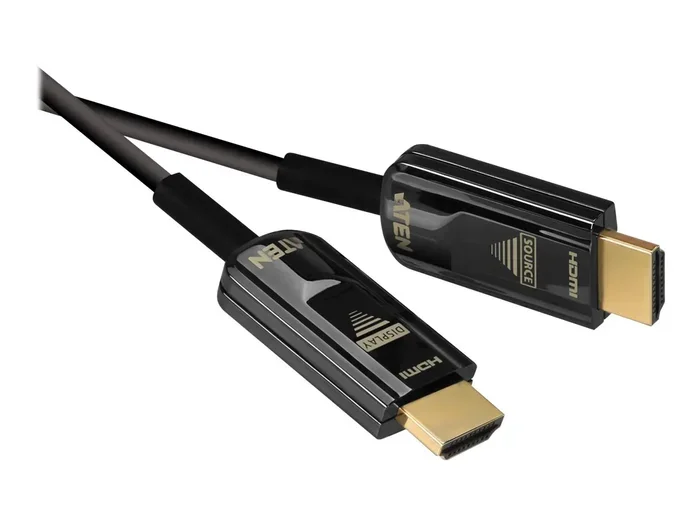
- An HDMI cable
- A power source for the converter (USB cable or wall adapter)
- Your modern TV with an HDMI input
Step 1: Connect the Component Cables
Start by plugging the red, green, and blue component cables into the output ports on your source device. Make sure each cable goes into the matching colored port. Tighten the RCA connectors firmly so you get a clean connection.
Step 2: Plug the Cables into the Converter
Run the other ends of the component cables into the input side of the converter box. The input ports are usually labeled clearly. Match the colors again: red to red, green to green, blue to blue.
Step 3: Connect the HDMI Cable
Take your HDMI cable and plug one end into the output port on the converter box. Plug the other end into any available HDMI port on your TV.
Step 4: Power on the Converter
Connect the power supply to the converter box. If your converter uses USB power, you can plug it into a USB port on your TV. Turn on the converter box if it has a power switch.
Step 5: Select the Correct HDMI Input
Turn on your TV and use the remote to select the HDMI input you plugged the cable into. You should see the image from your old device on the screen now.
Step 6: Adjust Settings if Needed
Some converter boxes have a small button or menu for adjusting the output resolution. Try selecting 1080p first. If the picture looks wrong, try 720p or 480p instead. You may also need to adjust the aspect ratio on your TV.
Common Mistakes People Make When Converting Component Video to HDMI
Even with the right equipment, people often run into issues. Here are the most common mistakes and how to avoid them.
Using a Passive Adapter Instead of an Active Converter
This is the number one mistake. Passive adapters do not convert the signal. They just change the connector shape. Your TV will not display anything properly. Always invest in an active converter box with built-in processing.
Ignoring Audio Connections
Component video only carries video. If you want sound, you need to connect audio cables separately. Many converters have audio input ports for this exact reason. Use the red and white RCA audio cables from your source device and plug them into the converter. Otherwise, you will have video but no sound.
Buying a Cheap, Unverified Converter
Ultra-cheap converters on marketplaces can be tempting. But they often have poor upscaling chips. The resulting image can look blurry or have color errors. Read reviews before buying. Spending a little more on a reputable brand saves you headaches later.
Not Checking Resolution Compatibility
Some older devices only output 480i or 480p. Not all converters handle interlaced signals well. Check the specifications of your converter box to make sure it supports the resolution your device outputs. This is especially important for retro gaming setups.
Using Low-Quality Cables
The cables matter. Cheap component cables can introduce signal noise and color bleeding. Use well-shielded cables from reputable brands. This small investment makes a big difference in picture quality.
Does Converting Component Video to HDMI Improve Picture Quality?
This is a great question, and the answer is nuanced. Converting to HDMI does not magically make old content look like it was recorded in 4K. But it can improve the viewing experience in several meaningful ways.
First, digital HDMI signals do not suffer from analog signal degradation. When you run a long component cable, the image can get blurry or noisy. An HDMI connection keeps the signal clean from the converter to the TV.
Second, many converter boxes include upscaling. This means they take a lower-resolution signal and stretch it to fit a modern HD or 4K display. The result is a sharper, clearer image than you would get on an old CRT television.
Third, HDMI supports better color depth and contrast. Even if the source material is old, the digital transfer preserves more color accuracy than an analog connection can.
That said, the original source quality still matters. A DVD will never look like a 4K Blu-ray. But a converted DVD will look much better on a modern flat screen than it ever did on an old tube TV.
Expert Tips for the Best Conversion Experience
Here are some insider tips that can help you get the most out of your component video to HDMI setup.
Tip 1: Keep Your Cables Short. Shorter cables mean less signal loss. Try to keep the component cables under six feet if possible. This is especially true for the connection between the source device and the converter.
Tip 2: Update Your TV Firmware. Some modern TVs have firmware updates that improve compatibility with external devices. Check your TV manufacturer’s website for updates before setting up your converter.
Tip 3: Use an AV Receiver as a Hub. If you have multiple old devices, consider connecting them all to an AV receiver. Then run a single HDMI cable from the receiver to your TV. This keeps your setup clean and organized.
Tip 4: Test Different Resolutions. Not every device works best at every resolution. Spend a few minutes testing 480p, 720p, and 1080p on your converter. You might find that a lower resolution looks cleaner on your specific TV.
Tip 5: Store Your Converter Properly. If you only use the converter occasionally, store it in a cool, dry place. Dust and moisture can damage the internal electronics over time.
Final Thoughts on Converting Component Video to HDMI
So can component video be converted to HDMI? Absolutely. With the right active converter box, a few cables, and about ten minutes of your time, you can bring your favorite old devices back to life on a modern television. The process is simple, affordable, and well worth the effort.
Remember to choose a quality converter that supports your desired resolution. Avoid passive adapters that promise easy conversion but deliver nothing. Pay attention to audio connections so you get both picture and sound. And do not be afraid to experiment with different settings until you find the perfect setup for your specific devices.
Your retro gaming consoles, vintage DVD players, and legacy home theater equipment still have plenty of life left in them. A simple component video to HDMI converter unlocks that potential. You get to enjoy your favorite classic content on a big, beautiful modern screen. That is a win worth pursuing.
Now that you have all the information you need, it is time to take action. Pick up a reliable converter box, follow the setup steps in this guide, and start enjoying your old devices with stunning clarity. You will wonder why you did not make the switch sooner.
Frequently Asked Questions
Do I need a special converter box to change component video to HDMI?
Yes, you absolutely need an active converter box. Passive adapters will not work because they do not process the analog-to-digital conversion. An active converter contains the necessary chip to translate the component signal into a format your HDMI TV can display.
Will converting component video to HDMI improve the picture quality?
It can improve the picture in several ways. Digital HDMI signals do not degrade like analog component signals do. Many converters also upscale the image to higher resolutions. However, the original source quality still plays a big role in the final result.
Can I use a component video to HDMI converter with a gaming console?
Yes, many people use these converters with retro gaming consoles like the Nintendo Wii, PlayStation 2, and older Xbox models. Make sure your converter supports the resolution your console outputs. For the best gaming experience, look for converters with low input lag.
Do I need to buy separate audio cables when converting component video to HDMI?
Yes, component video cables only carry video. You will need to connect separate audio cables from your source device to the converter. Most converters have red and white RCA audio input ports for this purpose. Some models also support optical audio output for better sound quality.
What resolution should I set my converter to?
Start with 1080p if your converter supports it. If the image looks wrong or has black bars, try 720p or 480p. The best resolution depends on your source device and your TV. Experiment to find what looks cleanest on your specific setup.
Are there any alternatives to using a converter box?
Some modern TVs still have component video inputs, but they are becoming rare. If your TV has one, you can skip the converter entirely. Another alternative is using a retro gaming scaler like the RetroTINK, which provides high-quality upscaling and multiple output options. However, for most users, a simple converter box is the easiest and most affordable solution.