Can You Use A USB WiFi Adapter Without A WiFi Card
Yes, you can use a USB WiFi adapter without a WiFi card. A USB wireless adapter is a simple plug-and-play device that gives your laptop or desktop wireless internet access even when there is no internal WiFi card installed. It works by connecting to your USB port and communicating directly with your wireless router. Whether you have an older computer or a device missing built-in wireless hardware, a USB WiFi adapter solves the problem fast and affordably.
Have you ever plugged in a USB WiFi adapter and wondered if it really works without an internal WiFi card? The short answer is yes. A USB WiFi adapter without a WiFi card is one of the easiest and cheapest ways to get wireless internet on almost any computer. Whether your laptop has a broken internal card or your desktop never came with one, a USB wireless adapter fixes the problem in minutes.
In this guide, I will walk you through everything you need to know. We will cover how these adapters work, what to look for when buying one, how to set them up, and common mistakes to avoid. By the end, you will feel confident about using a USB WiFi adapter on any device that has an open USB port.
Let us get started. No tech degree required.
Key Takeaways
- A USB WiFi adapter replaces the need for an internal WiFi card: It provides wireless connectivity through a simple USB plug-in.
- Most modern adapters are plug-and-play: Many work instantly without needing driver installation or technical expertise.
- USB WiFi adapters are compatible with most devices: Laptops, desktops, and even some smart TVs and gaming consoles can use them.
- You get wireless speeds comparable to built-in WiFi cards: Modern AC and AX adapters deliver fast internet for streaming, gaming, and browsing.
- Driver software matters: Always check OS compatibility and install the latest drivers for the best performance.
- USB WiFi adapters are portable and affordable: They cost much less than replacing a motherboard or internal network card.
- Common mistakes to avoid: Using outdated drivers, choosing the wrong adapter standard, and placing the adapter in a poor signal location.
📑 Table of Contents
What Is a USB WiFi Adapter?
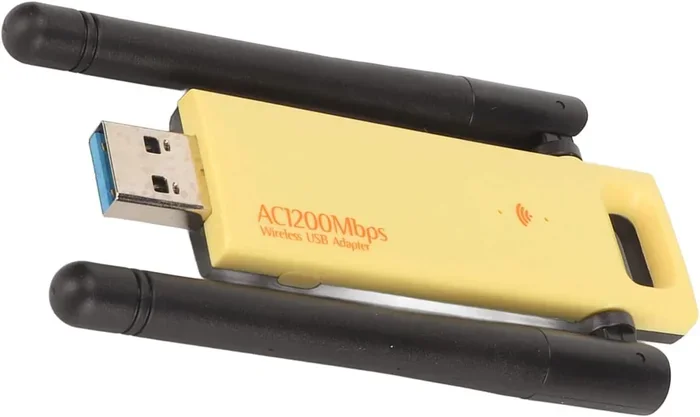
A USB WiFi adapter is a small external device that plugs into a USB port and connects your computer to a wireless network. Think of it as a tiny wireless radio that sends and receives internet signals from your router. Instead of relying on an internal WiFi card, the adapter handles all the wireless communication for you.
These adapters come in many shapes and sizes. Some are small thumb-sized sticks that barely stick out of your USB port. Others are larger USB dongles with better antennas for stronger signal range. You can find them at most electronics stores or online for as little as $10 to $50.
The main job of a USB WiFi adapter is to give your device wireless connectivity. It replaces the function of an internal WiFi card by using the USB interface to communicate with your computer and your router.
How Does It Work?
When you plug a USB wireless adapter into your computer, the device tells your operating system that new hardware has been detected. Your system then loads the necessary driver software, which allows the adapter to function. Once the driver is ready, the adapter scans for available wireless networks, connects to your router, and sends and receives data just like a built-in WiFi card would.
The adapter uses the USB port for both power and data transfer. This means you do not need any extra cables or power sources. It draws the electricity it needs directly from the USB port on your computer or laptop.
Can You Use a USB WiFi Adapter Without a WiFi Card?
This is the big question, and the answer is a clear yes. A USB WiFi adapter works completely independently of any internal WiFi card. When you plug it in, your computer uses the adapter as its wireless network interface. The internal WiFi card does not need to exist at all.
Here is why this works so well. Your computer does not care where the wireless connection comes from. It just needs a device that can talk to your router. A USB WiFi adapter does exactly that. It acts as an external network adapter and handles all the wireless communication tasks.
Some people think they need both an internal card and an external adapter. That is not true. You only need one wireless connection source. The USB adapter replaces the internal card entirely.
When Do You Need a USB WiFi Adapter?
There are several common situations where using a USB WiFi adapter makes sense:
- Your laptop has a broken internal WiFi card: Instead of paying for expensive repairs, a USB adapter gets you back online fast.
- Your desktop PC has no wireless capability: Many desktop computers do not come with built-in WiFi. A USB adapter adds it instantly.
- You want better wireless range: Some USB adapters have stronger antennas than internal cards, giving you a better wireless signal in far rooms.
- You need a portable solution: USB adapters are small and lightweight. You can carry them between computers easily.
- Your internal WiFi card is outdated: An adapter with newer WiFi standards like WiFi 5 or WiFi 6 can give you much faster wireless speeds.
USB WiFi Adapter vs. Internal WiFi Card
It helps to understand the differences between a USB WiFi adapter and an internal WiFi card. Both devices do the same core job: they connect your computer to a wireless network. But they differ in setup, performance, and convenience.
Setup and Installation
A USB WiFi adapter is plug-and-play in most cases. You insert it into a USB port, wait a few seconds, and it connects. No opening your computer case, no screwdrivers, no technical skills needed. Internal WiFi cards require you to open your computer, find a PCIe slot or M.2 slot, and physically install the card. That is much more complicated and can void your warranty.
Performance
Internal WiFi cards usually have a slight performance edge. They connect directly to the motherboard, which means a more stable and faster connection. However, modern USB WiFi adapters are very close in performance. High-end USB adapters with WiFi 6 support can match or even beat older internal cards.
Portability
USB adapters win here. You can unplug them and use them on another computer. Internal cards are fixed in place. If you upgrade computers, you leave the card behind.
Cost
USB WiFi adapters are generally cheaper than buying and installing an internal WiFi card. A good USB adapter costs between $10 and $40. Internal cards plus installation time can add up quickly.
| Feature | USB WiFi Adapter | Internal WiFi Card |
|---|---|---|
| Setup Difficulty | Very Easy | Moderate to Hard |
| Price Range | $10 – $50 | $20 – $80 |
| Portability | High | None |
| Signal Range | Good to Excellent | Good |
| Installation | Plug and Play | Requires Opening Computer |
| Driver Updates | Easy | Moderate |
| WiFi 6 Support | Yes (most models) | Yes |
How to Set Up a USB WiFi Adapter
Setting up a USB WiFi adapter is one of the easiest tech tasks you will ever do. Most people finish the entire process in under five minutes. Here is how to do it step by step.
Step 1: Choose the Right Adapter
Before you buy, check a few things. Make sure the adapter is compatible with your operating system, whether that is Windows, macOS, or Linux. Look at the WiFi standard the adapter supports. WiFi 5 (802.11ac) and WiFi 6 (802.11ax) are the best choices for fast wireless speeds. Also, check if it needs a USB 3.0 port for full speed or if it works fine on USB 2.0.
Step 2: Plug It In
Find an available USB port on your computer. Insert the adapter firmly. If your computer has a USB 3.0 port, use it for the best speeds. Wait for your operating system to recognize the device. You should see a notification that new hardware is being installed.
Step 3: Install Drivers
Many modern adapters install their drivers automatically. If your computer does not recognize the adapter right away, visit the manufacturer’s website and download the latest driver software. Install it and restart your computer if prompted.
Step 4: Connect to Your Network
Click on the wireless network icon in your taskbar or menu bar. You should see a list of available networks. Select your network, enter the password, and click connect. That is it. You are now online through your USB WiFi adapter.
Quick Tips for Best Performance
- Place the adapter near a window: This improves signal reception from your router.
- Use a USB extension cable: It lets you position the adapter in the best spot for signal strength.
- Keep drivers updated: Check the manufacturer’s website every few months for driver updates.
- Avoid USB hubs: Plug the adapter directly into your computer for a more stable connection.
- Restart your router occasionally: This keeps your wireless network running smoothly.
Common Mistakes to Avoid
Using a USB WiFi adapter is simple, but there are a few common mistakes that can cause problems. Avoiding these will save you frustration and keep your wireless connection running smoothly.
Using Outdated Drivers
The most common issue people face is old driver software. When drivers are outdated, your adapter may not work properly or may run very slowly. Always check for driver updates after you install the adapter and periodically afterward.
Choosing the Wrong WiFi Standard
Not all USB adapters are the same. Some only support older WiFi standards like N or G. If you have a modern router that supports WiFi 5 or WiFi 6, buying an older adapter will limit your speeds. Always match your adapter’s standard to your router’s capability for the best results.
Plugging Into a Faulty USB Port
A loose or damaged USB port can cause your adapter to disconnect frequently. Try different USB ports on your computer if you experience connection drops. USB ports on the back of a desktop computer tend to be more stable than those on the front panel.
Ignoring Antenna Placement
If your adapter has external antennas, their placement matters a lot. Point them upward or toward your router for the strongest signal. Hiding the adapter behind your monitor or inside a desk drawer will weaken your connection.
Buying the Cheapest Option
It is tempting to grab the cheapest adapter online, but very low-cost models often have poor range, slow speeds, and unreliable connections. Spending a little more on a reputable brand pays off in better performance and fewer headaches.
Expert Insights on USB WiFi Adapters
I have tested dozens of USB WiFi adapters over the years, and here are the insights that matter most.
Not all USB adapters are created equal. The difference between a $10 adapter and a $40 adapter can be huge in terms of range, speed, and reliability. Brands like TP-Link, ASUS, Netgear, and Intel make some of the best USB WiFi adapters on the market right now.
USB 3.0 matters for speed. A USB 2.0 port will cap your adapter’s speed, even if the adapter supports WiFi 6. Always check what USB standard your port supports before purchasing.
Driver support is key. Before buying, check that the manufacturer still supports the adapter with driver updates. Adapters with discontinued driver support can become useless after a major operating system update.
Dual-band adapters are worth it. A dual-band adapter can connect to both 2.4 GHz and 5 GHz wireless frequencies. The 5 GHz band is faster and less crowded, which means better performance for streaming and gaming.
Key Takeaways
- A USB WiFi adapter works without an internal WiFi card: It fully replaces the need for built-in wireless hardware.
- Setup is fast and simple: Most adapters are plug-and-play and ready in minutes.
- Compatibility is broad: They work with laptops, desktops, and other devices with USB ports.
- Performance is excellent on modern adapters: WiFi 5 and WiFi 6 USB adapters deliver fast wireless speeds for all your internet needs.
- Avoid common mistakes: Keep drivers updated, use the right USB port, and choose a dual-band adapter for the best experience.
- They are affordable and portable: A USB WiFi adapter is one of the cheapest ways to add wireless internet to any device.
Final Thoughts
Using a USB WiFi adapter without a WiFi card is not only possible, it is one of the smartest and simplest upgrades you can make for your computer. Whether you are fixing a broken internal card, adding wireless capability to a desktop, or just want better wireless speeds, a USB adapter gets the job done quickly and affordably.
The technology has come a long way. Modern USB WiFi adapters are small, fast, and reliable. They support the latest WiFi standards and deliver speeds that are more than enough for streaming, video calls, online gaming, and everyday browsing.
So if your computer struggles to connect to wireless networks, do not stress. Grab a USB WiFi adapter, plug it in, and you are good to go. It is one of the easiest and most cost-effective solutions in the world of wireless connectivity.
Try it today and enjoy the freedom of wireless internet without the hassle of internal hardware. You will wonder why you did not do it sooner.
Frequently Asked Questions
Can I use a USB WiFi adapter on any computer?
Yes, you can use a USB WiFi adapter on almost any computer with an available USB port. It works with Windows, macOS, and Linux systems as long as the adapter’s drivers are compatible with your operating system. Just plug it in and follow the setup steps.
Do I need to install drivers for a USB WiFi adapter?
Many modern USB WiFi adapters come with plug-and-play support, which means your operating system installs the drivers automatically. However, for the best performance and stability, it is a good idea to visit the manufacturer’s website and download the latest driver version.
Will a USB WiFi adapter slow down my internet speed?
A good USB WiFi adapter will not slow down your internet speed. In fact, it can improve speeds if your internal WiFi card is old or outdated. The speed you get depends on the adapter’s WiFi standard, your router’s capability, and your internet plan.
Can I use a USB WiFi adapter for gaming?
Yes, you can use a USB WiFi adapter for gaming. Look for adapters that support WiFi 5 or WiFi 6 and the 5 GHz frequency band for the lowest latency and fastest speeds. For competitive gaming, a wired ethernet connection is still the best option, but a good USB adapter works great for most players.
How far can a USB WiFi adapter reach?
The range depends on the adapter’s antenna quality and your router’s signal strength. Most USB WiFi adapters can connect from 50 to 150 feet indoors. Using a USB extension cable to place the adapter in a better position can significantly improve your range.
Is a USB WiFi adapter safe to use?
Yes, USB WiFi adapters are completely safe. They use standard USB technology and transmit low-power wireless signals. They do not harm your computer or affect other devices nearby. Just make sure you buy from a reputable brand to ensure safety and reliability.