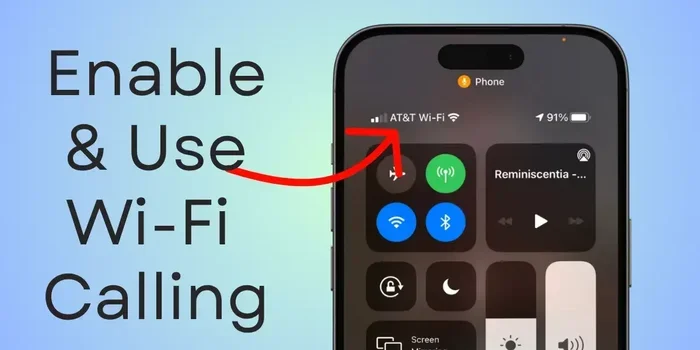
Are Iphone Calls Over Wifi Free and What You Need to Know
Yes, iPhone calls over WiFi are typically free when you use the built-in WiFi calling feature on your Apple device. This guide covers everything you need to know about how WiFi calling works, whether your carrier supports it, and how to set it up in just a few simple steps. You will also learn about costs, common issues, and expert tips to improve your call quality on every Wi-Fi connection.
Key Takeaways
- iPhone calls over WiFi are generally free: Most carriers include WiFi calling at no extra cost when you use your existing mobile plan.
- Setup is simple and fast: You can enable WiFi calling in just a few taps through your iPhone settings.
- Call quality improves significantly: WiFi calls use HD voice technology, which often sounds better than standard cellular calls.
- Works abroad without roaming fees: WiFi calling abroad lets you make calls using a Wi-Fi network, avoiding expensive international roaming charges.
- Not all carriers support it: Check with your carrier first to confirm they offer WiFi calling on their network.
- Emergency calls may have limitations: WiFi calling for 911 depends on your location and carrier capabilities.
- Data usage is minimal: WiFi calls use very little data, so they won’t eat up your Wi-Fi bandwidth.
📑 Table of Contents
What Is WiFi Calling on iPhone?
Have you ever been in a place with a weak cellular network and wished your mobile phone calls would just work? That is exactly where WiFi calling comes in. It is a feature built into every modern iPhone that lets you make and receive mobile phone calls over a Wi-Fi connection instead of a cell tower.
Think of it like this. Your iPhone normally talks to a nearby cell tower to place calls. But when the signal is weak or you are underground, your call quality drops fast. WiFi calling lets your phone use your home or office Wi-Fi network as the bridge to complete the call. It is basically an internet-based call that works through your VoIP technology.
The best part? If you already pay for a mobile plan, iPhone calls over WiFi are usually free. Your carrier treats them the same as regular calls. You do not need a special app or a separate subscription. It is all built right into iPhone settings.
Now, you might wonder how this differs from apps like FaceTime or WhatsApp. Those are also internet-based calls, but they require both people to have the same app installed. WiFi calling works just like a normal phone call. The person on the other end does not need WiFi or any special app. They just see your regular phone number on their screen.
Quick Tips: Before you set up WiFi calling, make sure your Wi-Fi connection is stable. A weak router signal can cause the same problems you are trying to avoid. Also, keep your iPhone settings updated to the latest iOS version for the best experience.
How Does WiFi Calling Work on iPhone?
The Role of Your Wi-Fi Connection
When you enable WiFi calling, your iPhone sends your voice as small data packets over your Wi-Fi network. These packets travel through your internet service provider and reach your carrier’s network. From there, the call connects to the other person just like a normal call.
The whole process happens in seconds. You do not notice any delay in most cases. Your Wi-Fi connection acts as a replacement for the cell tower link. As long as your WiFi signal is strong, your call quality will be excellent.
One important thing to know: WiFi calling uses very little data usage. A typical voice call uses about 1 MB per minute. That is tiny compared to streaming video. So you do not need to worry about eating up your bandwidth or slowing down other devices on your network.
How Your iPhone Routes the Call
Your iPhone is smart about routing calls. When WiFi calling is turned on, it checks your signal strength from cell towers first. If the signal is strong, it uses the cellular network. If the signal drops below a certain level, your iPhone automatically switches to the Wi-Fi connection without you lifting a finger.
This seamless switch is called Wi-Fi Assist on iPhones. It ensures your mobile phone calls do not drop just because you walked into a basement or a far corner of your house. The transition is smooth and mostly invisible to you.
Expert Insights: According to Apple, WiFi calling uses a technology called SIP (Session Initiation Protocol). This is the same protocol used by many enterprise phone systems. It is reliable, secure, and widely supported by carriers around the world. The fact that your carrier supports VoIP at the network level is what makes free calls over WiFi possible.
Are iPhone Calls Over WiFi Actually Free?
When WiFi Calls Are Completely Free
The short answer is yes. In most cases, iPhone calls over WiFi are completely free. Your carrier counts them as part of your regular minute allowance. They do not show up as separate charges on your bill.
This works because your carrier treats the Wi-Fi connection as an extension of their cellular network. When you make a call over WiFi, it is still routed through your carrier’s infrastructure. They are just using your home internet instead of a cell tower to complete the connection.
All major U.S. carriers support this. AT&T, Verizon, T-Mobile, and most smaller carriers offer WiFi calling at no extra cost. If you are on a postpaid plan, it is almost certainly included. If you are on a prepaid plan, check your carrier’s website or call their support line to confirm.
When You Might Still Pay for Calls
There are a few situations where you might see charges related to WiFi calls:
- International roaming: If you make a WiFi calling abroad call to an international number, some carriers may still charge international rates. However, many carriers now waive these fees for WiFi calls too.
- Pay-per-minute plans: If you are on a very basic prepaid plan that charges per minute, WiFi calls might still count against those minutes.
- Third-party apps: If you use apps like Skype or WhatsApp to call someone, those are not the same as built-in WiFi calling. These apps may have their own costs or require a subscription.
Common Mistakes: Many people confuse WiFi calling with apps like FaceTime or Skype. FaceTime calls between Apple devices are free, but they are not the same as placing a regular phone call. If you want to call a landline or a non-Apple user for free, you need built-in WiFi calling, not a third-party app.
Quick Tips: To make sure you are using the built-in WiFi calling feature and not a third-party app, check your iPhone settings. Go to Settings, then Phone, then WiFi Calling. If you see the toggle there, you are using the native feature. If you are making calls through an app, those may have different costs.
Setting Up WiFi Calling on Your iPhone
Checking if Your Carrier Supports WiFi Calling
Before you set up WiFi calling, you need to confirm your carrier supports it. Most major carriers do, but some smaller regional carriers may not. Here is how to check:
- Visit your carrier’s website and search for “WiFi calling support.”
- Call your carrier’s customer service and ask directly.
- Go to Settings on your iPhone, then Phone, then WiFi Calling. If you see the toggle option, your carrier supports it.
If you do not see the WiFi Calling option in your settings, your carrier may not support it yet. In that case, you can contact them and ask if they plan to add support.
Step-by-Step Setup Guide
Setting up WiFi calling on your iPhone is quick and easy. Follow these steps:
- Open the Settings app on your iPhone.
- Tap on Phone.
- Tap on WiFi Calling.
- Toggle on Enable WiFi Calling.
- Enter your address if prompted (this helps emergency services locate you).
- Your Wi-Fi connection is now set up for calls.
That is it. You are done. Your iPhone will now automatically use your Wi-Fi network for calls when the cell signal is weak. You will see “WiFi” appear in the status bar at the top of your screen during a call.
Quick Tips: Turn on Airplane mode and then turn off the cellular radio to test if your WiFi calls work without a cell signal. This is a great way to confirm your setup is working correctly. Also, make sure your Wi-Fi hotspot password is saved on your iPhone so it connects automatically.
Expert Insights: Apple recommends keeping your iPhone settings updated for the best WiFi calling experience. iOS updates often include improvements to call routing and call quality. If you notice issues with WiFi calls, try updating your iPhone first before troubleshooting further.
WiFi Calling vs. Regular Cellular Calls
How do iPhone calls over WiFi compare to regular cellular calls? Here is a detailed breakdown:
| Feature | WiFi Calling | Regular Cellular Calls |
|---|---|---|
| Cost | Free (included in your plan) | Free (included in your plan) |
| Connection Method | Wi-Fi network | Cellular tower |
| Call Quality | HD voice, often clearer | Standard or HD depending on signal |
| Works Without Cell Signal | Yes, as long as WiFi is available | No, requires cell coverage |
| Works Abroad | Yes, avoids roaming fees in many cases | Roaming charges may apply |
| Data Usage | Very low (~1 MB per minute) | N/A (uses cellular network) |
| Emergency Call Support | Yes, with address registered | Yes, uses cell tower location |
| Carrier Support Required | Yes | Yes |
As you can see from the table, WiFi calling offers clear advantages over regular cellular calls in many situations. The call quality is often better because WiFi networks tend to have more stable connections than crowded cell towers. And when you are traveling internationally, WiFi calling abroad can save you a fortune in roaming charges.
However, regular cellular calls still have one key advantage: they work anywhere there is a cell signal, even without WiFi. So it is best to think of WiFi calling as a supplement to your cellular service, not a replacement.
Quick Tips: Use WiFi calling at home, in the office, or in buildings with poor cell reception. Use regular cellular calls when you are outdoors with a strong signal. Your iPhone handles this automatically when WiFi calling is enabled.
Troubleshooting WiFi Calling Issues and Final Thoughts
Common Problems and Quick Fixes
Even though WiFi calling is reliable, you might run into issues from time to time. Here are the most common problems and how to fix them:
- WiFi calling won’t turn on: Make sure your carrier supports it. Also check that your iPhone settings are updated to the latest iOS version. Restart your iPhone if needed.
- Dropped calls on WiFi: This usually means your Wi-Fi connection is unstable. Move closer to your router or reduce interference from other devices. Also check if anyone else is streaming heavy content on the same network.
- Poor call quality: Weak WiFi signal is the most common cause. Try switching to a 5 GHz band if your router supports it, as it offers less interference than the 2.4 GHz band.
- Calls still use cellular data: Make sure you have WiFi calling enabled and that your signal strength from cell towers is low enough to trigger the switch. You can test this by turning on Airplane mode and then turning off the cellular radio.
Common Mistakes: One mistake many people make is confusing a weak Wi-Fi connection with a problem in the WiFi calling feature itself. Often, the issue is simply a poor router signal or network congestion. Before you dig into complex troubleshooting, try restarting your router first.
Quick Tips: If you live in a large home, consider adding a Wi-Fi hotspot extender or a mesh network system. This ensures strong Wi-Fi connection coverage in every room, which directly improves your call quality on WiFi calls.
Expert Insights: Carriers are continuously improving their WiFi calling infrastructure. The introduction of 5G WiFi calling is expected to bring even better call quality and lower data usage. If your carrier supports it, keep an eye out for 5G WiFi calling options in your iPhone settings.
Common Mistakes: Another mistake is assuming emergency calls always work over WiFi. While most carriers support 911 calls over WiFi calling, the location accuracy may be lower than with a regular cellular call. Always register your address in your iPhone settings under WiFi Calling to ensure emergency services can find you.
To sum it all up, iPhone calls over WiFi free is not just a possibility, it is a reality for most people. As long as your carrier supports it and you have a decent Wi-Fi connection, you can make crystal-clear calls without spending a dime extra. The setup takes less than two minutes, and the benefits, especially in areas with weak cell signal, are huge.
Whether you are at home, at work, or traveling abroad, WiFi calling gives you a reliable backup for your mobile phone calls. It uses VoIP technology to deliver high-quality voice calls over your internet connection. And the best part is, it costs nothing beyond your existing plan.
So go ahead, enable WiFi calling on your iPhone today. Check your iPhone settings, confirm your carrier support, and enjoy free, high-quality calls over WiFi. Once you make the switch, you will wonder how you ever managed without it.
Frequently Asked Questions
Are iPhone calls over WiFi completely free?
Yes, in most cases they are. Your carrier includes WiFi calls as part of your regular mobile plan. You do not pay extra per minute or per call. However, international calls made over WiFi may still incur roaming fees depending on your carrier’s policy.
Can I use WiFi calling when I am abroad?
Yes, WiFi calling abroad is one of the biggest benefits of this feature. It lets you make calls using a Wi-Fi network in another country, often without paying international roaming charges. Check with your carrier to confirm they support international WiFi calling.
Does WiFi calling use a lot of data?
No, data usage for WiFi calls is very low. A typical voice call uses about 1 MB per minute. This means you can talk for hours before using even 100 MB of data. It is very efficient compared to video calls or streaming.
What happens to WiFi calls if my internet goes down?
If your Wi-Fi connection drops, your iPhone will automatically switch back to the cellular network if you have signal. This seamless fallback ensures your mobile phone calls do not get interrupted. Just make sure your cell signal is decent in your area.
Is WiFi calling the same as FaceTime Audio?
No, they are different. WiFi calling works like a regular phone call and can reach any phone number, including landlines. FaceTime Audio only works between Apple devices and requires both people to have FaceTime. For calling any phone number for free, use built-in WiFi calling.
Can I make emergency calls over WiFi?
Yes, most carriers support 911 calls over WiFi calling. However, the location accuracy may not be as precise as with a regular cellular call. Always register your home address in your iPhone settings under WiFi Calling to help emergency services locate you accurately.