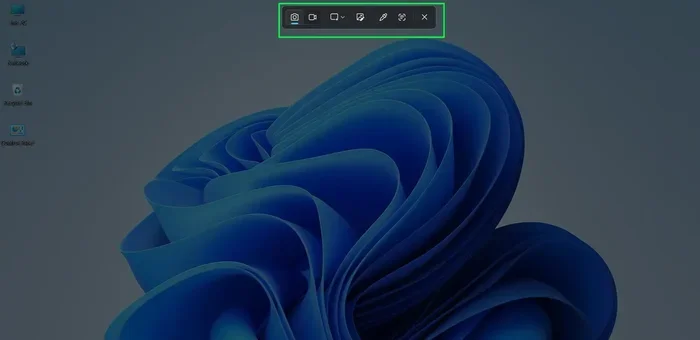
Add Snipping Tool Tool Bar and Capture Anything Fast
Adding the Snipping Tool toolbar to your Windows device is one of the fastest ways to improve your screen capture workflow. You can snap, annotate, and share screenshots in seconds without switching between apps. This guide walks you through every step to add, customize, and master the Snipping Tool toolbar for everyday productivity.
Have you ever needed to grab something on your screen quickly, only to fumble through menus and miss the moment? That frustration is exactly why learning how to add Snipping Tool toolbar to your Windows setup is a game changer. The Snipping Tool has been a part of Windows for years, but many users never unlock its full potential.
When you add the Snipping Tool toolbar to your taskbar or ribbon, you gain instant access to screen capture without digging through start menus. Whether you are a network administrator, a help desk technician, or someone who simply needs to share what is on their screen, this tool makes life easier. In this article, we will cover everything from setup to advanced tips that will transform how you capture and share screenshots.
The Snipping Tool toolbar gives you a dedicated panel with quick access to different capture modes. You can choose free-form snips, rectangular captures, window snips, or full-screen grabs. Each mode serves a different purpose, and having them all in one place saves valuable time during your workday.
Key Takeaways
- Easy Access: You can add the Snipping Tool toolbar to your taskbar or ribbon in just a few clicks.
- Speed Boost: Using keyboard shortcuts like Win + Shift + S makes screen capture instant.
- Customization: The toolbar lets you change pen colors, add text, and crop images on the fly.
- Workflow Integration: The Snipping Tool works seamlessly with OneDrive, email, and cloud sharing tools.
- Error Reduction: Knowing the right steps prevents common mistakes like missing captures or blurry screenshots.
- Productivity Gain: Mastering the toolbar saves time whether you are in IT, support, or creative work.
📑 Table of Contents
- Why Adding the Snipping Tool Toolbar Matters
- How to Add Snipping Tool Toolbar to Your Taskbar
- Keyboard Shortcuts for Faster Screen Capture
- Customizing the Snipping Tool Toolbar
- Using the Snipping Tool Toolbar in Networking and IT Work
- Common Mistakes When Using the Snipping Tool Toolbar
- Expert Tips to Maximize the Snipping Tool Toolbar
- Comparing Snipping Tool Toolbar with Other Screen Capture Tools
- Conclusion
Why Adding the Snipping Tool Toolbar Matters
Many Windows users stick to the old Print Screen button. It works, but it is not efficient. When you add Snipping Tool toolbar to your workspace, you get a purpose-built interface designed for speed and precision. Here is why this matters so much.
Time Savings in Daily Workflow
Think about how many times you need to capture your screen each day. Maybe you are documenting a bug for your IT team. Perhaps you are creating a tutorial for a new employee. Every time you open a program, navigate to the right spot, and take a screenshot, you lose seconds. Those seconds add up fast.
With the Snipping Tool toolbar pinned to your taskbar, one click gives you instant access. You do not need to search for the app or remember a hidden menu path. The toolbar sits right there, ready to go. This simple change can save you several minutes every single day.
Better Accuracy in Screen Captures
The Snipping Tool toolbar offers multiple capture modes that help you get exactly what you need. You are not stuck with a full-screen grab every time. You can select a specific region, capture a single window, or draw a custom shape around the area you want.
This precision matters a lot in networking and IT support. When you are troubleshooting a remote issue, showing the exact error message with a clean screenshot makes communication much clearer. Your colleagues or clients will thank you for the clarity.
Built-in Editing Without Extra Software
One of the best features of the Snipping Tool toolbar is the built-in editor. After you capture a screenshot, the tool opens automatically. You can highlight areas, add text boxes, draw arrows, and crop the image. All of this happens inside the Snipping Tool itself.
You do not need to open Paint or any third-party editor. This means fewer steps, less clutter, and a faster path from capture to sharing. For professionals who send screenshots regularly, this is a huge quality of life improvement.
How to Add Snipping Tool Toolbar to Your Taskbar
Getting the Snipping Tool toolbar onto your taskbar is straightforward. Follow these steps to set it up in under a minute.
Step-by-Step Setup Guide
- Click the Start button on your Windows desktop.
- Type “Snipping Tool” in the search bar.
- Right-click the Snipping Tool app when it appears in the results.
- Hover over “More” and then click “Open file location.”
- Right-click the Snipping Tool shortcut in the file folder.
- Select “Pin to taskbar” from the context menu.
That is it. The Snipping Tool icon now sits on your taskbar, ready for quick access. You can also drag the icon to reorder it if you want it near your other productivity tools.
Adding the Snipping Tool to the Ribbon in Windows 11
If you are using Windows 11, you have another option. The ribbon interface in File Explorer and other apps allows you to add the Snipping Tool as a quick action.
- Open File Explorer.
- Click the arrow on the ribbon toolbar to see more options.
- Look for “Add a quick action.”
- Search for Snipping Tool and add it to your ribbon.
Now you can launch the Snipping Tool toolbar directly from the ribbon without even opening the Start menu. This is especially handy if you use File Explorer frequently during your workday.
Keyboard Shortcuts for Faster Screen Capture
Adding the Snipping Tool toolbar is just the first step. To truly capture anything fast, you need to learn the keyboard shortcuts. These hotkeys make screen capture feel instant.
Essential Shortcuts You Should Know
- Win + Shift + S: Opens the Snipping Tool toolbar directly. This is the most important shortcut to memorize.
- Win + Shift + S, then press R: Captures a specific rectangular region on your screen.
- Win + Shift + S, then press F: Captures an entire open window.
- Win + Shift + S, then press M: Captures the full monitor screen.
- Win + Shift + S, then press L: Opens the Snipping Tool in freeform mode.
Once you commit these shortcuts to muscle memory, your screen capture speed will increase dramatically. You will no longer need to reach for your mouse and click through menus. A quick key combination and your Snipping Tool toolbar is ready to go.
Customizing Shortcut Keys
Did you know you can create custom keyboard shortcuts for the Snipping Tool? Right-click the Snipping Tool icon on your taskbar, go to Properties, and assign a shortcut key in the “Shortcut key” field. This lets you set up a personal hotkey that opens the tool instantly.
Keep in mind that custom shortcuts usually require a modifier key like Ctrl or Alt combined with another key. Choose something that does not conflict with your existing workflow. This small customization can make a big difference in your daily efficiency.
Customizing the Snipping Tool Toolbar
The Snipping Tool toolbar is not just about launching captures. It also offers customization options that let you tailor the tool to your preferences. Spending five minutes on setup can pay off every single day.
Setting Default Capture Mode
When you open the Snipping Tool, you can set your preferred default capture mode. Rectangular snip is the most popular choice, but you might prefer freeform or full-screen depending on your work. To change this, open the Snipping Tool, go to Settings, and select your default mode.
Setting a default mode means every time you press Win + Shift + S, the tool opens in your preferred format. This removes one extra step from your workflow and keeps things consistent.
Adjusting Timer and Delay Options
The Snipping Tool toolbar includes a delay feature that lets you set a countdown before the capture happens. This is incredibly useful when you need to capture a dropdown menu or a tooltip that disappears quickly.
You can set delays of 3 seconds, 5 seconds, or 10 seconds. Simply open the Snipping Tool, click the timer icon, and choose your delay. When the countdown ends, the tool automatically captures whatever is on your screen at that exact moment.
Changing Pen and Highlighter Colors
If you use the Snipping Tool for annotation, you will appreciate the ability to change pen and highlighter colors. The toolbar lets you pick from several colors, so you can highlight different elements with different shades.
This is particularly helpful when you are marking up screenshots for a team. Use red for critical issues, green for positive findings, and blue for general notes. Color coding your annotations makes them easier to scan and understand at a glance.
Using the Snipping Tool Toolbar in Networking and IT Work
The Snipping Tool toolbar is not just for casual users. It has real practical value in networking and IT environments. Here is how professionals use it every day.
Documenting Network Issues
When you are troubleshooting a network problem, a screenshot can communicate more than a thousand words. Instead of asking a user to describe an error message, you can ask them to capture it using the Snipping Tool toolbar.
Send the screenshot to your team through email, chat, or a ticketing system. The image shows exactly what the user sees, including error codes, timestamps, and menu paths. This speeds up diagnosis and reduces back-and-forth communication.
Creating Visual Documentation
IT teams often need to create documentation for processes, configurations, and procedures. The Snipping Tool toolbar makes it easy to capture step-by-step visuals for guides and manuals.
After each capture, you can annotate the image with arrows, text boxes, and highlights. This turns a simple screenshot into a clear instructional graphic. Over time, you build a library of visual documentation that new team members can reference.
Sharing Screenshots with Remote Teams
Remote work has made visual communication more important than ever. The Snipping Tool toolbar integrates well with cloud storage and collaboration platforms. After capturing a screenshot, you can save it directly to OneDrive or SharePoint.
From there, your remote colleagues can access the image instantly. You can also copy the screenshot to your clipboard and paste it directly into Microsoft Teams, Slack, or email. The seamless workflow keeps everyone connected and informed.
Common Mistakes When Using the Snipping Tool Toolbar
Even with a tool as simple as the Snipping Tool, there are common pitfalls that slow people down. Being aware of these mistakes helps you avoid frustration.
Forgetting to Save Before Closing
The Snipping Tool opens your capture in an editor window after you take it. If you close the window without saving, your screenshot is lost. Always press Ctrl + S or click the save icon before closing the editor.
Quick tip: Set a habit of saving every capture immediately. This takes two seconds and saves you from the headache of recapturing a lost screenshot.
Not Using the Delay Feature
Many users miss the delay option entirely. Without it, they struggle to capture menus and dropdowns that close when they click away. Using a 3 or 5 second delay gives you time to set up the capture perfectly.
Ignoring the Copy to Clipboard Option
The Snipping Tool toolbar has a “Copy to Clipboard” button that many people overlook. After capturing, clicking this button puts the image directly on your clipboard. You can then paste it anywhere without saving a file first.
This is perfect for quick sharing. You do not need to create a file, name it, and save it. Just capture, copy, and paste. It is the fastest path from screen capture to communication.
Expert Tips to Maximize the Snipping Tool Toolbar
Here are some advanced tips that take your Snipping Tool usage to the next level.
Use the Snipping Tool with Screen Recording
Windows 11 now includes screen recording features that complement the Snipping Tool toolbar. For short clips, you can use the Xbox Game Bar (Win + G) alongside the Snipping Tool for static captures. This combination gives you both still images and video clips for comprehensive documentation.
Integrate with Email Signatures
If you frequently include screenshots in your email responses, consider saving your most-used captures as templates. Use the Snipping Tool toolbar to capture your standard screenshots, annotate them, and save them in a dedicated folder. Then insert them into your email signature or response templates as needed.
Organize Captures with Folders
Create a folder structure on your computer for Snipping Tool captures. Use folders like “IT Support,” “Tutorials,” and “Quick Reference.” When you save screenshots with consistent naming, you can find them later in seconds.
Good organization pays off when you need to reference an old screenshot. Without it, your captures become a messy pile of unnamed images that are hard to find.
Comparing Snipping Tool Toolbar with Other Screen Capture Tools
While the Snipping Tool toolbar is excellent for most users, it is worth knowing what else is out there.
| Feature | Snipping Tool Toolbar | Snagit | Greenshot |
|---|---|---|---|
| Cost | Free with Windows | Paid | Free |
| Built-in Editor | Yes | Yes | Yes |
| Cloud Integration | OneDrive | Multiple | Limited |
| Custom Shortcuts | Yes | Yes | Yes |
| Delay Capture | Yes | Yes | Yes |
| Ease of Setup | Very Easy | Easy | Moderate |
The Snipping Tool toolbar wins on simplicity and ease of access. It is already built into Windows, so there is nothing to install. For most networking professionals and everyday users, it provides everything you need without the complexity of third-party tools.
That said, if you need advanced features like scrolling capture or extensive annotation options, tools like Snagit are worth exploring. But for the vast majority of use cases, the Snipping Tool toolbar is more than enough.
Conclusion
Adding the Snipping Tool toolbar to your Windows setup is one of the simplest yet most impactful productivity upgrades you can make. From instant screen capture with Win + Shift + S to built-in editing and cloud sharing, this tool covers every step of the screenshot process.
You now know how to pin the tool to your taskbar, customize its settings, use keyboard shortcuts, and avoid common mistakes. You also understand how it fits into networking and IT workflows for documentation and troubleshooting.
The key takeaway is this: the Snipping Tool toolbar puts powerful screen capture right at your fingertips. Take a few minutes today to set it up and customize it to your needs. Once you make it part of your daily routine, you will wonder how you ever worked without it.
Start capturing faster, sharing clearer, and working smarter. The Snipping Tool toolbar is waiting for you on your taskbar right now.
Frequently Asked Questions
How do I add the Snipping Tool toolbar to my taskbar?
Click the Start button, type “Snipping Tool” in the search bar, right-click the app, hover over “More,” and select “Open file location.” Then right-click the Snipping Tool shortcut and choose “Pin to taskbar.” This takes less than a minute to complete.
What is the keyboard shortcut to open the Snipping Tool toolbar?
Press Win + Shift + S on your keyboard. This instantly opens the Snipping Tool toolbar and lets you choose your capture mode. It is the fastest way to grab a screenshot without touching your mouse.
Can I customize the Snipping Tool toolbar appearance?
Yes. You can change the default capture mode, adjust pen and highlighter colors, and set a delay timer for captures. Open the Snipping Tool, go to Settings, and explore the options to tailor the toolbar to your preferences.
Does the Snipping Tool toolbar work with Windows 10 and Windows 11?
Absolutely. The Snipping Tool is available on both Windows 10 and Windows 11. The setup process is nearly identical on both operating systems, and all the features discussed in this guide work on either version.
Can I share Snipping Tool captures directly to cloud services?
Yes. After capturing a screenshot, you can save it directly to OneDrive or copy it to your clipboard and paste it into any cloud-based app. The Snipping Tool integrates smoothly with Microsoft’s cloud ecosystem for quick sharing.
Is the Snipping Tool toolbar better than using Print Screen?
For most users, yes. The Snipping Tool toolbar gives you more control over what you capture, built-in editing tools, and faster access through shortcuts. Print Screen captures the entire screen and requires pasting into an editor, which adds extra steps.