Can I Change The SSID On My Router And How To Do It
Yes, you can change the SSID on your router — and it is easier than most people think. Your SSID is the name that appears when someone searches for Wi-Fi nearby. Changing it helps boost network security, personalizes your wireless network, and makes it easier to identify. This guide walks you through every step with clear instructions and practical tips.
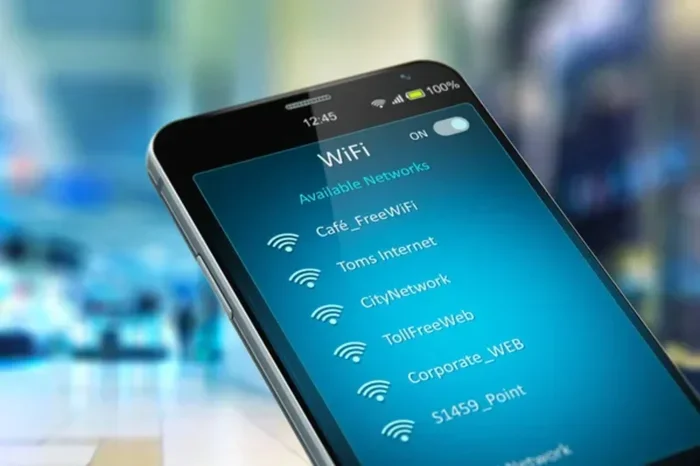
Have you ever looked at the list of Wi-Fi networks on your phone and seen a name that just screams “default router”? Maybe it says something like “Netgear_5G” or “Linksys setup.” That is your SSID — and if it has not been changed, it is time to fix that. Can I change the SSID on my router? Absolutely. You can do it in just a few minutes, and it makes a real difference for your home network.
Changing your network name is one of the simplest things you can do to improve wireless security and personalize your internet experience. Whether you want to make your Wi-Fi harder to spot, add a fun personal touch, or just get rid of that boring default name, this guide has you covered. Let us walk through everything you need to know, from understanding what an SSID is all the way to fixing common problems after the change.
Key Takeaways
- You can change your SSID anytime: It is a simple process through your router admin panel.
- Default SSIDs are risky: They reveal your router brand and make you an easier target for hackers.
- A custom Wi-Fi name adds privacy: It keeps your network identity personal and less predictable.
- You will need admin login credentials: These are usually found on a sticker on your router or in the manual.
- Rebooting is required after changes: Your devices will forget the old name and need to reconnect.
- Naming best practices matter: Avoid personal info and keep the name short and recognizable.
- Troubleshooting is straightforward: Most issues resolve with a simple restart or firmware update.
📑 Table of Contents
- What Is an SSID and Why Does It Matter
- Why You Should Change Your Router SSID
- How To Find Your Router Admin Panel
- Step-by-Step Guide To Change Your SSID
- Best Practices for Naming Your New SSID
- Common Mistakes When Changing Your SSID
- Troubleshooting SSID Change Issues
- Frequently Asked Questions
- Conclusion
What Is an SSID and Why Does It Matter
SSID stands for Service Set Identifier. In plain English, it is the name of your Wi-Fi network. When you open your phone or laptop and look for available networks, the list you see is made up of SSIDs. Every router comes with a default SSID set by the manufacturer, and that is what most people never bother to change.
Your SSID is broadcast over the air so devices can find and connect to your wireless network. It is not a secret — it is more like a signpost. But just like a signpost, you can control what it says. And what it says matters more than you might think.
Default SSIDs Reveal Too Much
Here is a problem with default SSIDs. They often include the router brand name. So if your network shows up as “ASUS” or “TP-Link,” anyone nearby knows exactly what kind of router you have. Hackers love this because they can look up known weaknesses for that specific model. A custom Wi-Fi name removes that easy target.
Also, default names sometimes include the model number. That gives strangers even more information about your setup. Changing your SSID is a quick way to reduce the amount of information you broadcast to the world.
Why You Should Change Your Router SSID
Some people skip this step because they think it is not a big deal. But changing your network name has several real benefits. Here are the top reasons you should consider doing it.
1. Better Network Security
A default SSID makes it easy for someone to identify your router model. Once they know that, they can search for known vulnerabilities in that specific device. A unique SSID removes that shortcut. It does not make your network unhackable, but it adds a small layer of obscurity that helps.
2. Easier to Identify Your Network
In an apartment building or a crowded neighborhood, you might see dozens of Wi-Fi networks. A generic name like “NETGEAR” makes it hard to tell which one is yours. A personalized SSID like “SmithFamily_WiFi” or “Apartment4B_Internet” makes it easy to spot and connect to.
3. Fun and Personal
Let us not forget the fun side. You can use your Wi-Fi name to express your personality. Some people use clever names, inside jokes, or even warnings like “FBI Surveillance Van.” It is a small way to make your home network feel like yours.
4. Helps With Guest Networks
If you set up a guest network, a clear network name helps visitors know which one to join. You might name your main network “HomeNetwork” and your guest network “HomeNetwork_Guest.” This keeps things organized and makes it easier for guests to connect without getting into your main router settings.
How To Find Your Router Admin Panel
Before you can change your SSID, you need to access your router admin panel. This is the control center where all your wireless settings live. Here is how to find it.
Step 1: Check the Router Itself
Look at the bottom or back of your router. Most brands print a sticker with the default admin login details. You will usually find:
- Default IP address — often 192.168.0.1 or 192.168.1.1
- Default username — often “admin” or “user”
- Default password — often “admin” or “password”
If you no longer have access to the router, check the manual that came with it or visit the manufacturer website. Most companies like Netgear, Linksys, ASUS, and TP-Link have support pages with default login info.
Step 2: Connect to Your Router
Make sure your device is connected to the router. You can use a Wi-Fi connection or an Ethernet cable. A wired connection is more stable, but either works fine for accessing the router admin page.
Step 3: Open a Web Browser
Type the router IP address into your browser’s address bar. Press Enter. You should see a login page asking for a username and password. Enter the admin credentials you found on the sticker.
Pro tip: If the default IP address does not work, you can find the correct one by opening Command Prompt on Windows (type “ipconfig”) or Terminal on Mac (type “netstat -nr | grep default”). Look for the “Default Gateway” — that is your router’s address.
Step-by-Step Guide To Change Your SSID
Now that you are logged in, it is time to change your SSID. The exact steps vary slightly depending on your router brand, but the general process is very similar. Here is a walkthrough.
1. Navigate to Wireless Settings
Once you are in the admin panel, look for a section called “Wireless,” “Wireless Settings,” or “Wi-Fi Settings.” On some routers, it might be under “Advanced Settings.” Click on it to open your wireless configuration options.
2. Find the SSID Field
You should see a field labeled “SSID,” “Network Name,” or “Wi-Fi Name.” This is where you type your new name. Delete the current default name and type in your preferred network name.
3. Save Your Changes
After typing your new name, click “Save” or “Apply.” Some routers will ask you to confirm the change. The router may restart automatically to apply the new settings. This usually takes about one minute.
4. Reconnect Your Devices
Here is something important. Once you change the SSID, all your previously connected devices will lose the connection. They saved the old network name in their memory, and the new name is different. You will need to:
- Go to your device’s Wi-Fi settings
- Find the new network name in the list
- Enter your Wi-Fi password to reconnect
Repeat this for every device in your home — phones, tablets, laptops, smart TVs, and smart home gadgets. It takes a few minutes but is well worth the effort.
5. Update Your Router Admin Password
While you are in the admin panel, this is a great time to change your router admin password too. Many people leave the default password, which is a serious security risk. A strong, unique password protects your router settings from unauthorized changes.
Best Practices for Naming Your New SSID
Choosing a name for your wireless network might seem trivial, but there are some smart rules to follow. Here are best practices to keep in mind.
Do Not Include Personal Information
Avoid using your real name, address, or birthdate in your network name. Names like “JohnSmith_Home” or “123MainSt” give strangers too much information. Keep it vague and fun.
Keep It Short and Simple
Some devices have trouble displaying very long network names. A shorter name is easier to read on all devices. Aim for something under 20 characters that is easy to spot in the list.
Use a Name That Is Easy to Remember
If you have guests visiting often, you want them to be able to find your network quickly. A simple, recognizable name like “HomeWiFi” or “CozyConnection” works great.
Consider Hiding Your SSID
Most routers let you disable SSID broadcast. This means your network name will not appear in the list of available networks. You will need to manually enter the name on each device to connect. This adds a layer of privacy, but it is not a substitute for strong network security like a good password and encryption.
Common Mistakes When Changing Your SSID
Even though changing your SSID is straightforward, people sometimes make avoidable mistakes. Here are the ones to watch out for.
Forgetting to Save Changes
This is the most common mistake. You type in a new name, but you forget to click “Save” or “Apply.” Your changes will not take effect. Always double-check before you close the browser.
Using the Same Name as a Neighbor
If you live in a dense area, having the same SSID as your neighbor can cause confusion. Devices might try to connect to the wrong network, and you could experience slow speeds or connection drops. Make your name unique.
Not Updating All Devices
After you change the SSID, some smart home devices or IoT gadgets may not reconnect automatically. You might need to put them in pairing mode and re-enter the Wi-Fi credentials. Plan for this extra step.
Using Special Characters That Cause Problems
Some devices do not handle special characters well in network names. Stick to letters, numbers, and simple spaces. Avoid symbols like @, #, or % that might confuse certain devices.
Troubleshooting SSID Change Issues
If something goes wrong after you change the SSID, do not panic. Most issues are easy to fix. Here are common problems and their solutions.
Devices Cannot Find the New Network
First, make sure you saved the changes and the router restarted. If it did, try restarting your device. Sometimes the Wi-Fi adapter needs a fresh scan to pick up the new network name. You can also try turning your router off and back on.
Connection Keeps Dropping
If your devices connect but then drop frequently, check if the router firmware is up to date. Outdated firmware can cause compatibility issues after a network name change. Log into the admin panel, look for a “Firmware Update” section, and install any available updates.
Guest Network Name Did Not Change
If you have a separate guest network, changing the main SSID does not automatically change the guest one. You need to go into the guest network settings separately and update that name too. This is an easy step that people often overlook.
Router Admin Page Will Not Load
If you cannot access the admin panel at all, try a different browser or clear your browser cache. You can also try a different device. If nothing works, you may need to reset the router to factory settings. Hold the reset button on the back of the router for about 10 seconds. Note that this will erase all your custom settings, so use this as a last resort.
Frequently Asked Questions
Can I Change the SSID on My Router Without Losing My Wi-Fi Password?
Yes, changing your SSID does not affect your Wi-Fi password at all. The password stays the same. You only need to reconnect your devices using the old password but with the new network name.
How Often Should I Change My Router SSID?
There is no need to change it regularly. A single change is usually enough unless you suspect someone has access to your network. If you move to a new home or share your network with new people, updating the network name is a good idea.
Will Changing My SSID Disconnect All My Devices?
Yes, temporarily. All devices that were connected to the old network name will disconnect. You will need to manually reconnect each one by selecting the new name and entering your password. This usually takes just a few minutes.
Can I Use Emojis in My Wi-Fi Network Name?
Some routers allow emojis in the SSID field, but many devices cannot display them properly. It is safer to stick to plain text letters and numbers to ensure all your devices can see and connect to the network without issues.
Does Hiding My SSID Make My Network More Secure?
Hiding your SSID adds a small layer of privacy because your network will not show up in the list of available networks. However, it is not a strong security measure on its own. Always pair it with a strong password and WPA3 or WPA2 encryption for real protection.
What Is the Difference Between SSID and Wi-Fi Password?
The SSID is the visible name of your network, while the Wi-Fi password is the key needed to connect. Think of the SSID as the name on a storefront and the password as the door key. You can change one without affecting the other, and both are important for a well-managed wireless network.
Conclusion
Can I change the SSID on my router? Yes, and you should. It takes just a few minutes and makes a meaningful difference for your network security and daily convenience. A custom Wi-Fi name helps you stand out in a crowded list of networks, keeps your router identity private, and adds a personal touch to your home setup.
Remember to follow the best practices we covered. Pick a short, recognizable name that does not reveal personal details. Save your changes, reconnect all your devices, and update your router admin password while you are at it. If you run into any issues, the troubleshooting tips above should help you get back on track quickly.
Take a few minutes today to change your SSID. It is one of the simplest and most effective steps you can take to improve your home broadband router setup. Your network — and your peace of mind — will thank you.