Can I Add 16 GB RAM To My Laptop And Boost Performance
Yes, you can often add 16 GB RAM to your laptop, but it depends on your model, RAM slots, and maximum memory support. This guide walks you through every step, from checking compatibility to installing the new memory. You will learn how a laptop memory upgrade can transform your system performance and make multitasking feel effortless.
Key Takeaways
- Check Your Laptop Model First: Not all laptops support 16 GB RAM. Your motherboard and BIOS set the limit.
- Know Your RAM Type: DDR4 and DDR5 SODIMMs are the most common. Using the wrong type will not work.
- Dual Channel Matters: Matching RAM sticks in paired slots can double your memory bandwidth and boost speed.
- Installation Is Easier Than You Think: With a screwdriver and basic care, most people can upgrade their laptop RAM at home.
- Performance Gains Are Real: More RAM means smoother multitasking, faster gaming, and better video editing.
- Check Existing RAM Before Buying: Find out how much RAM is already installed and how many free slots you have.
- Maximize Your Investment: Choose the right speed and capacity for your needs and budget.
📑 Table of Contents
- Can I Add 16 GB RAM To My Laptop And See Real Gains?
- How To Check If Your Laptop Supports 16 GB RAM
- Understanding RAM Types: DDR4, DDR5, And SODIMM
- Single Channel vs Dual Channel Memory
- Step-By-Step Guide To Adding 16 GB RAM
- Common Mistakes To Avoid When Upgrading Laptop RAM
- How Much Performance Can You Expect From 16 GB RAM?
- How Much Does A 16 GB RAM Upgrade Cost?
- When Should You NOT Upgrade Your Laptop RAM?
- Final Thoughts On Adding 16 GB RAM To Your Laptop
Can I Add 16 GB RAM To My Laptop And See Real Gains?
If your laptop feels slow when you open many tabs or run heavy apps, you might be wondering about a laptop memory upgrade. Adding 16 GB of RAM is one of the easiest and most affordable ways to breathe new life into an aging machine. But the big question is simple: can your laptop actually handle it?
The short answer is: it depends. Many modern laptops support up to 16 GB or even 32 GB of RAM. Older or budget models may cap out at 8 GB or 12 GB. Before you spend a single dollar, you need to check your laptop’s maximum RAM capacity. This guide will show you exactly how to find that information and what steps to take next.
A memory upgrade can make a huge difference. Whether you use your laptop for work, gaming, or creative projects, more RAM means smoother system performance. You will notice fewer freezes, faster app launches, and better multitasking. Let us dive into everything you need to know about adding 16 GB of RAM to your laptop.
Why RAM Matters For Your Laptop
RAM stands for Random Access Memory. Think of it as your laptop’s short-term workspace. When you open a program, your laptop loads data from your hard drive into RAM. The more RAM you have, the more data your laptop can hold in that workspace at once.
Without enough RAM, your laptop struggles. It starts using your hard drive as a swap file, which is much slower. This causes lag, stuttering, and frustration. With 16 GB of RAM, most users will never run into these problems. You can keep dozens of browser tabs open, run a full office suite, and even edit photos or videos without breaking a sweat.
For gaming performance, RAM plays a crucial role too. Many modern games recommend 16 GB as a minimum. Adding RAM can reduce loading times and prevent frame drops during intense sessions. If you use your laptop for multitasking with multiple apps at once, the difference is night and day.
How To Check If Your Laptop Supports 16 GB RAM
Before you buy any memory modules, you need to confirm that your laptop can handle 16 GB. This step saves you time and money. Here is how to check.
Check Your Laptop Specifications
Start by finding your laptop model number. You can usually find it on a sticker on the bottom of the laptop. Once you have the model number, search for it online along with the words “maximum RAM.” The manufacturer’s website will list the laptop specifications, including the maximum RAM capacity.
Another easy method is to use built-in Windows tools. Open the Start menu and type “System Information.” Look for the “Maximum Memory” field. This number tells you the most RAM your laptop can support. If it shows 16 GB or more, you are in good shape.
Check Your Current RAM Setup
Next, find out how much RAM is already installed and how many RAM slots your laptop has. Open the Task Manager by pressing Ctrl + Shift + Esc. Click on the “Performance” tab and then select “Memory.” Here you can see your current RAM amount and how many slots are in use.
If your laptop has two slots and both are filled with 4 GB sticks, you have a clear path to 16 GB. You simply replace both sticks with 8 GB modules. If you have one free slot, you can add a 16 GB stick to whatever is already there. But if both slots are occupied with 8 GB sticks, you may need to replace them entirely, depending on your laptop’s maximum capacity.
Understanding RAM Types: DDR4, DDR5, And SODIMM
Not all RAM is the same. Laptops use a special type of memory called SODIMM, which stands for Small Outline Dual In-Line Memory Module. These are smaller than desktop RAM sticks, so you cannot swap them between a laptop and a desktop computer.
DDR4 vs DDR5 RAM
The two most common types of laptop RAM today are DDR4 and DDR5. DDR4 has been the standard for years and offers reliable memory speed at an affordable price. DDR5 is newer and faster, but it is also more expensive and only supported by the latest laptop models.
You must match your RAM type to what your laptop supports. DDR4 RAM will not work in a DDR5 slot, and vice versa. Check your laptop manual or the manufacturer’s website to confirm which type you need. When shopping, look for DDR4 SODIMM or DDR5 SODIMM modules.
RAM Speed And Frequency
RAM speed is measured in megahertz (MHz). Common speeds for DDR4 laptop RAM are 2666 MHz and 3200 MHz. DDR5 modules typically start at 4800 MHz. Higher speeds can improve performance, but the difference is often small for everyday tasks.
For most users, 3200 MHz DDR4 RAM offers the best balance of speed and price. Gamers and content creators may benefit from faster modules. Just make sure your laptop’s BIOS supports the speed you choose. If it does not, the RAM will still work but will run at a lower speed.
Single Channel vs Dual Channel Memory
When you add RAM to your laptop, the way you install it matters. Laptops with two RAM slots can run in dual channel mode. This means both sticks work together at the same time, doubling the data transfer rate between the RAM and the processor.
Running in dual channel can boost system performance by 10 to 20 percent compared to single channel mode. To get dual channel, you need two matching RAM sticks. They should be the same brand, capacity, and speed if possible. For example, two 8 GB DDR4 3200 MHz sticks will run in dual channel.
If you only have one free slot, you can still add RAM. Your laptop will run in single channel mode, which is still much better than having too little memory. But if you want the best performance, consider replacing both existing sticks with matching 8 GB modules to reach 16 GB in dual channel.
Why Matching RAM Sticks Matters
Using two different RAM sticks can cause problems. They may not work together properly, or your laptop may run at a slower speed. To avoid this, always try to buy RAM kits that come in pairs. These are tested and guaranteed to work together.
If you must buy sticks separately, match them as closely as possible. Look for the same DDR type, speed, and voltage. Even small differences can cause instability. When in doubt, stick with one brand and one model for all your memory modules.
Step-By-Step Guide To Adding 16 GB RAM
Upgrading your laptop RAM is easier than most people think. You do not need to be a tech expert. With the right tools and a little patience, you can complete the upgrade in about 15 minutes.
What You Will Need
Before you start, gather these items:
- A compatible 16 GB SODIMM RAM stick (or two 8 GB sticks for dual channel)
- A small Phillips-head screwdriver
- A clean, flat workspace
- An anti-static wrist strap (optional but recommended)
Step 1: Back Up Your Data
While a RAM upgrade is very safe, it is always smart to back up your important files first. Use an external drive or a cloud service. This way, you have nothing to worry about if anything unexpected happens during the process.
Step 2: Power Down And Unplug
Turn off your laptop completely. Unplug the power cable and remove the battery if it is removable. Press and hold the power button for 10 seconds to discharge any remaining electricity. This protects your components from static damage.
Step 3: Open The RAM Panel
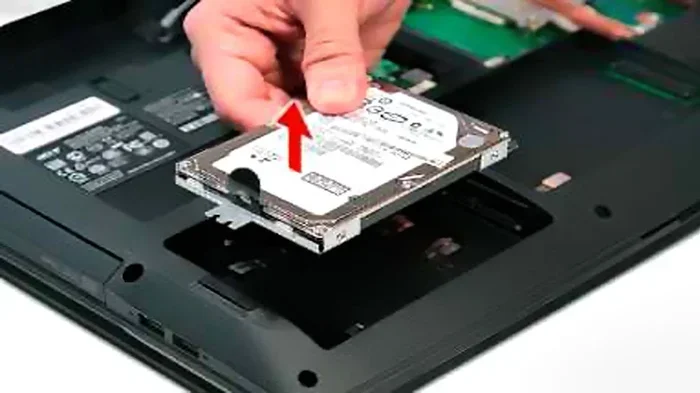
Flip your laptop over and locate the RAM access panel. It is usually a small rectangular cover on the bottom. Use your screwdriver to remove the screws. Carefully lift the panel off and set it aside.
Step 4: Remove Existing RAM (If Needed)
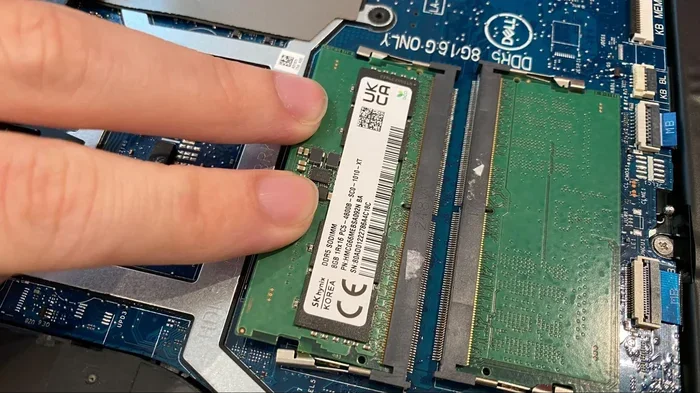
Look at the RAM sticks already installed. You will see small metal clips on each side. Gently push these clips outward. The RAM stick will pop up at an angle. Pull it straight out and set it aside.
If you are adding RAM to an empty slot, you can skip this step. Just make sure the slot is clear and ready for the new module.
Step 5: Insert The New RAM
Take your new SODIMM RAM stick and hold it at a 30-degree angle. Align the notch on the bottom of the stick with the ridge in the slot. Press the stick firmly into the slot until it clicks into place. The metal clips on each side should snap back and lock the stick securely.
If you are installing two sticks for dual channel mode, insert them into the matching slots. Your laptop manual will show you which slots to use. Usually, it is slots 2 and 4 (counting from the CPU).
Step 6: Close Up And Test
Replace the RAM access panel and screw it back in. Reconnect the battery and power cable. Turn on your laptop. During the boot process, press the key that opens your BIOS (usually F2, F12, or Del). Check that the system recognizes your new 16 GB of RAM.
Once you are in Windows, open Task Manager and go to the Performance tab. You should see 16 GB (or 32 GB if you added to existing RAM) listed under Memory. If the number looks correct, congratulations. Your laptop memory upgrade is complete.
Common Mistakes To Avoid When Upgrading Laptop RAM
Even though this is a straightforward process, mistakes can happen. Here are the most common errors and how to avoid them.
Buying The Wrong RAM Type
The most common mistake is buying the wrong type of RAM. DDR4 and DDR5 are not interchangeable. SODIMM and DIMM are also different. Always double-check your laptop’s requirements before purchasing. A quick search for your model number will tell you exactly what you need.
Mixing RAM Sticks With Different Specs
Using mismatched RAM sticks can cause compatibility issues. Different speeds, brands, or capacities may lead to instability or reduced performance. If possible, always buy a matched pair. If you must mix sticks, try to match the speed and voltage as closely as you can.
Forcing The RAM Into The Slot
Never force a RAM stick into the slot. If it does not go in easily, check the alignment. The notch on the stick must match the ridge in the slot. Forcing it can damage both the stick and the slot, leading to costly repairs.
Skipping The BIOS Update
Some older laptops need a BIOS update to support newer or larger RAM modules. Before your upgrade, check the manufacturer’s website for any available BIOS updates. Installing the latest firmware can prevent compatibility issues and improve system stability.
How Much Performance Can You Expect From 16 GB RAM?
Adding 16 GB of RAM will not turn an old laptop into a brand new one. But it will make a noticeable difference in many everyday tasks. Here is what you can expect.
For multitasking, the improvement is significant. You can run a web browser with 20 or more tabs, a word processor, a music app, and a video call all at the same time without any slowdown. Your laptop will handle all of this without needing to use the slow swap file on your hard drive.
For gaming performance, 16 GB is now the recommended minimum for most modern titles. You will see smoother frame rates and shorter loading times compared to 8 GB. Some games even use more than 8 GB of RAM, so having 16 GB ensures you are ready for future releases.
For content creation, the benefits are clear. Video editing, photo manipulation, and 3D rendering all use large amounts of memory. With 16 GB, you can work on larger projects without your laptop grinding to a halt. This is especially true for users of Adobe Premiere Pro, Photoshop, and similar applications.
For general productivity, 16 GB provides a comfortable buffer. You will rarely if ever run into memory limits during normal work. Apps will open faster, switching between them will be smoother, and your laptop will feel more responsive overall.
How Much Does A 16 GB RAM Upgrade Cost?
The cost of a laptop memory upgrade varies depending on the type and brand you choose. DDR4 SODIMM 16 GB modules typically cost between 40 and 80 dollars. DDR5 modules tend to be a bit more expensive, ranging from 60 to 120 dollars.
Compared to buying a new laptop, this is a very small investment. A new laptop can cost 600 dollars or more, while a RAM upgrade costs a fraction of that. The performance improvement you get from adding 16 GB of RAM often makes an older laptop feel like new again.
If your laptop is still under warranty, check with the manufacturer before opening the case. Some warranties may be voided by user-installed RAM. If you are unsure, you can always pay a professional to do the upgrade for you. The cost of professional installation is usually between 30 and 60 dollars.
When Should You NOT Upgrade Your Laptop RAM?
Adding 16 GB of RAM is not always the right solution. Here are some situations where you should reconsider.
If your laptop has soldered RAM, you cannot upgrade it. Many thin and light laptops now use RAM that is permanently attached to the motherboard. In this case, a RAM upgrade is simply not possible. You would need to buy a new laptop if you need more memory.
If your laptop’s bottleneck is not RAM, adding more will not help much. For example, if you have a slow hard drive, upgrading to an SSD will give you a bigger performance boost than adding RAM. If your processor is very old, it may not benefit from extra memory either. It is important to identify the real cause of your laptop’s slow performance before spending money.
Also, if you only use your laptop for basic tasks like web browsing and word processing, 8 GB of RAM may be plenty. You would not see much benefit from jumping to 16 GB. In these cases, your money might be better spent on other upgrades, like a faster SSD or a new battery.
Final Thoughts On Adding 16 GB RAM To Your Laptop
So, can you add 16 GB RAM to your laptop? In most cases, the answer is yes. As long as your laptop has a free RAM slot and supports 16 GB modules, the upgrade is well within reach. It is one of the simplest and most cost-effective ways to improve your system performance and extend the life of your machine.
Start by checking your laptop’s specifications. Confirm the maximum RAM capacity, the RAM type you need, and how many free slots you have. Once you have the right memory modules, the installation process is quick and straightforward. You do not need any special skills or expensive tools.
A laptop memory upgrade to 16 GB can transform the way you use your computer. You will enjoy smoother multitasking, better gaming, and faster creative work. Whether you are a student, a professional, or a casual user, the extra memory will make your daily tasks faster and more enjoyable. Do not let a slow laptop hold you back. A small investment in RAM can deliver big results.
Frequently Asked Questions
Can I mix 8 GB and 16 GB RAM sticks in my laptop?
Yes, you can mix different capacities, but it is not always ideal. Your laptop will run in a mixed mode, which may reduce performance slightly. For the best results, try to match the speed and type of both sticks. If possible, use two identical modules for dual channel mode.
Do I need to install drivers after adding new RAM?
No, RAM does not require drivers. Your operating system will automatically recognize the new memory. Simply restart your laptop after installation, and it should show the updated RAM amount in the system settings and Task Manager.
Will adding 16 GB RAM make my laptop faster for gaming?
Yes, adding RAM can improve gaming performance, especially if you currently have 8 GB or less. Many modern games use more than 8 GB of memory. With 16 GB, you will experience smoother frame rates and fewer stutters during gameplay.
Can I add 16 GB RAM if my laptop already has 8 GB installed?
This depends on your laptop’s maximum RAM capacity and the number of free slots. If your laptop supports 16 GB total and has one free slot, you can replace the 8 GB stick with a 16 GB stick. If you have two free slots, you can add a new 16 GB stick alongside the existing 8 GB, giving you 24 GB total.
Is 16 GB RAM enough for video editing?
Yes, 16 GB of RAM is the recommended amount for most video editing tasks. It handles projects in software like Adobe Premiere Pro and DaVinci Resolve smoothly. For very large 4K projects, 32 GB may be better, but 16 GB is a solid starting point for most editors.
How long does it take to add RAM to a laptop?
The entire process takes about 10 to 15 minutes. Opening the panel, inserting the new module, and closing everything up is quick. The hardest part is finding the right type of RAM for your laptop model. Once you have the correct SODIMM module, the physical installation is very simple.