Does Iphone Have An Ir Blaster And How To Use It Now
Does iPhone Have An IR Blaster? The answer is no, iPhones do not come with a built-in infrared blaster. However, you can still add IR functionality using simple accessories like IR dongles and free remote control apps. This guide will show you how to turn your iPhone into a powerful universal remote for your TV, air conditioner, and other home entertainment devices.
Key Takeaways
- No Built-In IR Blaster: iPhones do not have a built-in infrared transmitter or blaster. Apple removed this feature years ago.
- IR Dongles Work Great: You can use a small IR blaster adapter that plugs into your iPhone charging port to add infrared control.
- Apps Make It Easy: Many free and paid remote control apps let you manage your TV, AC, and other IR devices from your phone.
- Apple TV Remote Uses IR: The Apple TV remote uses infrared signals, but it is a separate device, not a feature built into the iPhone.
- Works With Smart Home Devices: An IR blaster accessory can help your iPhone control smart home devices like TVs, projectors, and set-top boxes.
- Setup Takes Minutes: Adding IR functionality to your iPhone is quick, easy, and does not require any technical skills.
📑 Table of Contents
- What Is an IR Blaster and Why Does It Matter?
- Does iPhone Have An IR Blaster? The Truth
- How to Add IR Blaster Functionality to Your iPhone
- Comparison: IR Blaster Options for iPhone
- How to Use an IR Blaster with Your iPhone
- Expert Insights on iPhone IR Control
- Can iPhone Control Smart Home Devices Without IR?
- Final Thoughts
What Is an IR Blaster and Why Does It Matter?
An infrared blaster is a small device that sends out invisible light signals. These signals carry commands to electronics like your TV, air conditioner, or stereo system. Think of it as a digital version of the remote control you keep under your couch cushion.
When you press a button on a traditional remote, it fires out a quick pulse of infrared light. Your TV picks up that light and knows what to do. An IR transmitter works the same way, but it lives inside your phone or a small adapter.
Many Android phones have had built-in IR blasters for years. Brands like Xiaomi, Samsung, and Huawei put them right into the device. iPhone users have always had to find other ways to control their electronics. That is where this guide comes in.
Knowing whether your phone supports infrared technology helps you decide if you need an extra accessory. It also saves you from buying a bunch of different remotes for every device in your living room. Let us dig deeper into the iPhone situation.
How Infrared Technology Works in Simple Terms
Infrared light is all around us. The sun gives off infrared rays. So does your TV remote. The key difference is that infrared light is invisible to the human eye. You cannot see it, but your electronics can detect it.
Here is how a typical infrared signal works:
- You press a button on a remote or tap a screen.
- The device sends out a pattern of infrared light pulses.
- The receiving device, like your TV, reads the pattern.
- The TV performs the action, like changing the volume or switching channels.
These signals travel in straight lines. They do not go through walls. This means your phone or adapter needs a clear line of sight to the device you want to control. It is simple, fast, and very reliable when set up correctly.
Does iPhone Have An IR Blaster? The Truth
Let us get straight to the point. Does iPhone have an IR blaster? No, it does not. Not a single model of iPhone has ever included a built-in infrared transmitter. Not the iPhone 15. Not the iPhone 14. Not even older models like the iPhone 8 or iPhone X.
Apple made a deliberate choice to leave out the IR blaster. Some people think this was to push users toward Apple TV and other Apple ecosystem products. Others believe it was a design decision to keep the phone slim and simple. Whatever the reason, the result is the same. iPhone users cannot natively send infrared signals.
This does not mean you are stuck. Far from it. There are several easy and affordable ways to add IR control to your iPhone. We will cover all of them in the sections below.
Why Apple Removed the IR Blaster
Apple used to include IR blasters in some of its older devices. The first few iPod models had them. The iPod Nano and iPod Touch could control TVs and stereos. Apple even sold a product called the Apple Remote, which used infrared technology.
But Apple slowly phased out IR support. The company wanted users to rely on Wi-Fi and Bluetooth instead. These wireless technologies are more versatile and work through walls. They also connect to the internet, which opens up a whole world of smart home control.
So today, if you want to use your iPhone as a remote, you need a little help from an accessory. That help comes in the form of IR dongles, adapters, and smart apps.
How to Add IR Blaster Functionality to Your iPhone
The good news is that adding IR capability to your iPhone is simple. You have two main options. You can use a physical IR dongle that plugs into your phone. Or you can use a software-based approach with smart home hubs.
Option 1: IR Dongles and Adapters
An IR blaster adapter is a small, plug-in device. It connects to your iPhone through the Lightning port or USB-C port. Once connected, it acts as an external infrared transmitter. Your iPhone sends a command to the adapter, and the adapter sends the infrared signal to your TV or AC.
These adapters are tiny and portable. You can leave one in your travel bag and use it in hotel rooms. They work with almost all IR-controlled devices. Here are some popular options:
- BroadLink IR Blaster: A compact and affordable adapter that works well with most iPhones.
- Logitech Harmony Hub: A premium option that offers wide device compatibility and excellent app support.
- Generic IR Dongles: Available on Amazon and other retailers for under $15. They get the job done.
Most of these adapters come with their own app. The app lets you set up your devices and create custom remote layouts. You can control your TV, cable box, soundbar, and more all from one place.
Option 2: Smart Home Hubs and Wi-Fi Control
If you do not want to use a physical adapter, you can use a smart home hub. Devices like the BroadLink RM4 Pro or SwitchBot Hub connect to your Wi-Fi network. They have built-in IR blasters that communicate with your iPhone over the internet.
This approach is great for home automation. You can set up routines. For example, you can tell your phone to turn on the TV, lower the lights, and start the AC all at once. The hub handles the infrared part, and your iPhone sends the commands.
This method does not require a physical connection to your phone. It works from anywhere in your home as long as you are on the same Wi-Fi network. It is a clean and convenient option for many users.
Option 3: Universal Remote Control Apps
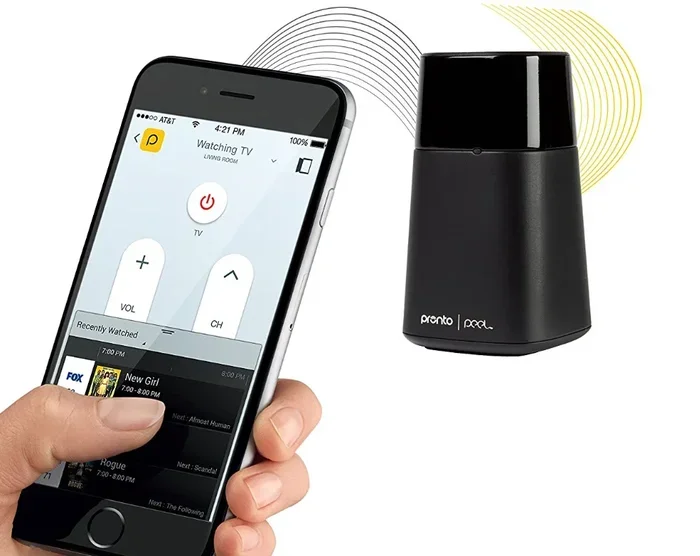
Many remote control apps are available for the iPhone. Some of these apps work with IR dongles. Others work with smart home hubs. A few apps use Wi-Fi or Bluetooth to control smart TVs directly, without needing any extra hardware.
Popular apps include:
- SURE – Works with many IR dongles and has a huge device database.
- AnyMote – Supports both IR and Wi-Fi controlled devices.
- Peel Smart Remote – Uses your TV’s built-in Wi-Fi to control it.
- ZaZa Remote – Offers a simple interface and works with many devices.
Keep in mind that apps alone cannot send infrared signals from your iPhone. You still need either a dongle or a smart home hub. The app just gives you the interface to send the commands.
Comparison: IR Blaster Options for iPhone
Not sure which option is right for you? Here is a quick comparison of the most popular methods to add IR control to your iPhone.
| Feature | IR Dongle | Smart Home Hub | Remote App Only |
|---|---|---|---|
| Price Range | $10 – $30 | $30 – $100 | Free – $10 |
| Needs Extra Hardware | Yes | Yes | Sometimes |
| Works With Non-Smart TVs | Yes | Yes | No |
| Setup Difficulty | Easy | Moderate | Very Easy |
| Portability | High | Low | N/A |
| Home Automation Support | Limited | Yes | Limited |
| Works Without Wi-Fi | Yes | No | No |
As you can see, each option has its strengths. An IR dongle is the most affordable and portable choice. A smart home hub offers the most features and automation. An app-only solution works best if you already own a smart TV.
How to Use an IR Blaster with Your iPhone
Setting up an IR blaster with your iPhone is easier than you might think. Follow these simple steps to get started.
Step-by-Step Setup Guide
- Buy an IR blaster adapter that is compatible with your iPhone model. Make sure it supports Lightning or USB-C, depending on your phone.
- Download the adapter’s app from the App Store. Most adapters come with their own dedicated app.
- Plug the adapter into your iPhone’s charging port. Wait for the app to recognize the device.
- Add your devices by selecting them from the app’s database. You can search by brand and model number.
- Test the remote by pointing the adapter at your TV or AC and pressing a button. The device should respond.
- Save your setup and start using your iPhone as a full-featured universal remote.
The whole process takes about five to ten minutes. You do not need any technical skills. If you can plug in a charger, you can set up an IR blaster.
Quick Tips for Best Results
Here are some practical tips to get the most out of your IR setup:
- Always keep the IR adapter pointed at your device. Infrared signals need a clear line of sight.
- Do not block the IR emitter with your hand or phone case. Remove any thick cases that might cover the adapter.
- Keep your iPhone close to the device you want to control. A distance of about three to five feet works best.
- Update your app regularly. Developers often add new device codes and improve performance.
- Use the app’s learning feature if your device is not in the database. You can teach the adapter by pointing your original remote at it.
Common Mistakes to Avoid
Even with a simple setup, people make mistakes. Here are a few to watch out for:
- Using the app without a dongle. Many users download a remote app and expect it to work on its own. Without an IR blaster, it will not send signals to most devices.
- Placing the adapter behind the phone. The IR emitter needs to face forward. Make sure the adapter sticks out from the bottom or side of your phone.
- Ignoring firmware updates. Just like any tech accessory, your IR dongle may need updates to work with new device codes.
- Expecting it to work through walls. Infrared signals do not pass through solid objects. You need a direct path between the adapter and the device.
Expert Insights on iPhone IR Control
According to tech experts, the lack of a built-in IR blaster on iPhones is one of the most common complaints among users. However, the solution ecosystem has grown significantly. Today, you can find high-quality IR adapters for under $15 that work reliably with all iPhone models.
Home automation specialists also point out that using a smart home hub gives you more control than a simple IR dongle. With a hub, you can create scenes, set schedules, and control devices with voice commands through Siri. This takes your iPhone from a basic remote to a full home automation controller.
One expert tip is to look for adapters that support both IR and RF (radio frequency). RF signals can pass through walls, which means you can control devices in other rooms. This is especially useful for controlling garage doors, ceiling fans, and projector screens that are hidden behind walls.
Pro tip: If you travel often, get a compact IR dongle that fits in your wallet. It weighs almost nothing and turns any hotel room TV into a controllable device. You will never have to hunt for the TV remote again.
Can iPhone Control Smart Home Devices Without IR?
Yes, it can. If you have smart TVs, smart speakers, or smart plugs, your iPhone can control them directly over Wi-Fi or Bluetooth. Apple’s HomeKit framework lets you manage these devices from the built-in Home app. You do not need any IR blaster for these devices.
However, many older devices and budget electronics still rely on infrared control. Your cable box, old TV, window AC unit, and soundbar are common examples. For these devices, an IR blaster is essential. This is why adding IR functionality to your iPhone remains so valuable, even in 2024 and beyond.
The best approach is to use both methods together. Use Wi-Fi for your smart devices and an IR dongle for your non-smart electronics. This way, your iPhone becomes a complete control center for everything in your home.
Final Thoughts
So, does iPhone have an IR blaster? The answer is no, not natively. But that does not stop you from getting all the benefits of infrared control. With a small adapter, a free app, and a few minutes of setup, you can turn your iPhone into a powerful universal remote.
Whether you want to control your TV in the living room, your AC in the bedroom, or your projector in the home theater, the right IR solution has you covered. The options are affordable, easy to use, and work with almost any IR device on the market.
Take a few minutes today to set up your IR blaster. You will wonder how you ever lived without it. Your iPhone becomes more useful, and your coffee table stays free of clutter. That is a win-win situation for everyone.
Frequently Asked Questions
Can I control my TV with my iPhone without an IR blaster?
If your TV is a smart TV with Wi-Fi, you can download the manufacturer’s app and control it over your home network. However, for older or non-smart TVs, you will need an IR blaster adapter or a smart home hub with IR support.
How much does an IR blaster adapter for iPhone cost?
Most IR dongles for iPhone cost between $10 and $30. You can find them on Amazon, eBay, or electronics stores. Premium options like the Logitech Harmony Hub cost more but offer advanced features and wider device compatibility.
Do all iPhone models support IR blaster adapters?
Yes, all iPhone models from iPhone 5 onward support external IR adapters. These adapters plug into the Lightning or USB-C port, depending on your iPhone model. The adapter handles the infrared transmission, so any iPhone can work with one.
Is it safe to leave an IR adapter plugged into my iPhone?
Yes, it is completely safe. IR adapters draw very little power and do not affect your phone’s battery or performance. You can leave them plugged in all the time. They are designed for everyday use and are built with safety certifications.
Can I use an IR blaster with Siri on my iPhone?
Yes, if you use a smart home hub that supports Siri integration, you can control your IR devices with voice commands through Siri. Simply set up the hub with the HomeKit app and link it to your IR devices for hands-free control.
Why do Android phones have IR blasters but iPhones do not?
Apple made a design and strategic decision to leave out IR blasters from iPhones. The company encourages users to use its own ecosystem products like Apple TV and HomeKit for device control. Android manufacturers often include IR blasters as a selling point and a convenience feature for users.