Can Macbook Sync With Android Phone And Share Files
Yes, your Macbook can sync with Android phone and share files between the two devices. You can use USB cables, cloud services, Bluetooth, and third-party apps to transfer photos, documents, contacts, and more. This guide walks you through every method so you can pick what works best for your needs.
If you own a Macbook and an Android phone, you have probably wondered whether the two devices can work together. The good news is that Macbook sync with Android phone is absolutely possible. You can transfer files, photos, contacts, and more between the two systems without much hassle.
Many people assume that Apple and Android devices cannot communicate well. This is simply not true. Over the years, Google and Apple have both made it easier to share data across platforms. Whether you want to move a few pictures or keep your files in sync across devices, there is a solution for you.
In this article, we will explore every practical way to sync Mac with Android and share files. We will cover wired connections, wireless options, cloud services, and third-party apps. By the end, you will know exactly which method fits your workflow best.
Key Takeaways
- Multiple sync methods exist: USB cable, cloud storage, Bluetooth, and dedicated apps make Mac and Android file sharing simple.
- No special hardware needed: Most methods work with standard cables and free software you already have.
- Wireless options are growing: Cloud services and Wi-Fi transfer tools let you sync without plugging anything in.
- Photos and media transfer easily: You can move images, videos, and music between your Android phone and MacBook with minimal effort.
- Third-party apps add power: Tools like AirDroid and Syncthing offer advanced features beyond basic file sharing.
- Common issues have simple fixes: Connection problems, permission errors, and slow transfers can usually be resolved quickly.
📑 Table of Contents
- How to Sync MacBook with Android Phone
- Best Methods to Transfer Files Between Mac and Android
- Setting Up Wireless Sync Between Mac and Android
- Syncing Photos and Media from Android to MacBook
- Cloud-Based Solutions for Mac and Android Sync
- Common Problems and How to Fix Them
- Expert Insights on Cross-Platform Syncing
- Key Takeaways
- Conclusion
How to Sync MacBook with Android Phone
Syncing your MacBook with an Android phone is easier than most people think. The process depends on what kind of data you want to share and how you prefer to work. Below, we break down the main approaches step by step.
Using a USB Cable for Direct Connection
The simplest way to connect MacBook to Android is with a USB cable. Most Android phones use USB-C cables now, and newer MacBooks have USB-C ports. This means you can plug your phone directly into your laptop.
Once connected, your Mac should recognize the Android device. You may see a notification asking if you want to allow file access. Tap “Allow” on your phone, and then open Finder on your Mac. Your Android phone should appear in the sidebar under Locations.
From there, you can drag and drop files just like you would with a USB flash drive. This method works great for large files like videos or backups. It is also the fastest option for transferring many files at once.
One thing to keep in mind: older Android phones with micro-USB cables may need a USB adapter to connect to a MacBook. These adapters are cheap and easy to find online.
Transferring Files Wirelessly via Bluetooth
Bluetooth is another way to sync Mac with Android without any cables. Both devices support Bluetooth, so you can pair them easily.
First, turn on Bluetooth on both your MacBook and Android phone. On your Mac, go to System Settings and click Bluetooth. On your phone, go to Settings and enable Bluetooth. Make both devices visible to each other.
Then, select your Android phone from the Bluetooth menu on your Mac. Your phone will show a pairing request. Accept it, and the two devices will connect.
Bluetooth file transfer works well for smaller files like documents or photos. However, it is slower than USB or Wi-Fi methods. For large video files or bulk transfers, you may want to use a different approach.
Using Wi-Fi Direct and Local Network Transfer
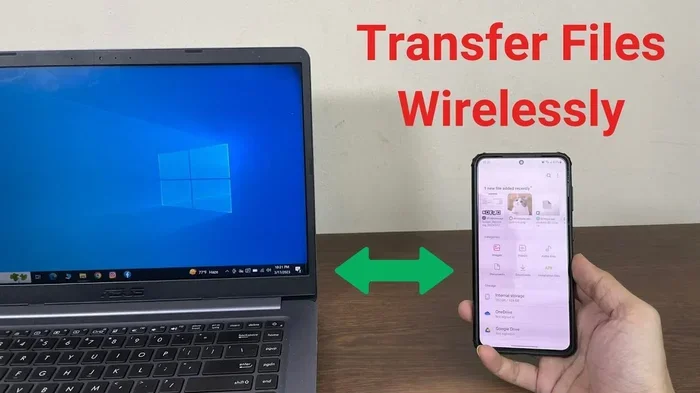
Wi-Fi transfer is one of the fastest wireless file sharing Mac Android methods. Both your MacBook and Android phone can connect to the same Wi-Fi network, and then you can share files over that local connection.
Apps like FileBrowser and Send Anywhere make this process simple. You install the app on your phone, open it on your Mac through a web browser, and then drag and drop files. The transfer happens over your local network, so it is fast and does not use your mobile data.
This method is especially useful when you need to share files regularly. Once set up, you can transfer files anytime both devices are on the same Wi-Fi network.
Best Methods to Transfer Files Between Mac and Android
Not all file transfer methods are created equal. Some are faster, some are more convenient, and some offer extra features. Here is a closer look at the best options for file sharing between Mac and Android.
Google Drive and Cloud Storage
Google Drive is a natural choice for Android Mac integration. Since Android phones are made by Google, the Drive app comes pre-installed on most devices. You can upload files from your phone and then access them from your MacBook through a web browser or the Google Drive desktop app.
The free tier gives you 15 GB of storage, which is enough for most everyday needs. If you need more space, Google offers affordable paid plans. Cloud storage is also great because your files are backed up automatically.
Other cloud services work too. Dropbox, OneDrive, and Amazon Drive all support both Mac and Android. The setup process is similar across all of them.
AirDroid and Third-Party Apps
AirDroid is one of the most popular Mac Android app solutions available. It lets you manage your Android phone from your MacBook’s web browser. You can transfer files, read text messages, and even mirror your phone screen.
To use AirDroid, install the app on your Android phone and visit the AirDroid website on your Mac. Sign in with the same account on both devices, and you are ready to go.
Another excellent option is Syncthing. This free, open-source app keeps your files in sync between devices automatically. It works over Wi-Fi or the internet, and it does not store your files on any server. That makes it a great privacy-focused choice for cross-platform file sharing.
Email and Messaging Apps
For quick, small file transfers, email and messaging apps still work well. You can email yourself a document or photo and open it on either device. Apps like WhatsApp, Telegram, and Signal also let you send files between your phone and computer.
This method is not ideal for large files or regular syncing. But for occasional transfers, it is quick and requires no setup.
Setting Up Wireless Sync Between Mac and Android
Wireless syncing is the most convenient way to keep your MacBook and Android phone in sync. You do not need cables, adapters, or special hardware. Here is how to set it up.
Step-by-Step Guide to Wireless File Sharing
Start by making sure both devices are connected to the same Wi-Fi network. This is essential for most wireless transfer methods. Open your router settings if you are unsure which network your devices are on.
Next, choose your preferred transfer method. If you want a simple drag-and-drop experience, try an app like LocalSend or Send Anywhere. These apps are free and work on both Mac and Android.
For automatic syncing, cloud storage is the way to go. Install Google Drive or Dropbox on both devices. Set up a shared folder, and any file you add to that folder will appear on both devices within seconds.
If you want to sync specific types of data, look into dedicated apps. For example, CalDAV Sync Free can sync your calendar and contacts between Mac and Android. This keeps your schedule and contacts up to date on both devices.
Tips for Reliable Wireless Syncing
- Keep both devices on the same network: This ensures the fastest and most stable connection.
- Stay close to your router: Walls and distance can slow down wireless transfers.
- Keep apps updated: Updated apps fix bugs and improve compatibility.
- Use Wi-Fi, not mobile data: Large file transfers can eat up your data plan quickly.
- Restart devices if sync fails: A simple reboot often fixes connection issues.
Syncing Photos and Media from Android to MacBook
Photos and media files are among the most common items people want to share between devices. Whether you shoot videos on your Android phone or take pictures that you need on your MacBook, there are several easy ways to move them.
Using Google Photos for Seamless Photo Sync
Google Photos is the easiest way to sync Android Mac photos. The app automatically backs up your photos and videos to the cloud. You can then access them from any device, including your MacBook.
On your phone, open Google Photos and go to Settings. Turn on Backup. Once your photos upload, open photos.google.com on your MacBook and sign in with the same Google account. Your entire photo library will be available right there.
You can also download the Google Photos desktop app for Mac. This gives you a more native experience and lets you browse and download photos directly to your hard drive.
Using USB to Transfer Media Files
For users who prefer not to use the cloud, USB transfer remains a reliable option. Connect your Android phone to your MacBook with a cable. Open Finder and locate your phone under Devices.
Navigate to the DCIM folder on your phone. This is where your camera photos and videos are stored. Simply drag the files you want to your MacBook.
This method works well for large batches of photos. It is also faster than uploading everything to the cloud, especially if you have a slow internet connection.
Transferring Music and Videos
You can also sync music and videos between your Android phone and MacBook. VLC for Mac is a free media player that supports almost every file format. You can use it to play videos downloaded from your phone or transferred via USB.
For music, Google Play Music or Spotify can sync your playlists across both devices. Simply install the same app on your Mac and phone, sign in, and your library will follow you.
Cloud-Based Solutions for Mac and Android Sync
Cloud services are the backbone of modern Mac Android data transfer. They let you access your files from any device, anywhere, as long as you have an internet connection.
Google Drive for Everyday File Sharing
Google Drive is the most natural choice for Android users. It comes built into the Android operating system and works seamlessly with Google Docs, Sheets, and Slides. On your MacBook, you can access Drive through a web browser or install the Google Drive desktop app.
The desktop app creates a folder on your Mac that syncs with your Google Drive account. Any file you put in that folder automatically uploads to the cloud. Any file you add on your phone downloads to your Mac. It is a two-way sync that keeps everything current.
Dropbox as an Alternative
Dropbox is another strong option for cross-platform file sharing. It works on both Mac and Android and offers a clean, simple interface. The free plan gives you 2 GB of storage, which may be enough for documents and a few photos.
Dropbox has a feature called Dropbox Camera Upload. It automatically backs up every photo you take on your Android phone to your Dropbox account. You can then access those photos on your MacBook anytime.
Microsoft OneDrive for Office Users
If you use Microsoft Office apps, OneDrive is worth considering. It integrates directly with Word, Excel, and PowerPoint on both platforms. You can start a document on your MacBook and finish it on your Android phone without any formatting issues.
OneDrive offers 5 GB of free storage, which is more than Dropbox. It also has strong sharing features, making it easy to send files to other people.
Common Problems and How to Fix Them
Even with the best tools, you may run into issues when syncing Mac with Android. Most problems have simple solutions. Here are the most common issues and how to resolve them.
MacBook Does Not Recognize Android Phone
If your Mac does not see your Android phone when you plug it in, try a few things first. Use a different USB cable, as damaged cables are a common cause. Try a different USB port on your MacBook. You can also restart both devices and try again.
On your Android phone, make sure you have selected “File Transfer” mode when you connect the cable. Some phones default to charging mode, which does not allow file access.
Slow Transfer Speeds
Slow transfers are frustrating but usually easy to fix. If you are using Bluetooth, switch to USB or Wi-Fi for faster speeds. Make sure both devices are close to your Wi-Fi router. Also, check that no other apps are using your network bandwidth.
For cloud-based transfers, your internet speed matters. A slow connection will make uploads and downloads take longer. Try switching to a wired Ethernet connection on your Mac if possible.
Permission Errors and File Access Issues
Sometimes your Mac cannot access certain files on your Android phone because of permission settings. On your phone, go to Settings and check app permissions. Make sure file manager apps have permission to access storage.
On your Mac, you may need to grant access to external devices in System Settings. Go to Privacy and Security and check that your phone is listed as an allowed device.
Apps Crashing or Not Syncing
If your sync app keeps crashing, make sure it is up to date. Developers release updates regularly to fix bugs and improve compatibility. Uninstall and reinstall the app if updates do not help.
Also, check that you have enough storage space on both devices. A full hard drive or phone storage can cause sync failures and app crashes.
Expert Insights on Cross-Platform Syncing
Technology experts agree that the best approach to Mac and Android sync is to use a combination of methods. No single tool does everything perfectly, so a layered strategy works best.
For everyday file sharing, cloud storage like Google Drive is the most reliable. For large media files, direct USB transfer is faster and does not use cloud storage space. For automatic, ongoing sync, apps like Syncthing or AirDroid provide the most seamless experience.
Experts also recommend keeping your systems updated. Both macOS and Android release regular updates that improve cross-platform compatibility. Staying current ensures you get the best performance and the fewest bugs.
One final tip from professionals: organize your files before syncing. Create clear folder structures on both devices so you can find what you need quickly. A little organization goes a long way in keeping your workflow smooth.
Key Takeaways
- Multiple sync methods exist: USB cable, cloud storage, Bluetooth, and dedicated apps make Mac and Android file sharing simple.
- No special hardware needed: Most methods work with standard cables and free software you already have.
- Wireless options are growing: Cloud services and Wi-Fi transfer tools let you sync without plugging anything in.
- Photos and media transfer easily: You can move images, videos, and music between your Android phone and MacBook with minimal effort.
- Third-party apps add power: Tools like AirDroid and Syncthing offer advanced features beyond basic file sharing.
- Common issues have simple fixes: Connection problems, permission errors, and slow transfers can usually be resolved quickly.
Conclusion
The answer to “can Macbook sync with Android phone” is a clear and definite yes. You have many options for syncing Mac with Android and sharing files between the two devices. Whether you prefer a simple USB cable, the convenience of cloud storage, or the power of a dedicated app like AirDroid, there is a method that fits your needs.
Start with the method that seems easiest for you. If you only need to transfer a few files now and then, Google Drive or Bluetooth will work fine. If you sync large amounts of data regularly, invest time in setting up a wireless transfer app or a cloud sync folder.
The key is to find a workflow that feels natural to you. Once you have a system in place, sharing files between your MacBook and Android phone becomes second nature. You will wonder how you ever managed without it.
Give these methods a try today. You will be surprised at how easy and fast cross-platform file sharing can be. Your MacBook and Android phone can work together beautifully, and now you have all the tools to make it happen.
Frequently Asked Questions
Can I sync my MacBook with any Android phone?
Yes, you can sync any Android phone with a MacBook. The methods described in this article work with all Android devices regardless of brand or model. Whether you have a Samsung, Google Pixel, or any other Android phone, the same sync options apply.
Is it safe to transfer files between Mac and Android over Wi-Fi?
Yes, transferring files over Wi-Fi is safe as long as you are on a trusted network. Using apps like LocalSend or Syncthing adds encryption to your transfers. Avoid using public Wi-Fi for sensitive files, and always keep your apps updated for the latest security patches.
Do I need to install any software to sync my MacBook with Android?
For basic file transfer, you do not need any extra software. Your MacBook’s Finder and your Android phone’s built-in file manager handle USB transfers. However, apps like AirDroid, Google Drive, or Syncthing make wireless syncing and automation much easier and more convenient.
How fast is file transfer between Mac and Android via USB?
USB transfer is the fastest method for moving files between a MacBook and an Android phone. With a USB-C cable and a modern Android phone, you can transfer files at speeds of up to 10 Gbps. This means a 1 GB file can move in just a few seconds.
Can I sync contacts and calendar events between Mac and Android?
Yes, you can sync contacts and calendar events by using your Google account. Add your Google account to both your Android phone and your MacBook. Your contacts and calendar will automatically sync through Google’s servers, keeping everything up to date on both devices.
What is the best free app for Mac and Android file sharing?
Syncthing is widely considered the best free app for Mac and Android file sharing. It is open-source, does not store your files on any server, and works over Wi-Fi or the internet. AirDroid is another excellent free option that offers additional features like SMS management and screen mirroring.
=== CONCLUSION ===
Can Macbook sync with Android phone and share files? Absolutely. You now have a complete guide to every major method for Mac and Android sync. From USB cables to cloud services, wireless apps to built-in tools, the options are plentiful and flexible.
Pick the methods that match your workflow and start syncing today. With the right setup, your MacBook and Android phone will feel like two parts of the same ecosystem. Share files, keep your media organized, and enjoy the freedom of cross-platform connectivity.