The Advantages and Disadvantages of the IMAP Protocol
The IMAP protocol lets you access emails directly from your mail server, keeping everything synced across devices. It offers great flexibility and real-time updates, but it also comes with storage limits and security considerations. This guide breaks down both sides so you can choose the right email setup for your needs.
Every time you open your inbox on your phone, tablet, or laptop, something quietly works behind the scenes to make sure you see the same messages everywhere. That “something” is often the IMAP protocol. It is the engine that powers modern email access for millions of people and businesses around the world. But like any technology, it has its strengths and its weaknesses.
In this article, we will walk through the IMAP protocol advantages and disadvantages in plain language. You will learn how it works, why people love it, where it falls short, and how it stacks up against older email retrieval methods. Whether you are a casual user or a small business owner, this guide will help you make a smarter decision about your email setup.
Key Takeaways
- Always-synced emails: IMAP keeps your messages, folders, and labels updated across all devices in real time.
- Server-side storage: Emails stay on the server, which saves local disk space but depends on your hosting plan.
- Better collaboration: Multiple users can access the same inbox, making it ideal for teams and shared accounts.
- Internet dependency: You need a connection to read most emails, unlike POP3 which downloads them locally.
- Security trade-offs: IMAP supports encryption, but server-side storage introduces different risk factors.
- Not ideal for low-bandwidth users: Syncing large mailboxes can slow things down on slower connections.
- Great for modern email habits: If you check mail on phones, tablets, and desktops, IMAP is the way to go.
📑 Table of Contents
- What Is the IMAP Protocol?
- How Does the IMAP Protocol Work?
- The Advantages of the IMAP Protocol
- The Disadvantages of the IMAP Protocol
- IMAP vs POP3: A Side-by-Side Comparison
- Common Mistakes People Make with IMAP
- Expert Insights on IMAP in 2024 and Beyond
- Who Should Use IMAP?
- How to Optimize Your IMAP Setup
- Key Takeaways
- Conclusion
What Is the IMAP Protocol?
The IMAP protocol stands for Internet Message Access Protocol. It is an email protocol that lets you view and manage your messages directly on the mail server. Instead of downloading emails to a single device, IMAP keeps everything online. This means your inbox looks the same no matter which device you use.
Think of it like a library. The books (emails) stay on the shelf (server). You just browse them whenever you want, from any seat (device). The library always has the latest version of every book. That is essentially how email synchronization works with IMAP.
IMAP was first developed in 1986 by Mark Crispin. Over the decades, it has evolved into the standard way most people access their email. Popular email clients like Gmail, Outlook, Apple Mail, and Thunderbird all support it. When you check your email on your phone and see the same unread messages as on your computer, IMAP is almost certainly at work.
How Does the IMAP Protocol Work?
The Basic Flow
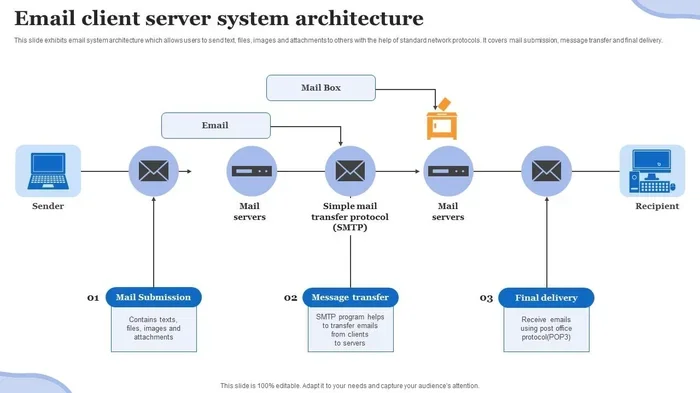
When you open your email app, it connects to the mail server using IMAP. The server sends a list of your folders, headers, and message summaries to your device. You can then read, delete, organize, or search emails without downloading the full message. Only when you open a specific email does the content get fetched.
This process uses email bandwidth wisely. You are not pulling down every attachment and message body every time you check your inbox. Instead, you pull just what you need, when you need it.
IMAP and Server-Side Storage
One of the defining features of server-side storage is that your emails live on the server, not on your hard drive. This has major implications for how you manage your mailbox. Your email folders, labels, flags, and search indexes all stay synced on the server.
For example, if you mark an email as read on your phone, the server updates that status. When you open your laptop minutes later, the email shows as already read. This seamless experience is what makes IMAP so powerful for people who switch between devices constantly.
The Advantages of the IMAP Protocol
1. Multi-Device Sync Without Hassle
The biggest advantage of IMAP email is that it syncs across all your devices automatically. You read a message on your phone during your morning commute. By the time you sit at your desk, that message is marked as read on your computer too. No manual syncing. No confusion. Everything stays in order.
This is a game-changer for people who use multiple devices throughout the day. Whether you rely on a smartphone, a tablet, a work laptop, or a desktop PC, IMAP keeps your inbox consistent everywhere.
2. Saves Local Storage Space
Because emails stay on the server, you do not need to fill up your device’s hard drive with message files. This is especially helpful if you use a laptop with limited storage or a phone with a small memory footprint. Your email client becomes a window into your inbox, not a storage vault.
For users who receive lots of emails with large attachments, this benefit is significant. You can access messages from years ago without worrying about running out of local disk space.
3. Real-Time Updates and Notifications
IMAP supports real-time email syncing. When a new message arrives, your devices can be notified almost instantly. This is much faster than checking periodically or waiting for a manual refresh. Push notifications work smoothly with IMAP-enabled accounts.
This feature is especially useful for professionals who need to respond to urgent messages quickly. You are never more than a few seconds away from seeing a new email, no matter which device you are using.
4. Better Organization and Search
Since all your folders, labels, and flags live on the server, you can organize your mailbox from any device. Create a folder on your phone, and it will appear on your computer. Apply a label in your webmail, and it syncs to your desktop client.
Server-side search is another perk. Many mail servers that use IMAP offer powerful search capabilities. You can find old emails quickly without downloading your entire mailbox first. This saves time and makes email management much more efficient.
5. Easier Backup and Recovery
With emails stored on the server, you have a built-in backup. If your phone gets lost or your computer crashes, your messages are still safe on the mail server. You simply log in from a new device and everything is right there.
This peace of mind is valuable for both personal users and businesses. It reduces the risk of permanent data loss due to device failure. Of course, you should still maintain regular backups, but IMAP adds a solid safety net.
6. Supports Shared and Team Mailboxes
Email hosting platforms that use IMAP make it easier to manage shared inboxes. Multiple team members can access the same account and see updates in real time. This is useful for customer support teams, sales departments, and any group that needs to collaborate on email communication.
You can assign folders, track read statuses, and manage responses from different devices. The centralized nature of IMAP makes shared mailbox management far simpler than offline alternatives.
The Disadvantages of the IMAP Protocol
1. Requires a Constant Internet Connection
This is the most obvious drawback of IMAP. To read your emails, you need an active internet connection. Without it, you cannot access most of your messages. This can be frustrating when you are traveling, in a remote area, or dealing with a spotty Wi-Fi signal.
Some email clients offer limited offline caching, but the experience is nowhere near as smooth as with protocols that download emails locally. You are always dependent on the server being reachable.
2. Limited Storage on the Server
Since your emails live on the server, you are bound by your email hosting provider’s storage limits. Free Gmail accounts offer 15 GB shared across email and Google Drive. Other providers may offer even less. Once you hit the limit, you cannot receive new messages until you free up space.
For heavy email users who accumulate thousands of messages and large attachments over the years, this can become a real problem. You may need to regularly delete old emails or upgrade your storage plan, which adds cost.
3. Slower Performance with Large Mailboxes
IMAP was designed when email volumes were much smaller. Today, many people have mailboxes with tens of thousands of messages. Syncing a massive mailbox can take a long time, especially on slower connections. Your email client may lag, freeze, or use excessive bandwidth during the sync process.
This email bandwidth issue is more pronounced on mobile devices with limited data plans. If you have a huge inbox, you may notice delays when opening folders or searching for messages.
4. Security Risks of Server-Side Storage
Storing emails on a remote server means your data is only as secure as that server. If the mail server gets hacked, your emails could be exposed. While reputable providers use strong email security measures, no system is completely immune to breaches.
Additionally, because your emails are accessible from anywhere, a stolen password gives an attacker access to your entire mailbox. You need strong passwords, two-factor authentication, and encrypted connections to mitigate these risks.
5. More Complex Setup Than POP3
Setting up IMAP can be more involved than using the older POP3 protocol. You need to configure the correct server addresses, ports, and encryption settings. For non-technical users, this can be confusing and lead to setup errors.
Many modern email providers simplify this by offering automatic configuration. But if you are setting up a custom domain or working with a less common mail server, the process can be tedious and error-prone.
6. Dependency on the Email Provider
When you use IMAP, you are tied to your provider’s infrastructure. If the server goes down, you cannot access your email. If the provider changes its policies or shuts down your account, your access is disrupted. This lack of local control can be a concern for users who want full ownership of their data.
It also means migrating to a new provider can be a hassle. You need to transfer your mailbox, update server settings on all devices, and ensure nothing gets lost in the process.
IMAP vs POP3: A Side-by-Side Comparison
To truly understand the advantages and disadvantages of the IMAP protocol, it helps to compare it with POP3, the older alternative. POP3 stands for Post Office Protocol version 3. It downloads emails from the server to your device and usually removes them from the server afterward.
Here is a quick look at how they compare:
| Feature | IMAP | POP3 |
|---|---|---|
| Email Storage | Server-side | Local device |
| Multi-Device Access | Full sync across all devices | Limited; emails tied to one device |
| Internet Requirement | Required for full access | Only needed to download |
| Local Storage Used | Minimal | Can be significant |
| Backup | Server handles it | User responsible for backups |
| Speed on Large Mailboxes | Can be slow to sync | Fast downloads |
| Setup Complexity | Moderate | Simple |
| Offline Access | Limited | Full access after download |
| Best For | Multi-device users | Single-device users |
As you can see, neither protocol is perfect for every situation. IMAP wins for flexibility and convenience. POP3 wins for simplicity and offline access. Your choice depends on how and where you check your email.
Quick Tip
If you are still on POP3 and considering switching to IMAP, make sure to back up your local emails first. The migration process is straightforward, but having a safety net never hurts. Most modern email clients offer import tools that make the switch easier.
Common Mistakes People Make with IMAP
Ignoring Storage Limits
Many users do not pay attention to their server storage until they hit the cap. By then, they cannot receive new emails, which can cause missed messages and missed opportunities. Keep an eye on your storage usage and clean up old messages regularly.
Disabling Encryption
Some people disable SSL/TLS encryption to troubleshoot connection issues and forget to turn it back on. This leaves your email traffic unencrypted and vulnerable to interception. Always use encrypted connections when setting up your IMAP account.
Not Using Folders Effectively
Because IMAP syncs your folders in real time, it pays to use them well. Create a logical folder structure and stick to it. A messy inbox makes syncing slower and searching harder. A clean folder system keeps everything fast and organized.
Assuming IMAP Means Automatic Backup
Server-side storage is not the same as a proper backup. If you accidentally delete emails or your account gets compromised, the server may not retain them. Use a dedicated backup solution in addition to IMAP storage for true peace of mind.
Expert Insights on IMAP in 2024 and Beyond
The email protocol landscape continues to evolve. Cloud-based email hosting services are making IMAP more accessible and reliable than ever. Providers are offering larger storage quotas, better encryption standards, and faster sync engines.
Experts predict that IMAP will remain the dominant email access protocol for the foreseeable future. While newer technologies like proprietary APIs (such as those used by Microsoft and Google) are gaining ground, IMAP’s open standard nature gives it a lasting advantage. It works with any email provider, any client, and any device.
For businesses, the trend is moving toward hosted email management solutions built on top of IMAP. These platforms add features like advanced security, compliance tools, and collaborative workflows while still relying on the core IMAP protocol for message access.
“IMAP is not going away anytime soon,” says one industry expert. “It solves the fundamental problem of accessing email from anywhere, on any device. As long as people use multiple devices to check their mail, IMAP will remain relevant.”
Who Should Use IMAP?
IMAP email is ideal for most modern users. Here are some scenarios where it shines:
- Remote workers who check email on a phone, tablet, and computer throughout the day.
- Small businesses that need shared mailboxes and team collaboration.
- Frequent travelers who access email from different networks and devices.
- People who value organization and want folders, labels, and flags to sync everywhere.
- Users who want automatic backups without managing local email files.
On the other hand, IMAP may not be the best choice if you only check email on one device, have very limited internet access, or prefer to keep all your messages stored locally. In those cases, POP3 or a local email client with offline mode might serve you better.
How to Optimize Your IMAP Setup
Want to get the most out of IMAP protocol while minimizing its drawbacks? Here are some practical tips:
- Enable offline caching in your email client. This lets you read recent messages without a connection while still syncing changes when you go online.
- Use folders and labels to keep your mailbox organized. A tidy mailbox syncs faster and is easier to search.
- Set up two-factor authentication on your email account. This adds a critical layer of security to your IMAP access.
- Archive old messages regularly. Move messages older than a year to an archive folder or external storage to keep your active mailbox lean.
- Use a reliable email client that handles IMAP efficiently. Some clients are better optimized for large mailboxes and slow connections than others.
- Monitor your storage usage and set up alerts when you approach your limit. This prevents unpleasant surprises when you cannot receive new mail.
Key Takeaways
- IMAP keeps your email synced across all devices by storing messages on the server rather than downloading them locally.
- It saves local storage space and provides real-time updates, making it ideal for multi-device users.
- The main drawbacks include internet dependency, server storage limits, and potential security risks associated with cloud-based email storage.
- Compared to POP3, IMAP offers better organization and collaboration features but requires more setup and a stable connection.
- Regular maintenance, encryption, and smart folder management help you get the most out of your IMAP setup.
Conclusion
The IMAP protocol has transformed the way we access and manage email. Its ability to sync messages across devices, save local storage, and provide real-time updates makes it the go-to choice for most email users today. The convenience and flexibility it offers are hard to beat.
But it is not without its limitations. Internet dependency, storage caps, and security considerations are real factors to keep in mind. Understanding these trade-offs helps you make an informed decision about whether IMAP is right for your situation.
For the majority of people, the advantages far outweigh the disadvantages. If you use more than one device to check your email, or if you value organization and accessibility, IMAP email is the way to go. Take a few minutes to set it up properly, follow the optimization tips in this guide, and you will enjoy a seamless email experience across all your devices.
Now that you know the advantages and disadvantages of the IMAP protocol, you are equipped to take control of your email setup. Make the choice that fits your workflow, and you will wonder how you ever managed without it.
Frequently Asked Questions
What does IMAP stand for?
IMAP stands for Internet Message Access Protocol. It is an email protocol that allows you to access and manage your messages directly on the mail server rather than downloading them to a single device.
Is IMAP secure?
IMAP can be secure when you use encrypted connections (SSL/TLS). Always make sure your email client is configured to use encrypted IMAP connections. Enable two-factor authentication on your email account for an extra layer of protection.
Can I use IMAP without an internet connection?
You need an internet connection to access most of your emails with IMAP. However, many modern email clients offer offline caching, which lets you read recently synced messages without a connection. Any changes you make will sync once you reconnect.
How is IMAP different from POP3?
The main difference is where your emails are stored. IMAP keeps emails on the server and syncs them across devices. POP3 downloads emails to a single device and usually removes them from the server. IMAP is better for multi-device users, while POP3 is simpler and works well for single-device setups.
What happens if I run out of server storage with IMAP?
If you exceed your email hosting provider’s storage limit, you will not be able to receive new emails until you free up space. You can archive old messages, delete unnecessary emails, or upgrade your storage plan to resolve the issue.
Can I switch from POP3 to IMAP without losing emails?
Yes, but you should back up your local emails first. Most email clients offer import tools to help with the transition. The process involves enabling IMAP on your account, configuring your client with the correct server settings, and then importing your existing messages. Always have a backup before making the switch.