Adobe Illustrator Is Stuck On The Hand Tool Solution
Adobe Illustrator stuck on the hand tool can halt your entire design project. This guide provides simple fixes and step-by-step instructions to get you back to work fast. You will learn how to reset preferences, use the right illustrator shortcut, and prevent this hand tool glitch from happening again.
You are deep into a vector design software project. Everything is flowing perfectly. The colors look great. The shapes are just right. Then, suddenly, your cursor changes. It turns into a little open hand. You cannot draw anymore. You cannot select anything. Your Adobe Illustrator stuck on hand tool problem has started. It is a super frustrating moment, right?
Do not panic. This is a very common issue. Many users face this hand tool glitch every single day. The good news is that you can fix it fast. This guide will show you exactly how. We will walk through simple steps to get your illustrator shortcut keys working again. You will learn how to reset your settings and stop this illustrator freeze from ruining your day. You will also learn how to prevent it from happening again. Let us get your design software back to normal.
Key Takeaways
- Quick Spacebar Release: Letting go of the spacebar immediately stops the hand tool lock.
- Reset Preferences: Clearing your settings is the most reliable way to fix deep glitches.
- Use The Escape Key: Pressing Esc often frees the cursor when the tool is stuck.
- Update Your Software: Keeping Illustrator updated prevents many illustrator freeze issues.
- Check Your Workspace: A customized workspace might accidentally trigger the hand tool lock.
📑 Table of Contents
Why Does Adobe Illustrator Get Stuck On The Hand Tool?
Understanding the root cause helps you fix it faster. The hand tool is meant for moving your canvas around. You usually access it by holding the spacebar on your keyboard. When you let go of the spacebar, the tool should return to your last active tool. But sometimes, Illustrator gets confused. It thinks you want to stay on the hand tool forever. This turns into a big problem when you want to draw or edit anchor point tool paths.
This issue is not just annoying. It breaks your creative flow. You stop thinking about your design. You start thinking about fixing the software. That is the opposite of what you want. You want your graphic design software to work for you. You do not want to fight with it. Let us look at why this happens in the first place.
The Spacebar Habit That Causes Issues
When you hold the spacebar, the hand tool activates. This is a great feature for navigating big canvases. But if Illustrator gets confused, it stays on the hand tool. Maybe you have a slow computer. Maybe a background process is eating up your memory. Either way, your illustrator performance drops. When performance drops, tools often act up. The hand tool glitch is one of the most common results.
Think of your computer like a kitchen. If the counter is full of dishes, it is hard to cook. If your RAM is full of background apps, it is hard for Illustrator to work. The windows illustrator bug or a mac illustrator issues can pop up when the system is overloaded. The spacebar trick becomes a trap. You press it, and the hand stays. You let go, and the hand stays. It is a real pain.
How The Hand Tool Glitch Happens
There are a few reasons this happens. Sometimes a simple key combination triggers it. Other times, a corrupted setting file causes the problem. A windows illustrator bug might also be to blame. Maybe you accidentally pressed a weird shortcut. Maybe a plugin is conflicting with the main app. A mac illustrator issues can also happen if your operating system updates recently. Whatever the cause, the result is the same. You are stuck holding the hand instead of your selection tool.
You try to draw a line. Instead, you move the canvas. You try to pick a color. Instead, you pan around the artboard. This ruins your workflow. You have to stop and fix the tool before you can continue. That is why we need to fix this now. Let us look at the easiest ways to solve the problem.
The Easiest Way To Fix The Hand Tool Problem
Before you do anything complicated, try the simple stuff first. Most of the time, a quick fix will solve your adobe illustrator troubleshooting needs. These steps take less than a minute. You do not need to be a tech expert. You just need to know the right buttons to press.
Step-by-Step Reset Instructions
First, try pressing the Escape key on your keyboard. This is the most common illustrator shortcut for stopping an active tool. If that does not work, click on the Selection Tool in the toolbar. You can also press the letter V on your keyboard. This is the shortcut for the Selection Tool. Once you click it, your cursor should change back from a hand to an arrow.
If the cursor is still stuck, try holding the spacebar again and then letting go quickly. Sometimes Illustrator needs a little nudge to switch back. Do not hold the spacebar down for too long. Just a quick tap and release often does the trick. This simple illustrator shortcut works wonders for many users. It resets the tool state without deleting any of your work.
Using The Escape Key And Selection Tool
The Escape key is your best friend when tools act up. It cancels almost any active command in Illustrator. If your direct selection tool or the hand tool is frozen, hit Escape. Then, choose your drawing tool from the toolbar. You should feel immediate relief as your cursor changes. It is a very easy fix that stops the illustrator freeze fast. You can then go back to creating your vector design software masterpieces.
Another easy trick is to click on the Zoom Tool. Press the letter Z on your keyboard. This changes your active tool quickly. After you click the Zoom Tool, switch back to your favorite drawing tool. This double-switch often breaks the hand tool lock. It is like waking your computer up from a little nap. The illustrator shortcut keys wake up the right tool.
Quick Tips For Fast Relief
- Save often: Always save your work before trying a reset.
- Restart the app: A simple restart fixes many small bugs.
- Check your keyboard: A sticky spacebar can cause this problem.
- Close other apps: Free up RAM for better illustrator performance.
Quick Comparison Of Fixes
Not sure which fix to try first? Use this table to find the right method for your problem.
| Fix Method | Difficulty | Best For |
|---|---|---|
| Escape Key | Easy | Quick tool locks |
| Selection Tool Shortcut | Easy | Spacebar glitches |
| Reset Preferences | Medium | Persistent hand tool freeze |
| Clear Cache | Medium | Slow performance |
| Reinstall App | Hard | Deep software bugs |
How To Reset Adobe Illustrator Preferences
If the simple fixes did not work, you need to go deeper. Resetting your preferences is the next step in adobe illustrator troubleshooting. This clears out any corrupted settings that might be causing the hand tool problem. Do not worry. Resetting preferences does not delete your actual files. It just resets how the app behaves. Your saved documents stay safe.
Finding The Preferences File On Mac
On a Mac, you need to delete a specific folder. First, close Illustrator completely. Make sure it is not running in the background. Then, hold down the Command, Option, and Control keys. While holding them, launch Illustrator. A dialog box will appear asking if you want to delete the settings folder. Click Yes. This resets your illustrator workspace reset to factory defaults. Your custom workspaces will be gone. But the hand tool glitch will be fixed.
This method is very powerful. It wipes out any bad settings. It is like giving your graphic design software a fresh start. Many users swear by this fix. It solves the hand tool glitch 9 times out of 10. Just remember to set up your workspace again after you open Illustrator. It only takes a few minutes.
Locating The Settings On Windows
On Windows, the process is a bit different. You need to find the preferences folder in your file explorer. First, close Illustrator completely. Then, press the Windows key and R at the same time. Type %appdata% and hit Enter. Look for the Adobe folder. Inside that folder, find the Illustrator folder. Delete the entire Illustrator folder. When you open Illustrator again, it will create a fresh settings folder. This solves many windows illustrator bug problems. Your vector design software will feel like new again.
This step might sound scary. But it is very safe. You are just removing temporary settings. Your saved artboards and files are not touched. This is a great way to fix a mac illustrator issues problem too, if you are on a Boot Camp setup. Always make sure you have the latest version of Illustrator before you reset. Updates often include fixes for these exact problems.
Preventing The Hand Tool Freeze In The Future
Fixing the problem is great. But stopping it from happening again is even better. You can take a few simple steps to keep your vector design software running smoothly. Prevention is always easier than a cure. A little upkeep goes a long way for your illustrator performance.
Adjusting Your Workspace Settings
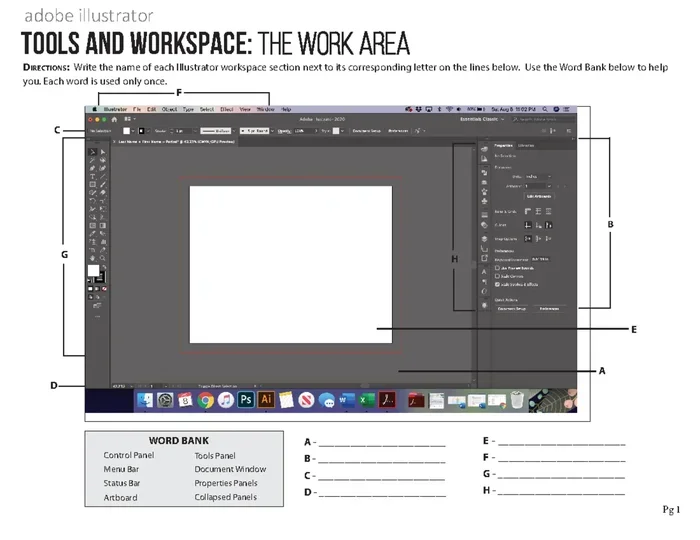
Take a look at your workspace. Are you using too many panels? Too many panels can slow down your computer. This extra load might trigger the hand tool glitch. Try using a simpler workspace. Go to Window and close any panels you do not need right now. This frees up memory. Better memory means better illustrator performance. Your selection tool will work much better too.
You can also save your own custom workspace. Go to Window and then Workspace. Click New Workspace. Give it a name like My Clean Workspace. This way, you can always switch back to a fast, simple layout. A clean workspace means fewer things for Illustrator to manage. It reduces the chance of a hand tool glitch. Your adobe illustrator troubleshooting list will stay very short.
Keeping Your Graphic Design Software Updated
Adobe releases updates very often. These updates fix bugs and improve illustrator performance. If you have an older version, you might face a mac illustrator issues or a Windows bug. Always check for updates in the Creative Cloud app. Install the latest version of Illustrator. This keeps your adobe illustrator troubleshooting list short. Updates often include patches for tool locks and illustrator freeze issues.
Think of updates like oil changes for a car. They keep the engine running smooth. Without updates, old bugs can come back. You might face the same windows illustrator bug again. Set your Creative Cloud app to update automatically. This way, you always have the latest fixes. Your graphic design software will thank you for it.
Advanced Fixes When Illustrator Is Not Responding
Sometimes, the hand tool problem is just a symptom of a bigger issue. If Illustrator is not responding at all, you need to dig deeper. These advanced steps will help you regain control of your vector design software.
Clearing The Cache And Temp Files
Illustrator stores temporary files while you work. Over time, these files can pile up and cause problems. A full cache can make your illustrator shortcut keys stop working properly. To fix this, clear your temp files. On Windows, press the Windows key and R. Type %temp% and hit Enter. Delete all the files in that folder. On a Mac, open Finder, go to the Library folder, and clear the Caches folder. This frees up space on your hard drive. It also helps your vector design software run much faster.
You should do this once a month. It keeps your illustrator performance high. It also prevents random freezes. A clean cache means a happy Illustrator. Your selection tool and direct selection tool will work much better. You will notice a big difference in speed. It is one of the best kept secrets for smooth design work.
Reinstalling The Vector Design Software
If nothing else works, you might need to reinstall Illustrator. Uninstall the program from your computer. Then, download the latest version from the Creative Cloud app. Reinstalling removes all old files that might be broken. This is a big step, but it fixes almost any adobe illustrator troubleshooting problem. Before you do this, make sure you back up your custom presets. You do not want to lose your favorite brushes or workspaces.
Reinstalling is like rebuilding a house from the foundation up. It takes time. But it solves deep, stubborn problems. A mac illustrator issues or a windows illustrator bug often goes away after a fresh install. Just remember to sign back into Creative Cloud. You will need your Adobe ID to get going again. After that, your hand tool glitch should be gone forever.
Running Illustrator In Safe Mode
Safe Mode disables all plugins and custom settings. This helps you see if a third-party add-on is causing the hand tool glitch. To start Illustrator in Safe Mode, hold down the Ctrl and Alt keys (on Windows) or Cmd and Option keys (on Mac) while opening the app. A dialog will ask if you want to start in Safe Mode. Click Yes. If the hand tool works fine in Safe Mode, a plugin is likely the culprit. You can then disable plugins one by one to find the bad one. This is a smart way to fix mac illustrator issues or windows illustrator bug problems caused by add-ons.
Expert Tips For A Smooth Adobe Illustrator Experience
Now that your hand tool is working again, let us keep it that way. A few small habits can make a huge difference. These tips will help you avoid the hand tool glitch in the future. They will also boost your overall illustrator performance.
Optimizing Illustrator Performance
Go to Edit and then Preferences. Look for the Performance tab. Here, you can adjust how much memory Illustrator uses. Give it more RAM if your computer allows it. You can also adjust the number of recent files. Keeping this number low helps the app start faster. Better illustrator performance means fewer tool locks. You will spend less time fixing problems. You will spend more time creating art.
Another great tip is to turn off GPU Performance. Some computers have bugs with the graphics card. Turning it off can fix weird tool behavior. Go to Preferences and then GPU Performance. Uncheck the box. Restart Illustrator. This simple change can stop your adobe illustrator troubleshooting list from growing. It is a great fix for older computers too.
Using The Right Shortcut For The Job
Know your illustrator shortcut keys well. The spacebar is for the hand tool, but only when you are holding it down. The V key is for the Selection Tool. The A key is for the Direct Selection Tool. The L key is for the Ellipse Tool. Using the right illustrator shortcut prevents the app from getting confused. When you know your keys, you do not need to hover over the toolbar. This keeps your workflow fast and smooth.
You can also customize your shortcuts. Go to Edit and then Keyboard Shortcuts. You can change any shortcut you want. This is great if a certain key keeps triggering the hand tool by accident. By customizing your illustrator shortcut keys, you take control. You tell Illustrator how to work for you. This prevents future illustrator freeze moments. Your graphic design software becomes a true partner in creativity.
Using Illustrator With A Drawing Tablet
If you use a Wacom or other drawing tablet, the hand tool can act up differently. Tablet drivers sometimes conflict with Illustrator. Make sure your tablet driver is up to date. An old driver can cause the hand tool glitch to appear. Also, check your tablet pressure settings. Sometimes pressure sensitivity interferes with tool switching. Updating your tablet software often fixes these vector design software issues. A smooth tablet setup means a smooth design workflow.
Dealing with Adobe Illustrator stuck on hand tool is annoying. But now you know exactly how to fix it. You can reset your preferences, use the Escape key, and prevent future glitches. Your graphic design software is back under your control. Keep these tips in mind the next time the hand tool glitch tries to slow you down. Happy designing!
Frequently Asked Questions
Why is my Adobe Illustrator stuck on the hand tool?
This usually happens when the spacebar gets stuck or a preference file is corrupted. It can also occur if your computer is low on memory. Try pressing the Escape key or clicking the Selection Tool to fix it quickly.
How do I get the hand tool off in Illustrator?
Press the Escape key on your keyboard to cancel the active tool. You can also press the V key to switch directly to the Selection Tool. Clicking on the Selection Tool icon in the toolbar works too.
Will resetting preferences delete my Illustrator files?
No, resetting preferences only deletes saved settings and custom workspaces. Your actual artboards, files, and saved documents remain completely safe. It is a safe way to fix deep software bugs.
How do I stop the hand tool glitch from happening again?
Keep your Illustrator and operating system updated to patch known bugs. Clear your temp files regularly to prevent cache issues. Also, avoid holding the spacebar longer than you need to navigate the canvas.
What should I do if Illustrator is not responding?
First, try force quitting the app and reopening it. If that does not work, restart your computer to clear the RAM. You can also try resetting Illustrator preferences to restore default settings.
Is the hand tool problem common on Mac and Windows?
Yes, both Mac and Windows users can experience this hand tool glitch. It is often caused by system overload or conflicting keyboard shortcuts. The fix steps are very similar for both operating systems.