15 Tips For Using Your Apple Watch You Need Right Now
Apple Watch tips can transform the way you use your smartwatch every single day. This guide covers 15 practical tips for using your Apple Watch that range from simple customization to advanced health tracking. You will learn how to save battery, manage notifications, and unlock hidden features that most users never explore. These Apple Watch tips work for every model and skill level. Read on to get the most out of your wrist companion right now.
Your Apple Watch is capable of so much more than telling time. Whether you just bought your first Apple Watch Series or you have been wearing one for years, there are always new ways to get more from it. These Apple Watch tips will help you unlock features you may not even know exist.
Many people use only a small fraction of what their smartwatch can do. They check the time, glance at a few notifications, and maybe track a workout. But underneath the surface, there is a powerful tool waiting to be explored. Tips for using your Apple Watch properly can save you time, improve your health, and make your day-to-day life much easier.
The good news is that you do not need to be a tech expert to benefit from these ideas. Each tip is simple and practical. You can start using them today. Let us walk through the best ways to get more out of your Apple Watch tips and make your smartwatch truly work for you.
Key Takeaways
- Customize Your Watch Face: A personalized Apple Watch face makes it easy to see the info you care about most at a glance.
- Master Notifications: Smart notification management keeps you focused and reduces distractions throughout your day.
- Track Your Health Better: Apple Watch health tracking features like ECG and fall detection can genuinely help keep you safe.
- Extend Battery Life: A few simple changes to your Apple Watch settings can add hours of usable battery every day.
- Unlock Hidden Features: Many powerful Apple Watch features are buried in menus and worth discovering.
- Make It Part of Your Routine: Using Apple Watch shortcuts and Siri saves time and makes daily tasks smoother.
- Protect Your Device: Proper care for Apple Watch water resistance and charging habits keeps it working longer.
📑 Table of Contents
Customize Your Apple Watch Face for Maximum Value
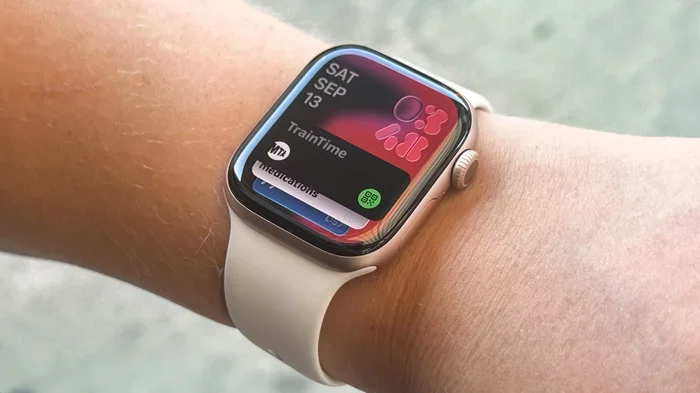
Your watch face is the first thing you see every time you raise your wrist. Taking a few minutes to customize it can make a huge difference in how useful your Apple Watch feels throughout the day. The right face gives you instant access to the information you actually need.
Choose a Face That Matches Your Style
Apple offers many built-in watch faces, and each one serves a different purpose. The Modular face lets you add small widgets for weather, battery, and activity. The Infograph face shows more information but keeps things clean. The Simple face is perfect if you prefer a minimal look with just the time and one extra detail.
To change your face, press the digital crown and swipe left or right. Tap “Customize” to adjust the layout. You can add complications like your calendar, heart rate, or music controls. This is one of the simplest yet most impactful Apple Watch tips you can follow.
Add Complications That Matter to You
Complications are the small widgets on your watch face. They show quick info without opening any app. Add your most-used apps, your next calendar event, or your current workout goal. The key is to only include what you actually check often. Too many complications make the face cluttered and hard to read.
Master Your Apple Watch Notifications
Notifications can be a blessing or a curse. When managed well, they keep you informed without interrupting your flow. When managed poorly, they become constant distractions that pull your attention away from what matters.
Filter Notifications by App
Open the Watch app on your iPhone and go to “Notifications.” Here you can choose which apps send alerts to your wrist. Turn off notifications for apps you do not need immediate alerts from. Keep notifications on for messages, calls, and any app that truly matters in the moment.
This single adjustment is one of the most effective tips for using your Apple Watch because it directly improves your focus and reduces screen fatigue.
Use Focus Modes with Your Watch
watchOS lets you set Focus modes that control what gets through to your wrist. Work Focus, Sleep Focus, and Personal Focus each have different notification rules. You can set these up in the Watch app under “Focus.” When a Focus mode is active, only priority notifications appear on your Apple Watch.
Reply to Messages Without Your Phone
You can reply to texts directly from your watch using Dictation, emojis, or scribble. This is incredibly handy when your phone is in another room or in your bag. Just tap the notification and choose your reply method. It is one of those small Apple Watch features that makes a big daily difference.
Get the Most From Apple Watch Health Tracking
Health tracking is one of the main reasons people buy an Apple Watch. But many users do not take full advantage of the powerful tools built right into the device. Understanding these features can genuinely improve your wellness routine.
Set Up and Monitor Your Heart Health
The Apple Watch ECG app lets you take an electrocardiogram right from your wrist. This feature is available on newer models and can help detect irregular heart rhythms. To use it, open the Heart app and follow the on-screen instructions. Always remember that the ECG app is not a replacement for professional medical advice, but it is a useful tool for staying aware of your heart health.
You should also check your heart rate notifications. The Apple Watch settings let you set high and low heart rate thresholds. If your heart rate goes above or below your set range, you will get an alert. This feature can be especially helpful during workouts or stressful moments.
Use Fall Detection for Safety
Apple Watch fall detection is a life-saving feature that many people do not even know about. If the watch detects a hard fall and you do not respond within a minute, it automatically calls emergency services and sends a message to your emergency contacts.
To make sure this is turned on, open the Watch app, go to “Emergency SOS,” and enable “Fall Detection.” This is especially important for older adults or anyone who enjoys hiking, cycling, or other physical activities.
Track Your Sleep More Effectively
Sleep tracking on the Apple Watch has improved significantly in recent watchOS updates. Wear your watch to bed and let it track your sleep stages. The Health app on your iPhone provides detailed breakdowns of your sleep patterns. You can set sleep schedules and get bedtime reminders to help you build better habits.
Compare Health Data Across Activities
The Health app lets you compare your weekly and monthly trends. You can see how your activity, heart rate, and sleep data change over time. This gives you a bigger picture of your overall wellness and helps you set realistic goals.
| Feature | Best For | How to Access |
|---|---|---|
| Sleep Tracking | Overnight health monitoring | Health app > Sleep |
| Fall Detection | Safety during physical activities | Watch app > Emergency SOS |
| ECG App | Heart health monitoring | Heart app on watch |
| Water Lock | Swimming and water activities | Control center > water drop icon |
| Do Not Disturb | Focused work or rest | Control center > moon icon |
Boost Your Apple Watch Battery Life
Battery life is one of the most common concerns with any smartwatch. The good news is that a few simple changes to your Apple Watch settings can significantly extend your battery life and keep you powered through a full day and more.
Adjust Screen Brightness and Wake Settings
Your screen brightness has a big impact on battery drain. Go to the Watch app, then “Display & Brightness,” and lower the brightness to a comfortable level. You can also adjust the “Wake Screen” duration. Setting it to tap-to-wake instead of always raising your wrist saves a noticeable amount of power over time.
Turn Off Unnecessary Background App Refresh
Some apps refresh their content in the background even when you are not using them. This uses battery life. To manage this, go to the Watch app, select “General,” and then “Background App Refresh.” Turn it off for apps that do not need real-time updates.
Use Power Reserve When Needed
If your battery is running low and you need your watch to last longer, turn on Power Reserve. This disables all features except the time display. You can find it in Settings > Battery > Power Reserve. It is a great Apple Watch tip for long days when you cannot charge mid-day.
Charge Smart, Not Just Fast
Proper Apple Watch charging habits help extend the overall lifespan of your battery. Avoid letting the battery drop to zero percent regularly. Instead, charge it in short bursts throughout the day. Use the official Apple charger or a certified magnetic charger to ensure safe and efficient charging.
Unlock Hidden Apple Watch Features You Are Missing
Apple packs a lot of powerful features into the Apple Watch, and many of them are easy to overlook. Once you discover these hidden gems, you will wonder how you ever managed without them.
Use Siri for Hands-Free Control
Apple Watch Siri is incredibly useful for quick tasks. You can set timers, start workouts, check the weather, send messages, and more just by speaking. Raise your wrist and say “Hey Siri” followed by your request. This is one of the most practical Apple Watch tips for saving time during busy days.
You can also use Siri to control smart home devices. Say “Turn off the living room lights” and your Apple Watch home control takes care of it. No need to reach for your phone.
Explore Apple Watch Shortcuts
The Shortcuts app lets you automate repetitive tasks with a single tap or voice command. You can create a shortcut that turns on your desk lamp, starts your morning playlist, and reads your daily calendar all at once. Open the Shortcuts app on your watch and browse the gallery for pre-made shortcuts. You can also build your own custom ones.
Use the Noise App to Protect Your Hearing
The Noise app monitors the ambient sound levels around you. If the decibel level gets too high, it sends you a notification. This is especially useful at concerts, gyms, or loud work environments. It is a small feature that can make a big difference for your long-term health.
Track Your Menstrual Cycle
The Cycle Tracking app on the Apple Watch lets you log your cycle and get predictions. You can set notifications for fertile days and track symptoms. This feature works best when paired with the Health app on your iPhone for a complete picture of your wellness.
Discover Apple Watch Water Resistance
Most Apple Watch Series models are water resistant to at least 50 meters. You can wear your watch in the shower, while swimming, or at the beach. The Water Lock feature prevents accidental taps when your wrist is wet. Simply turn the digital crown to unlock it after you are done. This makes the Apple Watch a great companion for water activities.
Make Apple Watch Work for Your Daily Routine
The real power of your smartwatch comes from how well it fits into your daily life. With a few intentional setups, your Apple Watch can become an essential tool that supports your habits and routines.
Set Up Workout Goals and Reminders
Use the Activity app to set daily move, exercise, and stand goals. The Apple Watch workout tracker supports dozens of activities from running to yoga. You can also set workout reminders that nudge you when it is time to move. These small prompts add up to big health benefits over weeks and months.
Use Apple Watch Bands to Match Your Mood
Swapping Apple Watch bands is an easy way to refresh your look. Sport bands work great for workouts. Leather bands look polished for the office. Stainless steel or solo loop bands offer a sleek, modern feel. Having a few different bands lets you match your watch to any outfit or occasion.
Create Quick Actions with the Action Button
Newer Apple Watch Series models include a customizable action button. You can assign it to open your favorite app, start a workout, or trigger a shortcut. This tiny button is one of the most underrated Apple Watch features and makes accessing your most-used functions instant.
Sync Your Music and Podcasts
Download playlists and podcasts directly to your watch for offline listening. This is perfect for workouts or commutes when you do not want to carry your phone. Open the Music or Podcasts app on your watch and browse the library. You control playback right from your wrist.
Use Apple Pay for Quick Payments
Apple Pay on your Apple Watch makes checkout fast and contactless. Simply double-click the side button and hold your wrist near the payment terminal. You do not need your phone or wallet. This is one of those small conveniences that quickly becomes a daily habit you cannot live without.
Keep Your watchOS Updated
Apple regularly releases watchOS updates that bring new features, improvements, and security patches. Go to the Watch app on your iPhone, select “General,” then “Software Update,” and install the latest version. Keeping your software current ensures you always have access to the newest Apple Watch tips and features.
Organize Your Apps for Easy Access
Press the digital crown to see all your apps. You can rearrange them by touching and holding, then dragging. Group related apps together so you can find them quickly. This small bit of organization makes navigating your Apple Watch much smoother every day.
Key Takeaways
- Customize Your Watch Face: Pick a face and add complications that show the info you actually use. This is the foundation of a great Apple Watch experience.
- Manage Notifications Carefully: Turn off what you do not need and keep what matters. This keeps you focused and reduces distractions.
- Explore Health Features Fully: ECG, fall detection, sleep tracking, and noise monitoring are powerful tools that deserve your attention.
- Save Battery with Smart Settings: Adjust brightness, use Power Reserve, and charge in short bursts to keep your watch ready all day.
- Discover Hidden Features: Siri, Shortcuts, Water Lock, and the Action Button are just a few of the features that make your watch more useful.
- Build a Daily Routine: Set workout goals, sync music, use Apple Pay, and keep your watch updated to make it a seamless part of your life.
Conclusion
Your Apple Watch is so much more than a timepiece. It is a health companion, a communication tool, a smart home controller, and a personal organizer all in one. The 15 tips for using your Apple Watch shared in this guide are designed to help you unlock its full potential. Start with the tips that matter most to you and build from there.
Small changes make a big difference. Customize your face, manage your notifications, explore health features, and protect your battery. Each of these steps brings you closer to a smarter, more efficient daily routine. The best Apple Watch tips are the ones you actually use, so pick a few and start today.
Take a few minutes right now to explore your Apple Watch settings and try something new. You might be surprised by how much more your watch can do. Share these Apple Watch tips with friends and family who also own an Apple Watch. The more people know about these features, the more they can enjoy the benefits of their smartwatch.
Your wrist companion has a lot to offer. Use these tips, make them your own, and enjoy a better experience every time you raise your wrist. Here is to getting the most out of your Apple Watch starting today.
Frequently Asked Questions
How do I get the most battery life out of my Apple Watch?
Lower your screen brightness, use tap-to-wake instead of always-on display, and turn off background app refresh for apps you do not use often. These simple Apple Watch settings adjustments can add hours to your battery life. Also, avoid letting the battery drain to zero regularly, and charge in short bursts throughout the day.
Can I use Apple Watch without my iPhone nearby?
Yes, many features work independently. You can track workouts, play music, make calls on cellular models, and use Apple Pay without your phone. However, some features like syncing new apps and updating watchOS still require your iPhone to be nearby.
Is Apple Watch fall detection accurate?
Apple Watch fall detection uses advanced sensors and algorithms to detect hard falls. It is generally very accurate but can occasionally trigger false alerts during intense physical activities. You can turn off fall detection in the Watch app under Emergency SOS if you find it too sensitive.
Which Apple Watch models support ECG and blood oxygen tracking?
ECG and blood oxygen tracking are available on Apple Watch Series 4 and later models, as well as the Apple Watch Ultra and SE (2nd generation). Always check the specific Apple Watch features supported by your model before relying on these health tools.
How do I clean and care for my Apple Watch?
Wipe your watch with a soft, slightly damp cloth after workouts or outdoor activities. Avoid using harsh cleaners or submerging non-water-resistant models. For Apple Watch bands, remove them and clean separately with mild soap and water if they are made of silicone or fabric.
What is the best watch face for fitness tracking?
The Activity face is designed specifically for fitness tracking. It shows your move, exercise, and stand rings prominently. The Modular face is also great because you can add complications for your current workout metrics, heart rate, and activity rings all in one view.
=== FAQS ===
How do I get the most battery life out of my Apple Watch?
Lower your screen brightness, use tap-to-wake instead of always-on display, and turn off background app refresh for apps you do not use often. These simple Apple Watch settings adjustments can add hours to your battery life. Also, avoid letting the battery drain to zero regularly, and charge in short bursts throughout the day.
Can I use Apple Watch without my iPhone nearby?
Yes, many features work independently. You can track workouts, play music, make calls on cellular models, and use Apple Pay without your phone. However, some features like syncing new apps and updating watchOS still require your iPhone to be nearby.
Is Apple Watch fall detection accurate?
Apple Watch fall detection uses advanced sensors and algorithms to detect hard falls. It is generally very accurate but can occasionally trigger false alerts during intense physical activities. You can turn off fall detection in the Watch app under Emergency SOS if you find it too sensitive.
Which Apple Watch models support ECG and blood oxygen tracking?
ECG and blood oxygen tracking are available on Apple Watch Series 4 and later models, as well as the Apple Watch Ultra and SE (2nd generation). Always check the specific Apple Watch features supported by your model before relying on these health tools.
How do I clean and care for my Apple Watch?
Wipe your watch with a soft, slightly damp cloth after workouts or outdoor activities. Avoid using harsh cleaners or submerging non-water-resistant models. For Apple Watch bands, remove them and clean separately with mild soap and water if they are made of silicone or fabric.
What is the best watch face for fitness tracking?
The Activity face is designed specifically for fitness tracking. It shows your move, exercise, and stand rings prominently. The Modular face is also great because you can add complications for your current workout metrics, heart rate, and activity rings all in one view.