Can An Old Laptop Be Upgraded To Windows 10 Successfully
Yes, many old laptops can be upgraded to Windows 10, but it depends on your hardware. You need to check your processor, RAM, and storage before starting the upgrade process. This guide walks you through every step so you can make an informed decision about whether your laptop is ready for the jump.
So you have an old laptop sitting around, collecting dust, and you are wondering if it can handle Windows 10. The good news is that can an old laptop be upgraded to Windows 10 is a question with a hopeful answer for most people. But the real answer depends on a few key factors that we will walk through together.
Upgrading an aging laptop to a modern operating system can breathe new life into it. You get security patches, a fresh interface, and better app support. But if you jump in without checking your hardware first, you could end up with a slow, frustrating machine. That is why this guide exists.
We will cover everything from system requirements to step-by-step installation tips. You will learn how to check if your laptop qualifies, what to do if it does not, and how to avoid the most common upgrade mistakes. By the end, you will know exactly whether your old laptop deserves a second chance with Windows 10.
Key Takeaways
- Check your specs first: Not every old laptop meets the minimum Windows 10 requirements.
- Free upgrade still exists: Some users can still grab a legitimate Windows 10 license for free or at a low cost.
- Hardware upgrades help: Adding RAM or swapping to an SSD can make an old laptop feel brand new.
- Driver issues are common: Older hardware may lack Windows 10 drivers, so plan ahead.
- Back up everything: Always create a full backup before attempting any operating system upgrade.
- Know when to let go: Some laptops are simply too old and would benefit more from a replacement than an upgrade.
📑 Table of Contents
- Understanding Windows 10 System Requirements
- How To Check If Your Old Laptop Qualifies
- Step-by-Step Guide to Upgrading Your Old Laptop
- Common Problems When Upgrading Old Laptops
- Benefits of Running Windows 10 on an Old Laptop
- When Upgrading Is Not Worth It
- Hardware Upgrades That Make Old Laptops Shine
- Expert Insights on Upgrading Older Laptops
- Key Takeaways
- Final Thoughts
Understanding Windows 10 System Requirements
Before you do anything, you need to understand what Windows 10 demands from your hardware. Microsoft set minimum requirements when they released this operating system. These are the baseline specs your laptop needs to even consider the upgrade.
Processor Requirements
Your laptop needs a 1 GHz or faster processor with support for PAE, NX, and SSE2 instruction sets. Most Intel Core 2 Duo processors from 2007 onward meet this requirement. AMD processors from around the same era also qualify. If your laptop has a Pentium 4 or older processor, you will likely run into problems.
RAM Requirements
Windows 10 needs at least 1 GB of RAM for the 32-bit version and 2 GB for the 64-bit version. But here is the thing, 1 GB is the absolute bare minimum. In real-world use, you will want at least 4 GB to get a smooth experience. Anything less than that and your laptop will feel painfully slow.
Storage Space Requirements
You need at least 16 GB of free disk space for the 32-bit version and 20 GB for the 64-bit version. But that is just for the installation files. You will also need space for your personal files, applications, and future updates. A solid-state drive upgrade can make a huge difference here.
Graphics and Display
Windows 10 requires a DirectX 9 or later graphics device with a WDDM 1.0 driver. Most laptops from the last 15 years meet this requirement easily. The display needs to be at least 800 x 600 resolution, which almost every laptop supports.
How To Check If Your Old Laptop Qualifies
Now that you know the requirements, let us talk about how to check your specific laptop. You do not need to be a tech expert to do this. A few simple steps will tell you everything you need to know.
Using the Windows Upgrade Assistant
Microsoft offers a free tool called the Windows 10 Upgrade Assistant. This tool scans your laptop and tells you immediately whether your system is compatible. It checks your processor, RAM, storage, and other key components. You can download it directly from the Microsoft website.
Here is how it works:
- Visit the Microsoft Windows 10 download page.
- Click on “Download Tool Now” and save the file.
- Run the tool and select “Upgrade this PC now.”
- Wait for the scan to finish and review the results.
Checking Your Specs Manually
If you prefer to check things yourself, you can do that too. On Windows 7 or 8, right-click on “Computer” and select “Properties.” You will see your processor type, installed RAM, and system type. On Windows 8, you can also use the “System Information” tool for more detailed specs.
Write down your processor model, RAM amount, and available storage. Then compare those numbers against the Windows 10 requirements. If you meet or exceed all the minimums, you are in good shape.
Understanding 32-Bit vs 64-Bit Systems
This is an important detail many people overlook. If your old laptop runs a 32-bit version of Windows, you can still install Windows 10 32-bit. However, the 32-bit version of Windows 10 can only use about 3.5 GB of RAM, even if you have more installed. For the best performance, a 64-bit system is strongly recommended.
Step-by-Step Guide to Upgrading Your Old Laptop
Once you have confirmed your laptop meets the requirements, it is time to start the upgrade process. Do not worry, this is simpler than it sounds. Just follow these steps carefully and you will be fine.
Step 1: Back Up Your Data
This is the most important step and it is the one most people skip. Before you do anything, back up all your important files. Use an external hard drive, a USB flash drive, or a cloud storage service. If anything goes wrong during the upgrade, you want your files safe and sound.
Pro tip: Do not just back up your documents. Also back up your browser bookmarks, email data, and any application settings you care about. A full system image is even better if you have the storage space.
Step 2: Free Up Disk Space
Windows 10 needs at least 20 GB of free space for the 64-bit version. Delete old files, uninstall programs you no longer use, and empty your recycle bin. You can also use the built-in Disk Cleanup tool to remove temporary files and system files that are taking up space.
Step 3: Download and Install Windows 10
Go to the Microsoft website and download the Media Creation Tool. Choose “Upgrade this PC now” and follow the on-screen instructions. The tool will download the necessary files and walk you through the installation. Your laptop will restart a few times during this process, so be patient.
Step 4: Update Your Drivers
After Windows 10 is installed, check for driver updates. Go to Device Manager and look for any devices with a yellow warning icon. Visit your laptop manufacturer’s website and download the latest drivers for your specific model. This ensures everything runs smoothly and your hardware works as it should.
Step 5: Activate Windows 10
If you had a legitimate Windows 7 or Windows 8 license, Windows 10 should activate automatically. If it does not, you can purchase a license key from Microsoft or an authorized reseller. Do not use sketchy websites offering free activation codes, as these often contain malware.
Common Problems When Upgrading Old Laptops
Even when your laptop meets the minimum requirements, things can go wrong. Here are the most common issues people face and how to solve them.
Driver Compatibility Issues
Older laptops sometimes lack Windows 10 drivers for certain hardware components. This is especially true for very old printers, scanners, and specialty devices. Before upgrading, visit your laptop manufacturer’s support page and check if Windows 10 drivers are available for your model.
If a driver is not available, you may need to use a generic Windows driver or find a third-party alternative. In some cases, the hardware simply will not work with Windows 10, and you will need to replace the component or find a workaround.
Slow Performance After Upgrade
If your laptop feels sluggish after upgrading, do not panic. This is a common issue with older machines. The most effective fix is to add more RAM or replace your traditional hard drive with a solid-state drive. These upgrades are inexpensive and make a massive difference in speed.
You can also speed things up by disabling unnecessary startup programs. Open Task Manager, go to the Startup tab, and disable anything you do not need running in the background. This alone can significantly improve boot times and overall responsiveness.
Activation Errors
If you get an activation error, first make sure you are connected to the internet. Windows needs an active internet connection to validate your license. If you recently changed hardware components, that can also trigger an activation issue. Contact Microsoft Support if the problem persists.
Benefits of Running Windows 10 on an Old Laptop
Upgrading an old laptop to Windows 10 comes with several real advantages. Here is why it is worth considering.
- Security updates: Windows 7 reached end of life in January 2020. This means no more security patches, leaving your laptop vulnerable to malware and viruses. Windows 10 receives regular security updates that keep your system safe.
- Modern app support: Many modern applications no longer support older operating systems. With Windows 10, you can run the latest versions of popular software, browsers, and tools.
- Better performance: Windows 10 is better optimized than Windows 7 or 8 for modern hardware. Even on older laptops, the improvements in memory management and task scheduling can lead to a smoother experience.
- Familiar interface: Windows 10 combines the best elements of Windows 7 and Windows 8. The Start menu is back, the taskbar is clean, and the overall experience is intuitive.
- Longer support lifespan: Microsoft supports Windows 10 until October 2025, giving you several more years of updates and security patches.
When Upgrading Is Not Worth It
Sometimes the honest answer is that your old laptop simply cannot handle Windows 10 in a meaningful way. Here are signs that an upgrade might not be the right move.
If your laptop has less than 1 GB of RAM and a single-core processor from before 2007, you will struggle. Even with the minimum requirements met, a very old laptop will feel painfully slow with Windows 10. The operating system itself needs resources to run, and an underpowered machine simply cannot provide enough.
Another sign is when repair costs exceed the value of the laptop. If you need a new hard drive, more RAM, and a fresh battery just to run Windows 10, you might be better off investing in a newer budget laptop. A basic modern laptop will outperform an upgraded old machine in almost every scenario.
Also consider whether the laptop has a failing hard drive or other hardware issues. If your old laptop already has problems, throwing an operating system upgrade on top of it is not a smart move. Address the hardware issues first, or accept that the laptop has reached the end of its useful life.
Hardware Upgrades That Make Old Laptops Shine
If your laptop meets the basic Windows 10 requirements but still feels slow, consider these affordable hardware upgrades.
Add More RAM
Most old laptops have 2 GB of RAM or less. Adding 4 GB of RAM is one of the cheapest and most effective upgrades you can make. RAM modules are inexpensive and easy to install. Check your laptop’s manual or the manufacturer’s website to find the right type of RAM for your model.
Replace Your Hard Drive with an SSD
This is the single biggest upgrade you can make to an old laptop. A solid-state drive replaces the slow spinning hard drive and dramatically improves boot times, application loading, and overall responsiveness. A basic 240 GB SSD costs around $25 to $35 and transforms the entire experience.
Clean the Internals
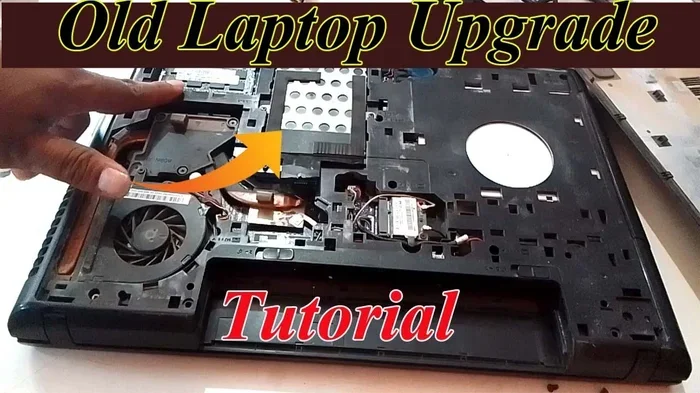
Over time, dust builds up inside your laptop and clogs the fans and heatsinks. This causes overheating, which leads to throttling and slow performance. Open up your laptop (if you are comfortable doing so) and clean out the dust with compressed air. Replacing the thermal paste on the processor can also help.
Expert Insights on Upgrading Older Laptops
Technology experts generally agree that upgrading to Windows 10 is worthwhile for laptops that are 5 to 8 years old. Laptops older than 8 years may struggle, but they can still function for basic tasks like web browsing and document editing if you have the right specs.
Many tech reviewers recommend pairing the Windows 10 upgrade with an SSD and extra RAM. This combination turns a sluggish old laptop into a surprisingly capable machine for everyday use. The cost of these upgrades is usually under $50, making it an excellent return on investment.
One important thing experts stress is to always check your laptop manufacturer’s website for BIOS updates before upgrading. An outdated BIOS can cause compatibility issues with Windows 10, including problems with booting and driver support. A simple BIOS update can save you a lot of headaches.
Key Takeaways
- Check your specs first: Make sure your processor, RAM, and storage meet the Windows 10 minimum requirements before attempting an upgrade.
- Use the Upgrade Assistant: Microsoft’s free tool gives you an instant compatibility check and guides you through the process.
- Back up everything: Never skip this step. A full backup protects your data if something goes wrong during the upgrade.
- Consider SSD and RAM upgrades: These inexpensive improvements can transform an old laptop’s performance with Windows 10.
- Update your drivers: After upgrading, make sure all hardware components have compatible Windows 10 drivers.
- Know when to stop: If your laptop is too old or too underpowered, a new budget laptop may be a smarter investment.
Final Thoughts
So, can an old laptop be upgraded to Windows 10? In most cases, yes. As long as your laptop has a reasonably modern processor, at least 2 GB of RAM, and enough storage space, you should be able to make the switch successfully. The upgrade process is straightforward, and the benefits of running a supported, secure operating system are well worth the effort.
Even if your laptop is older and does not meet the ideal requirements, there are still options. You can upgrade the RAM, swap in an SSD, or use Windows 10 in a lightweight configuration. These steps can extend the life of your old laptop by several more years.
Just remember to do your homework first. Check your specs, back up your files, and plan for potential issues. With the right preparation, upgrading your old laptop to Windows 10 is a rewarding project that saves you money and gives your trusted machine a new lease on life.
Take the time to evaluate your laptop honestly. If it has the right foundation, go ahead and make the leap. You will be glad you did. And if it turns out your laptop is simply too old, at least you now know exactly where you stand. Either way, you are making a smart, informed decision about your technology.
Frequently Asked Questions
Can I upgrade a laptop running Windows 7 to Windows 10 for free?
Microsoft offered a free Windows 10 upgrade for Windows 7 users when the OS was first released in 2015. While the official free offer has ended, some users with legitimate Windows 7 or Windows 8 licenses can still upgrade for free using the Media Creation Tool. Microsoft has not completely shut the door on this, so it is always worth trying.
How much RAM do I need to run Windows 10 smoothly?
The minimum is 1 GB for 32-bit and 2 GB for 64-bit, but these are bare minimums. For a smooth experience with modern web browsing and multitasking, aim for at least 4 GB of RAM. If your laptop has 4 GB or more, Windows 10 should run comfortably for everyday tasks.
Will my old laptop lose performance after upgrading to Windows 10?
Some older laptops may feel slightly slower right after the upgrade because Windows 10 uses more resources than Windows 7. However, simple fixes like adding RAM, installing an SSD, or disabling unnecessary startup programs can restore or even improve performance significantly.
Can I downgrade back to Windows 7 or 8 after upgrading to Windows 10?
Yes, within the first 30 days of upgrading, you can roll back to your previous operating system. After 30 days, you will need to perform a clean installation of Windows 7 or 8, and you will lose any applications and settings installed during the Windows 10 period.
Do I need an internet connection to upgrade to Windows 10?
Yes, you need an internet connection to download the Windows 10 installation files and to activate your license. The download size is around 3 to 5 GB, so a stable broadband connection is recommended. You also need internet access for Windows Update after the installation is complete.
What should I do if my laptop does not meet the Windows 10 requirements?
If your laptop does not meet the requirements, you have a few options. You can upgrade the RAM or replace the hard drive with an SSD to improve performance. Alternatively, consider installing a lightweight Linux distribution, which can run well on older hardware. Or, it may simply be time to invest in a newer laptop that can handle modern operating systems and software.