Can Any Laptop Use A Docking Station And Why It Matters
Can Any Laptop Use A Docking Station? The short answer is yes, but it depends on the ports and connection type. Most modern laptops with USB-C or Thunderbolt can use a docking station seamlessly. Older models may need adapters or specific docks. This guide explains everything you need to know.
You might be wondering, Can Any Laptop Use A Docking Station? The answer is more straightforward than you think. A docking station transforms your laptop into a full desktop setup with one cable connection. USB-C and Thunderbolt docks are the most popular choices today. They offer video output, power delivery, and data transfer through a single cable. Whether you use a Windows laptop or a Mac, there is a laptop dock that fits your needs. Let us explore why this matters for your daily workflow.
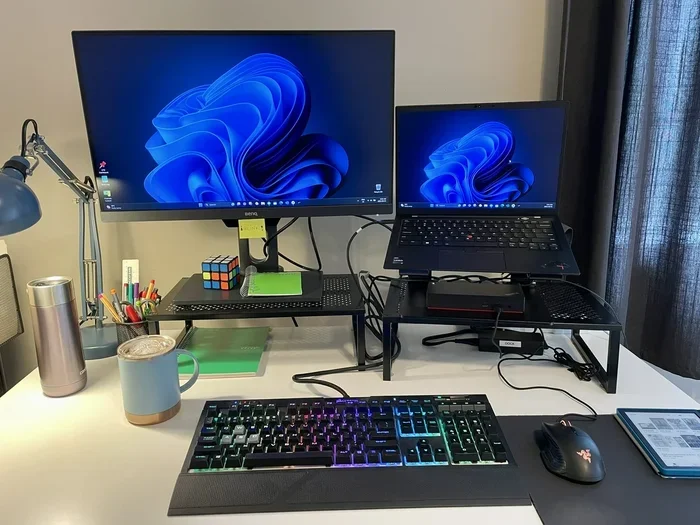
A docking station is a hub that sits on your desk. It connects to your laptop and expands its capabilities. You can plug in a monitor, keyboard, mouse, external hard drive, and even an Ethernet cable all at once. The dock talks to your laptop through a single connector. This setup keeps your desk tidy and your devices powered. Many people call it a single cable solution because you only need one cable to go from dock to laptop.
Using a docking station can boost your productivity. You switch between laptop mode and desktop mode in seconds. When you sit at your desk, you plug in the dock. When you leave, you unplug one cable and go. This portable workspace idea is perfect for remote workers and students. It also helps with cable management because all cables stay connected to the dock.
Key Takeaways
- Universal compatibility: Most laptops made after 2018 can use a docking station thanks to USB-C or Thunderbolt ports.
- Single cable solution: A laptop dock lets you connect monitors, peripherals, and power with one cable.
- Mac and Windows work: Both ecosystems support modern docks, but check for docking compatibility before buying.
- Older laptops can still dock: You may need a USB-C hub or adapter for legacy ports.
- Thunderbolt offers the best experience: Thunderbolt docks provide faster data and video performance.
- Right dock matters: Match the dock to your laptop’s port type and power needs.
📑 Table of Contents
What Is a Docking Station and How Does It Work?
A docking station is a hub that adds ports to your laptop. It does not replace your laptop. Instead, it extends what your laptop can do. The dock connects to your laptop through a single cable. That cable carries power, data, and video signals all at once.
Types of Docking Stations
Not all docks are the same. Here are the main types you will see.
- USB-C docks: These use the small oval USB-C port. They are very common today. Most new laptops have at least one USB-C port.
- Thunderbolt docks: These use the Thunderbolt protocol over USB-C. They offer faster speeds and more video support. Thunderbolt 3 and 4 docks are the best for multi-monitor setups.
- USB-A hubs: These are smaller and cheaper. They add USB-A ports but may not support video or power delivery.
- Proprietary docks: Some business laptops like Lenovo ThinkPads or Dell Latitude use a proprietary dock connector. These docks fit only those laptops.
How a Dock Connects to Your Laptop
The connection is simple. You plug one end of the cable into the dock. The other end goes into your laptop’s port. If your laptop has a USB-C port, a USB-C cable works. If it has a Thunderbolt port, a Thunderbolt cable works. Some docks even support wireless connections, but wired is always faster and more reliable.
What Can You Connect to a Dock?
A good docking station can handle many peripheral devices. Here are common connections.
- Monitors: You can connect one or more external displays via HDMI, DisplayPort, or USB-C.
- Keyboards and mice: Wired or wireless devices plug into USB ports.
- External storage: Hard drives and SSDs connect through USB.
- Networking: An Ethernet port gives you a stable internet connection.
- Power delivery: The dock can charge your laptop through the same cable.
- Audio: Headsets and speakers can plug into the dock’s audio jack.
Can Any Laptop Use A Docking Station?
The short answer is yes, but with a few conditions. Can Any Laptop Use A Docking Station depends on the ports your laptop has and the type of dock you choose. Most laptops made in the last five years can use a docking station without any problems. Older laptops might need an adapter or a specific hub.
USB-C and Thunderbolt Compatibility
Laptops with a USB-C or Thunderbolt port can use most modern docks. This includes many Windows laptops and all MacBooks made since 2016. If your laptop has a Thunderbolt port, you get the best performance. Thunderbolt docks support higher resolutions and faster data transfer. You can even daisy-chain multiple monitors from one dock.
Older Laptops with USB-A or HDMI
What if your laptop only has USB-A or HDMI ports? You can still use a docking station. You will need a USB-C adapter or a USB-C hub that converts the signal. For example, you can buy a dock that has a USB-C input but also has USB-A ports. The dock handles the conversion for you. It is not as clean as a direct connection, but it works well.
Mac vs. Windows Docking
Both Mac and Windows laptops can use docking stations. However, there are a few differences. Macs use USB-C or Thunderbolt 3/4 ports. Windows laptops may have USB-C, Thunderbolt, or even proprietary docks. Always check the docking compatibility before you buy. Some docks work perfectly with Mac but need extra drivers for Windows. Most modern docks work out of the box on both systems.
Proprietary Docks for Business Laptops
Some business laptops use a proprietary dock connector. Think of Lenovo ThinkPad docks or Dell Latitude docks. These docks plug directly into a bottom connector on the laptop. They are not universal. You cannot use a Lenovo dock with a Dell laptop. If you have a business laptop, check if the manufacturer offers a laptop dock designed for your model.
Why Using a Docking Station Matters
A docking station is more than a convenience. It can change how you work every day. Here is why it matters.
Boost Productivity with a Multi-Monitor Setup
One of the biggest benefits is using multiple monitors. A single docking station can support two or even three external screens. This gives you more screen space for spreadsheets, code, or design work. Studies show that dual monitors can increase productivity by up to 30 percent. You can move windows between screens easily. A portable monitor can also pair with your dock when you travel.
Simplify Cable Management
Without a dock, you have a mess of cables on your desk. You plug in a charger, a monitor cable, a mouse dongle, and a keyboard cable. With a docking station, everything connects to the dock. You only unplug one cable from your laptop when you leave. This keeps your desk setup clean and organized. Less clutter means less stress.
Enhance Connectivity and Power Delivery
A good docking station offers power delivery up to 100 watts. This means your laptop charges while you work. You do not need a separate charger on your desk. The dock also provides Ethernet for a fast, stable internet connection. You get USB ports for all your peripheral devices. It turns your laptop into a full workstation.
How to Choose the Right Docking Station
Choosing the right docking station can feel overwhelming. There are many brands and models. Here is how to pick the best one for your needs.
Key Features to Consider
Before you buy, think about these factors.
- Port type: Does your laptop have USB-C or Thunderbolt? Buy a dock that matches.
- Number of monitors: How many screens do you need? Check the dock’s max display support.
- Power delivery: Look for a dock that can charge your laptop. Check the wattage.
- Video resolution: If you use 4K monitors, make sure the dock supports 4K at 60Hz.
- Build quality: A metal dock lasts longer than a plastic one. It also dissipates heat better.
- Brand reputation: Brands like CalDigit, Anker, Belkin, and Lenovo offer reliable docks.
Comparison Table of Popular Docking Stations
Here is a quick look at some popular options.
- CalDigit TS4: Thunderbolt 4 dock. Supports two 4K monitors and 98W power delivery. Best for Mac and Windows.
- Anker 777 Thunderbolt Dock: 13 ports, supports two 4K displays. Great value for the price.
- Belkin Thunderbolt 4 Dock: Compact and reliable. Good for home and office use.
- Lenovo ThinkPad USB-C Dock Gen 2: Works perfectly with Lenovo laptops. Simple and sturdy.
- Dell WD22TB4 Thunderbolt Dock: Designed for Dell laptops but works with other Thunderbolt laptops too.
Setting Up Your Docking Station
Setting up a docking station is easy. Follow these steps for a smooth experience.
Step-by-Step Connection Guide
- Place the dock on your desk near your monitor and power outlet.
- Connect the dock to your laptop using the appropriate cable.
- Plug in your monitor to the dock using HDMI or DisplayPort.
- Connect your keyboard and mouse to the dock’s USB ports.
- Plug in your laptop charger to the dock’s power port.
- Turn on the dock and your monitor.
- Your laptop should automatically detect the external display.
Quick Tips for a Smooth Setup
- Use the cable that comes with the dock. Cheap cables can cause connection issues.
- Update your laptop’s graphics drivers before connecting a dock. This prevents display problems.
- Keep the dock plugged into a surge protector. Power spikes can damage your devices.
- Label your cables if you have multiple devices. It helps with cable management.
Common Mistakes to Avoid
Even with a good docking station, people make mistakes. Here is what to watch out for.
Buying the Wrong Dock for Your Laptop
The biggest mistake is buying a dock that does not match your laptop’s port. If your laptop only has USB-A ports, a Thunderbolt dock will not work directly. You need an adapter. Always check your laptop’s ports first. Read the dock’s specifications carefully. Look for docking compatibility lists from the manufacturer.
Ignoring Power Delivery Needs
Some docks only provide 60W of power. If your laptop needs 85W to charge, it will charge slowly or not at all. Check your laptop’s power requirements. Choose a dock that meets or exceeds that wattage. This is especially important for gaming laptops and mobile workstations.
Forgetting About Display Compatibility
Not all docks support every resolution. A dock might claim 4K support but only at 30Hz. If you want smooth video, look for 4K at 60Hz. Also, check if the dock supports the number of monitors you want. Some USB-C docks only support one external display. If you need two, pick a Thunderbolt dock.
Final Verdict
So, Can Any Laptop Use A Docking Station? Yes, in most cases. A docking station is a great tool for anyone who works with a laptop. It turns your portable computer into a powerful desktop when you need it. Whether you use a Windows laptop, a Mac, or a business model, there is a laptop dock for you. The key is to match the dock to your laptop’s ports and your workflow needs.
Take a few minutes to check your laptop’s connection type. Pick a dock with the right ports and power delivery. Set it up once, and you will never go back to cable spaghetti. A docking station is a small investment that pays off in productivity and a cleaner desk setup. Start exploring your options today and enjoy the single cable solution lifestyle.
Frequently Asked Questions
Can I use a docking station with any laptop?
Most laptops made after 2018 can use a docking station if they have a USB-C or Thunderbolt port. Older laptops with only USB-A or HDMI ports can still dock with an adapter. Always check the dock’s compatibility before buying.
Do I need a Thunderbolt dock or is USB-C enough?
USB-C docks work for most basic needs like connecting a monitor and peripherals. Thunderbolt docks offer faster speeds, better video support, and multi-monitor capabilities. If you use a MacBook or a high-performance Windows laptop, a Thunderbolt dock is the better choice.
Will a docking station charge my laptop?
Yes, many docking stations support power delivery. Check the dock’s wattage rating. A 60W dock can charge most standard laptops, while 85W or 100W docks are needed for larger laptops and gaming models.
Can I connect multiple monitors to a docking station?
Absolutely. Many USB-C and Thunderbolt docks support two or more external monitors. The number of monitors depends on the dock’s capabilities and your laptop’s graphics hardware. Always check the dock’s specifications for the maximum number of displays.
Are docking stations only for desktop replacements?
No. A docking station is also great for a portable setup. You can keep all your peripheral devices connected to the dock at home. When you leave, you unplug one cable and take the laptop with you. This makes it a perfect single cable solution for hybrid workers.
Do Mac laptops work with docking stations?
Yes. MacBooks with USB-C or Thunderbolt ports work with most modern docking stations. Apple’s own USB-C Digital AV Multiport Adapter is one option, but third-party docks offer more ports and better value. Always ensure the dock supports macOS.