Can I Put A WiFi Card In A M 2 Slot Here Is The Answer
Yes, you can put a WiFi card in an M.2 slot, but it depends on the key type and your motherboard. The M.2 slot comes in different sizes and connectors, and not every M.2 slot supports a wireless card. This guide breaks down everything you need to know about M.2 WiFi card compatibility, installation, and performance.
Can I put a WiFi card in an M.2 slot? This is one of the most common questions people ask when they want to upgrade their wireless connection. The short answer is yes. But the full answer is a little more detailed than that. You need to know about M.2 key types, motherboard compatibility, and installation steps. This guide will walk you through every single detail so you can make the right choice for your setup.
Whether you are building a new desktop, upgrading an old laptop, or just trying to get better WiFi speeds, understanding M.2 WiFi compatibility is important. A lot of people buy the wrong card or pick the wrong slot and end up frustrated. That is exactly why this article exists. By the time you finish reading, you will know everything you need to install a wireless card in an M.2 slot with confidence.
The M.2 form factor has become the standard for modern PCs. It is small, fast, and versatile. You can use M.2 slots for NVMe SSDs, SATA drives, and yes, wireless network adapters. But each type of device uses a different key on the connector. This is the most important thing to understand before you buy any M.2 WiFi card. Let us dive right in and explore how this all works.
Key Takeaways
- M.2 WiFi cards work in M.2 slots: Most modern motherboards support wireless cards through M.2 connectors.
- Key type matters a lot: You need an M.2 Key E slot for a WiFi card, not a Key M slot used for SSDs.
- Check your motherboard manual: Not all M.2 slots are the same, and some are only for storage drives.
- WiFi 6 and WiFi 6E cards are popular: These offer fast wireless speeds and work great in M.2 slots.
- Installation is straightforward: You just need a screwdriver and a few minutes to complete the process.
- Antenna connectors are essential: Do not forget to attach the antennas for the best wireless signal.
- PCIe vs SATA matters: Most WiFi cards use PCIe lanes, so make sure your M.2 slot supports that.
📑 Table of Contents
- What Is an M.2 Slot and Why Does It Matter?
- Can I Put A WiFi Card In A M 2 Slot? The Compatibility Guide
- How to Install a WiFi Card in an M.2 Slot
- M.2 WiFi Card vs USB WiFi Adapter
- Popular M.2 WiFi Cards to Consider
- Common Mistakes to Avoid When Installing an M.2 WiFi Card
- Expert Insights on M.2 WiFi Performance
- Key Takeaways
- FAQ
- Conclusion
What Is an M.2 Slot and Why Does It Matter?
The M.2 slot is a compact connector found on most modern desktop motherboards and laptops. It replaced the older mini PCIe standard for many devices. The M.2 connector supports different types of hardware through various key configurations. Each key type determines what kind of device can plug into that slot.
When people ask can I put a WiFi card in an M.2 slot, they are usually confused by the different M.2 types. The slot on your motherboard might be designed for storage drives only, or it might support wireless cards too. Understanding the key type is the first step to getting this right.
M.2 Key Types Explained
The M.2 connector comes in several key types. Each key has a different notch position that prevents you from inserting the wrong device. Here are the most common M.2 key types you will encounter:
- Key B: Supports SATA and PCIe x2 connections. Used for some wireless cards and SATA SSDs.
- Key M: Supports PCIe x4 and SATA. This is the most common slot for NVMe SSDs.
- Key E: Supports PCIe x2 and SATA. This is the key type used for WiFi cards and Bluetooth modules.
- Key A: Used for USB and SATA devices. Rarely used for wireless cards.
If you want to install a wireless network adapter, you need an M.2 Key E slot. This is the slot specifically designed for WiFi cards. If your motherboard only has Key M slots, those are meant for storage drives and will not work with a WiFi card.
Can I Put A WiFi Card In A M 2 Slot? The Compatibility Guide
The answer to this question depends on your specific hardware. Most desktop motherboards built in the last five years include at least one M.2 Key E slot. Laptops also use M.2 slots for WiFi cards, but the configuration can vary. Let us break down the compatibility factors you need to check before buying a card.
Check Your Motherboard Manual
Your motherboard manual is your best friend here. Look for the M.2 slot specifications section. The manual will tell you which key type each M.2 slot supports. It will also list the PCIe generation and lane configuration. This information tells you whether a WiFi card will work in that slot.
If you cannot find your manual, you can also check the manufacturer website. Most brands have downloadable PDFs for every motherboard model. Simply search for your motherboard model number and look for the M.2 slot details.
WiFi Card Form Factors
WiFi cards come in different sizes. The standard M.2 WiFi card uses the 2230 or 2242 size. This means the card is 22 millimeters wide and either 30 or 42 millimeters long. Some cards use the 3042 or 2280 sizes, but those are less common for wireless adapters.
Before you buy a card, check the dimensions of your M.2 slot. Most slots support 2230 and 2242 cards without any issues. If you buy a longer card, it might not fit or might block an adjacent slot. Always double-check the size before making a purchase.
How to Install a WiFi Card in an M.2 Slot
Installing a WiFi card in an M.2 slot is a straightforward process. You do not need advanced technical skills. With the right tools and a little patience, you can have your new wireless card up and running in under ten minutes.
What You Will Need
- A compatible M.2 WiFi card (Key E type)
- A small Phillips-head screwdriver
- The correct M.2 standoff and screw (usually included with the motherboard)
- The WiFi card antennas that came with the card
- Your motherboard manual for reference
Step-by-Step Installation Process
Follow these steps carefully to install your M.2 WiFi card. Each step is simple, but skipping one can cause problems later.
- Power off your PC: Turn off your computer completely and unplug the power cable. This keeps you safe and protects your components.
- Open the case: Remove the side panel of your desktop case. Most cases use thumbscrews or Phillips screws for this.
- Locate the M.2 Key E slot: Find the M.2 slot on your motherboard that supports Key E. Look for the notch on the connector that matches the Key E position.
- Remove the heat spreader or cover: Some motherboards have a protective cover over the M.2 slot. Unscrew it and set it aside.
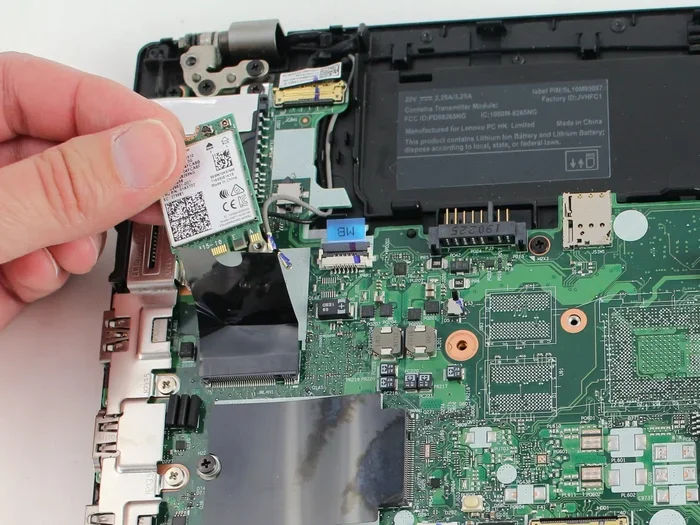
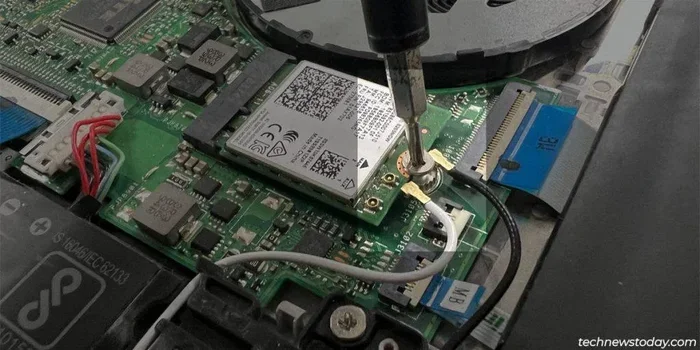
- Insert the WiFi card: Hold the card at a 30-degree angle and gently push it into the slot. The card should slide in smoothly. Press it down flat and secure it with the M.2 screw.
- Attach the antennas: Connect the two WiFi antennas to the card. These usually use IPEX or U.FL connectors. Push them on firmly until they click.
- Close up and boot: Replace the side panel, plug in your power cable, and turn on your PC.
- Install drivers: Your operating system may not have the drivers pre-installed. Download the latest drivers from the WiFi card manufacturer’s website.
Quick Tips for a Smooth Installation
- Do not force the card into the slot. If it does not go in easily, check the key type and angle.
- Keep the screw snug but do not overtighten. M.2 slots and cards can crack under too much pressure.
- Place the antennas away from metal objects for the best signal strength.
- If you are installing the card in a laptop, check for a WiFi card cover or shield first.
M.2 WiFi Card vs USB WiFi Adapter
When people look into upgrading their WiFi, they often compare an M.2 WiFi card with a USB WiFi adapter. Both options have pros and cons. Let us look at the key differences so you can decide which one is better for your situation.
| Feature | M.2 WiFi Card | USB WiFi Adapter |
|---|---|---|
| Performance | Better, uses direct PCIe lanes | Good, but limited by USB bandwidth |
| Installation | Requires opening the PC case | Plug and play, no opening needed |
| Signal Quality | Excellent with proper antennas | Decent, but antenna placement is limited |
| Price | Slightly more expensive | Usually cheaper |
| Aesthetics | Clean, internal setup | Visible outside the case |
| Portability | Fixed to the motherboard | Easy to move between PCs |
For most desktop users, an M.2 WiFi card is the better choice. It offers faster speeds, more stable connections, and a cleaner build. USB adapters are great for quick fixes or for laptops where opening the case is not an option.
Popular M.2 WiFi Cards to Consider
If you have decided to go ahead with an M.2 WiFi card, you might be wondering which one to buy. The market has many options, and choosing the right one depends on your needs. Here are some popular choices that work well in M.2 slots.
WiFi 6 Cards
WiFi 6 cards offer excellent speeds and work great in M.2 Key E slots. Cards like the Intel AX200 and Intel AX210 are very popular. They support WiFi 6 (802.11ax) and provide speeds up to 2.4 Gbps. These cards are affordable and offer great value for most users.
WiFi 6E Cards
If you want the latest technology, a WiFi 6E card is worth considering. These cards add support for the 6 GHz band, which is less crowded and offers faster speeds. The Intel AX210 is one of the few cards that supports WiFi 6E. It is a great choice if your router also supports the 6 GHz band.
Budget Options
Not everyone needs the latest and greatest. Budget WiFi cards like the Intel AC 9260 or the MEDIATEK MT7921 are solid choices. They provide reliable WiFi 5 (802.11ac) performance at a lower price point. These cards work perfectly well for browsing, streaming, and everyday use.
Common Mistakes to Avoid When Installing an M.2 WiFi Card
Even though the installation process is simple, people still make mistakes. Here are some common errors to watch out for.
- Putting a WiFi card in a Key M slot: This is the most common mistake. Key M slots are for SSDs, not wireless cards. The connector will not match, and the card will not work.
- Forgetting to install drivers: A new WiFi card will not work properly without the correct drivers. Always download the latest drivers from the manufacturer website.
- Not connecting the antennas: Some people forget to attach the WiFi antennas. Without them, your signal will be very weak and unstable.
- Overtightening the screw: The M.2 screw should be snug, not tight. Overtightening can damage the card or the motherboard.
- Buying the wrong size card: Check the length of the card before purchasing. A card that is too long will not fit properly.
Expert Insights on M.2 WiFi Performance
Installing a WiFi card in an M.2 slot gives you a real performance advantage over USB adapters. Because the card connects directly to the PCIe bus, it has more bandwidth and lower latency. This means faster data transfer, more stable connections, and better overall wireless performance.
Many users report a noticeable improvement in WiFi speeds after switching from a USB adapter to an M.2 card. The difference is especially clear in environments with heavy wireless traffic, such as apartment buildings or office spaces. The M.2 card handles interference better and maintains a more consistent connection.
Experts also recommend choosing a card that supports the latest WiFi standard your router supports. If you have a WiFi 6 router, a WiFi 6 card will let you take full advantage of its capabilities. If your router is older, a WiFi 5 card will still deliver excellent performance at a lower cost.
Key Takeaways
- M.2 WiFi cards work in M.2 slots: Most modern motherboards support wireless cards through M.2 connectors.
- Key type matters a lot: You need an M.2 Key E slot for a WiFi card, not a Key M slot used for SSDs.
- Check your motherboard manual: Not all M.2 slots are the same, and some are only for storage drives.
- WiFi 6 and WiFi 6E cards are popular: These offer fast wireless speeds and work great in M.2 slots.
- Installation is straightforward: You just need a screwdriver and a few minutes to complete the process.
- Antenna connectors are essential: Do not forget to attach the antennas for the best wireless signal.
- PCIe vs SATA matters: Most WiFi cards use PCIe lanes, so make sure your M.2 slot supports that.
FAQ
Can I put any WiFi card in any M.2 slot?
No, you cannot put any WiFi card in any M.2 slot. The M.2 slot must be Key E type to support a WiFi card. Key M slots are designed for NVMe SSDs and will not work with wireless cards. Always check your motherboard manual to confirm the key type of your M.2 slot before purchasing a WiFi card.
Do I need drivers for an M.2 WiFi card?
Yes, you need drivers for an M.2 WiFi card to work properly. Most operating systems do not include the drivers for every wireless card. You should download the latest drivers from the manufacturer website, such as Intel or MEDIATEK, after installing the card. Without drivers, your PC will not recognize the WiFi card or connect to any wireless network.
Can I use a WiFi 6E card if my router only supports WiFi 6?
Yes, you can use a WiFi 6E card with a WiFi 6 router. The card will work perfectly fine, but it will only connect on the 2.4 GHz and 5 GHz bands. You will not get access to the 6 GHz band unless your router also supports WiFi 6E. The card will still deliver excellent performance on the standard WiFi 6 bands.
Is it hard to install a WiFi card in an M.2 slot?
No, it is not hard at all. Installing a WiFi card in an M.2 slot is one of the simplest PC upgrades you can do. You just need a screwdriver, the card, and a few minutes. The process involves inserting the card into the Key E slot at an angle, securing it with a screw, and connecting the antennas. Even beginners can handle this upgrade with ease.
Will an M.2 WiFi card improve my internet speed?
An M.2 WiFi card can improve your wireless speed and connection stability compared to older or USB-based adapters. The direct PCIe connection provides more bandwidth and less latency. However, your actual internet speed also depends on your router, your ISP plan, and your distance from the router. The card removes wireless bottlenecks but cannot make your internet plan faster than what your provider offers.
Can I use an M.2 WiFi card in a laptop?
Yes, many laptops use M.2 WiFi cards internally. In fact, most modern laptops already have an M.2 WiFi card installed. You can upgrade it by removing the old card and inserting a new one. Just make sure the new card matches the key type and size supported by your laptop. Some laptops also have a protective cover over the card that you will need to remove and replace.
Conclusion
So, can I put a WiFi card in an M.2 slot? Absolutely yes. As long as your motherboard has an M.2 Key E slot, you can install a wireless network adapter and enjoy faster, more stable WiFi. The process is simple, the performance boost is real, and the options available today are better than ever. Whether you choose a WiFi 6 card or step up to WiFi 6E, you will notice the difference in your daily use.
Take the time to check your motherboard compatibility before buying. Match the key type, verify the card size, and do not forget the antennas. With the right M.2 WiFi card and a little care during installation, you will have a strong, reliable wireless connection that makes everything from browsing to gaming feel smoother. Upgrade today and experience the difference a proper wireless card makes.