How Do I Find My Google Home Wi Fi Password Easily
Finding your Google Home WiFi password is easier than you think. You can check your router label, use the Google Home app, or look through your phone settings. This guide covers every simple method to recover your Google Home WiFi password fast. Whether you are setting up a new device or reconnecting your smart speaker, we have got you covered.
Are you looking for your Google Home WiFi password but cannot find it anywhere? You are in the right place. This guide will show you how to find your Google Home WiFi password using simple, proven methods. Whether you need it for a new phone, a smart home device, or a laptop, we will walk you through every step. By the end of this article, you will know exactly where to look and how to recover your Google Home WiFi password in minutes.
Your Google Home device needs a WiFi connection to work properly. Without the right password, you cannot set up or use your smart speaker. Many people lose track of their WiFi password over time, especially after moving or buying new devices. The good news is that finding your Google Home WiFi password is easier than you think. There are several simple methods you can try right now.
In this article, we will cover every way to locate your Google Home WiFi password. From checking your router to using your phone settings, you will find the method that works best for you. Let us dive in and get your Google Home device connected again.
Key Takeaways
- Check Your Router Label: The default WiFi password is often printed on a sticker on your router.
- Use the Google Home App: The app lets you view your WiFi password directly on your phone.
- Access Phone Settings: Both Android and iPhone devices can show saved WiFi passwords easily.
- Reset as a Last Resort: Factory resetting your router restores the default password but erases custom settings.
- Contact Your ISP: Your internet service provider can help you recover or reset your WiFi password.
- Keep Your Password Safe: Store your WiFi password in a secure place to avoid future issues.
📑 Table of Contents
- What Is Your Google Home WiFi Password and Why Do You Need It?
- How to Find Your Google Home WiFi Password on Your Router
- Using the Google Home App to Find Your WiFi Password
- Finding Your WiFi Password Through Phone and Computer Settings
- What to Do If You Forget Your Google Home WiFi Password
- Tips to Keep Your Google Home WiFi Password Safe and Secure
- Quick Comparison: Methods to Find Your Google Home WiFi Password
- Quick Tips for Finding Your Google Home WiFi Password
- Common Mistakes People Make When Looking for Their WiFi Password
- Expert Insights on Managing Your Home WiFi and Google Home Devices
- Conclusion
What Is Your Google Home WiFi Password and Why Do You Need It?
Your Google Home WiFi password is the key that lets your smart speaker connect to your home network. Without it, your Google Home device cannot access the internet or respond to voice commands. Think of it like a lock on your front door. The password is the key that opens the door to your home network. Every device that wants to join your WiFi must have this key.
How Your Google Home Device Connects to Your Home Network
When you first set up your Google Home device, you use the Google Home app to enter your WiFi password. The device then connects to your WiFi network using that password. Once connected, your Google Home device can stream music, answer questions, and control other smart devices in your home. If the password changes or you need to connect a new device, you will need the same password again.
The Role of Your WiFi Network in Smart Home Functionality
Your WiFi network is the backbone of your smart home. Every connected device, from your Google Home smart speaker to your smart lights and cameras, relies on this network. If your WiFi password is wrong or lost, none of these devices will work properly. That is why keeping your Google Home WiFi password handy is so important. It keeps your entire smart home running smoothly.
How to Find Your Google Home WiFi Password on Your Router
Your router is the device that broadcasts your WiFi signal. It usually has a label with important network information. This is often the easiest place to find your Google Home WiFi password. Let us look at the different ways to check your router.
Check the Router Label for the Default WiFi Password
Most routers come with a sticker on the bottom or back. This sticker shows your network name, also called the SSID, and the default WiFi password. Look for a section labeled “Wireless Key,” “Password,” or “Network Security Key.” This is your Google Home WiFi password for the initial setup. However, if you or someone else changed the password later, this sticker will show the old one.
Here is what to look for on your router label:
- Network Name (SSID): This is the name of your WiFi network.
- Default Password: This is the wireless password printed on the sticker.
- Router Admin Login: This is the username and password for your router settings page.
Access Router Settings Through the Admin Panel
If the sticker does not help, you can log into your router settings. Open a web browser on a connected device and type your router IP address into the address bar. Common addresses include 192.168.1.1 or 192.168.0.1. Enter the router admin username and password when prompted. Once inside, look for the WiFi settings section. There you will find your current Google Home WiFi password.
Follow these steps to access your router admin panel:
- Open a web browser on a device connected to your WiFi.
- Type your router IP address into the address bar.
- Enter the admin username and password.
- Navigate to the WiFi or Wireless Settings section.
- Look for the network security key or WiFi password field.
Common Router Brands and Default Login Details
Different router brands use different default login details. Here are some common ones:
- Netgear: Username is “admin” and password is “password” or “1234.”
- Linksys: Username is “admin” and password is “admin.”
- TP-Link: Username is “admin” and password is “admin.”
- ASUS: Username is “admin” and password is “admin.”
If none of these work, check the router manual or look up your specific model online. You can also find the default login details on a sticker on the router itself.
Using the Google Home App to Find Your WiFi Password
The Google Home app is one of the easiest ways to find your Google Home WiFi password. The app manages all your Google Home devices and stores network information. Let us walk through how to use it.
Step-by-Step Guide to Finding the Password in the App
Follow these simple steps to find your WiFi password using the Google Home app:
- Open the Google Home app on your phone.
- Tap on the device you want to check.
- Look for the gear icon to open settings.
- Tap on “Wi-Fi Settings” or “Network Settings.”
- Your WiFi password should be displayed or you can view the network details.
Note that the Google Home app may not always show the full password for security reasons. In that case, try the phone settings method below.
What If the Google Home App Does Not Show the Password?
Sometimes the Google Home app hides the password behind dots or does not show it at all. This is a security feature. Do not worry. You still have other options. You can check your phone settings, log into your router, or use the methods we will cover next. The Google Home app is a great starting point, but it is not the only way to recover your Google Home WiFi password.
Finding Your WiFi Password Through Phone and Computer Settings
Your phone and computer often store WiFi passwords you have used before. You can access these saved passwords through your device settings. This is a very reliable way to find your Google Home WiFi password.
Check WiFi Password on Android Devices
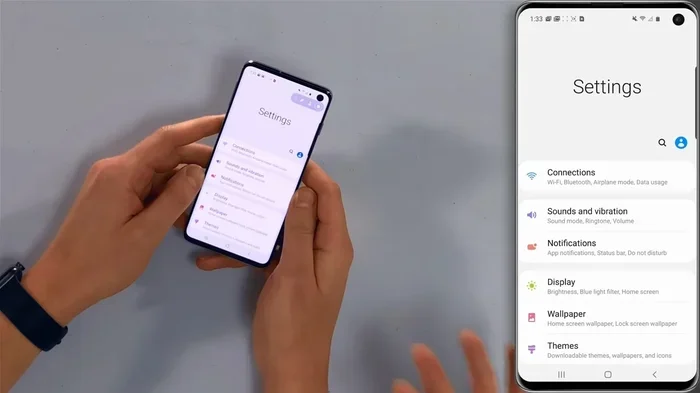
If your Android phone is connected to the same WiFi network as your Google Home device, you can find the password in your settings. Go to Settings, then Network and Internet, then WiFi. Tap on the connected network and select Share. You may need to authenticate with your fingerprint or face ID. A QR code will appear, and below it, you can see your WiFi password in plain text.
Find WiFi Password on iPhone and iPad
iPhones do not show WiFi passwords directly in the settings. However, if you have a Mac or an iCloud Keychain, you can find the password there. On your Mac, open Keychain Access, search for your WiFi network name, and check the “Show Password” box. You will need your Mac login password to view it. Alternatively, if you have an iCloud-connected device that shows the password, you can use that.
View WiFi Password on Windows PC
On a Windows PC connected to your WiFi network, you can find the password easily. Go to Settings, then Network and Internet, then WiFi. Click on “Manage Known Networks,” select your network, and click “View Wi-Fi Security Key.” The password will be displayed on your screen. This is a quick way to find your Google Home WiFi password if you have a Windows computer nearby.
Check WiFi Password on Mac
Mac users can find their WiFi password through Keychain Access. Open the Keychain Access app, search for your WiFi network name, double-click on it, and check the “Show Password” box. You will need your Mac login password to confirm. This method works great for finding your Google Home WiFi password on a Mac.
What to Do If You Forget Your Google Home WiFi Password
Forgetting your Google Home WiFi password happens to everyone. It is not the end of the world. There are several ways to recover or reset your password. Let us look at what you can do when you are stuck.
Reset Your Router to Factory Settings
Resetting your router to factory settings is the most drastic option. It erases all custom settings and restores the original defaults. To do this, find the small reset button on the back of your router. Use a paperclip or pin to press and hold it for about 10 seconds. The router will restart and return to its original settings. Your Google Home WiFi password will go back to the default password printed on the router label.
Keep in mind that resetting your router will also erase any custom network names, parental controls, and port forwarding settings. You will need to set those up again. Only use this method if you have tried everything else.
Contact Your Internet Service Provider
Your internet service provider (ISP) can help you recover your WiFi password. Call their customer support line and explain your situation. They can often walk you through finding your Google Home WiFi password or reset it for you. Some ISPs also let you view your WiFi password in their online account portal. Check your ISP website or app for this option.
Use Password Recovery Tools
There are several password recovery tools available that can help you find saved WiFi passwords on your devices. Apps like WiFi Password Show on Android or built-in tools on Windows and Mac can display your saved network passwords. These tools are safe and easy to use. They are a great option for password recovery when you have previously connected to the network.
Tips to Keep Your Google Home WiFi Password Safe and Secure
Once you find your Google Home WiFi password, you want to keep it safe. A strong WiFi password protects your home network from unauthorized access. Here are some tips to help you manage your password properly.
Best Practices for WiFi Password Management
- Use a Password Manager: Apps like LastPass or 1Password store your passwords securely. You never have to remember them all.
- Write It Down in a Safe Place: Keep a physical copy of your Google Home WiFi password in a secure location, like a home safe.
- Share It Carefully: Only share your WiFi password with trusted family members and friends.
- Use a Strong Password: A mix of letters, numbers, and symbols makes your WiFi password hard to guess.
When Should You Change Your WiFi Password?
You should change your WiFi password if you suspect someone unauthorized has access to your network. Other signs include slow internet speeds or unknown connected devices on your network. It is also a good idea to change your password after a house move or when a roommate leaves. Regularly updating your Google Home WiFi password keeps your home network secure and your smart devices safe.
Quick Comparison: Methods to Find Your Google Home WiFi Password
Not sure which method to try first? Here is a quick comparison of the most popular ways to find your Google Home WiFi password:
| Method | Difficulty | Time Required | Best For |
|---|---|---|---|
| Router Label | Very Easy | 1 minute | Finding the default password |
| Google Home App | Easy | 2 minutes | Android users with the app |
| Phone Settings | Medium | 3 minutes | Connected devices with saved networks |
| Router Admin Panel | Hard | 5 minutes | Advanced users who can access router settings |
| Factory Reset | Hard | 15 minutes | Forgotten password as a last resort |
| Contact ISP | Easy | 10-30 minutes | Users who prefer professional help |
The router label method is the fastest and easiest. If you have never changed your password, the default password on the sticker will work. The Google Home app method is great for Android users who want a quick digital solution. Phone settings work well if you have a device already connected to the network. Choose the method that fits your situation best.
Quick Tips for Finding Your Google Home WiFi Password
- Always check the router label first. It saves time and effort.
- Keep your Google Home app updated. Newer versions may show more network details.
- Use a password manager. It stores your WiFi password securely and makes it easy to find later.
- Restart your router if needed. Sometimes a simple restart fixes connection issues.
- Write down your Google Home WiFi password after you find it. Keep it in a safe and accessible place.
Common Mistakes People Make When Looking for Their WiFi Password
- Confusing the WiFi password with the router admin password. These are two different passwords. The WiFi password connects your devices to the network. The router admin password lets you access router settings.
- Not checking for a sticker on the router. Many people overlook the simplest solution. Always check the router label first.
- Trying to find the password on an unconnected device. You need to be on the same WiFi network or use a connected device to find the password.
- Resetting the router too quickly. Factory resetting should be your last option. It erases all custom settings and takes time to set up again.
- Ignoring the Google Home app. The app is a built-in tool designed to help you manage your Google Home device and network settings.
Expert Insights on Managing Your Home WiFi and Google Home Devices
According to smart home experts, keeping your WiFi password secure and accessible is essential for a smooth smart home experience. Many tech professionals recommend using a dedicated password manager app to store all your network credentials. This way, you always have your Google Home WiFi password available when you need it.
Experts also suggest labeling your router with a small note that includes the network name and password. Place this note somewhere safe, like inside your router’s box or in a home office drawer. This simple step can save you a lot of time and frustration when you need to reconnect a device.
Another expert tip is to set a calendar reminder to review your WiFi password every six months. This keeps your home network secure and ensures you know where your password is stored. A little prevention goes a long way when it comes to managing your Google Home WiFi password and overall network security.
Conclusion
Finding your Google Home WiFi password does not have to be a frustrating experience. You have many simple options available, from checking your router label to using the Google Home app or your phone settings. Each method is straightforward and takes only a few minutes. The key is to stay calm and try each method one at a time.
Remember to keep your Google Home WiFi password in a safe and accessible place once you find it. A password manager or a physical note in a secure location works great. This prevents you from losing the password again in the future. With the right approach, you can reconnect your Google Home device and enjoy all the features of your smart home without any delays.
Now that you know how to find your Google Home WiFi password, you are ready to set up, reconnect, or troubleshoot any device in your home. Take action today and get your smart home running smoothly again.
Frequently Asked Questions
Can I find my Google Home WiFi password without resetting the router?
Yes, absolutely. You can find your Google Home WiFi password by checking the router label, using the Google Home app, or viewing saved passwords on your phone or computer. Factory resetting should only be used as a last resort. Most of the time, you can recover your password without resetting anything.
What is the difference between my WiFi password and my router admin password?
Your WiFi password is the password devices use to connect to your wireless network. Your router admin password is used to log into your router settings page. These are two different passwords. The WiFi password is what you need for your Google Home device to connect to the internet.
Where is the WiFi password on a Google Nest router?
On a Google Nest router, the WiFi password is usually printed on a sticker on the bottom or back of the device. It is labeled as “Password” or “Network Key.” You can also find it in the Google Home app under your router settings or in your phone’s saved WiFi network details.
How do I change my Google Home WiFi password after finding it?
To change your Google Home WiFi password, log into your router admin panel using a web browser. Navigate to the WiFi or Wireless Settings section. Enter your new password and save the changes. Your Google Home device will disconnect and need to reconnect using the new password. Update the password in your Google Home app as well.
Can I use the Google Home app to change my WiFi password?
The Google Home app can help you manage your Google Home device settings, but changing the actual WiFi password is usually done through your router settings. Once you change the password on the router, you will need to update the connection in the Google Home app by going to device settings and reconnecting to the new WiFi network.
What should I do if none of the methods work to find my Google Home WiFi password?
If none of the methods work, contact your internet service provider for help. They can guide you through recovering or resetting your WiFi password. You can also try using a password recovery tool on a device that has previously connected to the network. As a last resort, you can factory reset your router, but remember this will erase all custom settings.