How Do I Connect My Ps4 Controller to My Android Phone
Connecting your PS4 controller to your Android phone is easier than you think. You can pair it via Bluetooth or use a USB cable for a wired connection. This guide walks you through every step, from enabling Bluetooth on your device to troubleshooting common issues. Whether you want to play emulators, stream games, or enjoy mobile titles with physical buttons, your DualShock 4 controller makes it possible. Read on to get your controller paired and gaming in minutes.
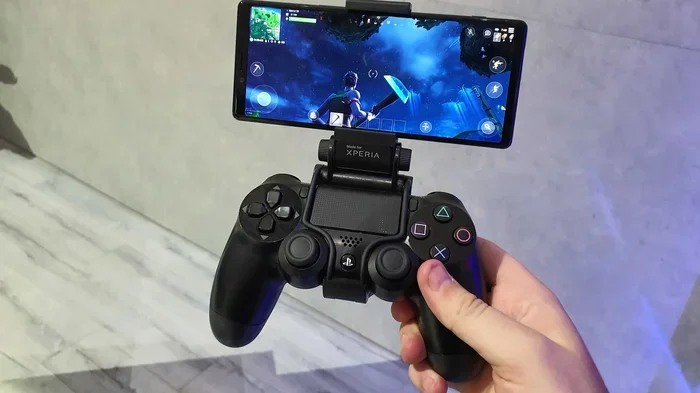
If you love gaming on the go, you already know that touchscreen controls can only get you so far. A physical controller makes a huge difference. The good news is that your PS4 DualShock 4 controller works with most Android phones. You just need to know how to set it up. In this guide, I will walk you through every method, tip, and trick you need. By the end, you will be gaming on your phone like a pro.
Connecting a wireless controller to an Android device might sound technical, but it really is not. The process involves just a few simple steps. Whether you prefer a Bluetooth connection or a USB cable link, I have you covered. Let us dive in and get your controller talking to your phone.
Key Takeaways
- Bluetooth pairing is the most common method to connect your PS4 controller to an Android phone without any extra hardware.
- A USB cable offers a stable wired connection that eliminates lag and battery drain on your controller.
- Not all Android games support external controllers, so check compatibility before you buy or connect.
- Updating your controller firmware ensures smooth pairing and fewer connection issues.
- Third-party apps like Sixaxis Force can help you map controls for games that don’t natively support controllers.
- Common issues like pairing failures are easy to fix with simple resets and troubleshooting steps.
- Your controller battery matters keep it charged for the best gaming experience on your phone.
📑 Table of Contents
- Why Connect a PS4 Controller to Your Android Phone
- What You Need Before You Start
- How to Connect Your PS4 Controller to Android via Bluetooth
- How to Connect Your PS4 Controller via USB Cable
- Best Apps and Games for Controller Gaming on Android
- Troubleshooting Common Connection Issues
- Quick Tips for the Best Gaming Experience
- Common Mistakes to Avoid
- Expert Insights on Mobile Controller Gaming
- Conclusion
Why Connect a PS4 Controller to Your Android Phone
You might wonder why you need a PS4 controller on your phone in the first place. Touch screens work for casual games. But when you want precision and comfort, nothing beats physical buttons. Here are some great reasons to make this connection.
Better Control and Precision
Analog sticks on the DualShock 4 give you much finer control than your finger on a screen. This matters a lot in racing games, shooters, and platformers. You can aim, steer, and jump with exact precision. It makes a real difference in how you play.
Comfort During Long Gaming Sessions
Playing on a phone for hours can strain your thumbs. A wireless controller lets you relax and hold a familiar shape. Your hands stay in a natural position. This means fewer cramps and more fun during long sessions.
Access to Emulator Games
Many Android users love retro gaming emulators. These apps let you play classic games from older consoles. A PS4 controller works great with emulators for SNES, N64, and PSP games. It brings the authentic feel back to old favorites.
Better Streaming Experiences
If you use apps like PS Remote Play or cloud gaming services, a controller is essential. It turns your phone into a portable gaming console. You get the full experience without buying extra hardware.
What You Need Before You Start
Before you try to pair anything, make sure you have the right setup. This section covers what you need for a smooth connection.
Compatible Android Phone
Most Android phones running version 10 or newer work with the PS4 DualShock 4 controller. Check your phone settings to confirm Bluetooth 4.0 or higher is supported. Nearly all modern phones meet this requirement. You can usually find this info in your phone settings under “About Phone.”
A Charged PS4 Controller
Make sure your controller battery has enough charge. A low battery can cause pairing problems or unexpected disconnects. Plug your controller into a USB cable and charge it for at least 30 minutes before you start. A full charge gives you several hours of playtime.
A USB Cable (For Wired Connection)
If you plan to use a wired method, you need a micro-USB cable. The DualShock 4 uses a micro-USB port, not USB-C. Make sure your cable is a data cable, not just a charging cable. A data cable allows your phone to recognize the controller properly.
Optional: Sixaxis Force App
The Sixaxis Force app is a handy tool for input mapping. It lets you customize button layouts for games that do not support controllers natively. You can download it from the Google Play Store. It is free and very easy to use.
How to Connect Your PS4 Controller to Android via Bluetooth
The Bluetooth pairing method is the most popular way to connect your controller. It is wireless, convenient, and works with most games. Follow these steps carefully for the best results.
Step 1: Put Your Controller in Pairing Mode
First, you need to put your DualShock 4 into pairing mode. Here is how you do it:
- Turn off your controller completely.
- Press and hold the PS button and the Share button at the same time.
- Keep holding both buttons for about three seconds.
- The light bar on the controller will start flashing rapidly.
- Release the buttons. Your controller is now ready to pair.
When the light bar flashes, it means the controller is discoverable. This is the same mode used for initial setup with a PS4 console.
Step 2: Enable Bluetooth on Your Android Phone
Now go to your phone and turn on Bluetooth. Follow these steps:
- Open your phone’s Settings app.
- Tap on Connected Devices or Bluetooth, depending on your phone model.
- Toggle Bluetooth to the “On” position.
- Make sure your phone is set to be discoverable by other devices.
Some Android phones have a quick toggle for Bluetooth in the notification shade. Swipe down from the top of your screen to access it quickly.
Step 3: Pair the Controller with Your Phone
Now it is time to connect the two devices:
- In your Bluetooth settings, tap Scan for Devices or Search for New Devices.
- Look for a device named Wireless Controller in the list.
- Tap on it to start the pairing process.
- Wait a few seconds for the connection to establish.
- When paired, the light bar on the controller will stop flashing and stay solid.
Once paired, your PS4 controller will automatically connect to your phone whenever Bluetooth is on and the controller is powered on. This makes future connections super quick.
Step 4: Test the Connection
After pairing, open any game or app that supports controllers. Try moving the analog sticks and pressing buttons. If everything responds correctly, you are all set. If nothing happens, do not worry. Move on to the troubleshooting section below.
How to Connect Your PS4 Controller via USB Cable
The wired USB method is a great alternative. It provides a stable connection with zero lag. This method works well if your Bluetooth pairing keeps failing.
Step-by-Step USB Connection
- Plug one end of your micro-USB cable into your PS4 controller.
- Plug the other end into your Android phone’s USB port.
- Your phone should recognize the controller within a few seconds.
- A notification may appear asking you to allow access. Tap “OK” or “Allow.”
- Open a game and test the controls to confirm they work.
The wired method is especially useful for emulator gaming. Some emulators work better with a direct USB connection than with Bluetooth. It also means you do not have to worry about battery life on your controller during play.
USB OTG Adapter for USB-C Phones
If your Android phone uses USB-C and not micro-USB, you will need a USB OTG adapter. This small adapter plugs into your phone’s USB-C port and gives you a micro-USB slot for the cable. These adapters cost just a few dollars and are widely available online.
Best Apps and Games for Controller Gaming on Android
Not every game on Android supports external controllers. Here are some of the best apps and games that work beautifully with your DualShock 4 controller.
Emulator Apps
- RetroArch — A powerful emulator that supports many classic console games and works great with the PS4 controller.
- Dolphin Emulator — Lets you play GameCube and Wii games with full controller support.
- PPSSPP — A PSP emulator that maps all buttons perfectly to the DualShock 4.
Cloud Gaming Apps
- PS Remote Play — Stream your PS4 games directly to your Android device using your controller.
- NVIDIA GeForce NOW — Cloud gaming service that supports Bluetooth controllers natively.
- Xbox Cloud Gaming — Works with the PS4 controller after you complete the pairing process.
Native Android Games with Controller Support
- Minecraft — Full controller mapping support for a better building and exploring experience.
- PUBG Mobile — Supports external controllers for a competitive edge.
- Dead Cells — A fantastic action game that plays beautifully with a physical controller.
- Hollow Knight — Another excellent game that fully supports the DualShock 4 on Android.
Troubleshooting Common Connection Issues
Sometimes things do not go as planned. Your controller might not pair, or it might disconnect randomly. Here are the most common problems and how to fix them.
Controller Not Showing Up in Bluetooth List
If your Android phone does not find the controller, try these steps:
- Make sure the controller is in pairing mode with the flashing light bar.
- Restart Bluetooth on your phone and try scanning again.
- Turn off Bluetooth on other nearby devices to avoid interference.
- Reset your controller by using a small pin to press the reset button on the back near the top.
Controller Connects but Buttons Do Not Work
This usually happens when the game does not support external controllers. In this case, try using the Sixaxis Force app to map your controls manually. Some games need specific input mapping configurations to recognize the controller properly.
Frequent Disconnections During Gameplay
If your controller keeps disconnecting, the Bluetooth signal might be weak. Move closer to your phone and avoid placing your phone in a pocket or bag during play. Also, check that your controller battery is sufficiently charged. Low battery often causes unexpected disconnects.
Lag or Input Delay
Some lag-free gaming issues come from the game itself, not the connection. Make sure your game is updated to the latest version. Close background apps on your phone to free up resources. If you are using Bluetooth, try switching to the USB wired method for a more stable experience.
Quick Tips for the Best Gaming Experience
Follow these simple tips to get the most out of your PS4 controller and Android phone setup.
- Keep your controller firmware updated — Connect it to a PS4 or PC occasionally to install the latest firmware. Updated firmware fixes bugs and improves Bluetooth connectivity.
- Use a controller cover or grip — Extended gaming sessions are more comfortable with a good grip accessory.
- Disable battery optimization for gaming apps — This prevents your phone from shutting down games in the background.
- Keep your phone close to the controller — Stay within 10 feet for the strongest Bluetooth signal.
- Map your controls before playing — Spend a few minutes in settings to set up button layouts for each game.
- Charge your controller after every session — This keeps it ready for your next gaming session without delay.
Common Mistakes to Avoid
Avoid these common pitfalls that many people run into when setting up their PS4 controller on Android.
- Using a charging-only USB cable — This will not transfer data. You need a data-capable cable for wired connections.
- Forgetting to put the controller in pairing mode — The light bar must be flashing for your phone to detect it.
- Ignoring controller battery levels — A dead controller will not connect, no matter what you do.
- Assuming all games support controllers — Always check game settings or descriptions for controller compatibility.
- Not updating your phone’s software — Older Android versions may have Bluetooth compatibility issues with the DualShock 4.
- Skipping the reset step — When in doubt, a hard reset on the controller solves most stubborn pairing problems.
Expert Insights on Mobile Controller Gaming
Mobile gaming has grown massively in recent years. More players want the console experience on their phones. The PS4 DualShock 4 controller remains one of the best options for Android gaming. It offers a comfortable design, responsive buttons, and reliable Bluetooth connectivity. According to gaming experts, the key to a great experience is making sure your devices are compatible and up to date. Taking a few minutes to configure input mapping before you play can save you frustration later. Also, keep in mind that cloud gaming services are the future of mobile gaming, and a physical controller elevates those experiences significantly.
Many Android device users do not realize how easy it is to set up a wireless controller. Once you pair it once, your phone remembers the connection. Future pairings take just seconds. This convenience is why so many gamers prefer using their PS4 controller over touch controls. It transforms your phone into a portable gaming machine that feels just like a console.
Conclusion
Connecting your PS4 controller to your Android phone opens up a whole new world of mobile gaming. Whether you choose the Bluetooth wireless method or the USB wired method, the process is straightforward and rewarding. You get better controls, more comfort, and access to a wider library of games. Follow the steps in this guide, and you will be up and running in no time. Do not let touchscreen controls hold you back anymore. Set up your DualShock 4 controller today and enjoy lag-free gaming right from your pocket. The best part is that once you make the connection, you never have to do it again unless you reset your devices.
Now grab your controller, charge it up, and start gaming. Your Android phone is ready to be your next gaming console.
Frequently Asked Questions
Can I connect my PS4 controller to any Android phone?
Most Android phones running version 10 or newer can connect to a PS4 DualShock 4 controller. Your phone needs to support Bluetooth 4.0 or higher. Nearly all modern Android devices meet this requirement. Check your phone settings to confirm compatibility before you try pairing.
Why won’t my PS4 controller show up in my Android Bluetooth list?
This usually means the controller is not in pairing mode. Press and hold the PS button and Share button together until the light bar flashes. Also make sure your controller has enough battery. If it still does not appear, reset the controller using the small reset button on the back.
Do I need to buy any extra apps to use my PS4 controller on Android?
No, you do not need any extra apps for basic Bluetooth pairing. However, apps like Sixaxis Force can help you customize button mappings for games that do not natively support controllers. Emulator apps like RetroArch may also need separate configuration for full controller support.
Is Bluetooth or USB better for connecting my PS4 controller to Android?
Bluetooth offers wireless freedom and convenience, while USB provides a stable, lag-free connection. If you experience input delay or frequent disconnects, try switching to the wired USB method. For most casual gaming, Bluetooth works perfectly fine and is the more popular choice.
How long does the PS4 controller battery last when connected to an Android phone?
A fully charged DualShock 4 controller typically lasts between four and eight hours depending on usage. Bluetooth connections use more battery than wired connections. To extend playtime, keep your controller charged and consider using the USB wired method for longer gaming sessions.
Can I use my PS4 controller with cloud gaming apps on Android?
Yes, the PS4 controller works well with cloud gaming apps like PS Remote Play and NVIDIA GeForce NOW. These apps support external controllers natively after you complete the pairing process. Just make sure you have a stable internet connection for the best streaming experience.