How Do I Forward Photos From iPhone to Laptop the Easy Way
Discover the simplest ways to forward photos from iPhone to laptop with this complete guide. You’ll learn how to transfer photos from iPhone to laptop using a USB cable, AirDrop, iCloud, email, and cloud services. No tech skills needed—just follow these easy steps to get your pictures onto your computer in minutes.
Ever found yourself staring at a wall of amazing photos on your iPhone, wishing you could see them on a bigger screen? Maybe you want to edit them on your laptop, share them with friends, or just free up space on your phone. How do I forward photos from iPhone to laptop is a question many people ask every day. The good news is that you have more options than ever before, and most of them are incredibly simple.
Whether you use a Windows PC or a Mac, you can move your pictures in just a few minutes. You can plug in a cable, use a wireless feature like AirDrop, or even send photos through the cloud. This guide walks you through every method step by step. You’ll learn the fastest way to transfer photos from iPhone to laptop, the easiest wireless options, and a few tricks to keep your photos safe.
By the time you finish reading, you’ll know exactly which method works best for you. No more guessing, no more frustrating software. Just clear, practical steps you can follow right now.
Key Takeaways
- USB Cable is Fastest: Plug your iPhone into your laptop with a cable for the quickest and most reliable transfer.
- AirDrop Works Instantly: If you have a Mac, AirDrop sends photos wirelessly in seconds without any cables.
- iCloud Syncs Automatically: Enable iCloud Photo Library to have your photos appear on both your iPhone and laptop.
- Email and Cloud Services Help: Use Google Drive, Dropbox, or OneDrive to send photos when you don’t have a cable.
- Third-Party Apps Offer Flexibility: Apps like EaseUS MobiMover make iPhone to laptop transfers simple and wireless.
- Avoid Common Mistakes: Always keep originals safe, use stable connections, and check file formats before transferring.
📑 Table of Contents
- Why You Need to Know How to Forward Photos From iPhone to Laptop
- The Easiest Way to Transfer Photos Using a USB Cable
- Wireless Options: AirDrop and iCloud Photo Sharing
- How to Send Photos From iPhone to Laptop via Email or Cloud Services
- Using Third-Party Apps for iPhone to Laptop Photo Transfer
- Common Mistakes to Avoid When Transferring Photos
- Conclusion
Why You Need to Know How to Forward Photos From iPhone to Laptop
Your iPhone is a powerful camera. You take hundreds of photos every month. But your phone’s storage fills up fast. You might want to back them up, edit them, or just see them on a larger screen. When photos stay trapped on your iPhone, you miss out on the full picture experience. Transferring photos from iPhone to laptop solves this problem. It gives you room to breathe on your phone and opens up new ways to use your images.
Moving your photos to a laptop isn’t just about storage. It’s about photo management. You can sort, edit, and create albums with more ease on a computer. You can also share entire folders with family or clients. Whether you’re a casual user or a content creator, knowing how to send photos from iPhone to PC or Mac keeps your memories safe and accessible.
The Frustration of Stuck Photos
When photos pile up, your iPhone slows down. You can’t take new pictures until you free space. Backing up to a laptop solves this. It also protects your memories if your phone is lost or damaged. A simple iPhone photo transfer routine keeps everything organized and safe.
Why Transfer Matters
Think of your laptop as a photo library. You can use professional editing software, create slideshows, or print high-quality copies. All of this starts with moving the files from your phone. File sharing between devices is the foundation of modern photo management.
The Easiest Way to Transfer Photos Using a USB Cable
A USB cable is the most reliable method. It doesn’t need Wi-Fi, and it works with any laptop. You just need a Lightning or USB-C cable, depending on your iPhone model. This method is perfect when you have a lot of photos to move quickly.
What You’ll Need
- Your iPhone’s charging cable
- Your laptop (Windows or Mac)
- Trust this computer when prompted on your iPhone
Step-by-Step for Windows
Plug your iPhone into your Windows laptop. Unlock your phone and tap Trust. Open the Photos app on your laptop. Click Import. Select the photos you want. Choose a folder to save them. Click Import again. Your photos will copy over in seconds. This is the fastest way to transfer photos from iPhone to laptop when you have a cable.
Step-by-Step for Mac
On a Mac, you can use the Photos app or Finder. Connect your iPhone with a cable. Open Finder (macOS Catalina and later). Click on your iPhone under Locations. Go to the Photos tab. Check Sync Photos. Choose the album or folder. Click Apply. Your Mac will import the selected photos. You can also use the Image Capture app for more control.
Quick Tip: If you use iCloud, make sure you turn off iCloud Photo Library temporarily to avoid duplicates. This keeps your iPhone to laptop transfer clean.
Wireless Options: AirDrop and iCloud Photo Sharing
Not everyone wants to deal with cables. Wireless methods are convenient and fast. AirDrop is the gold standard for iPhone and Mac users. iCloud works for both Mac and Windows laptops. Let’s look at each.
How AirDrop Works Between iPhone and Mac
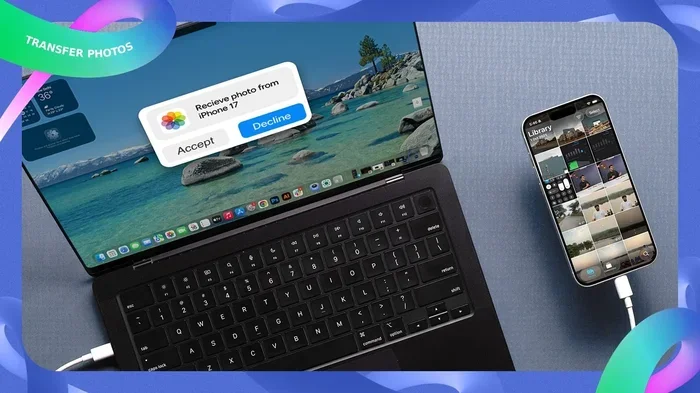
AirDrop uses Bluetooth and Wi-Fi to send files directly between devices. It’s instant and secure. Make sure both devices have Wi-Fi and Bluetooth turned on. On your iPhone, open the Photos app. Tap Select. Choose the photos you want. Tap the Share icon. Tap AirDrop. Choose your Mac from the list. Your Mac will accept the transfer. The photos save directly to your Downloads folder. This is one of the best iPhone photo transfer methods for Apple users.
Using iCloud Photo Library to Sync Photos
iCloud Photo Library keeps your photos in the cloud. They appear on all your devices. To set this up, go to Settings on your iPhone. Tap your name. Tap iCloud. Tap Photos. Turn on Sync This iPhone. On your Mac, open Photos and sign in with the same Apple ID. On a Windows laptop, download iCloud for Windows. Sign in and check Photos. Your photos will sync automatically. This method is perfect for ongoing photo management. You don’t have to think about it once it’s set up.
Setting Up iCloud on Windows
If you use a Windows laptop, iCloud for Windows makes it easy. Install the app from the Microsoft Store. Sign in with your Apple ID. Check the Photos option. Your iPhone photos will appear in a folder on your PC. You can then move them wherever you like. This is a great way to send photos from iPhone to PC without cables or third-party apps.
Expert Insight: iCloud syncs in the background. You can set it to use Wi-Fi only to save mobile data. This makes it ideal for automatic photo management without any effort.
Quick Tips for Wireless Transfers
- Keep both devices awake during AirDrop
- Use a strong Wi-Fi signal for iCloud syncs
- Turn off Low Power Mode on your iPhone
- Check that both devices have enough storage
How to Send Photos From iPhone to Laptop via Email or Cloud Services
Sometimes you don’t have a cable or a Wi-Fi connection handy. Email and cloud services come to the rescue. They’re simple and work with any laptop.
Emailing Photos the Simple Way
Open the Photos app on your iPhone. Tap Select. Choose the photos you want to send. Tap the Share icon. Tap Mail. Type your email address. Send the message. Open that email on your laptop. Download the photos. This method is great for a few pictures at a time. Keep in mind that email providers limit attachment sizes. If you have more than a few photos, use a cloud service instead.
Using Google Drive or Dropbox
Google Drive and Dropbox are excellent for larger batches. Install the app on your iPhone. Upload your photos to a folder. On your laptop, open the same app or go to the website. Download the photos. Google Drive gives you 15 GB free. Dropbox gives you 2 GB free. Both are reliable cloud storage options. They make file sharing simple and fast.
OneDrive for Windows Users
If you use a Windows laptop, OneDrive is built right in. Open the OneDrive app on your iPhone. Upload your photos. They’ll appear in your OneDrive folder on your PC. You can then copy them to your desired location. OneDrive integrates smoothly with Windows, making it a natural choice for iPhone to laptop transfers.
Using Third-Party Apps for iPhone to Laptop Photo Transfer
If you want more control or need to transfer photos regularly, third-party apps can help. They often offer extra features like batch transfers, backups, and format conversion.
Top Apps for Wireless Transfers
Apps like EaseUS MobiMover and AnyTrans let you connect your iPhone to your laptop via Wi-Fi or USB. They provide a simple interface to select and copy photos. Many of these apps also let you manage contacts, messages, and other files. They’re handy if you do iPhone photo transfer tasks often.
How to Choose the Right App
Look for apps that are compatible with your laptop’s operating system. Check user reviews. Make sure the app doesn’t compress your photos. A good app preserves the original quality. Always download software from the official website to avoid security risks. These tools are especially useful for photo management on a larger scale.
Common Mistakes to Avoid When Transferring Photos
Even simple tasks can go wrong if you’re not careful. Here are a few pitfalls to watch out for.
Forgetting to Back Up Original Photos
Always keep a backup of your original photos before you move them. If something goes wrong during the transfer, you don’t want to lose your memories. Use iCloud or another backup service to be safe.
Using Slow Wi-Fi for Large Transfers
If you choose a wireless method, make sure your Wi-Fi is strong. A weak signal can slow things down or cause errors. For large batches, a USB cable is more reliable than Wi-Fi.
Ignoring File Formats
iPhone photos are usually HEIC files. Some older laptops might not support HEIC. You can change your iPhone camera settings to capture photos as JPEG instead. This ensures compatibility with any device. Check your photo management settings to avoid surprises.
Transferring Without Organizing
Don’t just dump all your photos into one folder. Create folders by date, event, or subject. This makes it easier to find photos later. Good file sharing habits save you time in the long run.
Conclusion
Now you know how do I forward photos from iPhone to laptop the easy way. You can use a USB cable for speed, AirDrop for instant Mac transfers, iCloud for automatic syncing, or email and cloud services for quick sharing. Each method has its place, and you can pick the one that fits your needs. Transferring photos from iPhone to laptop doesn’t have to be complicated. With the right approach, you’ll have your pictures on your computer in no time. Try the method that works best for you, and enjoy your photos on the big screen.
Frequently Asked Questions
Can I transfer photos from iPhone to laptop without a cable?
Yes, you can use AirDrop if you have a Mac, or iCloud Photo Library to sync wirelessly. You can also use cloud services like Google Drive or Dropbox to upload from your iPhone and download on your laptop. These methods work without any cables.
Is AirDrop available on Windows?
No, AirDrop is an Apple feature and only works between iPhones, iPads, and Macs. If you use a Windows laptop, you’ll need to use iCloud for Windows, a USB cable, or a third-party app to transfer photos.
How do I forward multiple photos at once?
On your iPhone, open the Photos app and tap Select. Tap on each photo you want to move. Then tap the Share icon and choose your transfer method. For a USB cable, you can import all selected photos at once using the Windows Photos app or Mac’s Image Capture.
What’s the best way to send large photo files?
For large files, a USB cable is the fastest and most reliable. If you need to send them wirelessly, use a cloud service like Google Drive or Dropbox. These services handle large uploads and downloads without compressing your photos.
Can I use iCloud to forward photos from iPhone to laptop?
Yes, iCloud Photo Library syncs your photos across all devices signed in with the same Apple ID. On a Mac, they appear in the Photos app. On a Windows laptop, iCloud for Windows puts them in a folder. This is one of the easiest ways to keep your photos updated on both devices.
Will transferring photos delete them from my iPhone?
No, transferring photos does not delete them from your iPhone by default. You are simply copying the files. If you want to free up space, you can delete the photos from your iPhone after confirming they are safely on your laptop. Always double-check before deleting.