How Do I Download Netflix for Offline Viewing on Any Device
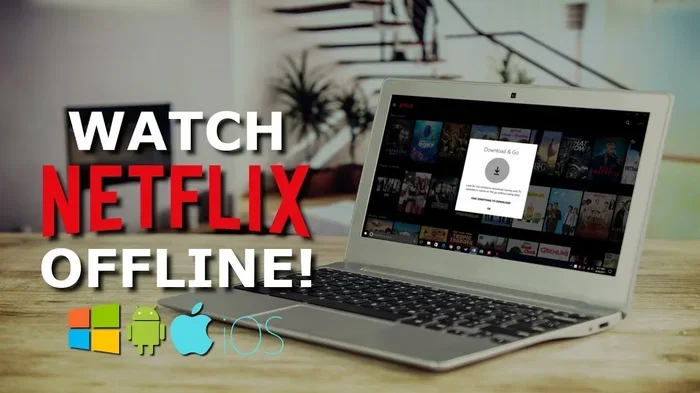
Learning how do I download Netflix is easy once you know the right steps for your device. This guide covers downloading Netflix on phones, tablets, laptops, and streaming devices like Firestick. You will also learn how to manage downloads, fix common issues, and maximize your offline viewing experience.
Have you ever been on a long flight or a road trip and wished you could watch your favorite shows without Wi-Fi? Learning how do I download Netflix solves that problem in minutes. With just a few taps, you can save movies and series to your device and enjoy them anytime, anywhere. This guide walks you through every step, from setting up your account to managing your downloads like a pro.
Whether you use an iPhone, Android phone, laptop, or even a Firestick, the process is simpler than you think. We will cover each device in detail. You will also discover tips on storage, download limits, and how to fix common problems. By the end, you will be fully equipped to watch Netflix offline wherever life takes you.
Key Takeaways
- Netflix offline viewing works on phones, tablets, laptops, and select streaming devices.
- You need an active Netflix subscription to download content.
- Download quality settings let you save storage space or get better picture quality.
- Netflix downloads expire after a set period, so you must reconnect to Wi-Fi regularly.
- You can store up to 100 downloads per device, depending on your plan.
- Common download issues can be fixed with simple troubleshooting steps.
- Not all Netflix content is available for download due to licensing restrictions.
📑 Table of Contents
- What You Need to Download Netflix Offline
- How to Download Netflix on Mobile Devices
- How to Download Netflix on Computers and Laptops
- How to Download Netflix on Streaming Devices
- Managing Your Netflix Downloads
- Troubleshooting Common Netflix Download Issues
- Expert Tips for the Best Offline Netflix Experience
- Conclusion
What You Need to Download Netflix Offline
Before you start, make sure you have everything in place. The setup is quick and straightforward. Here is what you need before you begin downloading Netflix movies and shows.
An Active Netflix Subscription
First and foremost, you need a working Netflix account. Netflix offline viewing is not available on free plans. You must subscribe to a paid plan. All standard and premium plans support downloads. The basic plan also allows downloads but with some limits on screen usage.
A Compatible Device
Netflix downloads work on a wide range of devices. Here are the most popular ones that support Netflix app download:
- Android phones and tablets
- iPhones and iPads
- Windows laptops and desktops
- Mac computers
- Amazon Fire TV and Firestick
- Select Android TVs and smart TVs
A Stable Wi-Fi Connection
You need Wi-Fi to download content. Download Netflix movies can take up significant data if you are not on Wi-Fi. We strongly recommend using a home network or a reliable public Wi-Fi connection. Large downloads like full seasons can take 30 minutes to several hours depending on your speed.
Enough Storage Space
Each download uses between 150 MB and 3 GB of storage. A full season of a show can eat up several gigabytes. Before you start, check your device storage. Free up space by deleting old downloads you have already watched. This keeps your Netflix download storage manageable.
How to Download Netflix on Mobile Devices
Mobile devices are the most popular choice for Netflix download on phone and tablet. The process is fast and user-friendly. Follow these steps for both Android and iPhone devices.
Downloading Netflix on Android
If you use an Android device, here is exactly how to get started with Netflix download on Android:
- Open the Google Play Store on your phone.
- Search for the Netflix app.
- Tap Install and wait for the app to download.
- Open the app and sign in to your Netflix account.
- Find the movie or show you want to save.
- Tap the Download icon, which looks like a downward arrow.
- Choose your preferred video quality.
- Wait for the download to finish.
Once the download completes, you will find it in the Downloads section of the app. You can now watch Netflix without internet anytime. The download icon will appear next to the title to confirm it is saved.
Downloading Netflix on iPhone and iPad
iPhone and iPad users follow a very similar process for Netflix download on iPhone:
- Open the App Store on your iOS device.
- Search for Netflix.
- Tap Get to install the app.
- Sign in with your Netflix credentials.
- Browse to the show or movie you want.
- Tap the Download button on the title page.
- Select your preferred download quality.
- Wait for the progress bar to complete.
iOS devices handle Netflix downloads smoothly. The app manages storage automatically. However, you can still check your available space in your iPhone settings. Netflix download on tablet works the same way on iPads. Just make sure you have enough room for the content you want to save.
Quick Tips for Mobile Downloads
Here are some helpful tips to make your mobile downloads better:
- Use Wi-Fi always. Mobile data downloads can cost you a lot of data allowance.
- Lower the quality for more titles. Standard quality uses less storage than High or Ultra.
- Download overnight. Large files finish faster when your phone is charging and not in use.
- Check storage regularly. Delete watched downloads to free up space for new ones.
- Use the Downloads tab. This is your hub for all saved content on the Netflix app.
How to Download Netflix on Computers and Laptops
Watching Netflix offline on a laptop is incredibly useful for travel or commutes. Netflix download on laptop and Netflix download on PC require a slightly different approach than mobile devices. Let us walk through it.
Using the Netflix App on Windows
Windows users can download the Netflix app from the Microsoft Store. Here is how to set up Netflix download on PC:
- Open the Microsoft Store on your Windows computer.
- Search for Netflix.
- Click Get or Install.
- Launch the app and sign in.
- Find the content you want to save.
- Click the Download icon on the title or episode page.
- Choose your download quality preference.
- Wait for the download to complete.
The Netflix app for Windows works just like the mobile version. Your downloads are stored within the app. You can access them from the Downloads section anytime. This method is great for people who prefer a larger screen for offline viewing.
Using Netflix on Mac Computers
Mac users can access Netflix through the browser or the Netflix desktop app. Currently, the browser version of Netflix does not support downloads. You need the dedicated desktop app for Netflix download on Mac. The app is available through the Mac App Store. Once installed, the download process mirrors what we described above for Windows.
Download Quality Settings for Computers
Computers offer more storage than phones, so you can afford higher quality downloads. Here is a quick comparison of Netflix download quality settings:
| Quality Setting | Space Used Per Hour | Best For |
|---|---|---|
| Standard | ~300 MB | Saving storage space |
| High | ~700 MB | Balanced quality and size |
| Ultra (where supported) | ~1.5 GB | Best picture quality |
Choose based on your storage needs. If you have limited space, stick with Standard. If you want the best experience, go with High or Ultra. Remember that download Netflix movies in higher quality means fewer titles fit on your device.
How to Download Netflix on Streaming Devices
Streaming devices like Firestick and smart TVs are not traditional download devices, but they do support Netflix downloads in some cases. Let us look at how Netflix download on Firestick and other devices work.
Downloading Netflix on Amazon Firestick
Amazon Firestick users can download the Netflix app and save content for offline viewing. Here is how:
- Go to the Appstore on your Firestick.
- Search for Netflix and install it.
- Sign in to your Netflix account.
- Navigate to the title you want to save.
- Select the Download option.
- Choose your preferred quality.
- Wait for the download to finish.
Netflix download on Firestick is handy for travel. You do not need Wi-Fi at your hotel or cabin. Just make sure your Firestick has enough internal storage. Most Firestick models have limited space, so manage your downloads carefully.
Smart TVs and Android TVs
Some smart TVs and Android TVs support Netflix downloads directly. Check your TV’s Netflix app for a Download option. Not all smart TV models support this feature. If your TV does not have a Downloads section, you will need to use a mobile device or laptop instead.
Managing Downloads on Streaming Devices
Streaming devices often have limited storage. Here are some tips:
- Delete watched downloads immediately to free space.
- Download only one or two titles at a time.
- Use Standard quality to save storage.
- Check available storage in your device settings regularly.
Managing Your Netflix Downloads
Once you start downloading Netflix content, you need to manage it wisely. Netflix download limit and expiration rules are important to understand. This section covers everything you need to know about managing your offline library.
Netflix Download Limits
Netflix sets limits on how many downloads you can have at once. Here is what you need to know:
- Most plans allow up to 100 downloads per device.
- You can download individual episodes or entire series.
- Some titles have a limit on how many times you can download them.
- Downloads are tied to your device, not your account.
If you hit the Netflix download limit, you need to delete some downloads before adding new ones. This is a common frustration for heavy users. Keep your download list tidy to avoid running into this issue.
Download Expiration Rules
Netflix downloads do not last forever. Here are the expiration rules:
- Most downloads expire after 48 hours once you start playing them.
- Some titles expire after 7 or 30 days if you do not start watching.
- You can renew expired downloads by connecting to Wi-Fi and tapping Renew.
- Content removed from Netflix cannot be renewed once expired.
Always check the expiration date before a trip. You do not want to be mid-movie and find your download has Netflix download expired. To avoid this, reconnect to Wi-Fi every few days and let Netflix refresh your downloads.
How to Delete Downloads
Deleting downloads frees up valuable storage space. Here is how:
- Open the Netflix app on your device.
- Go to the Downloads section.
- Find the title you want to remove.
- Tap the Delete icon or option.
- Confirm the deletion.
You can delete individual episodes or entire series. Some users prefer to delete episodes they have already watched. This keeps their Netflix download storage available for new content.
Transferring Downloads Between Devices
Netflix downloads are locked to the device they were downloaded on. You cannot transfer a download from your phone to your laptop directly. If you switch devices, you need to re-download the content. Always keep this in mind when managing your offline library across multiple devices.
Troubleshooting Common Netflix Download Issues
Sometimes downloads do not work as expected. Netflix download troubleshooting is easier than you think. Here are the most common problems and how to fix them.
Downloads Not Starting
If your Netflix download not working, try these fixes:
- Check your Wi-Fi connection and make sure it is stable.
- Restart the Netflix app completely.
- Clear the app cache in your device settings.
- Make sure you have enough free storage space.
- Update the Netflix app to the latest version.
- Sign out and sign back into your Netflix account.
Most download issues are caused by a weak Wi-Fi signal or low storage. Fixing either of these usually solves the problem immediately.
Downloads Pausing or Stuck
If a download stalls halfway through:
- Pause the download and resume it.
- Switch to a stronger Wi-Fi network.
- Restart your device.
- Check if Netflix is experiencing server issues.
- Lower the download quality setting.
Netflix download manager features within the app handle most of the heavy lifting. But sometimes a manual restart is all it takes to get things moving again.
Playback Issues After Download
If a downloaded title will not play:
- Check if the download is complete.
- Delete the download and re-download it.
- Make sure your app is updated.
- Restart your device.
- Check if the content has been removed from Netflix.
Storage Full Errors
Running out of space is one of the most common problems. Here is how to fix it:
- Delete old or watched downloads.
- Move downloads to an external SD card (on supported Android devices).
- Lower the download quality to Standard.
- Use the Netflix storage management tool within the app.
Keeping your storage organized prevents most issues. Make it a habit to review your downloads every week or two.
Content Not Available for Download
Not every title on Netflix can be downloaded. Licensing agreements restrict some content. If you do not see a Download button, the title is likely not available for offline viewing. This applies to certain movies, documentaries, and licensed content. Always check before assuming a title is downloadable.
Expert Tips for the Best Offline Netflix Experience
Want to get the most out of Netflix offline viewing? Here are some expert-level tips that make a big difference.
Plan Your Downloads Before Travel
Before any trip, spend 10 minutes downloading your favorite shows. Download full seasons of series you are binge-watching. This way, you have plenty of content ready even if your Wi-Fi is spotty during travel.
Use Standard Quality for Maximum Savings
Standard quality downloads use the least storage. You can fit many more titles on your device. Save High or Ultra quality for movies you really want to enjoy on a big screen.
Set Up Downloads on Wi-Fi Only
Go to your Netflix app settings and enable Wi-Fi-only downloads. This prevents accidental mobile data usage. It also ensures your downloads are fast and reliable.
Keep Your App Updated
Netflix regularly updates its app to fix bugs and improve download performance. Always install the latest version. Updated apps also support the newest download features.
Monitor Your Download Expiry Dates
Check your Downloads section regularly. Renew titles before they expire. This is especially important for content you plan to watch on a specific trip or during a period without reliable internet.
Use Multiple Devices Strategically
If you have a phone, tablet, and laptop, spread your downloads across them. This gives you more total storage and more variety to choose from. Just remember that downloads do not transfer between devices automatically.
Conclusion
Learning how do I download Netflix opens up a world of entertainment without needing an internet connection. From mobile phones to laptops and Firestick devices, the process is simple and consistent across platforms. You just need an active Netflix subscription, a compatible device, and a good Wi-Fi connection to get started.
Managing your downloads wisely ensures you always have content to enjoy. Pay attention to storage limits, download caps, and expiration dates. Delete watched titles to make room for new ones. Use the troubleshooting tips we shared to quickly fix any issues that come up.
Offline viewing has become an essential feature for Netflix users. Whether you are traveling, commuting, or simply in an area with poor connectivity, your downloaded content has you covered. Start downloading today and never miss an episode again. With the right setup and a little planning, your entire Netflix library can travel with you wherever you go.
Frequently Asked Questions
Can I download Netflix without a subscription?
No, you need an active paid Netflix subscription to download content. Free plans and trial accounts do not support offline downloads. All standard, premium, and basic plans include download features.
How many movies can I download on Netflix?
You can download up to 100 titles per device at a time. However, some titles have download limits set by the content owner. Always check the individual title for any download restrictions before saving it.
Why can’t I find the Download button on Netflix?
The Download button is missing when a title is not available for offline viewing. This happens due to licensing restrictions. Some movies, documentaries, and licensed content cannot be downloaded. Try a different title or check Netflix’s help center for specific availability.
How long do Netflix downloads last?
Most downloads expire 48 hours after you start watching them. If you do not start playing, some titles last 7 to 30 days. You can renew downloads by connecting to Wi-Fi and tapping the Renew button in the app.
Can I download Netflix on multiple devices?
Yes, you can download Netflix content on up to two devices at the same time with a standard plan. Premium plan users can download on four devices. Remember that downloads are tied to each specific device and cannot be transferred between them.
What should I do if my Netflix download is stuck?
First, check your Wi-Fi connection and restart the Netflix app. If that does not work, delete the stuck download and try again. Lowering the download quality can also help. Make sure your Netflix app is updated to the latest version for the best performance.