How Do I Get Google Chrome On My Mac Step By Step Guide
How Do I Get Google Chrome On My Mac is an essential topic that provides valuable insights.
Key Takeaways
- Understanding How Do I Get Google Chrome On My Mac: Provides essential knowledge
📑 Table of Contents
- What Is Google Chrome and Why Use It on Mac?
- System Requirements for Google Chrome on Mac
- How to Download Google Chrome on Your Mac
- How to Install Google Chrome on Mac
- Setting Up Google Chrome After Installation
- Tips to Get the Most Out of Google Chrome on Mac
- Quick Tips for Chrome on Mac
- Common Mistakes to Avoid When Installing Chrome on Mac
- Expert Insights on Using Chrome on Mac
- Key Takeaways
What Is Google Chrome and Why Use It on Mac?
Google Chrome is a free web browser made by Google. It was first released in 2008 and has grown to become the most used browser worldwide. Chrome is known for being fast, simple, and reliable. It works on Windows, Mac, Linux, and even mobile devices. On a Mac, Chrome gives you a different browsing experience than Safari. It comes with its own set of tools, extensions, and customization options.
So why should you consider using Chrome for macOS? There are several great reasons:
- Speed: Chrome loads web pages quickly and handles heavy sites with ease.
- Extensions: The Chrome Web Store has thousands of free add-ons for productivity, security, and fun.
- Sync Across Devices: You can sign in on your Mac, phone, and tablet, and everything stays connected.
- Google Integration: Chrome works seamlessly with Gmail, Google Drive, YouTube, and other Google services.
- Regular Updates: Google pushes frequent updates to keep Chrome secure and fast.
Many Mac users prefer Chrome browser for Mac because it offers more flexibility than Safari. You can customize your homepage, manage bookmarks easily, and use powerful developer tools. If you are someone who spends a lot of time online, Chrome can make your life much easier.
Chrome vs Safari on Mac
You might be wondering how Chrome compares to Safari. Both are excellent browsers, but they serve different needs. Safari is built by Apple and is optimized for macOS. It uses less battery and integrates well with Apple services. Chrome, on the other hand, offers a wider range of extensions and works better if you use Google services daily. Here is a quick comparison:
- Speed: Both are fast, but Chrome handles complex web apps better.
- Battery Life: Safari is more battery-friendly on MacBooks.
- Extensions: Chrome has a much larger extension library.
- Cross-Device Sync: Chrome syncs across all platforms, not just Apple devices.
- Privacy: Safari has strong built-in privacy features, while Chrome offers more customization options.
Neither browser is better overall. It depends on what you value most. If you want power and flexibility, Google Chrome is a fantastic choice for your Mac.
System Requirements for Google Chrome on Mac
Before you download Google Chrome, you need to make sure your Mac meets the basic requirements. The good news is that Chrome runs on most modern Macs. You do not need a powerful machine to use it. Here are the system requirements for Chrome on Mac:
- Operating System: macOS 10.15 (Catalina) or later. Chrome also supports older versions like macOS 10.13 (High Sierra) and 10.14 (Mojave), but support may end soon.
- Processor: Any Intel or Apple Silicon (M1/M2/M3) chip. Chrome runs natively on both.
- RAM: At least 4 GB of memory is recommended. 8 GB or more is ideal for smooth performance.
- Storage: You need about 300 MB of free disk space for the installation.
- Internet Connection: A stable internet connection is required to download and update Chrome.
Most Macs made after 2015 will run Chrome without any issues. If you have a newer MacBook with an M1, M2, or M3 chip, Chrome will run even better. Chrome for macOS is optimized for Apple Silicon, so you get great performance and battery life. You can check your Mac model by clicking the Apple logo in the top left corner and selecting About This Mac.
Is Your Mac Compatible?
Not sure if your Mac can run Chrome? Here is a quick way to check. Click the Apple menu in the top left corner of your screen. Select About This Mac. Look at the macOS version and the processor type. If your Mac is running macOS 10.15 or newer, you are good to go. Even if you are on an older version, you might still be able to install Chrome, but you should update your Mac first for the best security and performance.
How to Download Google Chrome on Your Mac
Downloading Google Chrome on a Mac is simple and only takes a couple of minutes. There are two main ways to do it. You can download it directly from Google’s website, or you can use the Mac App Store. Both methods are safe and straightforward. Let us look at each one.
Method 1: Download from Google’s Official Website
This is the most popular way to get Chrome on your Mac. Here is how to do it:
- Open your current web browser. You can use Safari, Firefox, or any browser you already have.
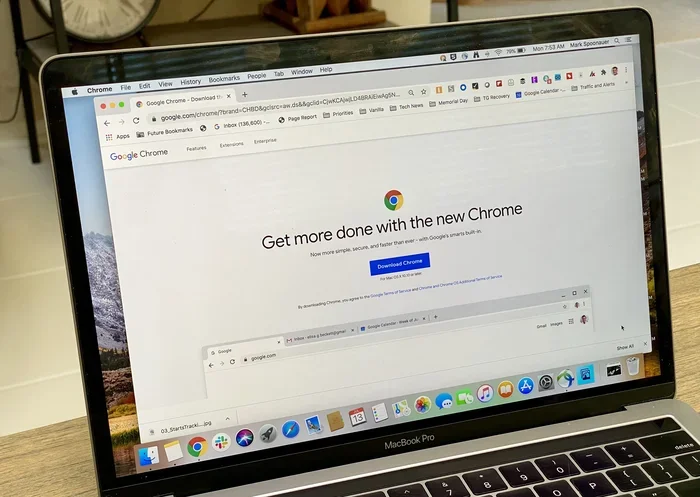
- Go to chrome.google.com. This is the official Google Chrome download page.
- Click the Download Chrome button. It is usually a large blue button right on the page.
- Read the terms of service and click Accept and Install.
- Choose the download type. For Mac, select the option for macOS.
- Wait for the download to finish. The file is usually about 80 to 100 MB.
Once the download is complete, you will see a file called something like googlechrome.dmg in your Downloads folder. Double-click this file to start the installation process.
Method 2: Download from the Mac App Store
You can also get Chrome from the Mac App Store. This method is convenient if you like managing all your apps from one place. Here is what to do:
- Open the App Store on your Mac. You can find it in your Dock or by searching in Spotlight.
- Click the Search tab at the top of the App Store window.
- Type Google Chrome in the search bar and press Enter.
- Look for the official Google Chrome app in the results.
- Click Get to download and install it.
The Mac App Store version of Chrome is exactly the same as the one from Google’s website. It is just a more convenient way to download if you prefer using the App Store. Both methods give you the latest version of Chrome for Mac.
Which Method Should You Choose?
Both methods work perfectly. The main difference is convenience. If you already have a browser open and want to get started quickly, downloading from Google’s website is faster. If you like keeping all your apps organized in the App Store, that method works great too. Either way, you will end up with the same Google Chrome app on your Mac.
How to Install Google Chrome on Mac
After downloading Chrome, the next step is installation. This process is quick and requires just a few clicks. Here is exactly what to do:
- Locate the downloaded file. Open your Downloads folder and find the Chrome file (googlechrome.dmg).
- Double-click the file. This will open a new window showing the Chrome icon and an arrow pointing to the Applications folder.
- Drag Chrome to Applications. Click and hold the Chrome icon, then drag it into the Applications folder. This copies the app to your Mac.
- Eject the disk image. Once the copy is done, right-click the disk image file and select Eject.
- Open Chrome. Go to your Applications folder and double-click Google Chrome. It will open for the first time.
During the first launch, Chrome will ask you to set it as your default browser. You can choose yes or no. It will also ask if you want to send usage statistics and crash reports to Google. You can accept or decline these options. They do not affect how Chrome works.
Common Installation Issues and Fixes
Sometimes things do not go smoothly. Here are a few common issues and how to fix them:
- Chrome will not open: Go to System Settings, then Privacy & Security. Look for a message about Chrome being blocked. Click Open Anyway.
- Download keeps failing: Check your internet connection. Try downloading again from a different browser.
- Chrome says it is already installed: Delete the old version from Applications and download a fresh copy.
- Security warning appears: This is normal for apps downloaded outside the App Store. Click Open to proceed.
If you run into any other problems, you can visit Google’s support page for help. The Chrome browser installation process is designed to be as simple as possible, so most people do not encounter issues.
Setting Up Google Chrome After Installation
Now that Chrome is installed, it is time to set it up. The first time you open Chrome, it will walk you through a quick setup wizard. This is where you make Chrome feel like yours. Here is what to expect and how to get the best experience.
Sign In and Sync Your Data
One of the best features of Google Chrome is sync. When you sign in with your Google account, Chrome saves your bookmarks, passwords, history, and settings across all your devices. This means you can start browsing on your Mac and pick up right where you left off on your phone or tablet.
To sign in, click the Profile icon in the top right corner of Chrome. Select Sign In to Chrome. Enter your Google email and password. Once signed in, you can choose what to sync. You can sync passwords, bookmarks, history, and even open tabs from other devices.
Customize Your Chrome Settings
Chrome is highly customizable. You can change the homepage, set up your favorite search engine, and adjust privacy settings. Here are some settings worth checking out:
- Homepage: Go to Settings and set your preferred homepage. You can make it Google, a news site, or any page you like.
- Default Search Engine: Chrome defaults to Google, but you can change it to Bing, DuckDuckGo, or others.
- Privacy Settings: Go to Settings Privacy and Security to control cookies, site permissions, and safe browsing.
- Startup Settings: Choose what happens when you open Chrome. You can open a specific page, continue where you left off, or open the New Tab page.
Add Your Favorite Extensions
Chrome extensions are one of the biggest reasons people love Chrome. Extensions add extra features to your browser. Want a tool to block ads? There is an extension for that. Need a password manager? Chrome has you covered. Here are some popular extensions to try:
- uBlock Origin: A powerful ad blocker that makes pages load faster.
- LastPass or Bitwarden: Password managers that keep your logins secure.
- Grammarly: Helps you write better emails and messages.
- Dark Reader: Adds a dark mode to any website.
- Honey: Automatically finds coupon codes when you shop online.
To add extensions, click the puzzle icon in the top right corner of Chrome. Select Get More Extensions. This takes you to the Chrome Web Store where you can browse thousands of free add-ons.
Tips to Get the Most Out of Google Chrome on Mac
Once you have Chrome set up, there are a few tips that can make your experience even better. These small tweaks can save you time and make browsing smoother on your Mac.
Keep Chrome Updated
Google releases updates for Chrome regularly. These updates fix bugs, improve speed, and patch security holes. To check for updates, click the three dots in the top right corner of Chrome. Go to Help and then About Google Chrome. Chrome will automatically check for updates and install them.
Keeping your Google Chrome latest version is important for security. Outdated browsers can be vulnerable to malware and other threats. Set Chrome to update automatically so you never have to worry about it.
Use Keyboard Shortcuts
Keyboard shortcuts make browsing faster and more efficient. Here are some essential shortcuts for Chrome on Mac:
- Command + T: Open a new tab.
- Command + W: Close the current tab.
- Command + L: Jump to the address bar.
- Command + Shift + T: Reopen the last closed tab.
- Command + D: Bookmark the current page.
- Command + Shift + Delete: Clear browsing data.
Learning these shortcuts will make you a much faster browser. You will wonder how you ever lived without them.
Manage Your Bookmarks
Bookmarks are a great way to keep track of your favorite websites. Chrome makes it easy to organize bookmarks into folders. You can also use the Bookmarks Bar at the top of the browser for quick access to your most visited sites. To add a bookmark, press Command + D. To view all bookmarks, press Command + Shift + B.
Use Chrome’s Built-in Tools
Chrome comes with several built-in tools that many people overlook. The Task Manager lets you see which tabs or extensions are using the most memory. The Reading List lets you save articles to read later. The Translation feature can translate entire web pages automatically. Take some time to explore these features. They can really enhance your browsing experience on your Mac.
Quick Tips for Chrome on Mac
Here are some quick tips to keep in mind:
- Use Chrome’s built-in translation feature to read websites in other languages.
- Enable Dark Mode in Chrome for a more comfortable browsing experience at night.
- Use tab groups to organize your open tabs by topic or project.
- Pin frequently used tabs so they stay visible and take up less space.
- Use the Chrome Task Manager (Shift + Esc) to check for tabs using too much memory.
- Clear your cache regularly to keep Chrome running fast.
Common Mistakes to Avoid When Installing Chrome on Mac
While installing Chrome is easy, some people make avoidable mistakes. Here are a few to watch out for:
- Downloading from unofficial sites: Always download Chrome from chrome.google.com or the Mac App Store. Third-party sites may bundle unwanted software.
- Skipping updates: Running an outdated version of Chrome can be a security risk. Always keep it updated.
- Ignoring permissions: Chrome will ask for permissions like access to your microphone, camera, and location. Only grant these to sites you trust.
- Not signing in: If you skip signing in, you will miss out on the sync feature. Sign in to get the full Chrome experience.
- Installing too many extensions: Too many extensions can slow down Chrome. Only install the ones you actually use.
Avoiding these simple mistakes will keep your Chrome browser for Mac running smoothly and safely.
Expert Insights on Using Chrome on Mac
According to browser experts, Google Chrome remains one of the best choices for Mac users who want a feature-rich browsing experience. The browser’s performance has improved significantly over the years, especially on Apple Silicon Macs. Chrome now runs efficiently on M1, M2, and M3 chips, offering fast page loads and smooth multitasking.
Experts also recommend taking advantage of Chrome’s built-in security features. The Safe Browsing tool warns you about dangerous sites and downloads. You can also use Chrome’s password manager to create and store strong passwords. These features make Chrome a safe choice for everyday browsing.
If you use multiple Apple devices, Chrome sync is a game-changer. You can access your bookmarks, passwords, and open tabs from your iPhone, iPad, and Mac. This level of integration makes switching between devices seamless and effortless.
Key Takeaways
- Easy Download: You can get Google Chrome on your Mac by downloading from Google’s website or the Mac App Store.
- Simple Installation: The installation process takes just a few minutes and requires only a few clicks.
- System Requirements: Most modern Macs running macOS 10.15 or later can run Chrome without issues.
- Setup and Sync: Signing in with your Google account lets you sync bookmarks, passwords, and settings across all devices.
- Customization: Chrome extensions, themes, and settings let you personalize your browsing experience.
- Keep Updated: Regular updates keep Chrome fast, secure, and bug-free.
- Safe Browsing: Always download from official sources and manage permissions carefully for a safe experience.
Frequently Asked Questions
Is Google Chrome free to download on Mac?
Yes, Google Chrome is completely free to download and use on Mac. You can get it from Google’s official website or the Mac App Store at no cost. There are no hidden fees or subscription charges.
Will installing Chrome slow down my Mac?
Chrome can use more memory than some other browsers, but modern Macs handle it well. If you notice slowdowns, try closing unused tabs or removing heavy extensions. Keeping Chrome updated also helps with performance.
Can I use Chrome alongside Safari on my Mac?
Absolutely. You can have both Chrome and Safari installed on your Mac at the same time. Many Mac users use Safari for quick searches and Chrome for work or extended browsing sessions. There is no conflict between the two browsers.
How do I set Chrome as my default browser on Mac?
Go to System Settings, then click Desktop & Dock. Scroll down to Default Web Browser and select Google Chrome from the dropdown menu. From that point on, all web links will open in Chrome.
What should I do if Chrome crashes on my Mac?
If Chrome crashes, try updating it to the latest version. You can also clear your cache and cookies or check for problematic extensions. Restarting your Mac can also help resolve temporary issues.
Can I transfer my bookmarks from Safari to Chrome?
Yes, you can. In Chrome, go to Settings and click Import Bookmarks and Settings. Select Safari from the dropdown menu and choose what you want to import. Your bookmarks, history, and saved passwords can all be transferred.
=== CONCLUSION ===
Getting Google Chrome on your Mac is easier than you might think. Whether you download it from Google’s website or the Mac App Store, the process is quick and straightforward. This step by step guide has shown you everything you need to know, from system requirements to setup and customization. You now have all the tools to get Chrome for macOS up and running in minutes.
Chrome offers a fantastic browsing experience on Mac. It is fast, customizable, and packed with useful features. With sync, extensions, and regular updates, you will wonder how you ever browsed without it. Follow the tips in this guide, keep your browser updated, and enjoy a smoother, more powerful web browsing experience on your Mac. Google Chrome is ready to go, and all it takes is a few simple steps to get started.