How Do I Get My Android Phone To Quickly Scan A QR Code
Scanning a QR code on your Android phone is easier than you think. Most modern Android devices have a built-in QR scanner right in the camera app. If your phone is older or lacks this feature, a free QR code reader app from the Google Play Store will do the job in seconds. You will learn multiple methods, troubleshooting tips, and how to stay safe while scanning.
Have you ever found yourself standing in front of a poster, menu, or product box with a QR code staring back at you? You want to scan it, but you are not sure how. Maybe your phone asks you to download something, or maybe nothing seems to happen at all. This guide will show you exactly how to get your Android phone to scan a QR code in just a few simple steps.
QR codes are everywhere now. They are on restaurant menus, store shelves, event tickets, business cards, and even billboards. These little square patterns connect the physical world to the digital world in a snap. The good news is that your Android phone likely already has the tools to read them. You just need to know where to look.
Whether you have a brand-new Samsung Galaxy or an older Google Pixel, the process is straightforward. We will walk you through every method. You will learn about built-in camera scanning, Google Lens, third-party apps, and even how to add a shortcut for instant access. By the end of this guide, you will never hesitate at a QR code again.
Key Takeaways
- Built-in camera scanning: Most Android phones can scan QR codes directly through the default camera app without extra downloads.
- Google Lens integration: Google Lens offers a powerful alternative for scanning and interpreting QR codes on Android devices.
- Free QR reader apps: Several reliable free apps from the Play Store make scanning quick and easy on any Android phone.
- Quick Settings shortcut: You can add a QR scanner tile to your Android Quick Settings panel for instant access.
- Safety first: Always verify the source of a QR code before scanning to protect your phone and personal data.
- Troubleshooting tips: Simple fixes can resolve most QR scanning issues on Android phones.
📑 Table of Contents
- How Do I Get My Android Phone To Scan A QR Code Using The Camera
- Using Google Lens To Scan QR Codes On Android
- Downloading A QR Code Reader App For Android
- Adding A QR Scanner Shortcut To Android Quick Settings
- How To Stay Safe While Scanning QR Codes
- Troubleshooting Common QR Scanning Problems On Android
- What Can You Do With A Scanned QR Code
- Comparison: Built-In Scanner vs Third-Party QR Apps
- Frequently Asked Questions
- Final Thoughts
How Do I Get My Android Phone To Scan A QR Code Using The Camera
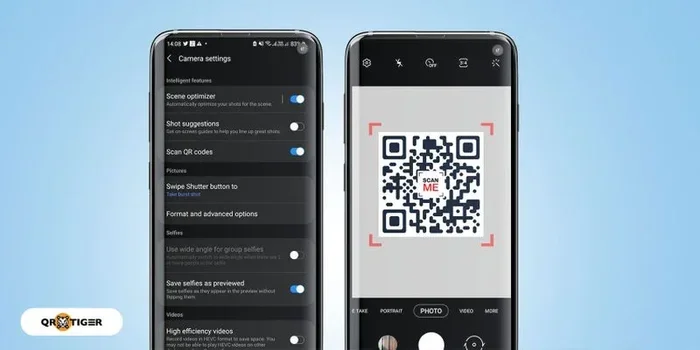
The easiest way to scan a QR code on Android is through your phone’s default camera app. Most Android devices running Android 8 or later include native QR scanning support. This means you do not need to install anything extra. Your camera app can handle it right out of the box.
Steps To Scan With The Default Camera App
Follow these simple steps to scan a QR code using your Android camera:
- Open the Camera app on your Android phone. You can usually find it on your home screen or app drawer.
- Point your camera at the QR code. Make sure the code fits within the frame on your screen.
- Hold your phone steady. The camera should automatically detect the QR code.
- A notification or pop-up will appear on your screen. This is the QR code link or action prompt.
- Tap the notification to open the link, visit the website, or perform the associated action.
That is it. No apps needed. No settings to tweak. Just point and tap. This method works on most Samsung, Google Pixel, OnePlus, Xiaomi, and other Android phones.
Why Your Camera Might Not Detect The QR Code
Sometimes the camera app does not recognize a QR code right away. Do not worry. This is a common issue with simple fixes. Here are a few reasons your camera might not be scanning:
- QR code scanning is turned off: Some Android phones hide the QR scanner behind a setting. You may need to enable it in your camera preferences.
- Poor lighting: QR codes need good light to be read properly. Move to a brighter area if scanning fails.
- Too far or too close: Hold your phone at a comfortable distance. About 8 to 12 inches from the code usually works best.
- Dirty camera lens: A smudged lens can interfere with scanning. Wipe it clean with a soft cloth.
- Outdated camera app: Make sure your camera app is updated through the Google Play Store.
Quick Tip: If your camera does not scan the QR code, try swiping down on your camera view and look for a QR code icon. Some phones place the scanner shortcut right in the camera interface.
Using Google Lens To Scan QR Codes On Android
Google Lens is a powerful tool built into many Android phones. It can identify objects, translate text, and yes, scan QR codes. If your camera app does not have built-in scanning, Google Lens is an excellent backup option.
How To Access Google Lens
There are several ways to open Google Lens on your Android device:
- From the camera app: Look for a Google Lens icon inside your camera interface, usually near the bottom or in the modes section.
- From the Google app: Open the Google app and tap the camera icon inside the search bar.
- From Google Assistant: Say “Hey Google, use Lens” and point your camera at the QR code.
- From the home screen: Some Android phones have a dedicated Google Lens widget you can place on your home screen.
Scanning A QR Code With Google Lens
Once you have Google Lens open, the process is simple. Point your camera at the QR code. Google Lens will automatically detect it and display the link or action. Tap the result to open it in your browser or complete the associated task.
Google Lens works well in low-light conditions too. It also lets you preview the link before opening it. This adds an extra layer of safety. You can see where the QR code leads before you actually visit the page.
Expert Insight: Google Lens is especially helpful when the QR code is part of a larger image or printed material. It can distinguish the code from surrounding text and graphics better than some basic scanner apps.
Downloading A QR Code Reader App For Android
Not all Android phones support built-in QR scanning. Older models or certain budget phones may not include this feature natively. In these cases, downloading a QR code reader app is the best solution. The Google Play Store has many free options that work great.
Best Free QR Scanner Apps
Here are some of the most reliable and popular QR code scanner apps for Android:
- Google Lens: Already built into many Android phones and available as a standalone app. It is free, reliable, and safe.
- QR Code Reader by Scan: A simple and fast scanner with a clean interface. It does not clutter your phone with ads.
- Kaspersky QR Scanner: A great choice if security is your priority. It checks links for malware before you open them.
- Barcode Scanner by ZXing Team: One of the oldest and most trusted QR scanners. It is lightweight and works offline.
- Samsung Members App (for Samsung phones): Samsung phones often include QR scanning through the Samsung Members app or the built-in Internet browser.
How To Choose A Safe QR Scanner App
Not all QR scanner apps are created equal. Some free apps contain ads, trackers, or even malware. Follow these tips to stay safe:
- Stick to well-known developers like Google or established security companies.
- Check the app reviews and ratings on the Google Play Store.
- Avoid apps that ask for unnecessary permissions like access to your contacts or files.
- Read the privacy policy if the app has one available.
- Prefer apps that do not require an internet connection to scan basic QR codes.
Quick Tip: Before downloading any app, search for the developer’s name separately. This helps you verify that the app is legitimate and not a fake clone.
Adding A QR Scanner Shortcut To Android Quick Settings
One of the fastest ways to scan a QR code is by adding a scanner shortcut to your Android Quick Settings panel. This puts the QR scanner right at your fingertips. You can access it with just one swipe down from the top of your screen.
How To Add The QR Scanner Tile
Here is how you can add a QR scanner to your Quick Settings:
- Swipe down from the top of your screen to open the Quick Settings panel.
- Tap the pencil icon or the edit button (usually at the bottom left).
- Scroll through the available tiles and look for a QR code scanner or Scan QR code option.
- Tap the tile to add it to your active Quick Settings.
- Drag it to a convenient position in your panel.
- Tap the back arrow or outside the panel to save.
Now, whenever you need to scan a QR code, just swipe down once and tap the scanner icon. It opens the scanner instantly. No need to open the camera app or search for an app. This method saves a lot of time, especially if you scan QR codes frequently.
Note: The exact tile name and availability may vary depending on your phone brand and Android version. Some phones call it “Scan” or “Google Lens” in the Quick Settings panel.
How To Stay Safe While Scanning QR Codes
QR codes are incredibly convenient, but they can also pose security risks. A malicious QR code can redirect you to a phishing website, download harmful software, or steal your personal information. Staying safe while scanning is just as important as knowing how to scan.
Tips For Safe QR Code Scanning
Follow these simple safety tips every time you scan a QR code:
- Check the source: Only scan QR codes from trusted places. Avoid codes posted in suspicious or unauthorized locations.
- Preview the link: Many scanner apps show you the URL before opening it. Always check the link to make sure it looks legitimate.
- Look for HTTPS: Make sure the website address starts with “https://” and not “http://”. The “s” stands for secure.
- Do not enter personal info: Never enter passwords, credit card numbers, or sensitive data on a page opened through a QR code unless you are certain it is safe.
- Use a secure scanner: Choose a QR scanner app that checks links for threats before opening them.
- Keep your phone updated: Regular Android updates include security patches that protect you from known threats.
Common Mistakes: Many people scan QR codes without thinking twice. They just tap the link and go. This habit can be dangerous. Always take a moment to verify where the code leads. It takes only a few seconds and can save you from a lot of trouble.
Troubleshooting Common QR Scanning Problems On Android
Even with the right setup, you might run into issues now and then. Here are the most common problems and how to fix them.
QR Code Not Scanning At All
If your phone will not scan any QR codes, try these steps:
- Restart your phone. A simple reboot often fixes temporary glitches.
- Clean your camera lens with a soft, lint-free cloth.
- Make sure your camera app is up to date through the Play Store.
- Check that QR scanning is enabled in your camera settings.
- Try scanning in a different lighting environment.
Scanner App Crashes Or Freezes
If your QR scanner app keeps crashing, here is what to do:
- Clear the app cache. Go to Settings > Apps > Find the scanner app > Storage > Clear Cache.
- Update the app to the latest version.
- Uninstall and reinstall the app if the problem persists.
- Try a different QR scanner app from the Play Store.
Scanned Link Opens Wrong Page
If the QR code opens an unexpected or suspicious page:
- Do not enter any personal information on that page.
- Close the browser immediately.
- Run a security scan using your phone’s built-in security app or a trusted antivirus app.
- Report the QR code source if it appeared in a public place.
Expert Insight: Most QR scanning issues are caused by outdated software or dirty camera lenses. Keeping your phone updated and your lens clean solves the majority of problems.
What Can You Do With A Scanned QR Code
Once you successfully scan a QR code, what happens next? The possibilities are wide open. QR codes connect the physical and digital worlds in creative ways. Here are some common things you can do after scanning:
- Visit a website: The most common use. The QR code opens a web page in your browser instantly.
- Connect to Wi-Fi: Some QR codes contain your network name and password. Scanning them auto-connects you to Wi-Fi.
- Make a payment: Many payment apps use QR codes for quick and easy transactions.
- Add a contact: Business cards with QR codes can add a contact directly to your phone’s address book.
- Open an app: Some QR codes redirect you to the Google Play Store to download a specific app.
- Join a Wi-Fi hotspot: Public places like cafes and airports use QR codes to connect you to their guest network.
- View a menu: Restaurants use QR codes to display their digital menu on your phone.
Quick Tip: If a QR code asks you to download an app you were not expecting, be cautious. Only download apps from trusted developers and the official Google Play Store.
Comparison: Built-In Scanner vs Third-Party QR Apps
Not sure which method is right for you? Here is a quick comparison of the two main ways to scan QR codes on Android:
- Built-in camera scanner: No download needed, fast, integrated into your phone, and completely free. Works on most modern Android phones.
- Third-party QR apps: Offer extra features like link preview, history tracking, and security scanning. May contain ads or require permissions. Best for older phones or advanced needs.
- Google Lens: Free, reliable, and works across most Android devices. Offers smart recognition beyond just QR codes.
For most people, the built-in camera scanner is all you need. It is fast, convenient, and requires zero extra setup. If your phone does not support it, Google Lens or a trusted third-party app fills the gap perfectly.
Frequently Asked Questions
Do I need to download an app to scan QR codes on Android?
No, most modern Android phones can scan QR codes using the built-in camera app or Google Lens. You only need to download a separate app if your phone does not support native QR scanning or if you want extra features like link preview and security checks.
Why is my Android phone not scanning QR codes?
This can happen for several reasons. Your camera settings might have QR scanning turned off, your lens could be dirty, or the lighting might be too dim. Restarting your phone and updating your camera app usually fixes the issue. If the problem continues, try using Google Lens or a third-party scanner app.
Is it safe to scan QR codes on my Android phone?
Scanning QR codes is generally safe, but you should always be cautious. Preview the link before opening it, make sure the URL looks legitimate, and never enter personal information on a page you reached through an unknown QR code. Using a scanner app with built-in security checks adds an extra layer of protection.
Can I scan a QR code with my screen off?
No, you need to have your phone screen on and the camera app active to scan a QR code. The camera requires power and access to the image feed to detect and read the code. Make sure your screen is unlocked and the camera app is open before pointing it at a QR code.
What should I do if a scanned QR code asks me to download an app?
Be very careful in this situation. Only download apps from the official Google Play Store and from trusted developers. If the QR code pushes you to download an app from an unknown source, it could be a security risk. When in doubt, skip the download and verify the source of the QR code.
How do I add a QR scanner to my Android Quick Settings?
Swipe down from the top of your screen to open Quick Settings, then tap the edit or pencil icon. Look for a QR code scanner or Google Lens tile in the available options. Tap it to add it to your active panel. Now you can access the scanner with one swipe down from the top of your screen.
Final Thoughts
Scanning a QR code on your Android phone does not have to be complicated. As you have seen, most Android devices make it incredibly easy. Whether you use the built-in camera, Google Lens, or a free scanner app, the process takes just a few seconds. The key is knowing which method works best for your specific phone.
Start by trying your default camera app. It is the fastest and most convenient option for most users. If that does not work, Google Lens is a great alternative. And for older phones or specific needs, a trusted QR reader app from the Play Store gets the job done.
Remember to stay safe while scanning. Always preview links, verify sources, and keep your phone updated. These small habits go a long way in protecting your device and personal information.
Now that you know how to get your Android phone to scan a QR code quickly, you are ready for any code you encounter. Whether it is on a restaurant menu, a product package, or a concert ticket, you have the tools and knowledge to handle it with confidence. Scan smart, stay safe, and enjoy the convenience that QR codes bring to your everyday life.