How Do I Change The Absolute Volume On My Android Phone
Changing the absolute volume on your Android phone gives you full control over how loud or quiet your device sounds. Whether you want louder media, clearer calls, or better balance between apps, adjusting absolute volume solves these problems. This guide walks you through every method, from built-in settings to third-party tools. You will learn quick tips, avoid common mistakes, and get expert advice. By the end, you will master your Android audio like a pro.
Key Takeaways
- Absolute volume control: Lets you set a fixed maximum volume level across all apps and functions.
- Built-in Android settings: Most phones offer volume sliders in Settings and the quick panel for easy adjustment.
- Developer Options: A hidden feature that gives advanced users precise control over absolute volume levels.
- Third-party apps: Volume boosters and equalizers can enhance your audio experience beyond default limits.
- Separate controls: Android lets you adjust media, call, notification, and alarm volumes independently.
- Common mistakes: Avoid blowing out your speakers by gradually increasing volume and using limiter tools.
📑 Table of Contents
- How Do I Change The Absolute Volume On My Android Phone
- Understanding Absolute Volume on Android
- How to Change Absolute Volume Using Built-In Settings
- Using Developer Options for Advanced Volume Control
- Third-Party Apps to Boost and Control Volume
- Quick Tips for Better Android Audio
- Common Mistakes When Changing Android Volume
- Expert Insights on Android Volume Control
- Comparing Absolute Volume Methods
- Key Takeaways
- Conclusion
How Do I Change The Absolute Volume On My Android Phone
Have you ever wondered why your Android phone sounds too quiet or way too loud? Absolute volume is the master control that determines how much sound your phone produces. It affects everything from music playback to phone calls and notifications. When your volume feels off, adjusting the absolute volume can fix the problem instantly.
Many Android users do not realize they have full control over their device audio. The settings are built right into the phone. You do not need to be a tech expert to make changes. This guide will show you exactly how to adjust absolute volume on your Android phone. We will cover simple methods, advanced tricks, and helpful tips. By the time you finish reading, you will know how to get the perfect sound every time.
Audio problems can be frustrating. A movie sounds muffled. A song lacks punch. A phone call is hard to hear. These issues often come down to one thing: volume settings. Learning how to control absolute volume puts you back in charge. It is a simple fix that makes a huge difference in your daily phone use.
Understanding Absolute Volume on Android
Before you change any settings, it helps to understand what absolute volume means. Absolute volume refers to the maximum sound level your phone can produce. It is the ceiling for all audio output. When you adjust absolute volume, you are setting that ceiling higher or lower.
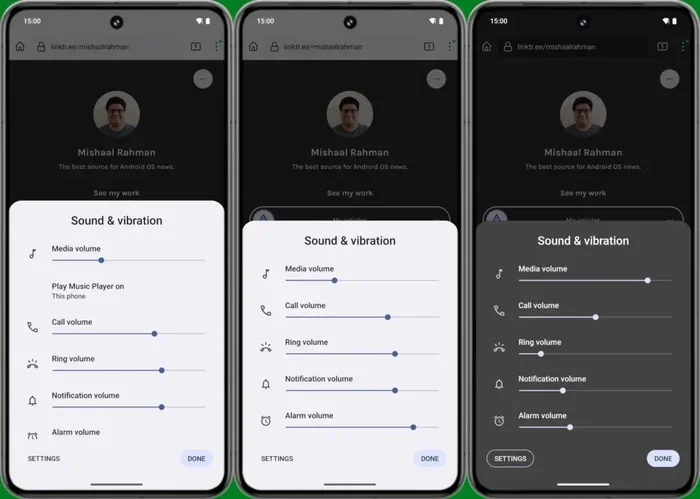
Android phones use a system of separate volume streams. Each stream controls a different type of sound. Here are the main volume types on most Android devices:
- Media volume: Controls music, videos, and games.
- Call volume: Controls the sound during phone calls.
- Notification volume: Controls alerts and messages.
- Ringtone volume: Controls the sound when someone calls you.
- Alarm volume: Controls your alarm clock sounds.
- System volume: Controls interface sounds like button clicks.
Absolute volume ties all of these together. It sets the overall limit. When you raise the absolute volume, every stream can go louder. When you lower it, everything gets quieter. This is why adjusting absolute volume is so powerful. One change affects your entire audio experience.
Some Android phones also have a feature called volume normalization. This keeps the volume consistent across different apps and content. It prevents sudden loud spikes. Understanding these basics makes the rest of the guide much easier to follow.
How to Change Absolute Volume Using Built-In Settings
The easiest way to adjust absolute volume is through your phone’s built-in settings. Every Android device has this feature. You do not need to download anything. Here is how to do it step by step.
Method 1: Using the Volume Slider
The quickest way to change volume is through the slider panel. Follow these simple steps:
- Swipe down from the top of your screen.
- You will see volume sliders for media, calls, and more.
- Tap the media slider and drag it up or down.
- Repeat for each volume type you want to adjust.
This method changes the volume for each stream separately. It does not always adjust the absolute maximum. But it is a great starting point for everyday use.
Method 2: Using the Settings Menu
For more precise control, use the Settings menu. Here is what to do:
- Open the Settings app on your phone.
- Scroll down and tap Sound and Vibration or Sound.
- You will see sliders for each volume type.
- Drag the sliders to your preferred levels.
Some phones also have a Media volume limiter option. This lets you set a cap on how loud media can get. It is helpful if you want to protect your hearing. You can find it under the Sound settings on many devices.
Method 3: Adjusting Per-App Volume
Android also lets you set volume for individual apps. This is great for fine-tuning your experience. For example, you might want your music app louder than your messaging app. Here is how:
- Open Settings and go to Apps.
- Select the app you want to adjust.
- Look for Audio or Sound settings.
- Adjust the volume slider for that specific app.
This feature is not available on every phone. But many newer Android models support it. It is a great way to create a customized audio setup.
Using Developer Options for Advanced Volume Control
Android has a hidden menu called Developer Options. It gives you access to advanced settings, including absolute volume control. This method works on most Android phones. But it requires a few extra steps to unlock.
Step 1: Enable Developer Options
Before you can use Developer Options, you need to unlock them. Here is how:
- Go to Settings and tap About Phone.
- Find the Build Number entry.
- Tap the Build Number seven times in a row.
- You will see a message saying Developer Options are now enabled.
Do not worry. Tapping seven times does not break anything. It is a standard Android feature designed for testing purposes. Once enabled, Developer Options will appear in your Settings menu.
Step 2: Adjust Absolute Volume in Developer Options
Now that Developer Options are unlocked, follow these steps:
- Go to Settings and tap System.
- Select Developer Options.
- Scroll down to find Absolute Volume.
- Toggle it on or off depending on your preference.
When Absolute Volume is turned on, your phone uses a fixed maximum level. This means the volume will be consistent across all apps and devices. When turned off, the volume can adjust automatically based on the connected device. For example, when you plug in headphones, the volume might reset.
Many users prefer turning Absolute Volume off. This allows the phone to adapt to different audio outputs. It gives you more flexibility. Experiment with both settings to see which works best for you.
Third-Party Apps to Boost and Control Volume
If the built-in settings are not enough, third-party apps can help. There are many free and paid apps designed to boost your Android volume. These apps go beyond the default limits and give you more control.
Popular Volume Booster Apps
Here are some of the best volume booster apps for Android:
- Volume Booster GOODEV: A simple app that increases media volume beyond the default limit.
- Viper4Android: A powerful equalizer that lets you customize audio output with precision.
- Equalizer FX: Offers a built-in equalizer and volume booster in one app.
- Sound Booster: Amplifies volume for all apps with a single toggle.
These apps work by amplifying the audio signal before it reaches your speakers. They can make your phone significantly louder. But use them carefully. Pushing the volume too high can damage your speakers or hurt your ears.
How to Use a Volume Booster Safely
Follow these tips when using volume booster apps:
- Start with a low boost level and increase gradually.
- Use the app’s built-in limiter to prevent distortion.
- Take breaks to give your ears a rest.
- Avoid using boosters for extended periods at high volumes.
- Check if your phone has a loudness enhancement feature built in.
Most volume booster apps also include an equalizer. This lets you adjust the balance of bass, midtones, and treble. You can customize the sound to match your preferences. It is like having a personal sound engineer in your pocket.
Quick Tips for Better Android Audio
Want to get the most out of your Android phone’s audio? Try these quick tips. They are simple but effective.
Clean Your Speakers
Dust and lint can block your speaker grills. This reduces volume and sound quality. Use a soft brush to gently clean the speakers. A can of compressed air works well too. Clean speakers sound noticeably better.
Adjust Audio Balance
If one side of your phone sounds louder than the other, adjust the audio balance. Go to Settings > Sound > Audio Balance. Slide the balance left or right until both sides sound even. This is a small fix that makes a big difference.
Use Headphones for Better Sound
Headphones often sound better than phone speakers. They deliver clearer audio and louder volume safely. Wired headphones give you consistent sound. Wireless headphones offer convenience and freedom. Either way, headphones improve your listening experience.
Turn on Loudness Enhancement
Many Android phones have a loudness enhancement feature. It boosts the volume of media and calls. You can usually find it under Settings > Sound > Loudness Enhancement. Turn it on to get a noticeable volume boost without any extra apps.
Restart Your Phone
Sometimes audio issues are caused by software glitches. A simple restart can fix them. It clears the temporary files and resets the audio system. Try restarting your phone before making any setting changes. It takes only a minute and often solves the problem.
Common Mistakes When Changing Android Volume
Many people make mistakes when adjusting their phone volume. These mistakes can damage your device or reduce sound quality. Here are the most common ones to avoid.
Mistake 1: Cranking the Volume to Maximum
Setting the volume to 100% right away can distort the sound. It can also damage your speakers over time. Always start at a low level and increase gradually. Find the sweet spot where the sound is clear and loud without distortion.
Mistake 2: Ignoring App-Specific Volume Settings
Some apps have their own volume controls. If your music app sounds quiet, check its internal settings. The same goes for video streaming apps. Adjusting both the system volume and the app volume gives you the best result.
Mistake 3: Forgetting to Check Bluetooth Devices
When you connect Bluetooth headphones or speakers, the volume behavior changes. The absolute volume setting affects how volume works with Bluetooth. If your Bluetooth device sounds too quiet, check both the phone and the device volume settings.
Mistake 4: Using Unreliable Volume Apps
Not all volume booster apps are safe. Some contain malware or ads. Others can damage your speakers with excessive amplification. Stick to well-known apps from trusted developers. Check reviews and ratings before downloading anything.
Expert Insights on Android Volume Control
Audio engineers and tech experts agree on a few key principles for Android volume control. Here is what they recommend.
First, always use the volume limiter when boosting sound. A limiter prevents the audio from clipping. Clipping causes distortion and can harm your hearing over time. Most volume booster apps include this feature. Make sure it is turned on.
Second, understand that different environments need different volume levels. A noisy subway requires louder media volume than a quiet library. Adjust your settings based on where you are. This simple habit protects your ears and improves your listening experience.
Third, keep your Android phone updated. Software updates often include audio improvements. They can fix bugs that cause volume issues. They can also add new features for better sound control. Check for updates regularly in Settings > System > Software Update.
Finally, do not ignore hardware problems. If your phone sounds quiet even after adjusting all settings, the speaker might be damaged. Water damage, dust buildup, and wear and tear can all affect speaker performance. In that case, visit a repair professional.
Comparing Absolute Volume Methods
There are several ways to change absolute volume on Android. Here is a quick comparison to help you choose the best method.
| Method | Difficulty | Best For | Limitations |
|---|---|---|---|
| Volume Slider | Easy | Quick daily adjustments | Does not change absolute maximum |
| Settings Menu | Easy | Precise per-stream control | Varies by phone model |
| Developer Options | Medium | Advanced users | Hidden menu requires unlocking |
| Third-Party Apps | Easy | Volume boosting | May contain ads or malware |
| Per-App Settings | Medium | Customized audio experience | Not available on all phones |
Each method has its strengths. The volume slider is perfect for quick changes. The Settings menu gives you more control. Developer Options offer the most precise adjustments. Third-party apps can boost volume beyond default limits. Choose the method that fits your needs and skill level.
Key Takeaways
- Absolute volume control: Sets the maximum sound level for your entire Android device.
- Built-in settings: Use the volume slider or Sound settings for easy adjustments.
- Developer Options: Unlock advanced control by enabling Developer Options and toggling Absolute Volume.
- Third-party apps: Volume boosters and equalizers can enhance your audio beyond default limits.
- Per-app controls: Adjust volume individually for each app for a customized experience.
- Common mistakes: Avoid maxing out volume instantly and using unreliable apps.
- Expert advice: Use limiters, adjust for your environment, and keep your phone updated.
Conclusion
Changing the absolute volume on your Android phone is easier than you think. Whether you use the built-in sliders, Developer Options, or third-party apps, you have the power to control your audio. The key is to find the method that works best for you and your device.
Start with the simple methods. Adjust the volume slider and explore the Sound settings. If you need more control, try Developer Options or a volume booster app. Always use caution when boosting volume. Protect your hearing and your speakers.
Remember, every phone is different. Your Android model may have slightly different settings or options. The steps in this guide apply to most devices. But if you get stuck, check your phone’s user manual or search for model-specific instructions online.
Now that you know how to change absolute volume, take a few minutes to adjust your settings. You will notice the difference immediately. Your music will sound richer. Your calls will be clearer. Your videos will have more impact. Take control of your Android audio today and enjoy a better listening experience every day.
FAQs
What is absolute volume on Android?
Absolute volume is the maximum sound level your phone can produce. It controls the overall loudness across all apps and audio streams. When you adjust absolute volume, you change this ceiling. It affects media, calls, notifications, and all other sounds on your device.
How do I access Developer Options on my Android phone?
Go to Settings and tap About Phone. Find the Build Number and tap it seven times. You will see a message confirming Developer Options are enabled. Then go to Settings > System > Developer Options to access advanced settings.
Can I boost my Android volume beyond the default limit?
Yes, you can use third-party volume booster apps. Apps like Volume Booster GOODEV and Viper4Android can increase volume beyond the default maximum. However, use these apps carefully to avoid speaker damage or distorted sound.
Why is my Android phone volume so quiet?
Quiet volume can be caused by several factors. Check your volume slider and make sure it is not set too low. Also check if a volume limiter is enabled. Clean your speaker grills to remove dust. If the problem persists, a software update or hardware issue may be the cause.
Does changing absolute volume affect Bluetooth devices?
Yes, absolute volume affects how your phone connects to Bluetooth devices. When Absolute Volume is on, the volume syncs between your phone and the Bluetooth device. When it is off, each device has its own volume control. This can be helpful if you want more independent control over your audio output.
Is it safe to use volume booster apps on Android?
Most volume booster apps are safe if you download them from trusted sources like the Google Play Store. Stick to well-reviewed apps from reputable developers. Avoid apps with too many ads or suspicious permissions. Also, do not use boosters at maximum volume for long periods to protect your hearing and speakers.