How Do I Know If My Android Game Supports A Controller
Finding out if your Android game supports a controller is easier than you think. You can check the game’s store listing, settings menu, or official website to confirm controller compatibility. This guide walks you through every method so you can start gaming with a gamepad on your Android device right away.
This is a comprehensive guide about How Do I Know If My Android Game Supports A Controller.
Key Takeaways
- Check the Google Play Store listing: Most games mention controller support in their description or features section.
- Look for built-in controller settings: Many games have a dedicated input or controls section where you can connect a Bluetooth controller.
- Use the Android Game Dashboard: Your phone’s built-in gaming tools can detect and recommend compatible controllers.
- Try a USB OTG connection: Some games only support wired controllers through a USB OTG adapter.
- Check the developer’s website: Official sites often list gamepad compatibility in detail.
- Emulators often support controllers: If you play retro games, most emulators allow full controller configuration.
- Not all games support controllers: Touch-only games like puzzles or casual apps may never offer controller support.
[FEATURED_IMAGE_PLACEHOLDER]
How Do I Know If My Android Game Supports A Controller
You just got a shiny new gamepad for your Android phone. You are excited to play your favorite mobile game with physical buttons. But then doubt hits you. Does this game even support a controller? You are not alone. Many Android gamers face this exact question every day. The good news is that checking controller support is straightforward once you know where to look.
Android gaming has grown massively in recent years. Games like Genshin Impact, Fortnite, and Minecraft support external gamepads beautifully. But not every game on the Play Store plays nice with a Bluetooth controller or a wired pad. Some games are designed exclusively for touch controls. Others let you switch between touch and gamepad input seamlessly. This guide will show you exactly how to find out if your favorite Android game works with a controller. You will learn multiple methods, from checking the store listing to testing it yourself. By the end, you will never have to guess again.
Why Controller Support Matters for Android Gaming
Playing games on a touchscreen is fine for casual sessions. But if you love action games, racing games, or platformers, a mobile gaming controller changes everything. Physical buttons give you better precision and faster response times. You can play for longer without your fingers cramping from holding the screen.
Controller support also opens up a bigger library of games. Many premium mobile titles were first released on PC or console. These games often feel much better with a gamepad than with touch controls. Think of games like Genshin Impact or Dead Cells. They were built with complex controls in mind. A Bluetooth controller or a wired USB controller makes these games far more enjoyable.
Not every Android device handles gamepad input the same way. Your phone needs to recognize the controller first. Then the game needs to map the buttons correctly. This process is called input mapping. Some games do this automatically. Others require you to set it up manually. Understanding how controller compatibility works helps you avoid frustration.
Types of Controllers That Work with Android
Before you check if a game supports a controller, it helps to know what kind of controller you have. Not all controllers connect the same way. Here are the main types you will encounter:
- Bluetooth controllers: These include the Xbox Wireless Controller (with Bluetooth), PlayStation DualShock 4, and DualSense. You pair them wirelessly with your phone. They are the most popular choice for Android gaming.
- USB OTG controllers: These connect through a USB cable using an OTG adapter. Great for wired controller support when you want zero latency.
- Dedicated mobile controllers: Devices like the Razer Kishi or Backbone Controller plug directly into your phone’s charging port. They are designed specifically for mobile gaming.
- Smartwatch or accessory controllers: Some smaller accessories can act as input devices, though they are less common for serious gaming.
Each type has its strengths. Bluetooth controllers offer freedom of movement. USB controllers provide the most stable connection. Dedicated mobile controllers are compact and portable. Your choice may affect which games work and how well they work.
Method 1: Check the Google Play Store Listing
The easiest way to find out if a game supports a controller is to look at its Google Play Store listing. Developers are required to list key features. Controller support is often one of them.
Here is how to do it step by step:
- Open the Google Play Store on your Android device.
- Search for the game you want to play.
- Scroll down to the About section or the What’s New section.
- Look for mentions of gamepad support, controller compatible, or external controller.
- Check the feature graphics or video previews. Sometimes they show a controller in use.
Many popular games clearly state controller support right in the description. For example, games like Brawlhalla, Minecraft, and Fortnite will list gamepad compatibility as a key feature. If you do not see any mention of a controller, that does not always mean it is not supported. Some developers do not highlight it. But if it is listed, you are in good shape.
Also check the user reviews. Other players often mention whether the game works well with a Bluetooth controller or not. Look for keywords like “controller,” “gamepad,” or “buttons.” This can give you real-world insight before you download.
What to Look for in the Store Listing
Not all store listings are created equal. Here are specific phrases and sections to scan for:
- “Supports controllers” or “Controller compatible” — clear indicators.
- “Gamepad support” — means the game was tested with external pads.
- “Xbox controller supported” or “PlayStation controller supported” — specific brand compatibility.
- “USB OTG supported” — means wired controllers work via adapter.
- Screenshots or videos showing a controller connected to a phone.
If you see any of these, the game likely has good controller support. If none of these appear, move on to the next method to double-check.
Method 2: Check the Game’s In-Game Settings
Sometimes the Play Store does not tell the full story. The best way to know for sure is to open the game and look for controller settings inside the game itself.
Most games that support external input will have a section in their settings or controls menu. Here is what to do:
- Open the game on your Android device.
- Go to Settings or Options.
- Look for a section called Controls, Input, or Controller.
- Check if there is an option to connect a controller or configure input.
- Some games will automatically detect a paired Bluetooth controller when you open them.
If you see any of these options, the game supports a controller. If the game only shows touch control options and nothing about external input, it probably does not support a gamepad.
Common In-Game Settings to Look For
- Input Device: Lets you choose between touch, controller, or both.
- Controller Configuration: Allows you to remap buttons to your preference.
- Controller Vibration: A sign the game recognizes the controller and supports haptic feedback.
- Dead Zone Settings: Advanced option found in games with analog sticks. Shows the game was built with controller input in mind.
Games like Genshin Impact and Call of Duty: Mobile have detailed controller configuration menus. You can remap every button, adjust sensitivity, and even set up profiles. This level of customization is a strong sign of genuine controller support.
Method 3: Use the Android Game Dashboard
Android devices running Android 10 or later come with a built-in Game Dashboard. This tool can help you detect controller compatibility and manage your gaming settings.
Here is how to access it:
- Open the Settings app on your Android phone.
- Search for Game Dashboard or Gaming in the settings search bar.
- Tap on Game Dashboard to open it.
- Look for a section on connected controllers or game controls.
The Game Dashboard will show you any compatible controllers currently paired with your device. It also lets you record gameplay, adjust brightness, and manage notifications while gaming. If your controller shows up here, your Android device recognizes it. That is a good sign for gamepad compatibility.
Some Android phones from brands like Samsung and OnePlus have their own gaming optimization tools. These may include controller pairing assistants or game mode settings that enhance controller support. Check your phone manufacturer’s settings for any gaming-related features.
Quick Tip: Enable Controller Detection
Make sure Bluetooth is turned on before you open a game. This ensures your phone is actively scanning for external controllers. Some games only detect a Bluetooth controller if Bluetooth is enabled before the game launches. This is a small detail that can save you a lot of troubleshooting.
Method 4: Visit the Developer’s Official Website
If the Play Store listing and in-game settings leave you unsure, go straight to the source. Visit the developer’s official website or their social media pages. Most game developers list system requirements and controller compatibility on their websites.
Look for pages like:
- System Requirements — often lists supported input devices.
- FAQ or Support Page — commonly addresses controller setup questions.
- Community Forums — players often discuss gamepad compatibility issues.
- Changelog or Update Notes — may mention recent controller support additions.
For example, if you are playing a game through an Android emulator like BlueStacks, the emulator’s website will list supported controller configurations. Emulators often have the best controller support because they are designed for PC-style input.
How Emulators Handle Controller Support
Android emulators on PC are a different beast. They often have excellent controller support because they mimic a desktop environment. Emulators like BlueStacks, LDPlayer, and Nox Player allow you to map your Xbox controller or PlayStation controller to in-game actions easily.
If you are using an emulator, check its settings under Key Mapping or Controller Settings. Most emulators auto-detect compatible controllers the moment you plug them in or pair them via Bluetooth. This makes controller configuration much simpler than on a phone.
Some emulators even let you create custom input profiles. You can save different button layouts for different games. This level of gamepad compatibility is one reason many Android gamers prefer emulators for certain titles.
Games That Support Controllers vs. Games That Do Not
Understanding which types of games typically support external controllers helps you set the right expectations. Not every Android game is designed for a gamepad.
Games That Usually Support Controllers
- Action RPGs: Games like Genshin Impact, Tower of Fantasy, and Eternity often support gamepad input.
- Battle Royale Games: Fortnite, PUBG Mobile, and Free Fire all offer controller support.
- Racing Games: Asphalt 9, Real Racing 3, and similar titles work great with a gamepad.
- Platformers: Rayman, Sonic, and other side-scrolling games feel amazing with physical buttons.
- Emulated Games: Retro games through emulators almost always support controller configuration.
- Fighting Games: Games like Mortal Kombat and Street Fighter benefit greatly from a gamepad.
Games That Usually Do Not Support Controllers
- Puzzle Games: Candy Crush, Sudoku, and similar games rely on touch tapping. Controller support is rare here.
- Casual Idle Games: These games are designed for simple one-thumb play. A gamepad adds no value.
- Rhythm Games: Some rhythm games use touch-specific gestures that do not translate well to buttons.
- Hyper-Casual Games: Simple swipe-and-tap games typically have no gamepad compatibility.
If you are unsure where your favorite game falls, try the methods above. You can also search online for “[game name] controller support Android” to find quick answers from other players.
How to Connect and Test Your Controller
Once you have confirmed that a game supports a controller, the next step is connecting it. Here is a simple guide for the most common connection types.
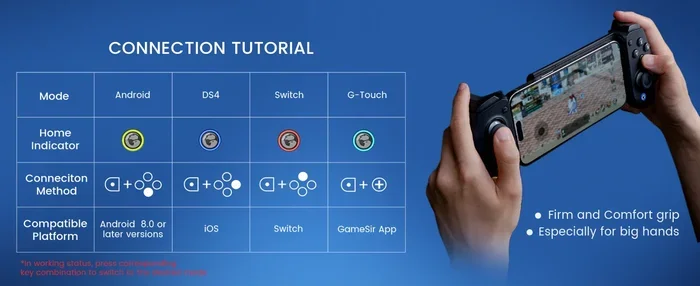
Connecting a Bluetooth Controller
- Turn on your Bluetooth controller and put it in pairing mode.
- Open Settings on your Android phone.
- Tap Bluetooth and make sure it is turned on.
- Your controller should appear in the list of available devices.
- Tap on it to pair.
- Open the game and test the controls.
Most modern Bluetooth controllers pair instantly. If your phone does not detect the controller, try turning Bluetooth off and on again. You can also restart both the phone and the controller.
Connecting a USB Controller via OTG
- Get a USB OTG adapter that matches your phone’s charging port.
- Plug the USB OTG adapter into your phone.
- Connect your wired USB controller to the adapter.
- Your phone should recognize the controller automatically.
- Open the game and test the input.
USB OTG connections offer the lowest latency. This makes them ideal for competitive gaming where every millisecond counts. Just make sure your phone supports USB OTG before buying an adapter. Most modern Android phones do.
Testing Your Controller in the Game
After connecting, always test your controller input before jumping into a match. Many games have a test or calibration screen in their controls settings. Press each button and move each stick to confirm they register correctly. If a button does not work, check the controller configuration menu and remap it.
Some games require you to enable controller support in a settings toggle before the gamepad works. This is common in games that default to touch controls. Look for options like “Use Controller” or “Enable Gamepad” in the controls menu.
Common Problems and How to Fix Them
Even when a game supports controllers, things can go wrong. Here are the most common issues and their solutions.
Controller Not Detected
If your gamepad does not show up, try these steps:
- Make sure Bluetooth is on and your controller is in pairing mode.
- Restart your phone and the controller.
- Check if the controller is connected to a different device and disconnect it.
- Ensure the game is updated to the latest version.
Buttons Not Mapping Correctly
If buttons do not match the right in-game actions, go to the controller configuration menu. Most games let you remap buttons manually. Some games also support input mapping profiles that you can download or share online.
Controller Works in Menu But Not in Game
This is a common issue. It usually means the game only supports controller input in certain modes. Some games disable gamepad support in specific menus or cutscenes. Check the game’s settings for any limitations.
Latency or Lag With Controller Input
If there is a delay between pressing a button and seeing the action, try switching from Bluetooth to a wired USB OTG connection. Wired connections have virtually no latency. If you must use Bluetooth, stay close to your phone and avoid interference from other wireless devices.
Expert Insights on Android Controller Compatibility
Gaming experts recommend always checking controller support before purchasing a new controller. Not every Android game works with every type of gamepad. The Google Play Store listing is your first and best resource. But do not rely on it alone.
Experts also suggest keeping your Android device updated. Newer Android versions improve gamepad detection and input mapping. Android 13 and 14 have made significant strides in controller compatibility across the board. If your phone is running an older version, you may experience more issues with external controllers.
Another expert tip: invest in a multi-platform controller. Controllers like the Xbox Wireless Controller and the DualSense work across Android, PC, and consoles. This gives you gamepad compatibility everywhere without needing multiple pads. Look for controllers that explicitly advertise Android support on the box.
Finally, do not overlook emulator controller support. If you are into retro gaming, emulators often offer the best controller configuration experience on Android. You can map every button precisely and even use controller profiles for different games. This level of customization is hard to beat.
Key Takeaways
- Check the Play Store listing first: Look for mentions of controller support or gamepad compatibility in the game description.
- Explore the in-game settings: Games that support external input usually have a controls or input configuration section.
- Use the Android Game Dashboard: Your phone’s built-in tools can detect compatible controllers and manage connections.
- Check the developer’s website: Official sources provide the most accurate controller compatibility information.
- Know the difference between game types: Action, racing, and fighting games typically support gamepads. Puzzle and casual games usually do not.
- Connect properly: Use Bluetooth for wireless freedom or USB OTG for the lowest latency and best performance.
- Troubleshoot common issues: Most controller detection problems have simple fixes like restarting or updating.
Conclusion
So, how do you know if your Android game supports a controller? The answer is that you have several reliable ways to check. Start with the Google Play Store listing. Move on to the game’s in-game settings. Use the Android Game Dashboard to detect paired devices. Visit the developer’s website for detailed gamepad compatibility info. And when in doubt, just connect your Bluetooth controller and see if the game recognizes it.
Controller support on Android has come a long way. More games than ever before embrace external gamepads. From AAA titles to indie gems, the mobile gaming experience keeps getting better with physical controls. By following the steps in this guide, you can confidently set up your Android gaming setup and enjoy your favorite games the way they were meant to be played.
Do not let uncertainty stop you from upgrading your mobile gaming experience. Grab your gamepad, follow the steps above, and start playing. The world of Android controller gaming is waiting for you.
Frequently Asked Questions
How do I check if a specific Android game supports a controller?
Start by checking the game’s Google Play Store listing for mentions of controller support. Then open the game and look for a controls or input settings section. If you see options for a gamepad or external controller, the game likely supports it. You can also search the developer’s website for gamepad compatibility details.
Can I use an Xbox controller with Android games?
Yes, most modern Xbox controllers work with Android games that support external input. The Xbox Wireless Controller connects via Bluetooth on Android 10 and later. You can also use a USB OTG cable for a wired connection. Check the game’s controller settings to confirm Xbox controller support before playing.
Why does my controller not work in some Android games?
Some games are designed exclusively for touch controls and do not have gamepad input built in. Other games may support controllers but require you to enable it in the settings menu. Compatibility also depends on your Android version and the type of controller you are using. Always check the game’s controller support details before assuming it will work.
Do I need a special controller to play Android games?
No, you do not need a special controller. Standard Bluetooth controllers like the Xbox Wireless Controller or PlayStation DualShock 4 work with most compatible Android games. You can also use dedicated mobile controllers like the Razer Kishi for a more integrated experience. The key is ensuring the game supports controller input regardless of the controller brand.
Are emulators better for controller support on Android?
Emulators often provide excellent controller support because they are built for PC-style input. Platforms like BlueStacks and LDPlayer allow detailed controller configuration and input mapping. If you play retro games or PC ports on Android, emulators are a great option for a full gamepad experience. Just make sure to check each emulator’s controller compatibility list.
What is USB OTG and why does it matter for controller support?
USB OTG stands for USB On-The-Go. It allows your Android phone to connect to external USB devices like wired controllers. Using a USB OTG adapter, you can plug in a gamepad directly for a stable, low-latency connection. This is especially useful for competitive games where input delay matters. Most modern Android phones support USB OTG, but you can check in your phone’s settings under connected devices.
Frequently Asked Questions
What is How Do I Know If My Android Game Supports A Controller?
How Do I Know If My Android Game Supports A Controller is an important topic with many practical applications.