Can You Connect A Usb To A Hdmi Cable Yes You Can Now
Yes, you can connect a USB to an HDMI cable using the right adapter or cable. This simple USB-to-HDMI solution lets you mirror your screen, extend your display, or stream high-definition video from laptops, tablets, and phones to any TV or monitor. Whether you need a quick presentation setup or a home theater upgrade, this guide covers everything you need to know about USB to HDMI connectivity in plain, easy-to-follow steps.
Key Takeaways
- USB-to-HDMI adapters make it possible to connect almost any device with a USB port to an HDMI display.
- USB-C to HDMI cables are the most popular and versatile option for modern laptops, tablets, and phones.
- Display resolution and audio quality depend on the adapter type, USB version, and your device’s capabilities.
- Plug-and-play adapters require no software installation in most cases, making setup fast and easy.
- Compatibility matters — always check your device’s USB port type and your display’s HDMI version before buying.
- Common mistakes like using the wrong adapter can cause signal loss, low resolution, or no audio.
📑 Table of Contents
- Can You Connect A Usb To A Hdmi Cable Yes You Can Now
- How USB to HDMI Connectivity Works
- Types of USB to HDMI Cables and Adapters
- Step-by-Step Setup Guide
- Common Uses for USB to HDMI Connections
- Compatibility and Device Support
- Quick Tips for the Best Experience
- Common Mistakes to Avoid
- Expert Insights on USB to HDMI Technology
- Final Thoughts on Connecting USB to HDMI
Can You Connect A Usb To A Hdmi Cable Yes You Can Now
The short answer is yes. You absolutely can connect a USB to an HDMI cable. It is simpler than most people think. A USB-to-HDMI adapter or a direct USB-C to HDMI cable bridges the gap between your device and a larger screen. This means you can turn any blank TV or monitor into a second display in minutes.
People connect USB to HDMI for all kinds of reasons. Some want to give a presentation at work. Others want to stream movies on a bigger screen at home. Gamers, students, and remote workers all benefit from this setup. The digital display connection opens up new possibilities without needing expensive equipment.
In this guide, we walk you through every step. You will learn how the technology works, which adapters to buy, and how to avoid common problems. By the end, you will feel confident setting up your own USB to HDMI connection like a pro.
How USB to HDMI Connectivity Works
Understanding the basics helps you choose the right gear. A USB port carries data and, in some cases, power. An HDMI port carries high-definition video and audio signals. The adapter or cable acts as a translator between these two different signals.
The Role of the Adapter
A USB-to-HDMI adapter contains a small chip. This chip converts the digital data from the USB port into an HDMI signal. The signal then travels through the HDMI cable to your TV or monitor. The process happens in real time, so you see smooth video and hear clear audio.
Most modern adapters support plug-and-play functionality. This means you plug the adapter in, and your device recognizes it immediately. No CDs, no downloads, no complicated setup. Just connect and go.
USB Versions and What They Mean
Not all USB ports are the same. Here is a quick look at the main types:
- USB-A: The classic rectangular port found on older computers and laptops.
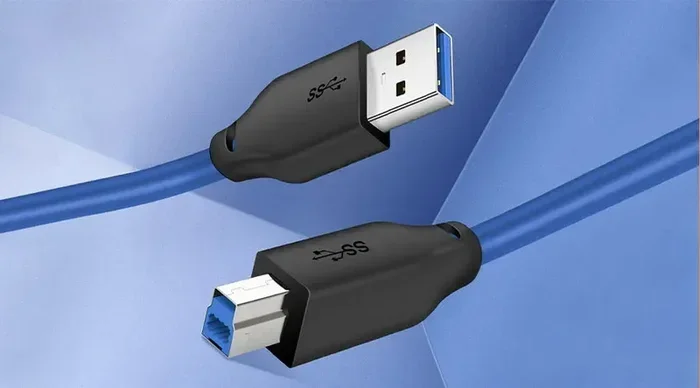
- USB-B: A square-shaped port often used for printers and scanners.
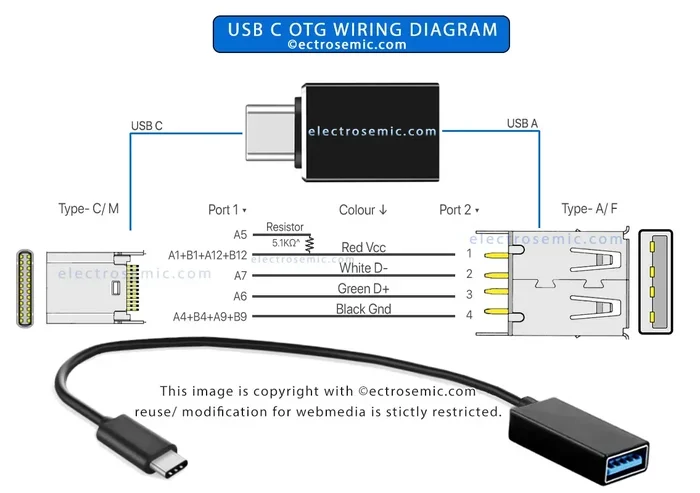
- USB-C: The small, reversible port found on modern laptops, tablets, and phones.
- USB 3.0 and USB 3.1: Faster versions of USB-A and USB-C that handle more data bandwidth.
The version you have affects the video resolution you can achieve. A USB 3.0 connection handles 1080p easily. USB-C with DisplayPort Alt Mode can support 4K and even higher resolutions. Always check your device specs before purchasing an adapter.
Types of USB to HDMI Cables and Adapters
The market offers several options for USB to HDMI connectivity. Each type serves a different need. Here is a breakdown of the most common ones.
USB-C to HDMI Cable
This is the most popular option today. A USB-C to HDMI cable has a USB-C plug on one end and an HDMI plug on the other. You plug it directly into your device and then into your TV or monitor. No extra power source is needed in most cases.
These cables work great with modern laptops like MacBook Air and Dell XPS. They also work with Samsung Galaxy phones and iPads that support video output over USB-C.
USB-A to HDMI Adapter
If your computer has a traditional USB-A port, you need a USB-A to HDMI adapter. This small dongle plugs into the USB-A port. Then you connect a standard HDMI cable from the adapter to your display.
These adapters are affordable and widely available. They work well for basic tasks like presentations and streaming. However, they may not support 4K resolution on older models.
USB 3.0 to HDMI Adapter
A USB 3.0 to HDMI adapter offers better bandwidth than USB 2.0 options. This means smoother video and less lag. If you plan to watch high-definition content or play games, this is a solid choice.
These adapters often come with their own power cable. The extra power ensures a stable connection, especially when driving high-resolution displays.
Comparison Table: USB to HDMI Options
| Type | Best For | Max Resolution | Price Range |
|---|---|---|---|
| USB-C to HDMI Cable | Modern laptops, phones, tablets | 4K @ 60Hz | $10 – $30 |
| USB-A to HDMI Adapter | Older desktops, basic setups | 1080p | $8 – $20 |
| USB 3.0 to HDMI Adapter | High-definition media, gaming | 4K @ 30Hz | $15 – $40 |
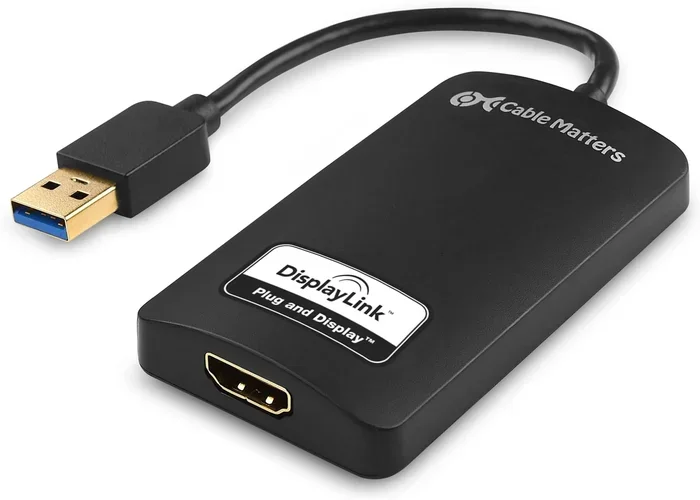
| DisplayLink Adapter | Multi-monitor setups | 4K @ 60Hz | $30 – $80 |
When choosing, think about what you need. A simple USB-C to HDMI cable costs under $20 and works for most people. If you need multiple monitors or advanced features, a DisplayLink adapter might be worth the extra cost.
Step-by-Step Setup Guide
Setting up a USB to HDMI connection is straightforward. Follow these steps and you will be watching your favorite content on the big screen in no time.
Step 1: Check Your Device Ports
Look at your laptop, tablet, or phone. What kind of USB port does it have? Is it USB-A, USB-C, or something else? Check your display too. Make sure it has an HDMI input port.
If you are unsure, check your device manual or search online for your model number. Knowing your ports helps you pick the right adapter.
Step 2: Buy the Right Adapter or Cable
Based on your port type, choose the appropriate USB-to-HDMI adapter. Stick with reputable brands. Cheap no-name adapters sometimes cause signal issues or do not support audio.
Pro tip: Read reviews before buying. A well-reviewed adapter cable saves you from frustration later.
Step 3: Connect the Adapter
Plug the USB end into your device. Then plug the HDMI end into your TV or monitor using a standard HDMI cable. If the adapter has a power port, connect the power cable too.
Step 4: Switch Your Display Input
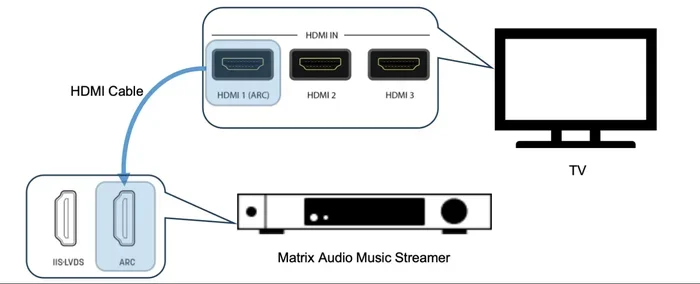
On your TV or monitor, use the remote to switch to the correct HDMI input. Most TVs have multiple HDMI ports labeled HDMI 1, HDMI 2, and so on. Select the one you plugged into.
Step 5: Configure Display Settings
On your computer, go to display settings. You can choose to mirror your screen or extend it. Mirroring shows the same image on both screens. Extending gives you a larger workspace.
On Windows, right-click the desktop and select Display Settings. On macOS, go to System Preferences and click Displays. Adjust the resolution and arrangement to fit your needs.
Common Uses for USB to HDMI Connections
People use USB to HDMI connectivity in many practical ways. Here are the most popular use cases.
Home Theater and Streaming
Want to watch Netflix on your TV but do not have a smart TV? A USB-C to HDMI adapter turns any TV with an HDMI port into a streaming powerhouse. Plug in your laptop or tablet and start watching.
This works great for media streaming in bedrooms, kitchens, or guest rooms. You get high-definition video and surround sound through a single cable connection.
Work Presentations
Many offices still use HDMI projectors and monitors. A USB-to-HDMI adapter in your bag means you are always ready. You can connect your laptop to any display without carrying extra dongles.
This is especially useful for remote workers who travel between meeting rooms. A reliable connectivity solution saves time and looks professional.
Gaming on a Big Screen
Gamers love the idea of playing on a larger display. A USB-C to HDMI cable connects your gaming laptop to your TV. The experience feels more immersive and fun.
For the best results, choose an adapter that supports high refresh rates. This reduces motion blur and gives you a smoother gaming experience.
Digital Signage and Public Displays
Businesses use USB to HDMI setups for digital signage in stores, restaurants, and waiting rooms. A laptop or media player connects to a large TV to display menus, ads, or information boards.
The signal transmission remains stable over long periods, making this a reliable solution for daily business operations.
Compatibility and Device Support
Not every USB port supports video output. This is an important thing to know before you buy an adapter. Let us break down compatibility by device type.
Windows Laptops
Most modern Windows laptops with USB-C ports support video output. Look for the DisplayPort icon next to the USB-C port. This symbol means the port can carry a video signal.
Older laptops with only USB-A ports need a powered USB-A to HDMI adapter. These adapters use the USB port for both data and power, so they work reliably.
MacBooks and Apple Devices
Apple MacBook Air and MacBook Pro models with USB-C work great with USB-C to HDMI cables. Apple Silicon Macs (M1, M2, M3 chips) support external displays natively through USB-C.
Older MacBooks with USB-A or Thunderbolt 2 ports need a different adapter. Always check Apple’s compatibility list before purchasing.
Android Phones and Tablets
Many Android phones with USB-C support screen mirroring over HDMI. Samsung, Google Pixel, and OnePlus devices are among the most compatible. Simply plug in the adapter and select the HDMI input on your TV.
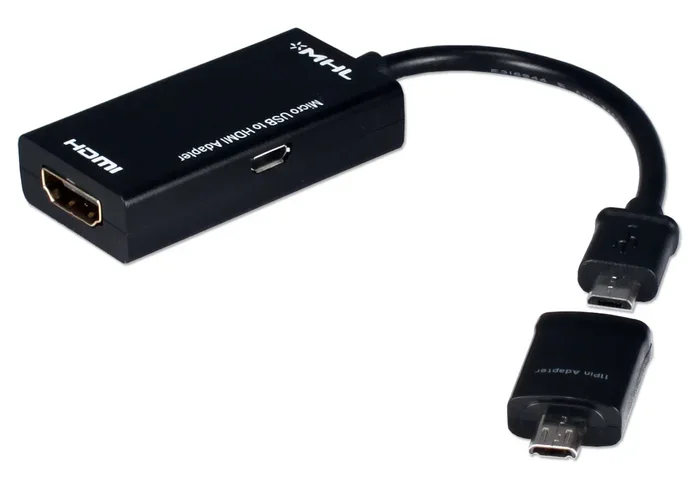
Some older Android phones with Micro-USB may not support video output. Check your phone’s specifications to be sure.
Linux Systems
Linux users can also benefit from USB to HDMI adapters. Most adapters work on Linux without extra drivers. However, some DisplayLink adapters require proprietary software. Check the manufacturer’s website for Linux support details.
For those interested in proprietary operating system compatibility, you can explore the advantages and disadvantages of proprietary operating systems to better understand how system-level restrictions may affect adapter support.
Quick Tips for the Best Experience
Follow these tips to get the most out of your USB to HDMI setup.
- Use a high-quality HDMI cable. A cheap or damaged cable causes flickering and signal loss.
- Update your graphics drivers. Outdated drivers can prevent your device from recognizing the external display.
- Use a powered adapter for 4K. Unpowered adapters sometimes struggle with high-resolution output.
- Keep your adapter cool. Some adapters get warm during long use. Place them in a well-ventilated area.
- Test audio separately. If you do not hear sound, go to your system sound settings and select the HDMI output.
- Avoid long USB extension cables. They can reduce signal quality and cause lag or dropouts.
Common Mistakes to Avoid
Even with the right gear, people make mistakes that cause problems. Here are the most common ones and how to avoid them.
- Buying the wrong adapter type. USB-A and USB-C look similar but are not interchangeable. Double-check your port type before ordering.
- Ignoring HDMI version. Older HDMI ports (HDMI 1.4) may not support 4K at 60Hz. Check your TV or monitor specs.
- Using an unpowered adapter for demanding tasks. If you are driving a 4K display or multiple monitors, use an adapter with external power.
- Forgetting to switch the TV input. This sounds obvious, but it is the number one reason people think their setup is not working.
- Skipping driver updates. On Windows especially, updated graphics drivers fix most display recognition issues.
These simple checks save hours of frustration. A little preparation goes a long way with USB to HDMI connectivity.
Expert Insights on USB to HDMI Technology
The USB to HDMI adapter market has evolved rapidly. According to industry experts, USB-C has become the universal standard for video output. Most new devices ship with USB-C ports, making USB-C to HDMI cables the go-to choice.
Experts also recommend looking for adapters that support High-bandwidth Digital Content Protection (HDCP). This ensures you can play protected content like Netflix and Blu-ray movies on your external display without issues.
For businesses and enterprises, a reliable connectivity solution matters. Some organizations use value-added network systems for secure electronic communication and data sharing. You can learn more about the advantages and disadvantages of using a value-added network for electronic commerce communication to understand how network infrastructure impacts display connectivity in professional environments.
Technology continues to improve. Newer adapters support higher bandwidth, better color accuracy, and lower latency. If you bought an adapter a few years ago, upgrading can make a noticeable difference in your viewing experience.
Final Thoughts on Connecting USB to HDMI
Connecting a USB to an HDMI cable is one of the easiest and most useful tech skills you can learn. Whether you are setting up a home theater, giving a work presentation, or extending your display for productivity, the right USB-to-HDMI adapter makes it happen.
The key is knowing which type of USB port you have and choosing the matching adapter. With the right gear and a few simple steps, you can enjoy high-definition video on any screen in your home or office.
Do not let cable confusion stop you. The technology is straightforward, affordable, and works with almost every device you own today. Start with a basic USB-C to HDMI cable and explore from there. You will wonder how you ever managed without this simple connectivity solution.
Now that you know the answer to “Can you connect a USB to an HDMI cable?” — go ahead and try it. Your bigger screen is waiting.
Frequently Asked Questions
Can I connect a USB 2.0 device to an HDMI display?
Yes, but with limitations. A USB 2.0 to HDMI adapter can handle 1080p video, but it may struggle with higher resolutions or refresh rates. USB 2.0 has lower bandwidth compared to USB 3.0 or USB-C, so expect reduced performance for demanding tasks like gaming or 4K streaming.
Do I need to install drivers for a USB to HDMI adapter?
Most modern adapters are plug-and-play and do not require drivers. However, some advanced adapters, especially DisplayLink models, may need software installation. Always check the manufacturer’s instructions before purchasing to avoid surprises.
Can I use a USB to HDMI adapter for gaming?
Yes, you can. For the best gaming experience, use a USB-C to HDMI cable or a USB 3.0 powered adapter. These provide higher bandwidth and lower latency. Avoid cheap unpowered adapters, as they may introduce lag or reduce frame rates during fast-paced games.
Why is there no sound when I connect USB to HDMI?
This usually happens when your computer does not recognize the HDMI output as the audio device. Go to your sound settings and select the HDMI display as the output source. On Windows, right-click the speaker icon and choose the HDMI output. On Mac, go to Sound Preferences and select HDMI.
Can I connect multiple monitors using a single USB port?
It depends on the adapter. Some multi-port adapters allow you to connect two or more monitors to a single USB port. However, performance may drop with each additional display. For the best experience, use a dedicated adapter for each monitor or a docking station with its own power supply.
What is the maximum cable length for USB to HDMI setups?
For USB-C to HDMI cables, keep the length under 6 feet (about 2 meters) for the best signal quality. If you need a longer run, use a high-quality active cable or a USB extender with a signal booster. Passive cables longer than 6 feet may experience signal degradation, leading to flickering or no display at all.
=== CONCLUSION ===
Can you connect a USB to an HDMI cable? The answer is a clear and definite yes. With the right USB-to-HDMI adapter or cable, anyone can connect their device to a larger display in just a few minutes. This connectivity solution works for streaming, gaming, work presentations, and digital signage alike.
Remember to check your port type, choose a compatible adapter, and follow the setup steps outlined in this guide. Avoid common mistakes like buying the wrong adapter type or skipping driver updates. With a little knowledge, you get a reliable and high-quality digital display connection every time.
Start small with an affordable USB-C to HDMI cable and test your setup. Once you see the difference a bigger screen makes, you will never go back. The world of high-definition video output is just one plug away.