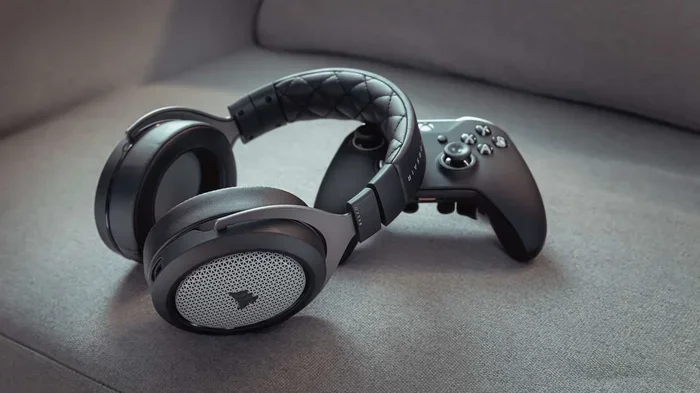
Do Wireless Headsets Work On Xbox One Without Issues
Yes, wireless headsets work on Xbox One, but not all of them connect the same way. Xbox One supports both Xbox Wireless and Bluetooth connections, depending on your headset model. You will need the right Xbox-compatible wireless headset or a Bluetooth adapter to get audio flowing smoothly. This guide covers every setup method, common problems, and the best headsets you can buy today.
You just got a shiny new wireless headset, and you want to plug it into your Xbox One and start gaming. But then you wonder, do wireless headsets work on Xbox One? The short answer is yes. The longer answer? It depends on your headset, your controller, and the method you use to connect things.
Xbox One has come a long way since its release. Microsoft has added support for various wireless audio devices, but the ecosystem is not always straightforward. Some headsets connect directly through a USB dongle. Others need a Bluetooth adapter. And some still work best with a simple wired connection through the controller. This guide breaks it all down so you do not waste time guessing.
Whether you are a casual gamer or a hardcore streamer, audio quality matters. You need clear chat audio, immersive game sound, and a mic that picks up your voice without crackling. That is exactly what we will cover here. Let us dive into everything you need to know about wireless headsets on Xbox One.
Key Takeaways
- Xbox One supports wireless headsets through both its proprietary Xbox Wireless protocol and Bluetooth with the right adapter.
- Not every Bluetooth headset works directly on Xbox One without a USB Bluetooth adapter.
- The Xbox Wireless Controller has a 3.5mm jack and supports specific wireless headsets out of the box.
- Setup is simple whether you use a dongle, Bluetooth, or a wired connection through the controller.
- Common issues like no audio or mic problems are usually easy to fix with a few quick steps.
- The best wireless headsets for Xbox One include models from SteelSeries, Turtle Beach, and HyperX.
- Always check compatibility before buying a headset to avoid frustration and wasted money.
📑 Table of Contents
- How Wireless Headsets Connect to Xbox One
- Do All Wireless Headsets Work on Xbox One?
- Setting Up a Wireless Headset on Xbox One
- Common Problems and How to Fix Them
- Best Wireless Headsets for Xbox One
- Expert Tips for the Best Wireless Audio on Xbox One
- How Xbox One Wireless Audio Compares to Other Platforms
- Final Thoughts
How Wireless Headsets Connect to Xbox One
Understanding the connection methods is the first step. Xbox One does not work like a PC or a smartphone. It has its own wireless protocol, and it handles Bluetooth differently than you might expect. Here are the three main ways wireless headsets connect to Xbox One.
Xbox Wireless Protocol
Most dedicated Xbox Wireless headsets use a proprietary protocol. This means they connect directly to the console without needing a Bluetooth connection. You simply pair the headset with the Xbox One just like you would pair a controller. This method offers the best stability and lowest latency. Games and chat audio stay perfectly in sync this way.
Bluetooth Connection
Xbox One does not have built-in Bluetooth audio support for headsets. This surprises many people. You cannot just take a standard Bluetooth headset, put it in pairing mode, and expect it to work. To use Bluetooth headphones on Xbox One, you need a USB Bluetooth adapter. The adapter plugs into the Xbox One and bridges the gap between your headset and the console.
3.5mm Jack Through the Controller
Almost every wireless headset comes with a 3.5mm audio cable. You can plug this cable directly into the Xbox Wireless Controller. The controller acts as a middleman, sending audio to your headset. This is the most universal method. It works with nearly every headset on the market. The only downside is a small cable running from your controller to your ears.
Do All Wireless Headsets Work on Xbox One?
Here is where things get tricky. Not every wireless gaming headset works seamlessly with Xbox One. Some headsets are designed for PC and PlayStation but fall short on Xbox. Let us look at the compatibility landscape more closely.
Headsets That Work Out of the Box
Headsets that use the Xbox Wireless protocol work perfectly. These include models like the Xbox Wireless Headset from Microsoft itself. Other third-party headsets also support this protocol. When you buy a headset labeled “Xbox Wireless compatible,” you can trust it will connect without extra gear.
These headsets typically come with a USB dongle. The dongle handles the wireless connection between the headset and the console. You get plug-and-play simplicity. No apps, no drivers, no hassle.
Headsets That Need a Bluetooth Adapter
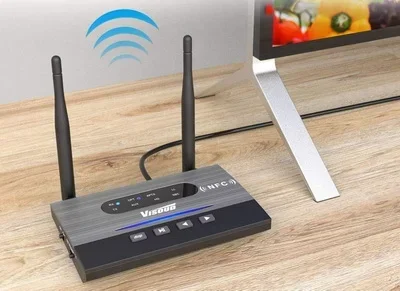
Many Bluetooth headsets can work on Xbox One, but you need a Bluetooth adapter. The adapter connects to the Xbox One via USB. It then pairs with your Bluetooth headset just like it would with a phone or laptop.
One important thing to note: not all Bluetooth adapters work well. Cheap adapters may introduce audio lag or connection drops. Look for adapters that support the Bluetooth 5.0 standard or higher. These offer better range, stable connections, and lower latency.
Some people ask, can I use a Bluetooth adapter on my TV? Yes, you can. But for Xbox One, you need a specific adapter that works with the console. The setup process is similar to connecting a Bluetooth adapter on my TV, but the Xbox One has its own quirks.
Headsets That Do Not Work
Some wireless headsets simply do not work with Xbox One. Headsets that rely on proprietary apps or drivers may fail. Headsets designed exclusively for mobile phones or PCs without Xbox support will not connect. Always check the product listing for Xbox compatibility before you buy.
Setting Up a Wireless Headset on Xbox One
Setting up your wireless headset is straightforward once you know the steps. Below, we walk through each connection method in detail.
Setting Up Xbox Wireless Headsets
Follow these steps to pair an Xbox Wireless headset with your console:
- Turn on your Xbox One and make sure it is updated to the latest firmware.
- Press the Xbox button on your controller to turn it on.
- Put your headset in pairing mode. Check the headset manual for specific instructions.
- On the controller, press and hold the Pairing button (the small button near the top of the controller near the USB port).
- Wait for the headset to appear on the screen. Select it when it does.
- Once connected, go to Settings > General > Volume & Audio Output to adjust your audio preferences.
Setting Up Bluetooth Headsets with a USB Adapter
If your headset uses Bluetooth, here is how to get it working:
- Purchase a USB Bluetooth adapter that is compatible with Xbox One.
- Plug the adapter into an available USB port on your Xbox One.
- Put your Bluetooth headset in pairing mode.
- Go to Settings > Devices & connections > Bluetooth on your Xbox One.
- Select your headset from the list of available devices.
- Adjust the audio output in Settings > Volume & Audio Output.
Keep in mind that Bluetooth audio on Xbox One has some limitations. You may experience slight audio delays. Chat and game audio separation might not work perfectly. For the best experience, an Xbox Wireless headset is always the better choice.
Setting Up a Wired Connection via the Controller
This is the simplest method and works with almost any headset:
- Plug the 3.5mm audio cable into your headset.
- Insert the cable into the 3.5mm jack on the bottom of your Xbox Wireless Controller.
- Go to Settings > Volume & Audio Output.
- Select Headset as the audio output device.
- Test your mic by going to Settings > General > Volume & Audio Output and checking the mic input.
This method works even when the controller is connected wirelessly to the console. The controller acts as a bridge between the headset and the Xbox One. It is reliable and requires no extra equipment.
Common Problems and How to Fix Them
Even with the right setup, you might run into issues. Wireless headsets on Xbox One can sometimes act up. Here are the most common problems and their solutions.
No Audio Coming Through
If you hear nothing from your headset, the first thing to check is your audio settings. Go to Settings > Volume & Audio Output. Make sure the correct output device is selected. If you are using a 3.5mm cable, try unplugging it and plugging it back in firmly.
Also check the volume on both your headset and your controller. Some headsets have their own volume wheels. Make sure the headset volume is not turned all the way down.
Mic Not Working
A mic that does not pick up your voice is frustrating. Start by checking the mic mute button on your headset. Many headsets have a physical switch that can accidentally get toggled. If the mute is off and the mic still does not work, go to Settings > Volume & Audio Output and check the Mic monitoring setting.
If you are using a Bluetooth headset, the mic might not be fully supported. Some Bluetooth headsets only support audio output, not input. Check your headset specifications to confirm it supports Bluetooth headset profile (HSP) for microphone functionality.
Audio Lag or Delay
Audio lag happens most often with Bluetooth connections. The signal has to travel from the adapter to the headset, which introduces a small delay. This can make in-game audio feel out of sync.
To reduce lag, keep your headset close to the Xbox One console. Avoid placing the console in another room. If you are using a USB Bluetooth adapter, try a different USB port. Sometimes the port you use affects signal quality.
Headset Keeps Disconnecting
If your wireless headset keeps dropping the connection, the battery might be low. Charge your headset fully and try again. Interference from other wireless devices can also cause disconnections. Move any nearby routers, microwaves, or other Bluetooth devices away from your setup.
For Xbox Wireless headsets, make sure the dongle is plugged directly into the console. Do not use a USB hub, as it can weaken the signal. If problems persist, try resetting both the headset and the console, then pair them again from scratch.
Best Wireless Headsets for Xbox One
Not all headsets are created equal. Some are built specifically for Xbox and deliver the best experience. Here are some of the top options to consider.
| Headset | Connection Type | Key Feature |
|---|---|---|
| Xbox Wireless Headset | Xbox Wireless | Seamless Xbox integration, spatial audio |
| SteelSeries Arctis Nova 7X | Xbox Wireless + Bluetooth | Dual wireless, great battery life |
| Turtle Beach Stealth 700 Gen 2 | Xbox Wireless | Superhuman hearing, lightweight design |
| HyperX Cloud Stinger 2 | 3.5mm wired | Budget-friendly, lightweight, comfortable |
| Razer BlackShark V2 Pro | Xbox Wireless + Bluetooth | THX spatial audio, excellent mic quality |
Each of these headsets offers a different balance of features and price. The Xbox Wireless Headset from Microsoft is the safest choice for most players. It is affordable, reliable, and designed specifically for the console. If you want more features like Bluetooth for dual-device use, the SteelSeries Arctis Nova 7X and Razer BlackShark V2 Pro are excellent options.
When choosing a headset, consider what matters most to you. Do you want the longest battery life? The best sound quality? The most comfortable fit? Make your decision based on your gaming habits and preferences.
Expert Tips for the Best Wireless Audio on Xbox One
Getting the most out of your wireless headset on Xbox One takes a few extra steps. These tips will help you squeeze every bit of performance from your setup.
Update your firmware regularly. Headset manufacturers release firmware updates that fix bugs and improve performance. Check the manufacturer’s app or website for updates. Keeping your headset firmware current can solve many audio issues before they even start.
Use the Xbox Accessories app. This free app lets you customize your headset settings, update firmware, and create personalized audio profiles. It is available on both Xbox One and PC. The app gives you more control over your audio than the console settings alone.
Position your console for the best signal. If you use a wireless dongle, keep it in a clear line of sight to your headset. Avoid placing it behind the TV or inside a closed cabinet. Good signal strength means fewer dropouts and better audio quality.
Invest in a good USB Bluetooth adapter if you go the Bluetooth route. Cheap adapters often cause more problems than they solve. A quality adapter from a reputable brand will give you a stable connection and better audio. Think of it like buying a good Bluetooth adapter for your TV or PC. The investment pays off in reliability.
Consider your room layout. Wireless signals can bounce off walls and furniture. If your gaming area is cluttered or has thick walls, you might experience weaker signals. Try to keep your console and headset in the same room for the best performance.
Clean your headset regularly. Ear cushions collect sweat and dust over time. This can affect sound quality and comfort. Wipe down your headset with a soft cloth and mild cleaner every few weeks. It keeps everything sounding fresh and feeling comfortable during long gaming sessions.
How Xbox One Wireless Audio Compares to Other Platforms
Xbox One handles wireless audio differently than other platforms. Understanding these differences helps you set realistic expectations and choose the right gear.
On PC, Bluetooth headsets work natively. You can pair almost any Bluetooth headset directly without extra hardware. The same goes for PlayStation 5, which has built-in Bluetooth support for audio devices. Xbox One does not offer this level of Bluetooth flexibility. This is the biggest difference between Xbox and other platforms.
However, Xbox One makes up for this with its Xbox Wireless protocol. This proprietary connection is more stable and lower latency than standard Bluetooth. Once you pair an Xbox Wireless headset, the connection feels rock solid. The trade-off is that you are limited to headsets that support this protocol.
If you are coming from PC or PlayStation, the transition to Xbox One wireless audio might feel a bit restricted. But once you find the right headset, the experience is smooth and reliable. Many gamers prefer the Xbox Wireless connection over Bluetooth because of its stability.
Final Thoughts
So, do wireless headsets work on Xbox One? Absolutely. The key is choosing the right headset and using the right connection method. Whether you go with Xbox Wireless, Bluetooth with an adapter, or a simple 3.5mm wired connection, Xbox One has you covered.
The best experience comes from a headset that supports the Xbox Wireless protocol. These headsets connect directly, offer stable audio, and require no extra accessories. If budget is a concern or you already own a Bluetooth headset, a USB adapter can bridge the gap effectively.
Remember to troubleshoot common issues like no audio, mic problems, or disconnections before assuming your headset is defective. Most problems have simple fixes. Keep your firmware updated, check your settings, and position your gear properly.
With the right setup, you will enjoy immersive game audio, crystal-clear chat, and the freedom of wireless movement. Happy gaming, and may your headset always stay charged.
Frequently Asked Questions
Can I use any Bluetooth headset with Xbox One?
Not all Bluetooth headsets work directly with Xbox One. The console does not have built-in Bluetooth audio support. You will need a USB Bluetooth adapter to connect most Bluetooth headsets. Even with an adapter, some headsets may only support audio output and not microphone input.
Why is my wireless headset not connecting to Xbox One?
Several things can cause this. First, make sure your headset is in pairing mode and fully charged. Check that your Xbox One is updated to the latest firmware. Try resetting both the headset and the console, then pair them again. If you use a USB dongle, make sure it is plugged directly into the console, not a USB hub.
Can I use my wireless headset for both Xbox One and PC?
Many Xbox Wireless headsets also work on PC, but you may need a separate USB dongle or software. Some headsets like the SteelSeries Arctis Nova 7X and Razer BlackShark V2 Pro support both Xbox Wireless and Bluetooth, making dual-platform use easy. Always check the headset specifications for multi-platform support.
Do I need to buy a special adapter for Bluetooth headsets on Xbox One?
Yes, you need a USB Bluetooth adapter that is compatible with Xbox One. Standard Bluetooth adapters may not work. Look for adapters that support the Xbox One connection requirements. The adapter plugs into a USB port on your console and handles the Bluetooth pairing for you.
Is the audio quality better with Xbox Wireless or Bluetooth on Xbox One?
Xbox Wireless generally offers better audio quality and lower latency than Bluetooth. The proprietary Xbox Wireless protocol is optimized for gaming. Bluetooth connections can introduce slight audio delays and may not support advanced features like chat-game audio separation. For the best experience, an Xbox Wireless headset is recommended.
Can I use a wired headset with Xbox One if my wireless headset dies?
Yes, absolutely. You can plug any 3.5mm wired headset into the Xbox Wireless Controller. The controller has a built-in 3.5mm jack. This works even when the controller is connected wirelessly to the console. It is a great backup option when your wireless headset runs out of battery.
=== CONCLUSION ===
Wireless headsets work great on Xbox One when you choose the right one and set it up correctly. The Xbox Wireless protocol offers the most reliable and lowest-latency connection. Bluetooth headsets can work too, but they need a USB adapter. And the simple 3.5mm wired connection through the controller remains the most universal option. Pick a headset that matches your gaming style, follow the setup steps in this guide, and you will be immersed in your favorite games in no time.
Remember to keep your gear updated, troubleshoot issues early, and invest in quality hardware. Your ears will thank you during those long gaming sessions. Now go enjoy your wireless audio on Xbox One.