Can I Connect Usb Type C To Usb Without Any Issues
Yes, you can connect USB Type C to USB without any issues in most cases. USB-C is designed to be backward compatible with older USB standards like USB-A and USB-B. With the right adapter or cable, your devices will work together smoothly. This guide covers everything you need to know about USB Type C to USB connections, from speed and power delivery to common problems and fixes.
You have a USB Type C cable in your hand. Maybe it came with your new laptop or phone. And you need to plug it into an older USB port. The question is simple. Can you connect USB Type C to USB without any problems? The short answer is yes. But there are a few things you should know first.
USB Type C has taken over the tech world. Almost every new phone, laptop, and tablet uses it now. But millions of older devices still use the traditional USB-A port. That big rectangular plug you have seen forever. So how do these two connect? And will your devices work together? This guide gives you all the answers. We will walk through everything step by step. No confusing tech jargon. Just clear, simple information you can use right away.
Whether you want to charge your phone, transfer files, or connect a peripheral, this article covers it all. By the end, you will know exactly what to expect. You will also learn how to avoid common mistakes. Let us get into it.
Key Takeaways
- USB-C works with older USB ports: You can connect USB Type C to USB-A using simple adapters and cables.
- Backward compatibility is built in: The USB standard ensures older and newer connectors work together.
- Speed depends on the USB version: USB 3.0 and USB 3.1 offer much faster data transfer than USB 2.0.
- Power delivery varies: USB-C can charge faster, but results depend on the charger and cable quality.
- Cheap adapters cause problems: Always buy quality adapters to avoid connection issues and data loss.
- Not all USB-C cables are equal: Some cables only support charging, not data transfer.
- Thunderbolt adds extra speed: Thunderbolt 3 and 4 use the USB-C shape but offer much higher performance.
📑 Table of Contents
- What Is USB Type C and Why Is It Everywhere Now
- Can You Connect USB Type C to USB Without Any Issues
- What You Need to Make a USB Type C to USB Connection
- Data Transfer Speeds and Power Delivery
- Common Issues and How to Fix Them
- Expert Tips for the Best USB Type C to USB Experience
- Frequently Asked Questions About USB Type C to USB Connections
- Final Thoughts
What Is USB Type C and Why Is It Everywhere Now
The Basics of USB Type C
USB Type C is a connector standard for USB cables and ports. It is small, oval-shaped, and reversible. That means you can plug it in either way. No more flipping it three times to get it right. This alone made it a favorite among users worldwide.
The USB Type C connector is not the same as the USB standard itself. It is just the shape of the plug. Inside, it can support different USB protocols. These include USB 2.0, USB 3.0, USB 3.1, USB 3.2, and even Thunderbolt 3 or 4. So the port you see may do different things depending on the device and the cable you use.
Here are some key features of USB Type C:
- Reversible design: Plug it in either direction. No fumbling around.
- Smaller size: About half the size of a traditional USB-A plug.
- Higher power delivery: Can support up to 100 watts with USB Power Delivery.
- Faster data speeds: Supports speeds up to 40 Gbps with Thunderbolt 4.
- Universal use: Works with phones, laptops, tablets, monitors, and more.
Why USB-C Became the New Standard
The reason USB-C spread so fast is simple. It solves old problems. The old USB-A port was big and could only go in one way. USB-C is compact and reversible. Device makers also loved it because it takes up less space inside thin laptops and phones.
Another big reason is versatility. One USB-C cable can charge your laptop, transfer data, and connect to external displays. This one-port-fits-all approach made it very attractive. Today, USB-C is the default connector for most new electronics. The European Union even made USB-C mandatory for phones sold in the region. That shows how big its adoption has become.
Can You Connect USB Type C to USB Without Any Issues
Understanding USB-A vs USB-C
Before we go further, let us clarify the difference. USB-A is the traditional flat, rectangular port. You have seen it on desktops, printers, and chargers for years. USB-C is the smaller, oval-shaped port that is replacing it. They are both USB connectors, but they look completely different.
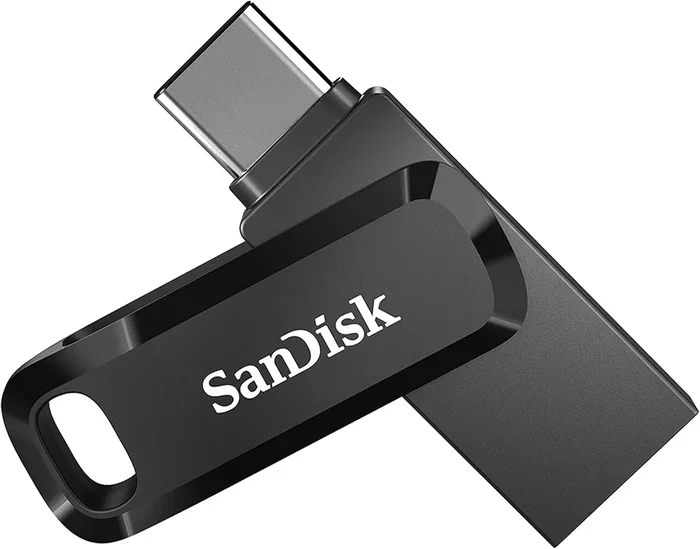
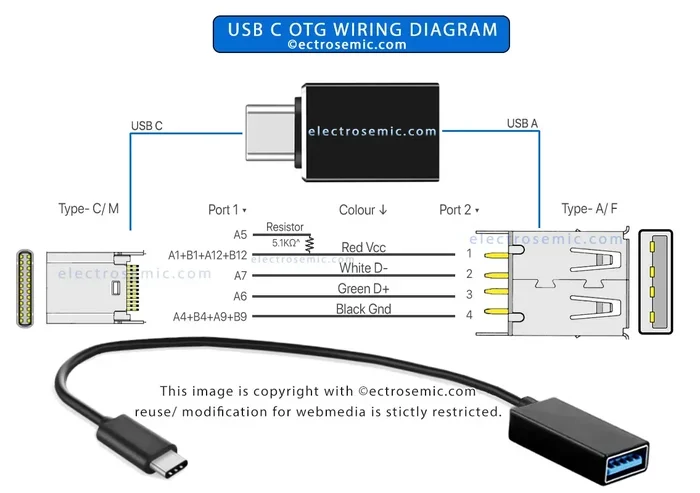
So can you connect USB Type C to USB-A? Yes, you can. But you need the right cable or adapter. A direct plug will not work because the shapes are different. You need a USB-C to USB-A adapter or a cable with USB-C on one end and USB-A on the other.
USB Type C to USB connections are very common. Millions of people do this every day without problems. The USB standard was designed with backward compatibility in mind. That means new USB versions work with older devices and ports.
Backward Compatibility Explained Simply
Backward compatibility means new technology works with older technology. In the USB world, this is a core feature. A USB-C device can connect to a USB-A port. A USB 3.0 device can talk to a USB 2.0 port. The connection will work. But the speed will match the slowest device in the chain.
Think of it like a highway. If one car is going 60 mph and another is going 100 mph, they both have to use the same road. The speed limit is 60 mph for both. The same idea applies to USB connections. Your USB-C device and your USB-A port will negotiate the best shared speed.
Here are some important things to keep in mind about backward compatibility:
- Data transfer speed: Will match the slowest USB version in the connection.
- Power delivery: Depends on the charger and the cable, not just the port.
- Feature support: Some advanced features like Thunderbolt need compatible devices on both ends.
- Adapter quality matters: A cheap adapter can slow things down or cause connection drops.
What You Need to Make a USB Type C to USB Connection
Types of Adapters and Cables
To connect USB Type C to USB-A, you need the right accessory. There are several options available. Let us break them down so you can pick the best one for your needs.
USB-C to USB-A Adapter: This is a small dongle. You plug your USB-C cable into it. Then you plug the adapter into the USB-A port. It is simple and cheap. Great for occasional use.
USB-C to USB-A Cable: This is a cable with USB-C on one end and USB-A on the other. No adapter needed. It is more convenient if you use this connection often. Just keep one handy in your bag.
USB-C Hub or Dock: If you need multiple ports, a hub is the way to go. It plugs into your USB-C port and gives you USB-A ports, HDMI, SD card slots, and more. This is ideal for laptop users who need to connect older devices.
USB-C Extension Cable: If your USB-C device is far from the USB-A port, an extension cable helps. It gives you more reach without moving your devices around.
Which Adapter Should You Buy
Not all adapters are the same. Some are great. Some are terrible. Here is what to look for when shopping.
- Check the USB version: Make sure the adapter supports USB 3.0 or higher if you need fast data transfer.
- Look for brand names: Brands like Anker, Belkin, and Cable Matters are reliable.
- Check power ratings: If you plan to charge through the adapter, make sure it supports the wattage you need.
- Read reviews: Always check what other buyers say. Cheap no-name adapters often fail quickly.
- Check for data and charging support: Some cables only support charging, not data. Make sure yours does both.
| Accessory Type | Best For | Avg. Price |
|---|---|---|
| USB-C to USB-A Adapter | Quick, occasional connections | $5 – $10 |
| USB-C to USB-A Cable | Everyday use, convenience | $8 – $15 |
| USB-C Hub with USB-A | Multiple device connections | $25 – $60 |
| USB-C Extension Cable | Longer reach between devices | $6 – $12 |
The table above gives you a quick comparison. Prices vary based on brand and quality. Always invest in a good adapter. A $5 adapter from a trusted brand is better than a $2 one from an unknown seller.
Data Transfer Speeds and Power Delivery
USB 2.0 vs USB 3.0 vs USB 3.1 Speeds
When you connect USB Type C to USB, the speed depends on the USB version. Here is a simple breakdown of the different USB versions and their speeds.
- USB 2.0: Max speed of 480 Mbps. Good for basic tasks like keyboard and mouse use.
- USB 3.0 (also called USB 3.2 Gen 1): Max speed of 5 Gbps. Great for transferring photos and documents.
- USB 3.1 (also called USB 3.2 Gen 2): Max speed of 10 Gbps. Ideal for large video files and backups.
- USB 3.2 Gen 2×2: Max speed of 20 Gbps. Found in newer high-end devices.
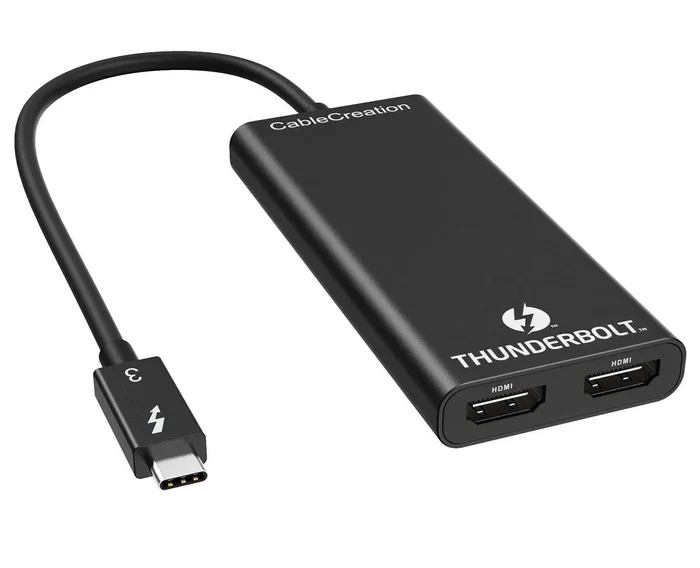
- Thunderbolt 3 and 4: Max speed of 40 Gbps. The fastest USB-based connection available.
If you connect a USB 3.0 USB-C cable to a USB 2.0 USB-A port, your speed will be limited to USB 2.0. The connection will still work. But it will be much slower. This is the most common reason people think their connection is broken. It is not broken. It is just limited by the slowest port in the chain.
USB Power Delivery and Charging
USB-C is famous for its charging speed. But the actual charging speed depends on several factors. The charger, the cable, and the device all play a role.
USB Power Delivery (USB PD) is a standard that allows up to 100 watts of power over USB-C. This means you can charge a laptop through a USB-C port. Older USB-A ports usually provide 5 to 15 watts. So connecting a USB-C device to a USB-A port will charge it much slower.
Here are some quick tips for charging through USB Type C to USB connections:
- Use a high-quality cable: Thin cables limit power delivery. Thicker cables handle more current.
- Check the charger output: A 5W charger will charge slowly no matter what cable you use.
- Look for USB PD support: Make sure your charger and device support USB Power Delivery.
- Avoid cheap knockoff cables: They can damage your device or charge very slowly.
Common Issues and How to Fix Them
Connection Problems
Sometimes your USB Type C to USB connection will not work right away. This can be frustrating. But most of the time, the fix is simple. Here are the most common issues and their solutions.
Issue 1: The cable does not fit. USB-C is reversible, but some adapters are not perfectly aligned. Try flipping the adapter or cable around. If it still does not fit, the adapter may be damaged or the wrong type.
Issue 2: Device is not recognized. Your computer or phone may not detect the connected device. Try unplugging and replugging the connection. Also try a different USB port. Sometimes the port itself has a loose connection.
Issue 3: Intermittent disconnections. If your connection keeps dropping, the cable or adapter may be faulty. Wiggle the connection gently. If the device disconnects when you move it, the cable is likely the problem.
Slow Transfer Speeds
Slow data transfer is one of the biggest complaints people have. Here is why it happens and how to fix it.
First, check the USB version of both ports. If one is USB 2.0 and the other is USB 3.0, the speed will be limited to USB 2.0. You can check your device specifications online or in the user manual.
Second, check your cable. Not all USB-C cables support fast data transfer. Some are charge-only cables. They can power your device but cannot move data. Look for cables that explicitly state they support data transfer.
Third, check for driver issues on your computer. Outdated USB drivers can slow things down. Go to your device manager and update your USB controllers. This simple step often fixes slow transfer speeds.
Expert Tips for the Best USB Type C to USB Experience
We asked tech experts for their best advice on using USB Type C to USB connections. Here is what they recommend.
Tip 1: Always buy certified cables. Look for USB-IF certification on your cables and adapters. This means the product has been tested and meets quality standards. Non-certified cables can damage your devices or cause data corruption.
Tip 2: Keep your cables organized. USB-C cables are small and easy to lose. Use a cable organizer or a dedicated pouch in your bag. This saves you from buying replacements.
Tip 3: Label your cables. If you have multiple USB-C cables, label them by speed or purpose. For example, mark one as “charge only” and another as “data + charge.” This prevents confusion and saves time.
Tip 4: Update your device firmware. Manufacturers often release firmware updates that improve USB compatibility. Check your device manufacturer’s website for the latest updates.
Tip 5: Do not force the connection. USB-C is designed to fit smoothly. If you have to force it, something is wrong. Check for debris in the port or a bent connector. Forcing it can damage the port permanently.
Tip 6: Use a hub for multiple connections. If you need to connect several USB devices to a USB-C laptop, a hub is much better than daisy-chaining adapters. It gives you stable connections and better power delivery.
These tips come from years of real-world experience. Follow them and your USB Type C to USB connections will be smooth and reliable every time.
Frequently Asked Questions About USB Type C to USB Connections
Here are some common questions people ask about connecting USB Type C to USB ports:
Is USB Type C the same as USB 3.0?
No, USB Type C is a connector shape, while USB 3.0 is a data transfer standard. A USB-C port can support USB 2.0, USB 3.0, USB 3.1, or even Thunderbolt. You need to check the specifications of your device to know which USB version it supports. The shape of the plug does not tell you the speed.
Can I use any USB-C cable to connect to a USB-A port?
Most USB-C to USB-A cables will work for basic charging and data transfer. However, not all cables support the same speeds or power levels. Always check the cable specifications. A high-quality cable from a reputable brand will give you the best results and protect your devices.
Why is my USB Type C to USB connection so slow?
Slow connections usually happen when one end of the connection uses USB 2.0 while the other end supports USB 3.0 or higher. Charge-only cables also cause slow or no data transfer. Check your USB version, use a data-capable cable, and update your device drivers to fix this issue.
Can I charge my phone through a USB-C to USB-A connection?
Yes, you can charge your phone this way. But the charging speed will be slower than using a USB-C charger and cable. USB-A ports typically provide less power than USB-C ports with Power Delivery. For fastest charging, use a USB-C charger directly.
Do I need a special adapter for USB-C to USB-A data transfer?
No, a standard USB-C to USB-A adapter or cable works for data transfer. Just make sure the adapter or cable supports data transfer and not just charging. Look for products that clearly state they support both data and power. Certified USB-IF products are the safest choice.
Will connecting USB-C to USB damage my devices?
No, connecting USB Type C to USB-A will not damage your devices. USB is designed with backward compatibility and safety features built in. However, using cheap, uncertified cables or adapters can sometimes cause issues. Always buy from reputable brands and avoid suspiciously cheap options.
Final Thoughts
The answer to the question “Can I connect USB Type C to USB without any issues” is a clear yes. USB Type C was designed to work with older USB standards. With the right adapter or cable, your modern USB-C devices will connect to older USB-A ports seamlessly.
Remember that speed and power delivery depend on the USB version and the quality of your accessories. A good USB-C to USB-A cable from a trusted brand will serve you well for years. Avoid cheap knockoffs and always check the specifications before you buy.
Whether you are charging your phone, transferring photos, or connecting a printer, the USB Type C to USB connection is reliable and straightforward. Keep these tips in mind and you will never have a problem again. The world of USB connections is simpler than it looks. You just need the right information and the right accessories.
Now you have everything you need to make your USB Type C to USB connections work perfectly. Go ahead and try it. You will be surprised how easy it is. Happy connecting!