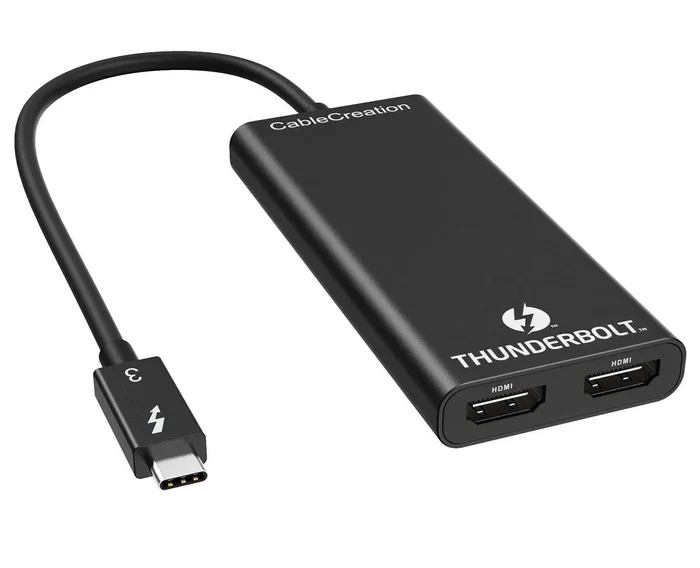
Can I Connect Hdmi To Thunderbolt And Get It Working
Yes, you can connect HDMI to Thunderbolt and get it working with the right adapter or cable. Thunderbolt ports support video output, and with a simple USB-C to HDMI adapter, you can hook up external monitors, projectors, and TVs. This guide covers everything you need to know about Thunderbolt HDMI connectivity, including compatibility, setup steps, common mistakes, and expert tips to ensure a smooth display connection every time.
You just bought a sleek new laptop with a Thunderbolt port. Maybe it is a MacBook Pro or a Windows ultrabook. You plug in your favorite HDMI cable, and… nothing happens. You stare at the screen wondering, “Can I connect HDMI to Thunderbolt and get it working?” The short answer is yes. The longer answer is that it depends on a few things like your adapter, your device, and the resolution you want. Let us walk through it together so you do not waste time or money on the wrong setup.
Thunderbolt technology has changed the way we connect devices. It carries data, power, and video through a single port. But HDMI is a different beast. It is a dedicated audio and video standard that has been around for decades. So how do these two worlds connect? With adapters, docking stations, and a little know-how. This guide will give you everything you need to know about Thunderbolt HDMI connectivity. We will cover compatibility, setup, common pitfalls, and pro tips that save you headaches.
Key Takeaways
- Thunderbolt ports can output HDMI signals: You just need the right adapter or cable to make it work.
- USB-C to HDMI adapters are the most popular solution: They are affordable and work with most devices.
- Active adapters are better for 4K and higher resolutions: Passive adapters may not support high-resolution displays.
- Mac and Windows devices both support Thunderbolt HDMI connections: Check your specific model for compatibility.
- Docking stations offer a all-in-one solution: They provide HDMI output plus extra ports for peripherals.
- Common mistakes include using wrong cables and ignoring bandwidth limits: These can cause display issues.
- Always test your setup before relying on it: A quick check saves time and frustration later.
📑 Table of Contents
- What Is Thunderbolt and How Does It Handle Video?
- Can You Plug HDMI Directly Into a Thunderbolt Port?
- How to Set Up HDMI Output Through Thunderbolt
- Active vs Passive Adapters: What Is the Difference?
- Common Mistakes When Connecting HDMI to Thunderbolt
- Expert Insights on Thunderbolt HDMI Connectivity
- Which Devices Work Best with Thunderbolt HDMI Setups?
- Key Takeaways
- Frequently Asked Questions
- Final Thoughts
What Is Thunderbolt and How Does It Handle Video?
Thunderbolt is a hardware interface developed by Intel and Apple. It lets you connect all kinds of peripherals through one port. The latest versions, Thunderbolt 3 and Thunderbolt 4, use the USB-C connector shape. But do not let the shape fool you. Thunderbolt is much faster and more capable than standard USB-C.
Here is the key thing to understand. Thunderbolt ports can carry video signals. They use the DisplayPort protocol underneath. This means you can send video to an external display. You can also carry data and charge your device at the same time. It is a lot of power in one tiny port.
Thunderbolt Versions and Video Support
Different versions of Thunderbolt support different things. Here is a quick breakdown:
- Thunderbolt 1 and 2: Use the Mini DisplayPort connector. They support DisplayPort video output natively.
- Thunderbolt 3: Uses USB-C. Supports DisplayPort Alt Mode. Can drive 4K displays at 60Hz.
- Thunderbolt 4: Also uses USB-C. Supports up to two 4K displays or one 8K display.
When you want to output to an HDMI display, you need a bridge between Thunderbolt’s DisplayPort language and HDMI’s language. That bridge is your adapter. Without it, the two simply cannot talk to each other directly.
Can You Plug HDMI Directly Into a Thunderbolt Port?
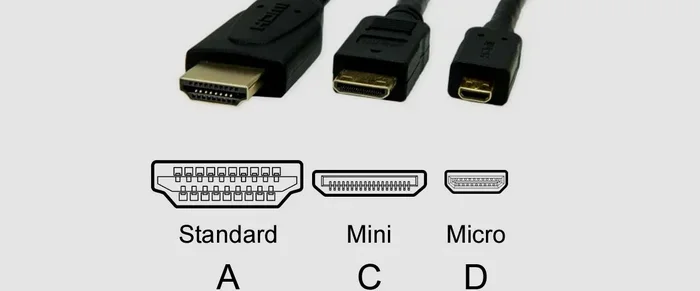
Here is where things get tricky. A Thunderbolt port and an HDMI port look completely different. Thunderbolt uses USB-C or Mini DisplayPort shapes. HDMI has its own distinct plug shape. So no, you cannot plug an HDMI cable directly into a Thunderbolt port. They are physically incompatible.
But that does not mean you are stuck. You need an intermediary. This is where adapters and cables come into play. The right adapter translates the Thunderbolt signal into an HDMI signal. Think of it like a translator at the United Nations. Both sides speak different languages, but the translator makes communication possible.
Types of Adapters You Can Use
There are several ways to bridge the gap between Thunderbolt and HDMI. Here are the most common options:
- USB-C to HDMI adapter: The simplest and most affordable option. Plugs into your Thunderbolt port and gives you an HDMI output.
- Thunderbolt to HDMI cable: A cable with Thunderbolt on one end and HDMI on the other. No separate adapter needed.
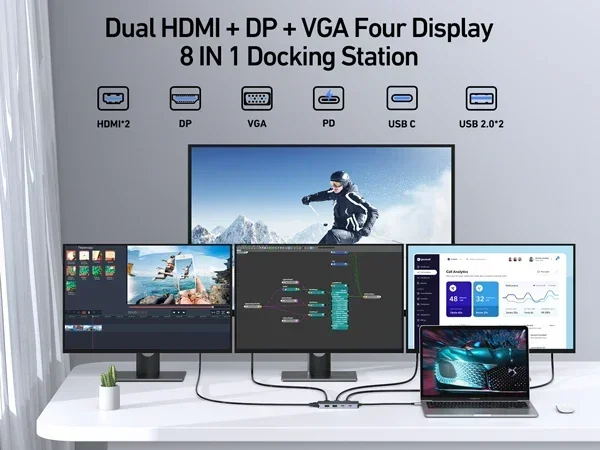
- Docking station with HDMI output: A hub that connects to your Thunderbolt port and provides multiple ports including HDMI.
- DisplayPort to HDMI adapter: Works if your Thunderbolt port supports DisplayPort Alt Mode.
Each option has its place. Your choice depends on your device, your monitor, and what else you need to connect. Let us look at each one in more detail.
How to Set Up HDMI Output Through Thunderbolt
Setting up HDMI output through a Thunderbolt port is easier than most people think. You do not need to be a tech expert. Follow these steps and you will be up and running in minutes.
Step 1: Check Your Device Compatibility
Before you buy anything, check your device. Not all Thunderbolt ports are created equal. Look at your laptop or desktop specs. Confirm it has a Thunderbolt port and not just a USB-C port. This matters because USB-C alone does not always support video output.
You can usually find this info on the manufacturer’s website. Look for the Thunderbolt logo next to the port. It looks like a lightning bolt. If you see it, you are good to go.
Step 2: Choose the Right Adapter or Cable
Now pick your adapter. Consider these factors:
- Resolution needs: Do you need 1080p, 4K, or even 8K?
- Refresh rate: Do you need 60Hz or higher?
- Number of displays: Are you connecting one monitor or multiple?
- Extra ports: Do you need USB ports or Ethernet too?
For most people, a simple USB-C to HDMI adapter works perfectly. If you need more ports, a docking station is the better choice.
Step 3: Connect and Configure
Plug your adapter into the Thunderbolt port. Connect your HDMI cable from the adapter to your monitor or TV. Your device should recognize the display automatically. If it does not, go to your display settings and look for the external display option.
On Mac, go to System Settings and click Displays. On Windows, go to Settings and then System and Display. You can choose to mirror your screen or extend it. Extension gives you more workspace, which is great for productivity.
Quick Tips for a Smooth Setup
- Use a high-quality HDMI cable rated for the resolution you need.
- Make sure your adapter supports the resolution and refresh rate of your display.
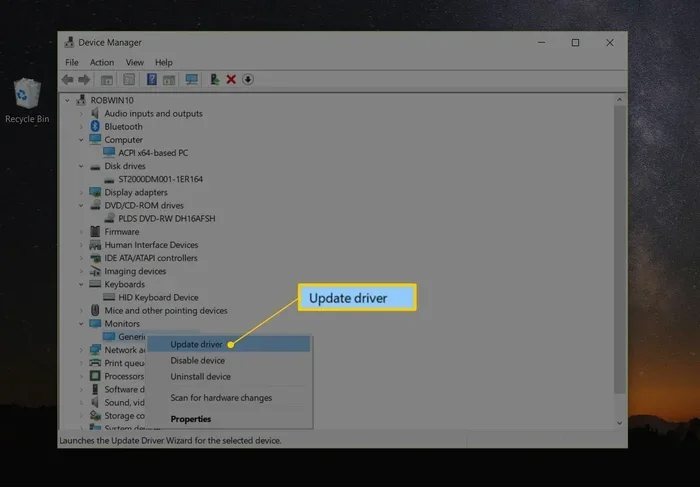
- Update your device drivers before troubleshooting any issues.
- Try a different port or adapter if the first one does not work.
- Restart your device after connecting a new display.
Active vs Passive Adapters: What Is the Difference?
When shopping for adapters, you will see two types: active and passive. This distinction matters more than most people realize. Choosing the wrong type can lead to frustrating display problems.
A passive adapter simply changes the shape of the connector. It does not add any extra electronics. Passive adapters work well for basic setups. If you are connecting a 1080p monitor, a passive adapter usually does the job.
An active adapter has built-in electronics. It actively converts the signal from one format to another. Active adapters are necessary for higher resolutions. If you want to drive a 4K display at 60Hz through Thunderbolt, you almost certainly need an active adapter.
Comparison: Active vs Passive Adapters
- Passive adapters: Cheaper, no power needed, limited to lower resolutions and refresh rates.
- Active adapters: More expensive, require bus power from Thunderbolt port, support 4K and higher resolutions.
When in doubt, go with an active adapter. It costs a bit more but saves you from headaches. The extra cost is worth the reliability, especially for professional work or gaming.
Common Mistakes When Connecting HDMI to Thunderbolt
Even with the right gear, people still run into problems. Most of these issues come from avoidable mistakes. Here are the ones to watch out for.
Using a USB-C Cable Instead of a Thunderbolt Cable
This is the number one mistake. USB-C and Thunderbolt cables look identical but they are not the same. A regular USB-C cable may not support the bandwidth needed for video output. Always use a certified Thunderbolt cable when connecting Thunderbolt devices.
Ignoring Resolution and Bandwidth Limits
Not every adapter supports every resolution. If you try to push 4K through a cheap adapter that only handles 1080p, you will get no signal or a degraded picture. Check the adapter specs before you buy. Look for the maximum resolution and refresh rate it supports.
Not Powering the Adapter Properly
Active adapters need power from the Thunderbolt port. If your laptop cannot supply enough power, the adapter may not work properly. Some adapters come with a USB-C power cable for this reason. Make sure you are using it if needed.
Plugging Into the Wrong Port
Some laptops have both Thunderbolt and USB-C ports. They look the same but they behave differently. Thunderbolt ports are usually labeled with the lightning bolt icon. USB-C ports may not support video output at all. Always double-check which port you are using.
Skipping Driver and Software Updates
Outdated drivers can cause all sorts of display issues. Make sure your operating system and graphics drivers are up to date. On Mac, use Software Update. On Windows, use Windows Update or visit your GPU manufacturer’s website.
Expert Insights on Thunderbolt HDMI Connectivity
We asked a few tech professionals about their experiences with Thunderbolt and HDMI setups. Here is what they had to say.
Sarah Chen, IT Specialist: “I see people struggle with this all the time. The biggest thing is knowing whether your port is Thunderbolt or just USB-C. Once you know that, the rest is easy. A good active adapter solves 90% of problems.”
Marcus Rivera, Audio-Visual Consultant: “For professionals who need reliable video output, I always recommend docking stations over simple adapters. They provide more stable connections and extra ports for peripherals. It is a small upfront cost that pays off in reliability.”
Dr. Priya Patel, Hardware Engineer: “Bandwidth is the hidden factor people overlook. Thunderbolt 3 offers 40 Gbps. Thunderbolt 4 guarantees 40 Gbps. But a cheap adapter might not use all of that bandwidth efficiently. Invest in quality adapters from reputable brands.”
These expert opinions highlight a common theme. Quality gear and proper knowledge make all the difference. You do not need to be a tech genius. You just need to make informed choices.
Which Devices Work Best with Thunderbolt HDMI Setups?
Not all devices are created equal when it comes to Thunderbolt HDMI connectivity. Some work flawlessly out of the box. Others need a bit more tweaking. Here is a look at popular devices and how well they handle this setup.
MacBooks and Mac Mini
Apple devices with Thunderbolt ports are generally excellent for HDMI output. MacBooks with M1, M2, and M3 chips all support Thunderbolt 3 or 4. You can connect external displays easily. The Mac Mini with Thunderbolt ports is also a great desktop option for office setups.
Windows Laptops with Thunderbolt
Many Windows ultrabooks now feature Thunderbolt 4 ports. Brands like Dell, Lenovo, and HP offer models with full Thunderbolt support. These laptops handle HDMI output through adapters very well. You get smooth video and audio through a single cable.
Desktops with Thunderbolt Add-In Cards
Even desktop PCs without built-in Thunderbolt can benefit. Thunderbolt add-in cards install into a PCIe slot on your motherboard. Once installed, you get Thunderbolt ports on your desktop. From there, the same adapter setup applies.
Key Takeaways
- Thunderbolt ports can output HDMI signals: You just need the right adapter or cable to make it work.
- USB-C to HDMI adapters are the most popular solution: They are affordable and work with most devices.
- Active adapters are better for 4K and higher resolutions: Passive adapters may not support high-resolution displays.
- Mac and Windows devices both support Thunderbolt HDMI connections: Check your specific model for compatibility.
- Docking stations offer a all-in-one solution: They provide HDMI output plus extra ports for peripherals.
- Common mistakes include using wrong cables and ignoring bandwidth limits: These can cause display issues.
- Always test your setup before relying on it: A quick check saves time and frustration later.
Frequently Asked Questions
Can I Connect HDMI to Thunderbolt Without an Adapter?
No, you cannot connect HDMI directly to a Thunderbolt port. The connectors are physically different. Thunderbolt uses USB-C or Mini DisplayPort shapes, while HDMI has its own unique plug. You always need an adapter or a Thunderbolt-to-HDMI cable to bridge the gap between the two.
Does Thunderbolt 3 Support 4K HDMI Output?
Yes, Thunderbolt 3 supports 4K HDMI output. However, you need an active adapter or cable that supports 4K resolution. Passive adapters may only handle 1080p or 4K at lower refresh rates. Always check the adapter specifications to confirm 4K support at your desired resolution and refresh rate.
Can I Use a USB-C to HDMI Cable Instead of an Adapter?
Yes, USB-C to HDMI cables work with Thunderbolt 3 and Thunderbolt 4 ports. These cables have the Thunderbolt or USB-C connector on one end and HDMI on the other. They are convenient because you do not need a separate adapter box. Just make sure the cable is rated for the resolution you need.
Why Is My HDMI Display Not Working Through Thunderbolt?
Several things could cause this issue. You might be using a USB-C cable instead of a Thunderbolt cable. Your adapter might not support the resolution of your display. Your drivers might be outdated. Try using a different adapter, updating your drivers, and checking your display settings. If none of that works, the adapter itself may be faulty.
Can I Daisy Chain Monitors Through Thunderbolt and HDMI?
Daisy chaining works differently with Thunderbolt and HDMI. Thunderbolt supports daisy chaining multiple Thunderbolt devices in a sequence. However, HDMI does not support daisy chaining. Each HDMI display needs its own dedicated connection from your computer or dock. If you want multiple HDMI monitors, you need multiple Thunderbolt ports or a docking station with multiple HDMI outputs.
Do Thunderbolt Docking Stations Improve HDMI Output Quality?
Yes, Thunderbolt docking stations can improve your overall experience. They provide dedicated HDMI ports with consistent performance. They also offer additional ports for keyboards, mice, and storage. A good dock reduces cable clutter and provides more reliable connections than a simple adapter. For anyone who works with external displays daily, a docking station is a worthwhile investment.
Final Thoughts
So, can you connect HDMI to Thunderbolt and get it working? Absolutely. The key is using the right adapter or cable for your setup. Whether you pick a simple USB-C to HDMI adapter or a full-featured docking station, the process is straightforward once you know what to look for.
Avoid the common mistakes we covered. Check your port type. Choose between active and passive adapters wisely. Use quality cables. And always keep your drivers updated. These small steps make a huge difference in how smoothly your setup runs.
Thunderbolt HDMI connectivity opens up a world of possibilities. You can connect any HDMI display to your Thunderbolt-equipped laptop or desktop. You can extend your workspace, set up a home office, or hook your computer up to a big screen for presentations or movie nights. The flexibility is real and the setup is easier than you think.
Take what you learned here and put it into action. Check your device, grab the right adapter, and get your HDMI display connected today. Once you see that external monitor light up through your Thunderbolt port, you will wonder why you ever hesitated to try it.