Are My HP Drivers Up To Date And How To Update Them
This guide answers the question Are My HP Drivers Up To Date and shows you exactly how to update them. You’ll learn simple methods to check driver versions, use HP Support Assistant, and download the latest drivers from HP. Keep your hardware running smoothly with these easy steps.
Your HP printer, laptop, or desktop works because of tiny pieces of software called HP drivers. These drivers act like translators between your hardware and Windows. When they are current, everything runs fast and smooth. When they are old, you might get errors, slow performance, or even hardware that stops working. This guide will walk you through the simple steps to find out if your HP drivers are up to date and how to update them in just a few minutes.
Many people ignore driver updates until something breaks. That is a mistake. Keeping your HP drivers current helps your PC stay stable, secure, and fast. Whether you use an HP laptop for work, an HP printer for home, or an HP desktop for gaming, the right drivers make a big difference. You do not need to be a tech expert to handle this. I will show you the easiest methods, from using free HP tools to checking manually. Let us get started.
Key Takeaways
- Check regularly: Use HP Support Assistant to scan for outdated drivers automatically.
- Update manually when needed: Visit the HP website to download the latest driver versions for specific devices.
- Use Windows Update: It can push important HP driver updates, but not always the newest ones.
- Watch for warning signs: Printer errors, audio dropouts, or laggy touchpads often point to old drivers.
- Avoid sketchy third-party tools: Stick to HP’s official tools to keep your system safe.
- Set a monthly reminder: A quick driver check keeps your HP hardware running at its best.
📑 Table of Contents
What Are HP Drivers and Why Do They Matter?
Drivers are small programs that tell your operating system how to talk to a piece of hardware. Your HP laptop has a motherboard that connects to many parts. Each part needs its own driver to work properly. Without the correct driver, your HP printer might not print, your touchpad might not respond, or your audio might crackle.
Think of a driver like a language translator. Your Windows PC speaks one language, and your HP hardware speaks another. The driver bridges that gap. When HP releases a new driver, it often fixes bugs, improves speed, or adds new features. Updating your HP drivers is like giving your hardware a fresh set of instructions. This keeps your system running at its best.
How Drivers Keep Your HP Hardware Running Smoothly
Every time you plug in an HP device, Windows looks for a matching driver. If it finds one, the device works. If the driver is missing or old, you may see a yellow warning sign in Device Manager. Updated HP drivers also improve security. Hackers can exploit old driver code to gain access to your system. New drivers patch those holes. They also boost performance. For example, an updated HP printer driver can print faster and use less ink.
In fields like medical technology, where computers control sensitive equipment, even a tiny driver glitch can cause big problems. That is why keeping all drivers current is so important for everyone, not just professionals.
How to Check If Your HP Drivers Are Up to Date
The first step is to find out what you have. You can check your driver versions in a few different ways. I will show you the two easiest methods. One uses HP’s own free software, and the other uses a built-in Windows tool.
Using HP Support Assistant for Automatic Checks
HP Support Assistant is a free app that comes with most HP computers. It scans your system and tells you which drivers need updating. Here is how to use it:
- Click the Start menu and type HP Support Assistant.
- Open the app and click on the Updates tab.
- Click Check for Updates and Notifications.
- The app will show a list of available driver updates.
- Select the ones you want and click Download and Install.
This is the fastest way to update HP drivers because the app knows exactly which drivers your model needs. You can also set HP Support Assistant to check for updates automatically. I recommend turning that on so you never miss an important update.
Manual Driver Checks via Device Manager
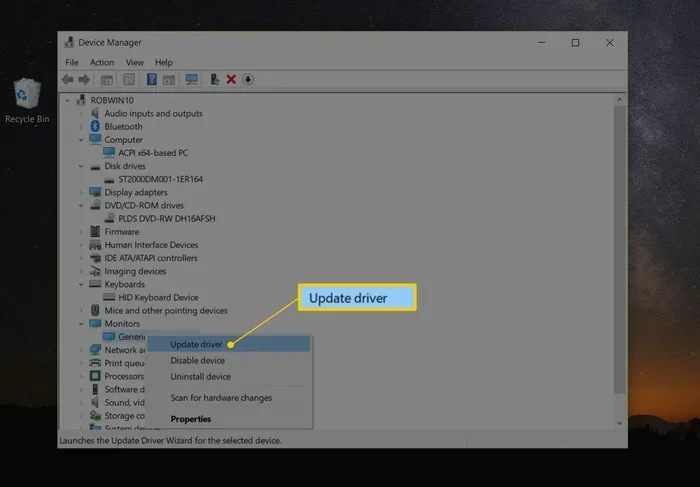
If you prefer not to install extra software, you can check drivers manually through Device Manager. This tool shows every piece of hardware and its current driver version. Here is what to do:
- Right-click the Start button and choose Device Manager.
- Expand a category, like Print Queues or Mice and Other Pointing Devices.
- Right-click the device and select Properties.
- Go to the Driver tab to see the driver version and date.
You can also run a quick HP driver check online to compare your version with the latest one. If the date is more than a year old, it is probably time to update.
The Best Ways to Update HP Drivers
Once you know which drivers are out of date, you need to update them. There are three main methods. Each has its own benefits. Let us look at them side by side.
| Method | Best For | Pros | Cons |
|---|---|---|---|
| HP Support Assistant | Most users | Automatic, safe, free | Only works on HP PCs |
| HP Website Download | Specific devices | Gets the latest version directly | Takes more time |
| Windows Update | General stability | Built-in, easy | May not have the newest drivers |
Automatic Updates Through HP Software
HP Support Assistant is the gold standard for keeping HP drivers current. It runs in the background and quietly downloads updates. You do not have to think about it. The software checks your model number and only offers drivers that match your hardware. This prevents you from accidentally installing the wrong driver. I always tell friends to let HP Support Assistant handle the heavy lifting.
If you do not have HP Support Assistant, you can download it for free from the HP official website. Just search for your PC model and look for the support or drivers section. The site will detect your product and list all available driver updates.
Downloading Drivers from the HP Website
Sometimes you need a specific driver that HP Support Assistant does not offer. Maybe you just bought a new HP external monitor or a printer. In that case, go to the HP download center. Here is the process:
- Go to support.hp.com and enter your product name or number.
- Select your operating system (Windows 10 or 11).
- Scroll to the Drivers and Software section.
- Find the driver you need and click Download.
- Run the installer and follow the on-screen steps.
This method gives you full control. You can see the exact driver version and release date. It is perfect for HP printer drivers or HP laptop drivers that need a fresh install.
Using Windows Update for HP Drivers
Windows Update is a convenient way to get driver updates without visiting any website. Microsoft partners with HP to push important driver packages through Windows Update. To check for driver updates this way:
- Open Settings and go to Windows Update.
- Click Advanced options and then Optional updates.
- Look under Driver updates and select any HP drivers you want.
- Click Download and install.
Windows Update is great for security patches and basic driver fixes. However, it does not always have the very latest version. For the newest HP drivers, I still recommend using HP Support Assistant or the HP website.
Common HP Driver Problems and How to Fix Them
Even with regular updates, driver problems can happen. Knowing the signs helps you fix them fast. Here are the most common issues and simple solutions.
Signs Your Drivers Are Outdated
- Printer errors: Your HP printer says it is offline or refuses to print.
- Audio dropouts: Sound cuts out randomly or you hear static.
- Lagging touchpad: Your mouse cursor jumps or does not respond smoothly.
- Blue screens: A sudden crash with a driver-related error message.
- Device not recognized: Windows does not see your HP device when you plug it in.
If you notice any of these, run a driver check right away. Outdated HP drivers are a top cause of PC instability.
Quick Fixes for Driver Conflicts
Sometimes a new driver conflicts with an old one. This can cause your device to malfunction. Try these quick fixes before you panic:
- Roll back the driver: In Device Manager, right-click the device, go to Properties, and choose Roll Back Driver.
- Uninstall and reinstall: Remove the device in Device Manager, restart your PC, and let Windows reinstall a fresh driver.
- Clean install: Use the HP driver uninstall tool, then download the latest driver from the HP website.
These steps solve most driver conflicts. I always keep a system restore point before I mess with drivers, just in case.
Quick Tips
- Always restart your PC after installing a driver update.
- Do not download drivers from random websites. Stick to HP’s official source.
- Keep a list of your HP product numbers so you can find drivers quickly.
- Use HP Support Assistant’s scheduled scan feature to stay on top of updates.
Expert Tips to Keep Your HP Drivers Always Current
Keeping drivers updated does not have to be a chore. A few smart habits make it automatic. Here are some expert-backed tips I use every day.
Setting Up Regular Driver Scans
Open HP Support Assistant and go to the settings. Enable automatic driver checks. Set the frequency to weekly or monthly. This way, you will never miss an important HP driver update. It takes just a few seconds and saves you from future headaches. I also recommend checking for Windows updates at the same time, since they often include driver improvements.
When to Avoid Third-Party Driver Tools
The internet is full of free driver updater tools that promise to fix everything. Many of them are bloated, outdated, or even harmful. They often install the wrong drivers or bundle unwanted software. I always tell users to avoid these tools and stick to the official HP methods. HP Support Assistant and the HP website are safe, reliable, and free. Your PC will thank you for it.
Expert Insight
One of the biggest mistakes I see is people using old driver files they downloaded years ago. Always grab the latest driver directly from HP. A driver update from 2020 will not help your 2024 HP laptop. Check the release date and version number before you install anything.
Final Thoughts: Stay Ahead with Updated HP Drivers
So, are your HP drivers up to date? Now you know exactly how to find out and fix them. You can use HP Support Assistant for automatic updates, check Device Manager for manual versions, or visit the HP website for specific downloads. Each method keeps your hardware running smoothly and securely.
Updating your HP drivers is one of the easiest ways to boost your PC’s performance. It takes only a few minutes and can prevent costly problems down the road. Make it a habit to check your drivers once a month. Your HP printer, laptop, and desktop will run faster, quieter, and more reliably. Take a few minutes today to run that driver check. Your future self will thank you.
Frequently Asked Questions
How do I know if my HP drivers are outdated?
You can check the driver version in Device Manager or use HP Support Assistant. If the driver date is more than six months old or you see errors like printer offline or audio dropouts, your HP drivers are likely outdated.
Can I update HP drivers for free?
Yes, all official HP driver updates are free. You can use HP Support Assistant, the HP website, or Windows Update to download and install them at no cost.
Is it safe to use Windows Update for HP drivers?
Yes, Windows Update is safe and convenient. However, it may not always have the very latest version. For the newest HP drivers, I recommend using HP Support Assistant or downloading directly from HP.
What happens if I install the wrong HP driver?
Installing the wrong driver can cause device conflicts or errors. Always double-check your product model and operating system before downloading. HP Support Assistant helps prevent this by matching drivers to your exact hardware.
How often should I update my HP drivers?
I recommend checking for driver updates once a month. If you use your HP device heavily for work or gaming, check more often. Setting up automatic scans in HP Support Assistant makes this effortless.
Can old drivers slow down my computer?
Yes, outdated drivers can cause slow performance, crashes, and hardware errors. Keeping your HP drivers current ensures your PC runs at its best speed and stability.