Can 1 Displayport Support 2 Monitors With This Simple Trick
Can 1 Displayport Support 2 Monitors? Absolutely, and it is easier than you think. Using a feature called DisplayPort MST (Multi-Stream Transport), you can connect two or even more monitors to a single DisplayPort output. This guide walks you through the simple trick of daisy chaining, using an MST hub, or a DisplayPort splitter to set up your dual monitor configuration without buying extra ports or expensive hardware.
If you have ever looked at your computer and thought, “I need more screen space,” you are not alone. Dual monitor setups boost productivity, make multitasking smoother, and turn a single desk into a workstation that feels like a command center. But here is the problem — what if your graphics card or laptop only has one DisplayPort output? Does that mean you are stuck with a single screen? Not even close.
The short answer to the question Can 1 Displayport Support 2 Monitors is a resounding yes. There is a simple trick, and it does not require you to buy a new graphics card or expensive adapter. In this guide, we will walk you through exactly how to run two monitors from one DisplayPort connection. We will cover daisy chaining, MST hubs, splitters, and the common pitfalls to avoid. By the end, you will have everything you need to set up your dual monitor display the right way.
Key Takeaways
- DisplayPort MST allows one port to drive multiple monitors through daisy chaining or a hub.
- Daisy chaining is the simplest trick — you just connect monitor one to your PC, then monitor two to monitor one.
- DisplayPort 1.2 and newer versions support Multi-Stream Transport, so check your port version first.
- An MST hub or splitter works when daisy chaining is not an option, giving you flexibility for any setup.
- Resolution and refresh rate may drop when splitting one port across two screens, so plan accordingly.
- USB-C and Thunderbolt ports can also carry DisplayPort signals, opening up more dual-monitor possibilities.
- Not all monitors support DisplayPort input, so always check the back of your screen before buying cables.
📑 Table of Contents
- Understanding DisplayPort and Why It Matters for Dual Monitors
- The Simple Trick: How DisplayPort Daisy Chaining Works
- Using an MST Hub or DisplayPort Splitter
- DisplayPort Versions and Their Multi-Monitor Capabilities
- Common Mistakes When Setting Up Dual Monitors on One DisplayPort
- Quick Tips for the Best Dual Monitor Experience
- Key Takeaways
- Conclusion
Understanding DisplayPort and Why It Matters for Dual Monitors
DisplayPort is a digital display interface developed by VESA. It is found on most modern graphics cards, laptops, and monitors. Unlike older ports like VGA or DVI, DisplayPort carries both video and audio signals through a single cable. It also supports higher resolutions and refresh rates, which makes it ideal for modern displays.
Here is why DisplayPort is special when it comes to running multiple monitors. The standard version, DisplayPort 1.2, introduced a feature called Multi-Stream Transport (MST). This feature is the key to unlocking the ability to connect more than one monitor to a single port. Later versions like DisplayPort 1.4 improved bandwidth and added support for higher resolutions, but the MST foundation remained the same.
What Makes DisplayPort Different from HDMI for Multi-Monitor Setups?
You might be wondering why we focus on DisplayPort instead of HDMI. The truth is, most HDMI ports on consumer devices do not natively support multi-stream output the way DisplayPort does. HDMI relies on different standards for splitting signals, and those options are often more limited. DisplayPort was designed from the ground up to handle multi-monitor configurations efficiently.
That said, some modern HDMI 2.0 and 2.1 ports on high-end graphics cards do offer limited multi-display support. But for the average user, DisplayPort remains the go-to choice for connecting two or more monitors to a single output. If your PC or laptop has a DisplayPort, you are already halfway to a powerful dual-screen setup.
The Simple Trick: How DisplayPort Daisy Chaining Works
Now let us get to the part you have been waiting for. The simple trick that answers Can 1 Displayport Support 2 Monitors is called daisy chaining. It is a method where you connect monitors in a chain, one after the other, using a single DisplayPort output on your computer.
What Exactly Is Daisy Chaining?
Daisy chaining means you use the DisplayPort output on your computer to connect to Monitor One. Then, you use the DisplayPort output on Monitor One to connect to Monitor Two. The signal flows from your PC to the first monitor, and then passes through to the second monitor. Think of it like a line of people passing a ball — the ball starts with you and reaches the last person in line.
For daisy chaining to work, your monitors need to support DisplayPort In and DisplayPort Out ports. Most modern monitors with DisplayPort include both. You will see a small “DP Out” or “DisplayPort Out” label on the back of the monitor. If your monitor only has a DP In port, daisy chaining will not work, and you will need a different method.
Step-by-Step: How to Daisy Chain Two Monitors
Setting up daisy chaining is straightforward. Follow these steps and you will be up and running in minutes.
- Check your monitor specifications. Make sure both monitors support DisplayPort MST and have a DisplayPort Out port.
- Connect your PC to Monitor One. Use a DisplayPort cable from your computer’s video output to the DisplayPort In on Monitor One.
- Connect Monitor One to Monitor Two. Use another DisplayPort cable from the DisplayPort Out on Monitor One to the DisplayPort In on Monitor Two.
- Power on all devices. Turn on your PC and both monitors in order.
- Configure display settings. Right-click your desktop and select Display Settings (Windows) or System Preferences (Mac). Arrange the monitors and set the display mode to “Extend.”
That is it. You now have two screens running off a single DisplayPort connection. No splitter, no hub, no extra hardware required. This is the simplest and cleanest way to answer Can 1 Displayport Support 2 Monitors.
Does Daisy Chaining Affect Performance?
Here is the honest truth. Daisy chaining does share the bandwidth of your single DisplayPort connection between two monitors. If you are running both monitors at 1080p with a standard refresh rate, you will likely notice no difference at all. But if you push both monitors to 4K at high refresh rates, you may see a slight drop in performance or frame rate.
For most office work, web browsing, and general productivity tasks, daisy chaining two 1080p or even 1440p monitors will work perfectly. DisplayPort 1.4 handles this even better thanks to its higher bandwidth. Always check your port version and monitor specs before committing to a setup.
Using an MST Hub or DisplayPort Splitter
What if daisy chaining is not an option? Maybe your second monitor does not have a DisplayPort Out port, or your setup does not allow a physical chain. In that case, you can use a DisplayPort splitter or an MST hub. These devices take one DisplayPort signal and split it into multiple outputs.
What Is an MST Hub?
An MST hub is a small device that connects to your PC’s DisplayPort and provides multiple DisplayPort outputs. You plug the hub into your computer, then connect each monitor directly to the hub. The hub handles the signal splitting internally, and each monitor receives its own independent display stream.
MST hubs are great because they do not require any special support from your monitors. Any monitor with a DisplayPort input will work. This makes them very flexible and easy to set up. You can also connect more than two monitors to some hubs, depending on the model.
What Is a DisplayPort Splitter?
A DisplayPort splitter works differently from an MST hub. A splitter duplicates the same signal to all connected monitors. This means every monitor shows the exact same image. A splitter is useful for digital signage or presentations, but it is not ideal for an extended desktop setup where each monitor shows different content.
If you want a true extended desktop with two different screens, go with an MST hub, not a splitter. This is a common mistake that many people make when setting up their multi-monitor configuration.
Quick Comparison: MST Hub vs. Daisy Chaining vs. Splitter
| Feature | Daisy Chaining | MST Hub | DisplayPort Splitter |
|---|---|---|---|
| Requires DP Out on monitors | Yes | No | No |
| Extended desktop support | Yes | Yes | No (mirrors only) |
| Extra hardware needed | No | Yes | Yes |
| Cable management | Simple | Moderate | Simple |
| Cost | Free | Moderate | Low to moderate |
| Max monitors typically | 2-6 | 4-8 | 2-4 |
As you can see from the table, each method has its strengths. Daisy chaining is free and simple. An MST hub offers the most flexibility. A splitter works best for mirror-only setups. Choose the method that fits your monitor setup and workflow.
DisplayPort Versions and Their Multi-Monitor Capabilities
Not all DisplayPort versions are created equal when it comes to supporting multiple monitors. The version of DisplayPort on your graphics card or laptop determines how much bandwidth you have and what resolutions you can push across multiple screens.
DisplayPort 1.2 — The MST Pioneer
DisplayPort 1.2 introduced Multi-Stream Transport, which made daisy chaining and MST hubs possible. It supports up to two 1080p monitors at 60Hz or a single 1440p monitor at 60Hz from one port. For basic dual monitor setups, DisplayPort 1.2 is more than enough.
DisplayPort 1.4 — Better Bandwidth, Better Multi-Display
DisplayPort 1.4 brought significant improvements in bandwidth and added support for DSC (Display Stream Compression). This means you can run two 4K monitors at 60Hz from a single port with less strain. If you are building a high-resolution multi-monitor workstation, DisplayPort 1.4 is the way to go.
USB-C and Thunderbolt — The Modern Alternative
Many modern laptops and desktops now use USB-C or Thunderbolt ports that can carry DisplayPort signals. Using a USB-C to DisplayPort adapter or a Thunderbolt dock, you can often achieve the same dual-monitor results. Thunderbolt 3 and 4 are especially powerful because they offer high bandwidth and can support multiple displays natively.
If your computer only has USB-C ports, do not worry. You can still answer Can 1 Displayport Support 2 Monitors using the right adapter or dock. Just make sure your USB-C port supports DisplayPort Alt Mode or is Thunderbolt-enabled.
Common Mistakes When Setting Up Dual Monitors on One DisplayPort
Even with the simplest setup, mistakes can happen. Here are the most common errors people make when trying to run two monitors from one DisplayPort port, and how to avoid them.
Mistake 1: Assuming All Monitors Support Daisy Chaining
Not every monitor with a DisplayPort has a DisplayPort Out. Many budget monitors only have a DP In port. Before you start daisy chaining, check the back of both monitors for the “DP Out” label. If it is missing, you will need an MST hub instead.
Mistake 2: Using the Wrong Cable
Using a low-quality or incompatible cable can cause signal loss, flickering, or no signal at all. Always use certified DisplayPort cables that support the version of your port. For DisplayPort 1.4 setups, use cables rated for 8K or 4K at high refresh rates to ensure stable performance.
Mistake 3: Forgetting to Enable MST in Display Settings
After connecting your monitors, your computer may not automatically detect the second screen. Go to your display settings and make sure the display mode is set to “Extend these displays.” If the second monitor is not showing up, try disconnecting and reconnecting the cables, or restart your computer.
Mistake 4: Pushing Too Much Resolution Through One Port
Trying to run two 4K monitors at 144Hz from a single DisplayPort 1.2 port will lead to frustration. The bandwidth simply is not there. Know your limits and adjust your resolution or refresh rate settings to match what your port can handle.
Mistake 5: Ignoring Graphics Card Limitations
Even if your DisplayPort supports MST, your graphics card must also support it. Most modern GPUs from NVIDIA and AMD support multi-display output, but some budget or older cards may have limitations. Check your graphics card specifications to confirm it can handle multiple monitors from its video output ports.
Quick Tips for the Best Dual Monitor Experience
Once you have your two monitors running off one DisplayPort, here are some tips to get the most out of your setup.
- Use monitor stands or a dual monitor arm. Proper positioning reduces neck strain and improves your posture during long work sessions.
- Match your monitor sizes and resolutions. Using two identical monitors gives you a seamless visual experience with consistent brightness and color.
- Adjust display scaling in Windows or macOS. If your monitors have different resolutions, set the scaling so that text and icons appear the same size on both screens.
- Use a high-quality DisplayPort cable for the PC-to-monitor connection. The cable that runs directly from your PC carries the full signal, so invest in a good one.
- Keep your DisplayPort drivers updated. Graphics card drivers often include fixes for multi-display issues. Check for updates regularly.
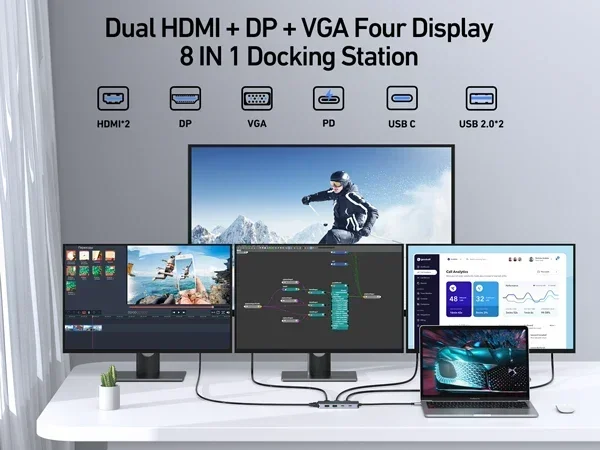
- Consider a USB-C docking station. If you are using a laptop, a docking station can provide both power and multiple display outputs through a single connection.
Expert Insight: According to display technology experts, the best dual monitor setups combine DisplayPort MST with monitors that have built-in USB hubs. This gives you not only extra screen space but also additional USB ports for your peripherals, creating a clean and efficient workstation.
Key Takeaways
- Daisy chaining is the simplest and most cost-effective way to connect two monitors to one DisplayPort without any extra hardware.
- DisplayPort MST (Multi-Stream Transport) is the technology that makes running multiple monitors from a single port possible.
- DisplayPort 1.2 and newer versions support MST, so check your port version before setting up.
- MST hubs and splitters offer alternatives when daisy chaining is not possible due to monitor limitations.
- Resolution and refresh rate may decrease when splitting bandwidth across two monitors, so plan your settings carefully.
- USB-C and Thunderbolt ports can carry DisplayPort signals, expanding your options for dual-monitor setups.
- Always verify your monitor has a DP Out port if you plan to daisy chain, or use an MST hub as a fallback.
Conclusion
Can 1 Displayport Support 2 Monitors? The answer is a clear and definitive yes. Whether you choose to daisy chain your monitors, use an MST hub, or explore USB-C alternatives, running a dual monitor setup from a single DisplayPort port is entirely possible. The simple trick of daisy chaining requires no extra cost and minimal effort, making it the best starting point for most users.
Remember to check your DisplayPort version, confirm your monitors support the right input and output ports, and use quality cables. Avoid the common mistakes we covered, and you will have a smooth, productive dual-screen experience in no time. With the right approach, one DisplayPort can deliver a powerful, efficient workspace that boosts your productivity and enhances your computing experience.
Now that you know how to set up two monitors from a single DisplayPort connection, it is time to take action. Gather your cables, check your monitors, and set up your dual display today. Your workflow will never be the same again.
Frequently Asked Questions
Do both monitors need to be the same brand or model for daisy chaining?
No, your monitors do not need to match. You can daisy chain monitors from different brands and models as long as both support DisplayPort MST and have a DisplayPort Out port. However, using identical monitors often gives you a more seamless visual experience with matching brightness and color.
Can I connect more than two monitors to one DisplayPort?
Yes, you can connect more than two monitors using either daisy chaining or an MST hub. DisplayPort MST supports up to six or more displays from a single port, depending on your graphics card and DisplayPort version. Each additional monitor does share the available bandwidth, so plan your resolution settings accordingly.
Will running two monitors from one DisplayPort reduce the refresh rate?
It depends on your DisplayPort version and the resolution you are using. Running two 1080p monitors at 60Hz from a DisplayPort 1.2 or newer port should not reduce refresh rate. But pushing high resolutions like 4K across two monitors may cause a drop in refresh rate due to shared bandwidth.
Can I use a USB-C to DisplayPort adapter for daisy chaining?
Yes, if your USB-C port supports DisplayPort Alt Mode or is Thunderbolt-enabled, you can use a USB-C to DisplayPort adapter for daisy chaining. Thunderbolt ports are especially well-suited for this because they offer high bandwidth and native DisplayPort support through a single cable connection.
What is the difference between an MST hub and a DisplayPort splitter?
An MST hub creates an extended desktop where each monitor shows different content. A DisplayPort splitter duplicates the same image on all connected monitors. For productivity and multi-tasking, an MST hub is the better choice because it allows you to extend your workspace across multiple screens.
Do I need special drivers for DisplayPort MST to work?
Most modern operating systems like Windows 10 and 11 support DisplayPort MST natively without additional drivers. However, keeping your graphics card drivers updated ensures the best compatibility and performance. If you experience issues, updating your GPU drivers is the first troubleshooting step you should take.