Can Anyone Connect To Eduroam And Everything You Need
Can anyone connect to eduroam? The short answer is no — eduroam is designed for authorized users from participating institutions. However, if you are a student, faculty member, or researcher visiting another institution, you can absolutely use eduroam with your home credentials. This guide covers eduroam access rules, setup steps, security features, and everything you need to stay connected worldwide.
You walk into a university library, a conference hall, or a research campus in another country. You see the network name eduroam floating in your Wi-Fi list. You wonder — can anyone connect to eduroam? Is this some open free wifi for everyone? Or is it restricted to certain people?
The answer is more nuanced than a simple yes or no. Eduroam stands for Education Roaming. It is a secure wireless network service designed specifically for the international research and education community. It is not a public hotspot. But if you belong to a participating institution, eduroam becomes your passport to free, reliable internet at thousands of locations worldwide.
In this article, we will explore everything about eduroam connectivity. We will look at who can access it, how the eduroam login process works, what devices are supported, and why eduroam security is so important. Whether you are a student heading to a conference or a researcher visiting a partner university, this guide has you covered.
Key Takeaways
- Eduroam is not open to the public: Only members of participating institutions can connect using their home login credentials.
- Roaming is the key benefit: You can use eduroam at thousands of institutions across more than 100 countries worldwide.
- Setup is simple but specific: You need the correct configuration profile for your device to connect successfully.
- Security is built in: Eduroam uses strong encryption and authentication protocols to protect your data.
- Common issues are fixable: Most connection problems stem from incorrect credentials or outdated configuration profiles.
- Visitor access varies by institution: Some schools offer temporary guest access to eduroam, but policies differ widely.
- Supported devices are broad: Laptops, smartphones, tablets, and even some IoT devices can connect to eduroam.
📑 Table of Contents
- What Is Eduroam and Why Does It Matter?
- Can Anyone Connect To Eduroam? The Truth About Access
- How to Connect to Eduroam Step by Step
- Where Does Eduroam Work? Global Coverage and Locations
- Eduroam Security and Privacy Features
- Common Eduroam Connection Problems and How to Fix Them
- Supported Devices and Compatibility
- Final Thoughts on Eduroam Access
What Is Eduroam and Why Does It Matter?
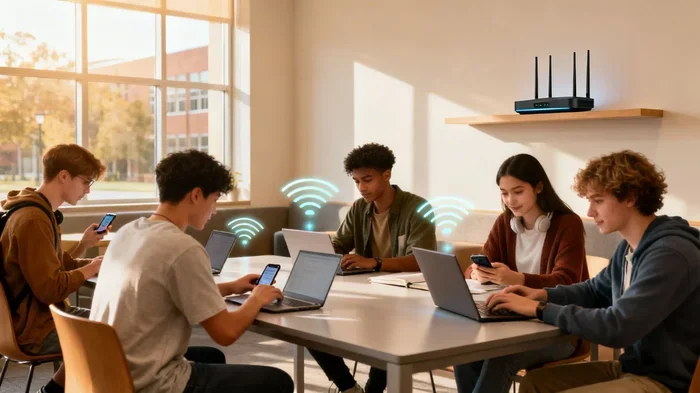
Eduroam is a global eduroam wireless network that lets students, researchers, and staff connect to the internet at participating institutions. Think of it as a roaming agreement for academia. Your home institution has an agreement with other institutions around the world. When you travel, you can use your home username and password to log in to eduroam at any partner site.
The network started in Europe in 2002. It has since expanded to over 100 countries. Today, there are more than 30,000 eduroam hotspots worldwide. Universities, colleges, research centers, and even some public libraries participate in the eduroam roaming network.
So why does eduroam matter? For travelers, it means you never have to rely on expensive mobile data or sketchy public wifi. For institutions, it means they can offer a valuable service to their community without managing connections at every location. For the global research community, it means seamless, secure connectivity wherever academic work takes you.
How Eduroam Works Behind the Scenes
Eduroam uses a system called RADIUS authentication. When you connect, your device sends your login credentials to a server. That server checks with your home institution to verify your identity. Once verified, you get access to the network. This process happens in seconds. You do not need to create a new account at every location you visit.
The beauty of this system is that your home institution controls your access. Your credentials never leave the secure authentication chain. This is a big reason why eduroam security is so strong compared to public wifi networks.
Can Anyone Connect To Eduroam? The Truth About Access
Let us get straight to the point. Can anyone connect to eduroam? The honest answer is no. Eduroam is not a free public wifi network you can join with any device. Access is restricted to members of participating institutions. If you are not affiliated with a university, college, or research organization that is part of the eduroam federation, you generally cannot connect.
However, there is more to the story. Let us break down the different scenarios where eduroam access applies.
Who Can Connect to Eduroam?
The following groups of people can typically connect to eduroam:
- Current students at participating institutions
- Faculty members and academic staff
- Researchers affiliated with a participating organization
- Staff members at universities and research centers
- Visiting scholars who have been granted temporary access
Each institution sets its own eduroam membership policies. Some universities extend eduroam access to alumni. Others limit it to current students and staff only. It is always a good idea to check with your IT department before you travel.
Can Visitors or Guests Use Eduroam?
Some institutions offer eduroam visitor access for guests. This might include conference attendees, prospective students on campus tours, or collaborators from other institutions. However, guest access policies vary widely.
At some universities, visitors can receive temporary login credentials from the IT help desk. At others, guest access to eduroam is not available at all. The safest approach is to contact the host institution before your visit and ask about their guest eduroam connection policy.
What If You Are Not Part of an Institution?
If you are not a student, faculty member, or staff at a participating institution, you generally cannot connect to eduroam. The network is not designed for public use. There are other free wifi options available at many campuses, such as guest networks or visitor hotspots. These are separate from eduroam and do not require institutional affiliation.
Some people try to connect to eduroam without credentials, hoping it is open like a public hotspot. This will not work. Eduroam requires valid authentication from a participating institution. Without proper eduroam credentials, your device will simply fail to connect.
How to Connect to Eduroam Step by Step
Connecting to eduroam is straightforward once you know the right steps. The process can vary slightly depending on your device, but the general approach is the same. Here is how to get connected.
Step 1: Get Your Eduroam Credentials
Before you can connect, you need your eduroam login details. These are usually provided by your home institution. The format is typically your institutional email address and the corresponding password. For example, if you are a student at Example University, your username might be [email protected].
Make sure you know your password before you arrive at a new location. If you have not used eduroam before, check with your institution’s IT support team for setup instructions.
Step 2: Configure Your Device
Most institutions provide a eduroam configuration tool on their website. This tool automatically sets up the correct security settings for your device. Here is what to do:
- Go to your institution’s IT or library website
- Look for the eduroam setup page
- Select your device type (Windows, Mac, iOS, Android)
- Download and run the configuration profile
- Enter your institutional credentials when prompted
Once the configuration is complete, your device will remember the eduroam settings. You can connect automatically at any eduroam hotspot going forward.
Step 3: Connect at Any Eduroam Location
When you arrive at a new location, simply open your wifi settings and select eduroam from the list of available networks. Enter your institutional username and password. Within a few seconds, you should be connected.
If you are connecting for the first time at a new location, you may see a security certificate warning. This is normal. The certificate is issued by your home institution, not the host institution. Accept the certificate to complete the connection.
Quick Tips for First-Time Eduroam Users
- Always test your connection before you need it urgently
- Save your eduroam configuration profile in a secure place
- Use the eduroam CAT (Configuration Assistant Tool) for the easiest setup
- Make sure your device’s date and time are correct — this affects certificate validation
- Forget the network and reconnect if you experience issues
Where Does Eduroam Work? Global Coverage and Locations
One of the biggest advantages of eduroam is its global reach. The network operates in over 100 countries. You can find eduroam hotspots at universities, research labs, and academic libraries around the world.
Eduroam in Europe
Europe has the densest eduroam coverage. Almost every university in the European Union participates in the eduroam roaming network. Whether you are studying in Paris, attending a workshop in Berlin, or doing research in Stockholm, eduroam is likely available.
Eduroam in North America
In the United States and Canada, hundreds of institutions support eduroam. Major research universities and liberal arts colleges alike participate. If you are visiting a campus for a conference or collaboration, there is a good chance eduroam will be available.
Eduroam in Asia, Africa, and Beyond
Eduroam has expanded significantly in Asia, the Middle East, Africa, and Latin America. Countries like Japan, South Korea, India, South Africa, and Brazil have growing numbers of eduroam participating institutions. This makes international academic collaboration easier than ever.
Can You Use Eduroam Outside of Campuses?
Most eduroam hotspots are located on or near institutional campuses. However, some public libraries, research parks, and conference centers also host eduroam access points. The eduroam map tool on the official website lets you search for hotspots in any location before you travel.
Eduroam Security and Privacy Features
One of the main reasons eduroam is so popular is its strong security. Unlike public wifi networks at cafes or airports, eduroam uses enterprise-grade encryption and authentication. Your data stays protected while you browse, study, or work remotely.
How Eduroam Protects Your Data
Eduroam uses WPA2-Enterprise or WPA3-Enterprise encryption. This means your traffic is encrypted end-to-end. Even on a crowded campus, your data is shielded from eavesdroppers.
The authentication process uses a protocol called PEAP-MSCHAPv2 or TLS. These protocols ensure that your login credentials are never transmitted in plain text. Your home institution’s RADIUS server verifies your identity securely.
Why Eduroam Is Safer Than Public Wifi
Public wifi networks are notorious for security risks. Anyone on the same network can potentially intercept your data. Eduroam eliminates this risk through strong encryption and individual authentication. Each user connects through a secure tunnel that is separate from other users on the same network.
Your home institution also monitors eduroam access for suspicious activity. This adds another layer of protection. If your credentials are compromised, your IT team can quickly revoke access and issue new credentials.
Privacy Considerations
While eduroam is secure, it is still a network managed by your institution. Your institution can see when and where you connect. However, they cannot see the content of your encrypted traffic. This is similar to how your home internet provider works. Always use HTTPS websites and VPNs for an extra layer of privacy when needed.
Common Eduroam Connection Problems and How to Fix Them
Even with a good setup, eduroam connection issues can happen. Here are the most common problems and their solutions.
Problem: Wrong Password or Username
The most frequent reason for eduroam login failure is incorrect credentials. Double-check your username format. Make sure you are using your institutional email address, not a generic username. Also verify that your password has not expired or changed recently.
Problem: Certificate Errors
If you see a certificate warning when connecting, it usually means your device does not trust the issuing certificate. This is common when you first connect. Accept the certificate if you trust your home institution. If the problem persists, update your device’s certificate store or reinstall the eduroam configuration profile.
Problem: Network Not Showing Up
If eduroam does not appear in your wifi list, the network might not be available in your current location. Check the eduroam map to confirm coverage. Also make sure your wifi is turned on and you are not in airplane mode. Sometimes restarting your device helps the network show up.
Problem: Connected but No Internet
This can happen if your institution’s network is experiencing issues. Try disconnecting and reconnecting. If that does not work, forget the network and set it up again. You can also contact the host institution’s IT help desk for assistance.
Problem: Configuration Profile Expired
Eduroam configuration profiles can expire after a certain period. If your connection keeps failing, check if your profile needs updating. Download the latest version from your institution’s IT website and reinstall it on your device.
Supported Devices and Compatibility
Eduroam works on a wide range of devices. As long as your device supports WPA2-Enterprise or WPA3-Enterprise wifi, you can connect. Here is a quick overview of supported devices.
| Device Type | Supported | Notes |
|---|---|---|
| Windows Laptops | Yes | Use eduroam CAT for setup |
| Mac Laptops | Yes | Import configuration profile |
| iOS Devices (iPhone/iPad) | Yes | Download eduroam profile from App Store |
| Android Devices | Yes | Use eduroam setup tool or manual config |
| Linux Devices | Yes | Manual configuration may be needed |
| Chromebooks | Yes | Enterprise wifi setup required |
| Gaming Consoles | No | Most consoles do not support WPA2-Enterprise |
| Smart TVs | No | Typically lack enterprise wifi support |
Most modern smartphones, tablets, and laptops handle eduroam without any issues. Older devices may struggle with the enterprise authentication protocols. If you are traveling, bring a device that is known to be compatible with eduroam.
Final Thoughts on Eduroam Access
So, can anyone connect to eduroam? The answer is clear — eduroam is a privileged network for the academic community. It is not open to the general public. But if you are part of a participating institution, eduroam offers incredible value. You get free, secure, and reliable internet access at thousands of locations around the world.
The setup process is simple. The security is strong. The global coverage is impressive. Whether you are a student attending a conference, a researcher collaborating with international partners, or a staff member visiting another campus, eduroam has you covered.
Take the time to set up your eduroam profile before you travel. Keep your credentials safe. And if you run into issues, reach out to your institution’s IT support team. They are there to help you get connected.
Eduroam is more than just a wifi network. It is a global community of learners, researchers, and educators staying connected across borders. And with the right preparation, you can be part of that community too.
Frequently Asked Questions
Who can use eduroam?
Eduroam is available to students, faculty, researchers, and staff at participating institutions. You need valid credentials from a member organization to connect. Guest access policies vary by institution.
Is eduroam free to use?
Yes, eduroam is free for authorized users. There are no subscription fees or data charges. Your home institution covers the cost of providing eduroam access as part of their services.
Can I use eduroam outside my home country?
Absolutely. Eduroam works in over 100 countries. You can use your home credentials to connect at any participating institution worldwide. This is one of the biggest benefits of the eduroam roaming network.
What should I do if I forget my eduroam password?
Contact your home institution’s IT support team. They can help you reset your password. Do not try to use someone else’s credentials, as this violates eduroam usage policies and could result in account suspension.
Can I connect to eduroam with a personal device?
Yes, as long as you are an authorized user and your device supports enterprise wifi protocols. Most laptops, smartphones, and tablets work fine with eduroam. You just need to install the correct configuration profile.
Why does eduroam keep asking for my password on my phone?
This usually happens when your device’s certificate is not properly configured. Reinstall the eduroam configuration profile from your institution’s website. Make sure your device date and time are set correctly, as this affects certificate validation.
=== CONCLUSION ===
Can anyone connect to eduroam is a question with a clear answer — access is reserved for members of participating institutions. But within that community, eduroam offers something truly special: seamless, secure, and free internet access at thousands of locations across the globe. By understanding the eduroam access rules, setting up your device correctly, and following best practices for eduroam security, you can make the most of this incredible resource. Whether you are traveling for research, attending a conference, or visiting a partner campus, eduroam keeps you connected. Take action today — set up your eduroam profile, save your credentials, and enjoy the freedom of eduroam roaming wherever your academic journey takes you.