How Do I Open A Qr Code Without A Scanner On Any Device
Opening a QR code without a scanner is easier than you think. You can use your phone camera, built-in browser features, or free web tools to read any QR code in seconds. How do I open a QR code without a scanner? This guide walks you through every simple method for iPhone, Android, and desktop devices. No extra apps needed. QR codes are everywhere, from restaurant menus to event tickets, so knowing how to access them quickly saves time and frustration.
Have you ever been standing in line at a coffee shop, staring at a QR code on the wall, and realized you don’t have a scanner app? It happens to all of us. Maybe your phone storage is full, or you just don’t want to download another app. How do I open a QR code without a scanner? The good news is that you have more options than you probably think.
QR codes are everywhere now. You see them on restaurant menus, event tickets, product packaging, and even business cards. They make life easier by giving you instant access to websites, Wi-Fi passwords, and contact info. But when you don’t have a dedicated QR scanner, it can feel like a roadblock. This guide breaks down every simple method you can use to open a QR code on any device, right now, without installing anything extra.
Whether you use an iPhone, Android phone, tablet, or desktop computer, there is a solution that works for you. Opening a QR code without a scanner takes just a few seconds once you know where to look. Let’s dive into the easiest ways to get it done.
Key Takeaways
- Built-in camera apps work great: Most modern phones can open QR codes directly through the camera without any extra downloads.
- Web-based QR readers are your best friend: Free online tools let you decode QR codes on any device with a browser.
- iPhone and Android have different built-in features: Knowing your device-specific options makes the process even smoother.
- Browser extensions help on desktop: You can scan QR codes from your computer using simple add-ons or built-in Chrome features.
- Avoid common mistakes: Blurry screens, bad lighting, and outdated software can cause scanning failures.
- Security matters: Always check where a QR code links before you open it to stay safe online.
📑 Table of Contents
- Why You Might Need to Open a QR Code Without a Scanner
- Ways to Open a QR Code Without a Dedicated Scanner App
- How to Open QR Codes on iPhone Without a Scanner
- How to Open QR Codes on Android Without a Scanner
- Using Web-Based QR Code Readers
- Opening QR Codes on Desktop Computers
- Common Mistakes to Avoid When Opening QR Codes
- Expert Insights on QR Code Safety
- Key Takeaways
- Conclusion
Why You Might Need to Open a QR Code Without a Scanner
You might wonder why anyone would want to open a QR code without a dedicated scanning app. The truth is, there are plenty of real-world reasons. QR codes are used in so many places these days, and not everyone wants to clutter their phone with extra apps.
Here are some common situations where you need to read a QR code without a scanner:
- Your phone storage is full: You can’t download another app, but you still need to access the QR code in front of you.
- You’re at a temporary event: A concert, trade show, or pop-up market might have QR codes you need to scan quickly.
- You prefer built-in tools: Many people like using what already comes with their phone instead of installing third-party apps.
- Security concerns: Some people are wary of downloading random scanner apps that might collect personal data.
- You’re helping someone else: A friend or family member asks you to check a QR code, and you don’t have a scanner app handy.
How do I open a QR code without a scanner in these moments? The answer lies in the tools already on your device. Let’s explore them.
Ways to Open a QR Code Without a Dedicated Scanner App
The simplest ways to open a QR code without a scanner rely on tools that are already built into your phone or computer. You don’t need to search the app store or download anything. Here are the main methods that work on most devices today.
Use Your Phone’s Built-In Camera
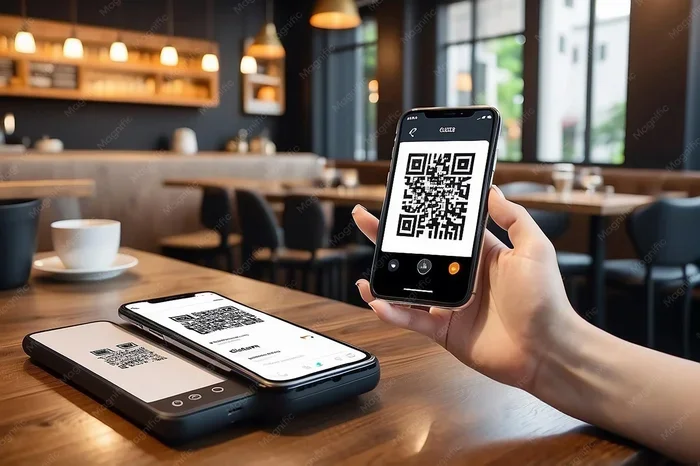
Most smartphones made in the last five years can scan QR codes directly through the camera app. You don’t need to open a separate scanner. Just point your camera at the QR code, and a notification or pop-up will appear on your screen.
Here is how it works on different phones:
- iPhone: Open the default Camera app. Point it at the QR code. A yellow banner will appear at the top of the screen. Tap the banner to open the link.
- Android (most models): Open the Camera app. Point it at the QR code. A pop-up notification will appear. Tap it to visit the link.
- Older phones: Some older models might not support this feature. In that case, try the web-based methods below.
The key is to hold your phone steady and keep the QR code in focus. Make sure the QR code reader feature is enabled in your camera settings if it doesn’t work the first time.
Use Your Phone’s Control Center or Settings
On some devices, QR scanning is built into the settings menu rather than the camera. This is a lesser-known trick that works well when the camera method doesn’t detect the code.
For iPhone users, you can check if QR scanning is turned on by going to Settings, then Camera, and toggling on “Scan QR Codes.” On Android, look for “QR code recognition” in your Camera settings or under the “Advanced” section.
Some Android phones also let you open QR codes from the notification panel or through a built-in Google Lens shortcut. Just swipe down from the top of your screen and look for a QR or lens icon.
Use Google App or Google Assistant
If you have Google installed on your phone, you have another easy way to read a QR code without a scanner. Open the Google app and tap the camera icon (Google Lens) in the search bar. Point it at the QR code, and it will decode the link for you.
You can also use Google Assistant by saying “Hey Google, scan this QR code.” It will open your camera and process the code automatically. This method works on both iPhone and Android devices.
Use Apple Wallet or Safari on iPhone
iPhone users have a unique advantage. Safari and Apple Wallet can sometimes open QR codes directly if you save the image first. You can take a screenshot of the QR code, open it in Photos, and Safari may detect it automatically.
Also, if someone sends you a QR code image through Messages or Mail, you can tap and hold the image and select “Share” to open it in Safari, which will often read the code for you.
How to Open QR Codes on iPhone Without a Scanner
iPhone users have several built-in options that make opening QR codes simple. Apple has made this process very smooth over the years, and you likely already have everything you need.
The most reliable method is the Camera app. As mentioned above, just point your camera at the QR code and tap the notification that appears. This works on iPhone 6 and later models running iOS 11 or newer.
Another great iPhone trick is using Safari’s built-in QR reader. If you open Safari and type a URL in the address bar, you might notice a small QR code icon next to it. Tapping this icon lets you scan a QR code directly within the browser. This is perfect when you want to open a QR code without leaving your browser.
You can also use Microsoft Lens or other free apps that are already pre-installed on some iPhones. The Notes app on newer iPhones even lets you scan documents and QR codes using the camera icon at the bottom of a new note.
Quick Tips for iPhone Users
- Make sure QR scanning is enabled: Go to Settings > Camera > Scan QR Codes and make sure the toggle is on.
- Clean your camera lens: A smudgy lens can prevent the camera from reading QR codes properly.
- Use good lighting: Bright, even lighting helps your iPhone camera detect QR codes faster.
- Don’t move too much: Keep your phone steady and hold it about 12 inches from the QR code.
How to Open QR Codes on Android Without a Scanner
Android phones offer even more flexibility when it comes to opening QR codes without a dedicated app. Google has built QR code reading into several native features across different Android devices.
The Google Camera app (also called Google Lens) is the most powerful built-in tool. Open your camera, look for the Google Lens icon, and point it at the QR code. It will instantly decode the link and give you the option to open it.
Many Android phones from Samsung, Google Pixel, OnePlus, and Xiaomi have native QR scanning built into the default camera. Samsung phones, for example, often show a QR code banner at the bottom of the camera viewfinder. Pixel phones use Google Lens integration right inside the camera app.
You can also use the Google Chrome browser on Android. Open Chrome, tap the three-dot menu in the top right corner, and look for “QR code scanner” or “Share” > “QR code.” Some versions of Chrome let you scan QR codes directly from the browser.
Quick Tips for Android Users
- Check your camera settings: Look for QR code or Lens options in your camera app settings.
- Use Google Assistant: Say “OK Google, open this QR code” and it will handle the rest.
- Try Bixby on Samsung phones: Samsung’s Bixby can scan QR codes without any extra apps.
- Update your phone software: Older Android versions might not support built-in QR scanning, so keep your phone updated.
Using Web-Based QR Code Readers
If your phone doesn’t have built-in QR scanning or you’re using a desktop computer, web-based QR code readers are your best option. These free online tools work in any browser and require no downloads whatsoever.
Here is how they work. You visit a website like QR Code Reader Online or Web QR Scanner, and you either upload an image of the QR code or allow the site to access your webcam. The tool decodes the QR code and shows you the link it contains.
This method is incredibly useful when you need to open a QR code without a scanner on a laptop, Chromebook, or any device without a built-in camera that supports QR scanning. You simply upload a screenshot of the QR code, and the website reads it for you.
Popular Web-Based QR Code Readers
- QRCode Monkey: A free online tool that can both generate and read QR codes in your browser.
- Web QR Scanner: Uses your device’s webcam to scan QR codes in real time through the browser.
- ZXing Decoder Online: A reliable decoding tool that works with uploaded QR code images.
- Google Chrome built-in scanner: Chrome on desktop has a built-in QR scanner accessible from the right-click menu.
These tools are fast, free, and work on any operating system. They are perfect for QR code decoding when you don’t have a dedicated app installed.
Are Web-Based QR Readers Safe?
Most reputable web-based QR readers are safe to use. However, you should always use well-known, trusted websites. Avoid suspicious sites that ask for unnecessary permissions or personal information. Stick to popular tools that have clear privacy policies and don’t store your data.
Opening QR Codes on Desktop Computers
You might think QR codes are only for mobile devices, but you can open a QR code on your desktop too. Desktop computers don’t always have cameras, but there are still ways to decode QR codes when you need them.
If your desktop has a webcam, you can use browser extensions like QR Code Reader for Chrome or Firefox. These extensions add a QR scanning icon right to your browser toolbar. Click it, point your webcam at the QR code, and the link opens in a new tab.
If you don’t have a webcam, the upload method works perfectly. Take a screenshot of the QR code on your phone, transfer it to your computer (email it, use cloud storage, or a USB drive), and upload it to a web-based QR reader. The website will decode it and show you the link.
Google Chrome also has a built-in QR feature. Right-click on any webpage and select “Create QR Code for this page.” While this generates QR codes rather than reading them, Chrome also has a scanner feature accessible from the address bar on newer versions.
Desktop QR Code Workflow
- Get a screenshot or image of the QR code on your phone.
- Transfer it to your computer using email, AirDrop, or cloud storage.
- Visit a free web-based QR reader.
- Upload the image and let the tool decode it.
- Click the link that appears to open the content.
This workflow is simple and works every time. How do I open a QR code without a scanner on a desktop? This is exactly how.
Common Mistakes to Avoid When Opening QR Codes
Even though opening a QR code is simple, there are a few common mistakes that can cause frustration. Avoiding these pitfalls will make the process smoother every time.
Not Checking the Link Before Opening
One of the biggest mistakes people make is opening a QR code without checking where it leads. Always preview the URL before you tap to open it. Some QR codes can redirect you to malicious websites or unwanted downloads. If the previewed link looks suspicious or doesn’t match the source of the QR code, don’t open it.
Using a Blurry or Damaged QR Code
If the QR code on your screen is blurry, cracked, or distorted, the scanner won’t be able to read it. Make sure the QR code image is clear and sharp. If you’re looking at a QR code on a phone screen, try adjusting the brightness and cleaning the screen. If it’s a printed QR code, make sure it’s not torn or faded.
Poor Lighting Conditions
QR codes need good contrast to be read properly. Don’t try to scan a QR code in dim lighting. Move to a well-lit area or turn on more lights. The camera needs to distinguish the dark squares from the light background clearly.
Holding the Phone Too Far Away
Many people hold their phone too far from the QR code and wonder why it won’t scan. Hold your phone about 8 to 12 inches away from the code. Move it closer or farther until the camera focuses and detects the pattern.
Forgetting to Enable QR Scanning
Some phones have QR scanning turned off by default. If your camera app doesn’t detect QR codes, check your settings to make sure the feature is enabled. This is a quick fix that solves the problem in most cases.
Using Outdated Software
Older phone software might not support built-in QR scanning. Keep your phone updated to the latest operating system version. Updates often include new features and improvements to the camera and scanning capabilities.
Expert Insights on QR Code Safety
Security experts always remind users to be cautious when opening QR codes, especially from unknown sources. QR codes are just links, and like any link on the internet, they can lead to safe or unsafe places.
Here are a few expert tips to keep in mind:
- Check the source: Only scan QR codes from trusted places like restaurants, official event pages, and known businesses.
- Look for tampering: In public places, check if a QR code sticker has been placed over an original code. This is a common scam called “QR quishing.”
- Use a secure browser: Browsers like Chrome and Safari warn you about dangerous websites. Pay attention to these warnings.
- Don’t enter personal info: If a QR code leads to a page asking for passwords or financial details, be very careful and verify the site is legitimate.
How do I open a QR code without a scanner safely? The answer is to always preview the link, use trusted tools, and never open codes from suspicious sources.
Key Takeaways
- Your phone camera is the easiest scanner: Most modern phones can open QR codes directly through the built-in camera app without any extra downloads.
- iPhone and Android both have native QR features: Check your camera settings to make sure QR scanning is turned on for the best results.
- Web-based QR readers work on any device: Free online tools let you decode QR codes using just a browser, no app required.
- Desktop users can upload QR images: Use a screenshot and a web-based reader to open QR codes on your computer.
- Avoid common mistakes: Good lighting, a clear image, and the right distance make all the difference when scanning.
- Always check the link before opening: Safety comes first. Preview every QR code destination to protect yourself from scams.
Conclusion
How do I open a QR code without a scanner? Now you know the answer. You have camera apps, built-in settings, web-based tools, and browser features at your fingertips. Opening a QR code without a dedicated scanner app is quick, easy, and works on almost any device.
Whether you are using an iPhone, Android phone, tablet, or desktop computer, there is a method that fits your situation. The built-in camera is your best friend for everyday scanning. Web-based readers save the day when you’re on a computer or don’t want to install anything extra.
QR codes make life convenient, and knowing how to access them without extra apps gives you more freedom and flexibility. Keep these tips in mind the next time you see a QR code and don’t have a scanner ready. You will be able to open it in seconds.
Stay safe, stay curious, and don’t let a missing scanner app stop you from exploring what QR codes have to offer. With the right knowledge, you are always ready to scan.
Frequently Asked Questions
Can I open a QR code without downloading any app?
Yes, absolutely. Most modern smartphones can open QR codes directly through the built-in camera app. You can also use free web-based QR readers in your browser that require no downloads at all.
Is it safe to use web-based QR code readers?
Yes, as long as you use reputable and well-known websites. Stick to trusted tools like QRCode Monkey or ZXing Decoder Online. Avoid any site that asks for personal information or unnecessary permissions.
Why won’t my iPhone camera read a QR code?
Your iPhone might have QR scanning turned off in the settings. Go to Settings > Camera and make sure “Scan QR Codes” is enabled. Also, make sure your camera lens is clean and the lighting is good.
Can I scan a QR code from a screenshot?
Yes, you can. On most phones, you can open the screenshot in your photo gallery, and the camera or gallery app may detect the QR code. You can also upload the screenshot to a web-based QR reader for decoding.
Do I need internet access to open a QR code?
For web-based QR readers, you need an internet connection to visit the scanning website. However, some apps and built-in camera features can decode QR codes offline. The link inside the QR code will still need internet to open, though.
What should I do if a QR code won’t scan?
First, check that your camera lens is clean and the lighting is good. Make sure the QR code image is clear and not blurry. Try moving closer or farther from the code. If it still won’t work, try a web-based QR reader or a different scanning method on your device.